Query Playground
Contents
Explore your schema and test queries in Content Studio.
Open Query Playground
With Guillotine installed, open Content Studio, select a project, and choose Query Playground from the left navigation. Your user must have the system.admin or cms.admin role.
Queries use the project selected in Content Studio. Use the Draft and Master buttons in Query Playground to choose between work in progress and published content.
Explore the interface
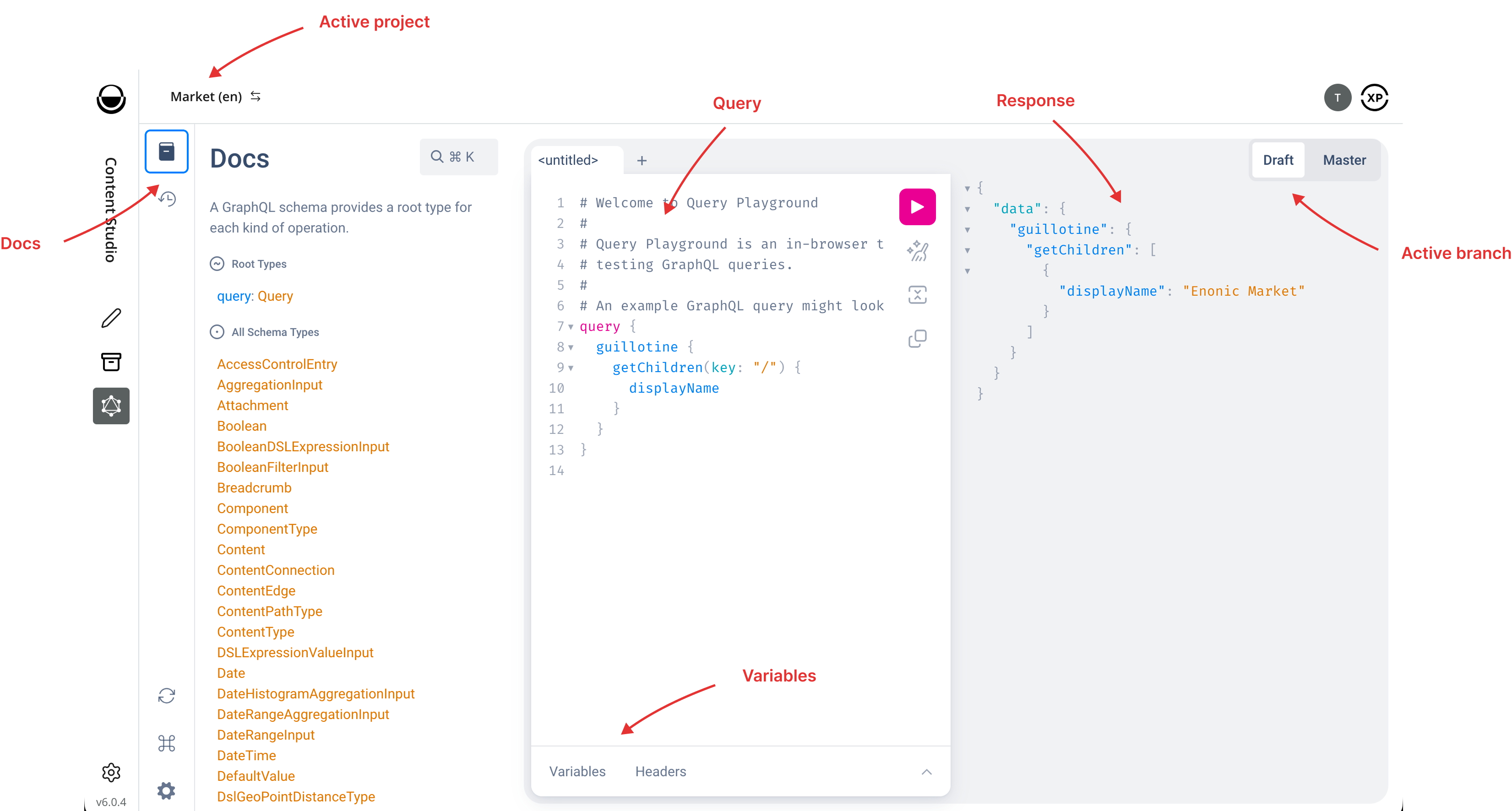
- Docs
-
Open the Docs panel on the left to browse the schema’s types and fields.
- Query
-
Write your GraphQL query in the center editor.
- Response
-
Read query results and errors in the right panel.
- Variables
-
Expand the Variables panel below the query editor to supply query variables as a JSON object.
- Active project
-
Select the content project in Content Studio’s top bar.
- Active branch
-
Choose Draft or Master above the response panel.
Run your first query
The following query returns the display name and content type of up to ten items at the root of the selected project and branch.
-
Select your project and choose the Draft branch.
-
Replace the contents of the query editor with the query below.
-
Click the pink play button in the query editor.
-
Inspect the JSON response in the right panel.
{
  guillotine {
    getChildren(key: "/", first: 10) {
      displayName
      type
    }
  }
}
If getChildren returns an empty array, check that the selected project and branch contain content your user can access. Content must be published to appear in Master. |
See Content queries for more examples.
Use another client
To explore the API outside Content Studio, use a third-party GraphQL client such as Altair. See Usage for endpoint URLs and request examples.
| In Guillotine 9, opening the GraphQL endpoint in a browser no longer displays a playground. Query Playground remains available inside Content Studio. |