Adding more apps to a site
Contents
In this chapter, you’ll install the Sitemap.xml app from Enonic Market, add it to your site, and see how an app can contribute to a site without rendering any of its pages.
This chapter requires the result of chapter 9, as described in Advanced features. It refers to the Mappings chapter, but you don’t need to have completed it.
More than one app
Your app renders the site: it owns the pages, parts, and layouts. That job is best left to a single app.
Other apps can still be added to the same site, and add features of their own next to yours. A sitemap is a good example. It has nothing to do with how your pages look, every site needs one, and there is an app for it already.
Task: Install the app
-
Open Applications - On the XP admin home page, click Applications.
-
Find the app - Click Install, and type
Sitemapin the search field: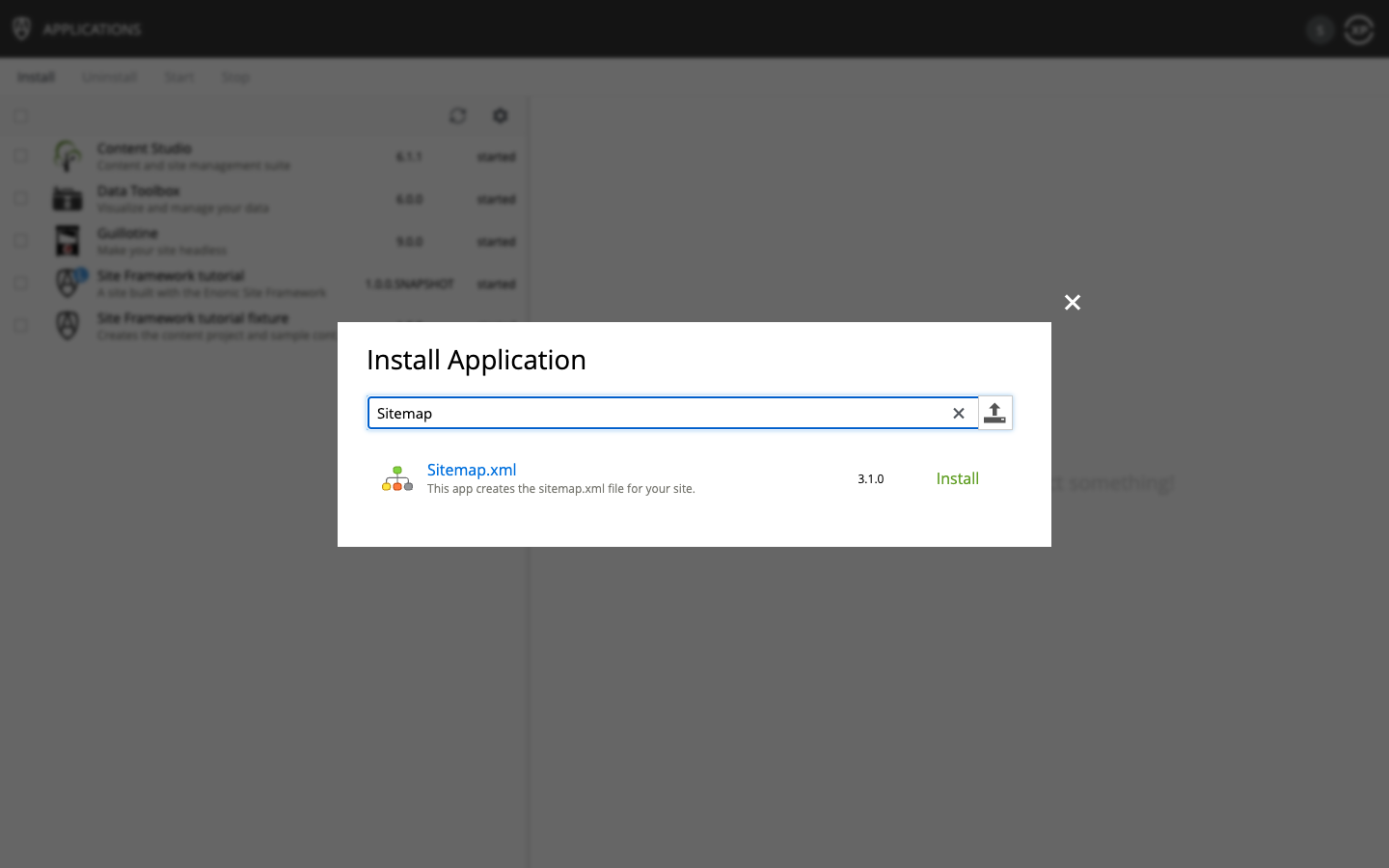
-
Install the app - Click Install next to
Sitemap.xml, and close the dialog when it saysInstalled. -
Verify the result - The app is listed among the installed applications, as
Sitemap XML.
Task: Add the app to the site
-
Open the site - In Content Studio, select
Hello Worldand click Edit. -
Add the app - In the
Applicationsfield, search forSitemap XML, select it, and click Apply. The app is listed below your own,Site Framework tutorial. -
Open the configuration - Click the pencil icon next to
Sitemap XML. -
Include the countries - Below
Include by type, click Add. SelectCountryin theContent Typefield, and click Apply: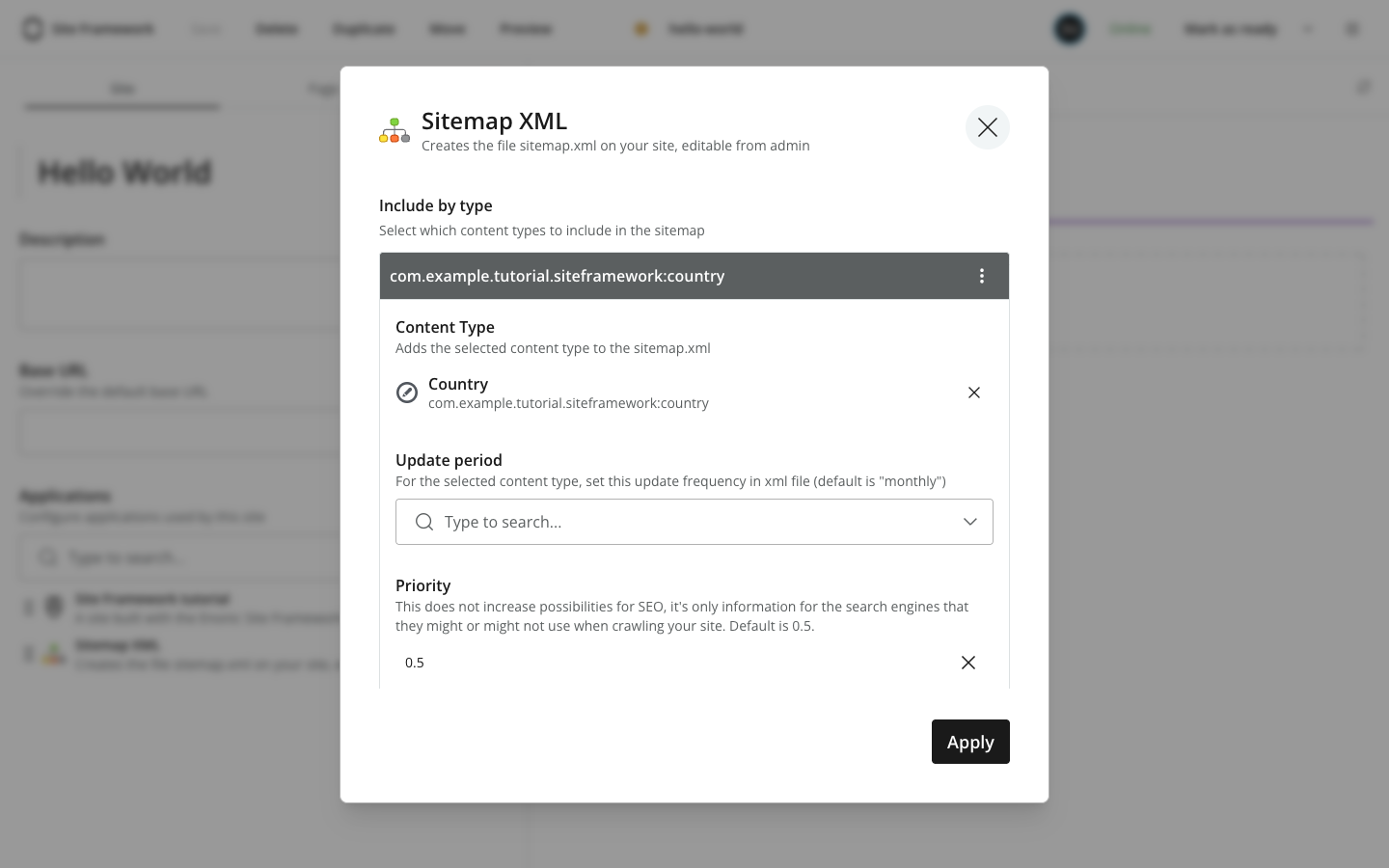
Content Studio saves the change automatically.
The configuration form is part of the Sitemap.xml app. An app can define a form, which Content Studio shows for every site the app is added to. The values are stored on the site.
Task: Publish and verify
The list of apps and their configuration belong to the site content, so the change must be published before visitors get the sitemap.
-
Publish the site - Go back to the content list, select
Hello World, and click Mark as ready. The Publishing Wizard opens. Click Publish now. -
Verify the result - Open http://localhost:8080/site/siteframework/master/hello-world/sitemap.xml in your browser. It lists the site and the countries:
<urlset xmlns="http://www.sitemaps.org/schemas/sitemap/0.9">
  <url>
    <loc>http://localhost:8080/site/siteframework/master/hello-world</loc>
    ...
  </url>
  <url>
    <loc>http://localhost:8080/site/siteframework/master/hello-world/norway</loc>
    ...
  </url>
  ...
</urlset>
How the app takes part
You did not change your own app, and it knows nothing about the sitemap. The whole connection is in the site descriptor of the Sitemap.xml app:
kind: "Site"
mappings:
  - controller: "/cms/controllers/sitemap/sitemap.js"
    order: 12
    pattern: "/sitemap(-\\d+)?\\.xml(\\.gz)?"
This is a mapping, like the one for llms.txt in the Mappings chapter. When a request for your site arrives, the site service collects the mappings of every app that is added to the site, and checks them before it renders anything:
-
A request for
sitemap.xmlmatches the mapping in the Sitemap.xml app, and is answered there. -
A request for
llms.txtmatches the mapping in your app, if you have added it. -
All other requests match no mapping, and continue to the page rendering in your app.
The order decides which mapping wins when several of them match the same request. Lower numbers come first, and the default is 50.
Mappings are one of several ways for an app to take part in a site. An app can also run filters around the requests, change the rendered pages with response processors, and offer APIs for other apps to mount. In all of these cases the rule stays the same: one app renders the site, and the others contribute around it.
The demo has the Sitemap.xml app added to the site already. Its sandbox is created from the sitekit template, which installs the app. |
More apps to explore
Sitemap.xml is one of many apps that contribute to a site in this way. These are worth a look:
-
Robots.txt - Serves
robots.txtfor your site, editable in Content Studio -
SEO Meta Fields - Adds fields for search engine optimization to your content, and the matching meta tags to your pages
-
Booster - Caches the responses of your site to improve performance. Booster requires an Enonic license
You install them and add them to your site the same way as Sitemap.xml. Visit Enonic Market for the full selection.
Summary
You’ve installed an app from Enonic Market, added it to your site, and seen how its mapping works side by side with the rendering in your own app.
That completes the advanced features.