Content Studio and content forms
Contents
Introduction to Content Studio, Content Types and Mixins.
Content Studio
Content Studio is the editorial interface used to create and manage content. It was pre-installed from Enonic Market as a part of the Essentials template when you started the sandbox and can now be accessed from the XP menu.
Click Content Studio in the XP menu to launch it.
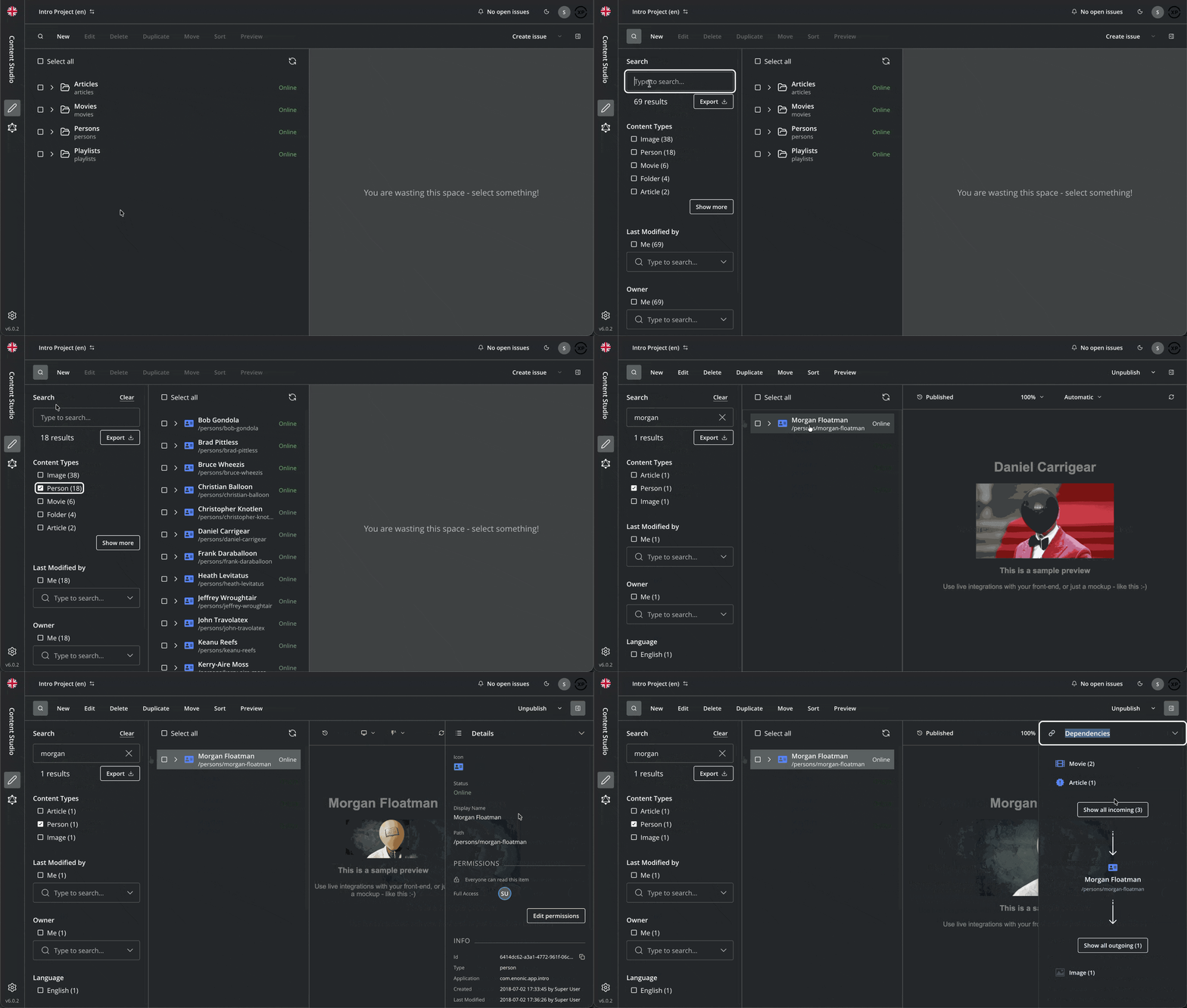
When your own application was started, it automatically created a CMS project called Intro Project and populated it with content. Content Studio will automatically open it, revealing the list of sample content.
| The current project is shown at the top left of Content Studio. |
Content type: Person
To edit an item, simply select it and click Edit in the menu bar, or via right click. When editing a Person content item, this is what the content editor looks like, including a preview on the right hand side.
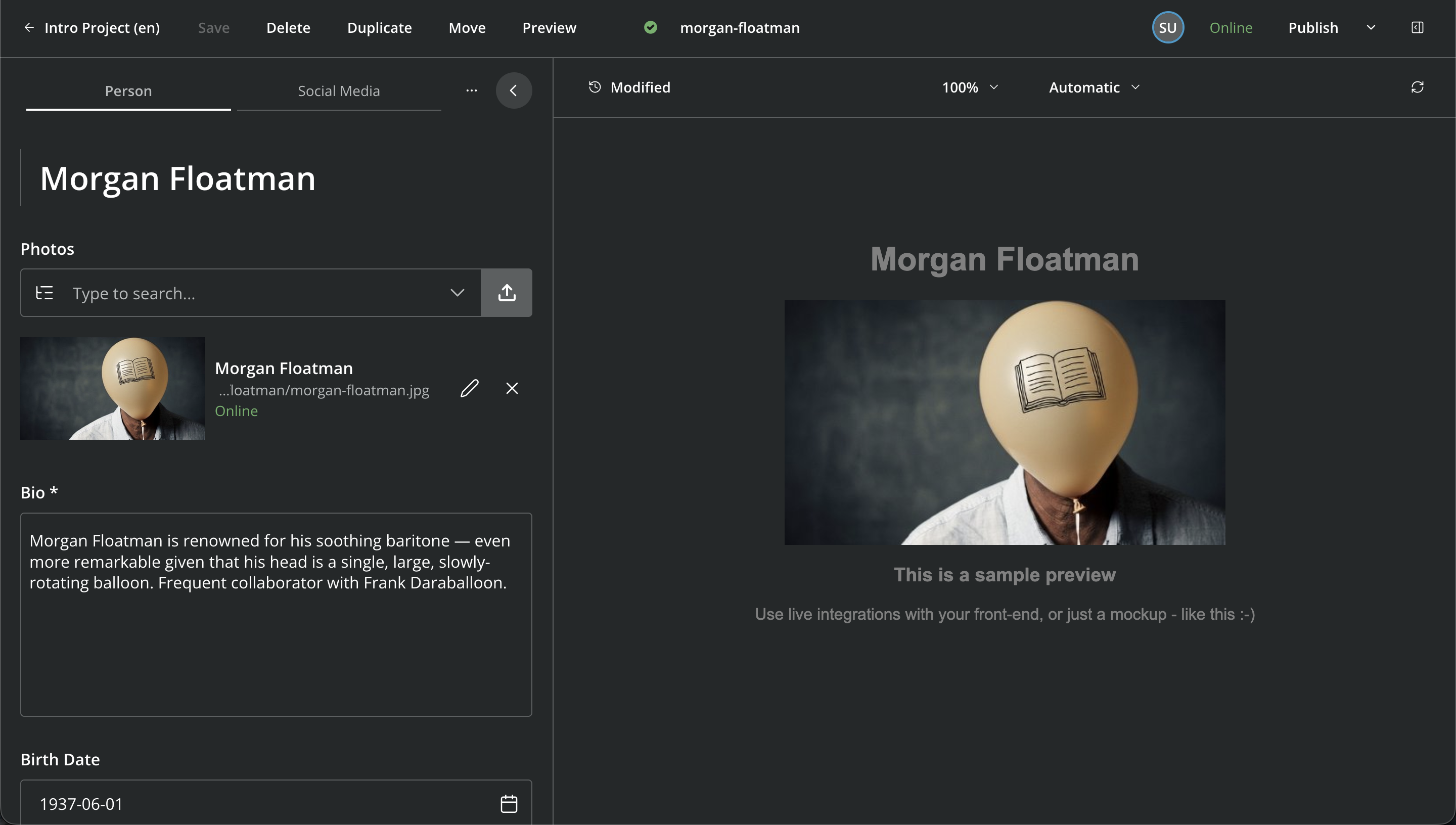
The person form comes from the content type definition, which us located within your app. Here is the definition, written in YAML:
kind: "ContentType"
superType: "base:structured"
title: "Person"
description: "Historical or living human"
form:
  - type: "ImageSelector"
    name: "photos"
    label: "Photos"
    occurrences:
      min: 0
      max: 0
  - type: "HtmlArea"
    name: "bio"
    label: "Bio"
    occurrences:
      min: 1
      max: 1
    exclude: "NumberedList Outdent Indent SpecialChar Anchor Table PasteModeSwitcher"
  - type: "Date"
    name: "dateofbirth"
    label: "Birth Date"
    occurrences:
      min: 0
      max: 1
When you create person content, it is stored as JSON, and looks something like this:
{
    "_id": "6414dc62-a3a1-4772-961f-06cb85b1bbb7",
    "_name": "morgan-floatman",
    "_path": "/persons/morgan-floatman",
    "creator": "user:system:su",
    "modifier": "user:system:su",
    "createdTime": "2018-07-02T15:33:45.160Z",
    "modifiedTime": "2026-07-15T14:49:10.004Z",
    "owner": "user:system:su",
    "type": "com.enonic.app.intro:person",
    "displayName": "Morgan Floatman",
    "language": "en",
    "valid": true,
    "childOrder": "modifiedtime DESC",
    "data": {
        "photos": "7ab1f76a-69a1-490f-b505-6eb6773c7cec",
        "bio": "Morgan Floatman is renowned for his soothing baritone — even more remarkable given that his head is a single, large, slowly-rotating balloon. Frequent collaborator with Frank Daraballoon.",
        "dateofbirth": "1937-06-01"
    },
    "x": {
        "com-enonic-app-intro": {
            "SoMe": {}
        }
    },
    "page": {},
    "validationErrors": [],
    "attachments": {},
    "publish": {
        "from": "2026-07-15T13:52:34.373Z",
        "first": "2026-05-05T12:36:16.195Z"
    },
    "workflow": {
        "state": "READY"
    }
}
Mixin: Social media
When editing a Person, you’ll notice an additional tab with the title Social Media. This is actually separately defined content schema, which in this case is "mixed into" the Person content type - hence the name.
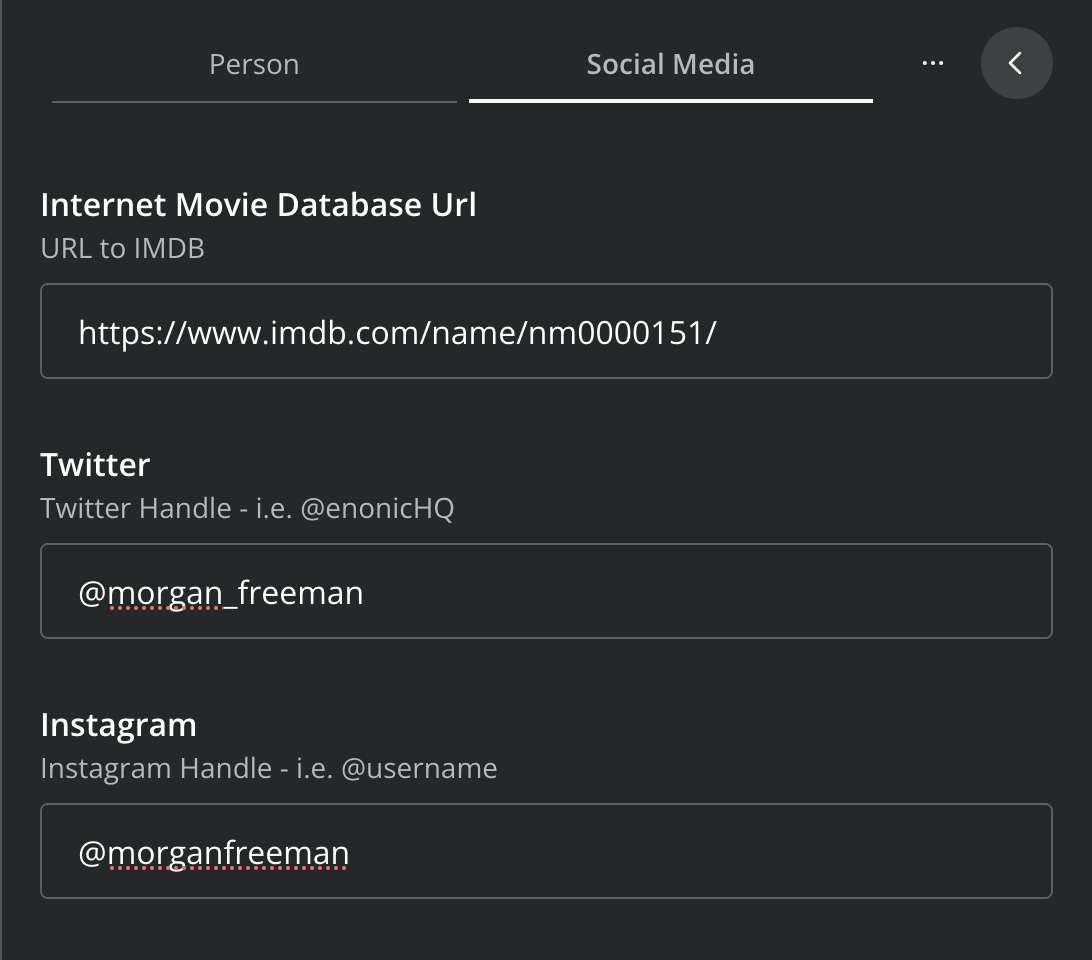
Mixins can be applied across multiple content types, but can never be used on its own. In this app for instance, the Social Media mixin is also available on the Movie content type.
Mixins can also be contributed from a different application - at runtime, making it a powerful feature for content modeling and reuse of schemas.
This is what the Social Media mixin definition looks like:
kind: "Mixin"
title: "Social Media"
form:
  - type: "TextLine"
    name: "imdb"
    label: "Internet Movie Database Url"
    helpText: "URL to IMDB"
    occurrences:
      min: 0
      max: 1
  - type: "TextLine"
    name: "twitter"
    label: "Twitter"
    helpText: "Twitter Handle - i.e. @enonicHQ"
    occurrences:
      min: 0
      max: 1
    regexp: "^@?(\\w){1,15}$"
  - type: "TextLine"
    name: "instagram"
    label: "Instagram"
    helpText: "Instagram Handle - i.e. @username"
    occurrences:
      min: 0
      max: 1
    regexp: "^@?(\\w){1,28}$"
When saved, the content JSON will include the mixin data, i.e. like this:
{
  "x": {
      "com-enonic-app-intro": {
          "SoMe": {
              "imdb": "https://www.imdb.com/name/nm0000151/",
              "twitter": "@morgan_freeman",
              "instagram": "@morganfreeman"
          }
      }
  }
}
Mixin data are stored under the reserved x property, and then namespaced by application and schema name to prevent collisions. In this case, the application is com.example.myapp and the schema is SoMe. |
Adding a new content type
Finally, a practical exercise by adding the Review content type to your app. Allowing you to create reviews of movies.
-
From inside the
samples/folder of your app, copy or move thereview/folder tosrc/main/resources/cms/content-types/. -
Write a review. Content Studio should pick up the changes immediately. From the Content navigation view click New, then select content type
Reviewand start filling out the form fields in the new content item.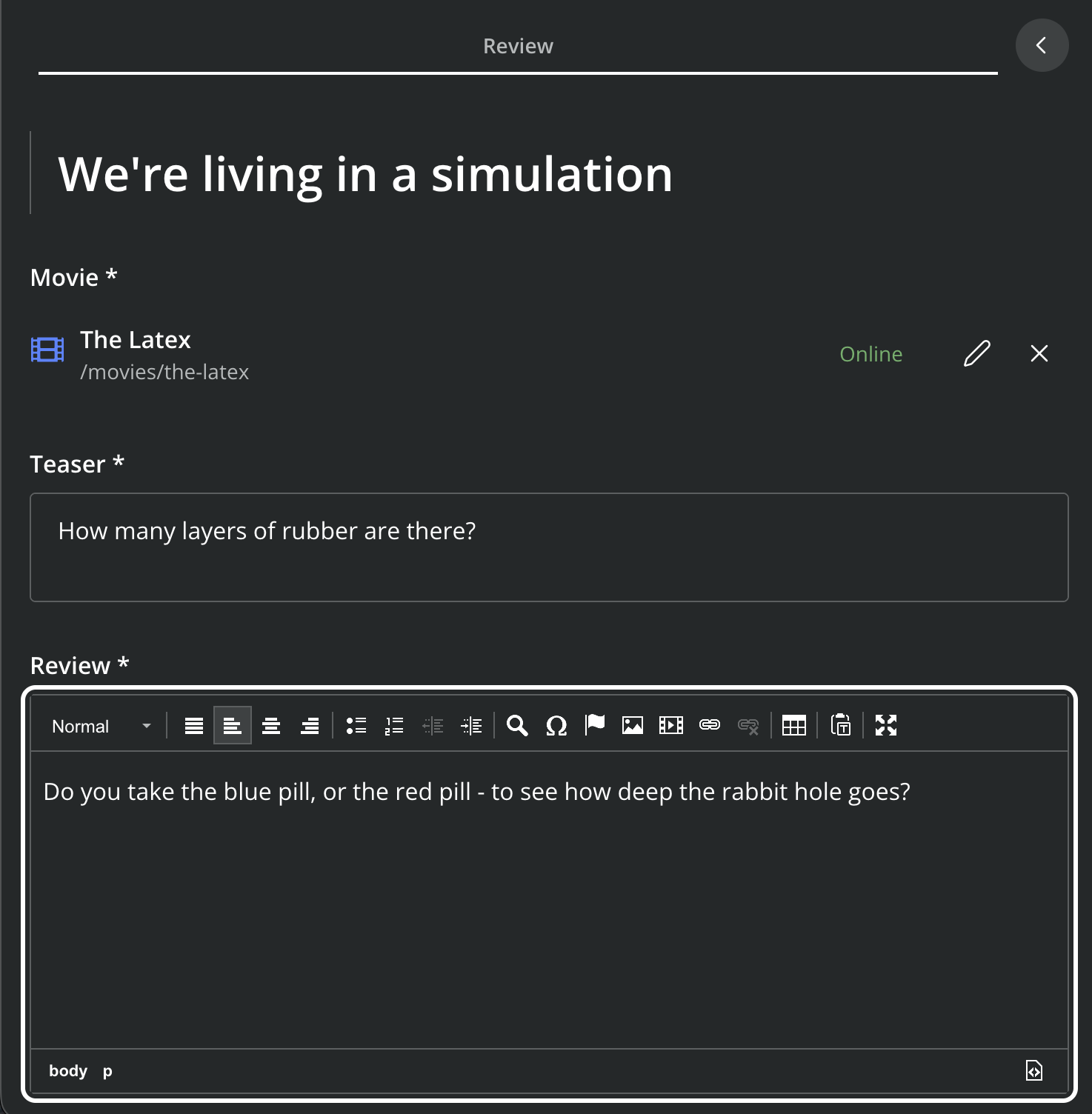
Next up
You’re now familiar with the XP sandbox, Content Studio, Content types, and Mixin schemas. In the following chapter, you’ll get to play with the Headless Content GraphQL API, aka Guillotine.