XP Admin
Contents
Details on XP’s built-in administrative interface, and how to extend it with your own tools and widgets.
Introduction
Enonic XP ships with a powerful and flexible administrative interface, accessible via the :8080/admin portal service. The XP admin is dynamically extensible, allowing you to add your own custom tools (aka Admin apps) to tailor the experience to your specific needs.
| XP admin can be deployed at custom URL ie. xp.mycompany.com/management using Vhost configuration. |
Access
Admin access requires an authenticated user, with the minimum role Administration Console Login (system.admin.login). For unlimited access, the user must have the Administrator (system.admin) role.
TODO: Details about first login
XP menu
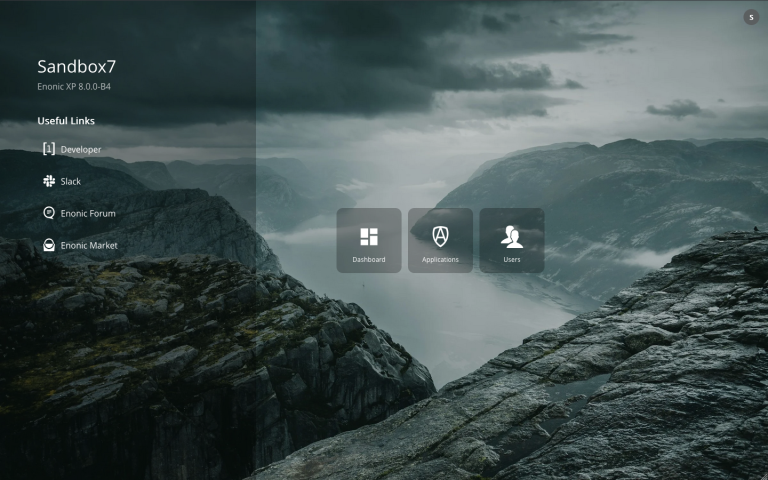
Once logged in, you will see the XP menu, which can be compared to the home screen of a smartphone. Here you will see the admin tools your user has access to.
-
Left you see the name of your instance and version of XP.
-
Right you see the available tools.
-
Top right you see your user avatar with ability to log out.
-
Once you navitate to a different tool, you will also get access to the XP menu in the top right corner, allowing you to easily switch between tools, or return to the menu.
Try installing Content Studio (from the Applications tool), to see how this extends the menu with a new tool, and adds new widgets to the Dashboard. |
Admin tools
Admin tools are standalone applications that are integrated with the XP admin. The default tools are Dashboard, Applications, and Users.
-
A single XP application may contain multiple admin tools
-
Each admin tool may define custom roles to restrict access.
-
Admin tools are all served within the admin URL pattern. i.e.
:8080/admin/<app-name>:<tool-name>
Admin extensions
XP admin also features another level of pluggablibility called admin extensions. Unlike tools, extensions are not immediately visible in the XP menu, but rather integrate with existing tools, such as adding widgets to the Dashboard, or adding new tabs and panels to Content Studio.
Each Extension implements a specific extension point (interface) defined by the tool they are extending. This allows for a high degree of flexibility and customization, enabling you to tailor the admin experience to your specific needs and use cases.
The widgets are served contextually using the following URL pattern: :8080/admin/app/tool/_/admin:extension/<app-name>:<widget-name>, and loaded dynamically by the tool they are extending. |
Bring Your Own Admin
XP enables developers to build custom admin tools and extensions.
Visit the the Enonic Development Kit documentation for more details.
Languages
The tools of the admin console has been translated to the following languages:
-
Belarussian
-
Dutch
-
English
-
French
-
Italian
-
Norwegian
-
Polish
-
Portuguese
-
Russian
-
Spanish
-
Swedish
The language used by the admin tools, is based on your browser settings. If your preferred language is one of the above, it will be used. If your preferred language is not in the list, the admin console will default to English.