Users
Contents
The Users admin tool is the UI for managing ID providers, users, groups, roles and service accounts.
| The Users app is still using the legacy admin UI, and will be upgraded to Enonic UI in the future. |
Introduction
The Users tool exposes the principals and ID providers that make up XP’s identity model. For the underlying concepts and data model, see:
Access to the Users tool requires the Administrator or Users Administrator role. The Users App role grants read-only access. |
ID providers
ID providers are listed in the left navigation. Selecting one shows the users and groups within it. Creating a new ID provider lets you pick the ID provider application, supply configuration, and set permissions for who may manage and use it.
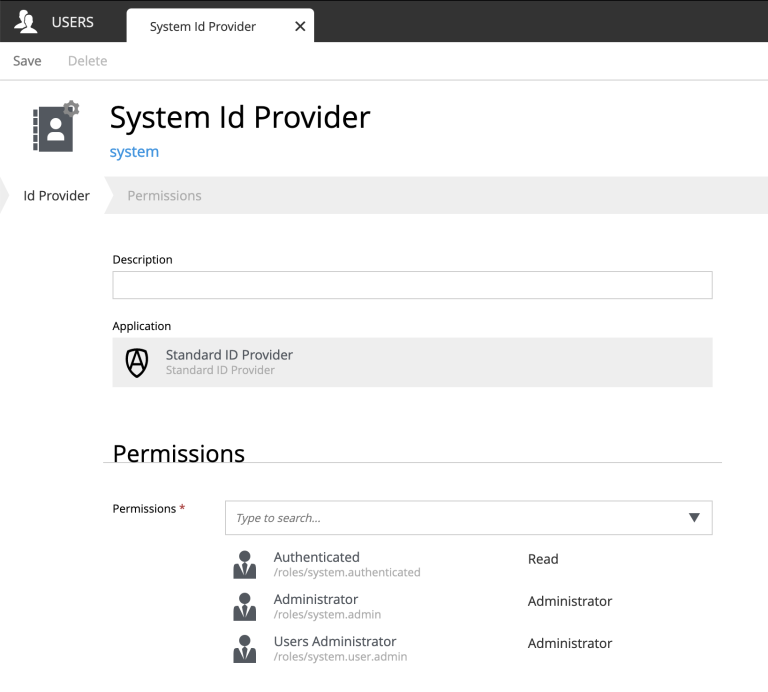
| Most ID providers - such as the OIDC provider - proxy a third-party system. In that case users typically appear in XP only after they sign in for the first time, and cannot be edited locally. |
Users
Users live within an ID provider. For ID providers that support local management (such as the Simple ID provider), the tool lets you create and edit users directly:
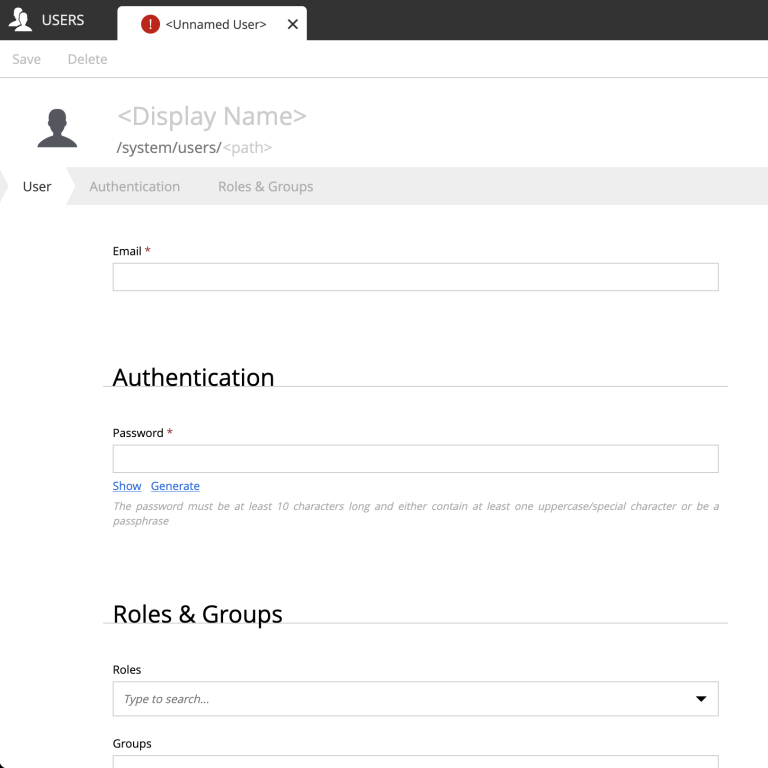
A user has a login (username), display name, and email. Group memberships and role assignments are managed from the same form.
Groups
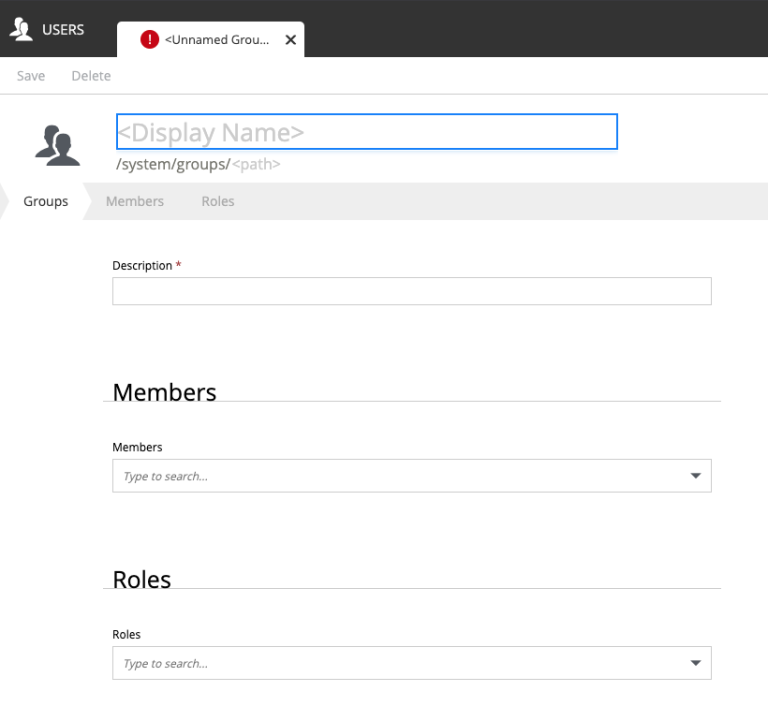
Groups also belong to an ID provider and provide a way to grant roles and permissions to many users at once. Groups can contain other groups - permissions resolve transitively.
Roles
Roles are global, independent of ID providers. The list shows both system roles and custom roles defined by applications or administrators. The system roles are read-only, and can be recognized by the small goc symbol on their avatar.
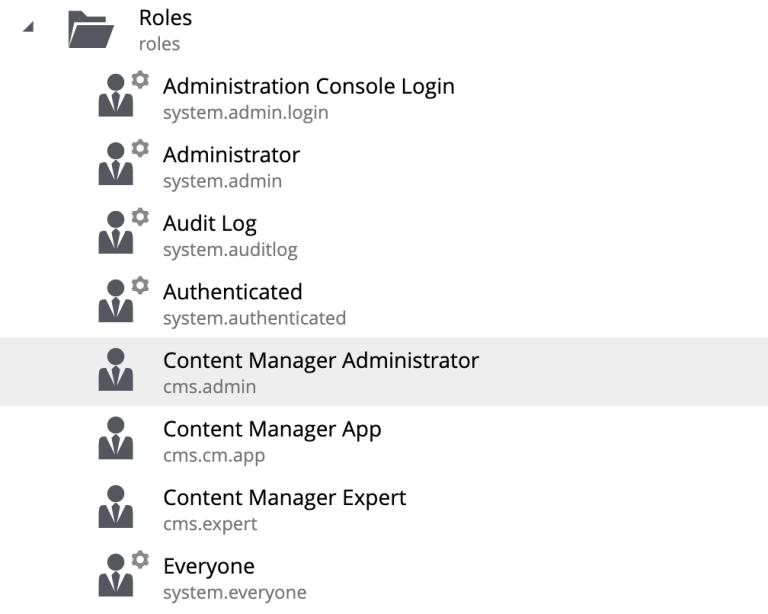
Editing a role lets you assign users and groups to it directly.
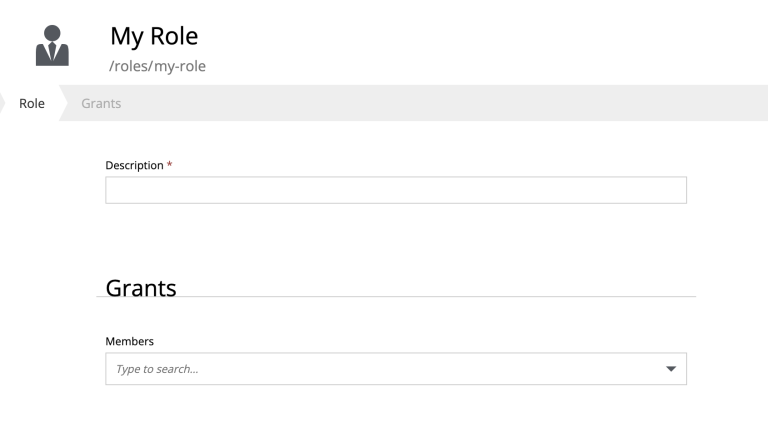
Only users with the Administrator or Users Administrator role may create or edit roles. |
Service accounts and keys
Service accounts are managed from the built-in System ID provider. They are recognized in the user list by a small cog symbol on their avatar:
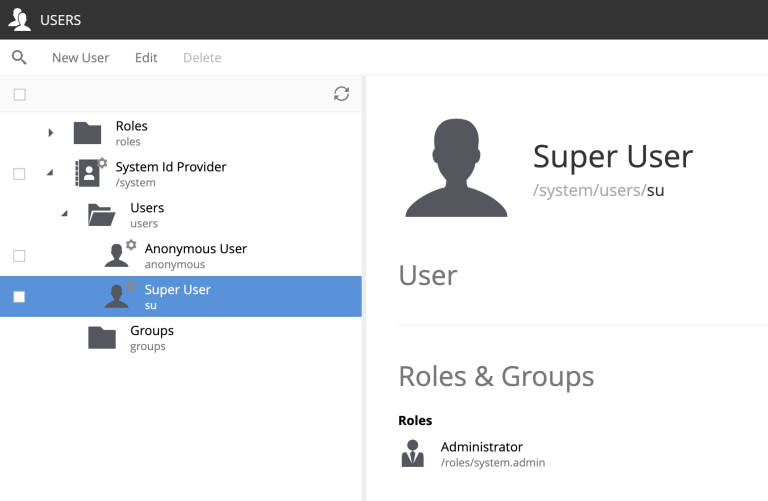
Selecting a service account exposes its associated keys, used for machine-to-machine authentication against the Management API and other endpoints:
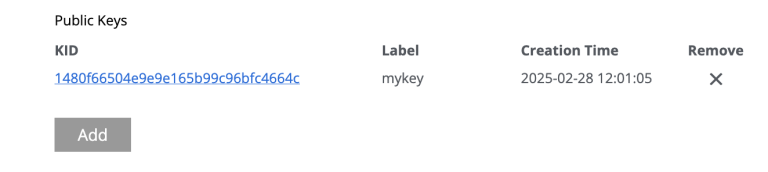
Generating a key
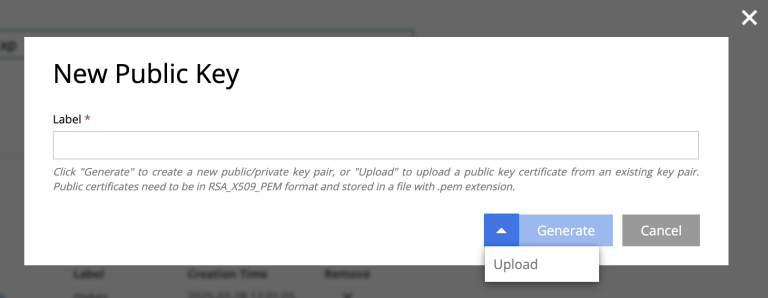
Click Add to generate a new key. Provide a name and click Generate - the public key is stored on the server, and the private key is automatically downloaded to your device as a JSON file.
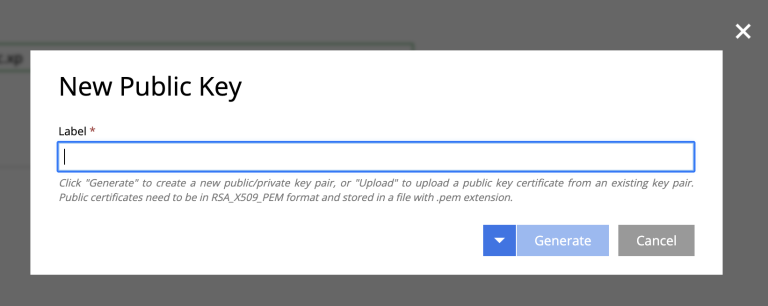
Uploading a key
You may also upload an existing public key (RSA, base64-encoded) and use the matching private key for authentication.
For details on key generation, JWT format, and rotation, see Service accounts.