Content Studio and content types
Contents
In this chapter, you’ll open Content Studio, explore the sample content your app imported, and create content of your own from the app’s content types.
Content Studio
Content Studio is the editorial interface of Enonic XP. The first time your app starts, it creates a content project called My First Site and imports sample content into it.
Task: Explore the sample content
-
Open Content Studio - Open the XP menu on the right-hand side, and select
Content Studio. You should see some of the imported content: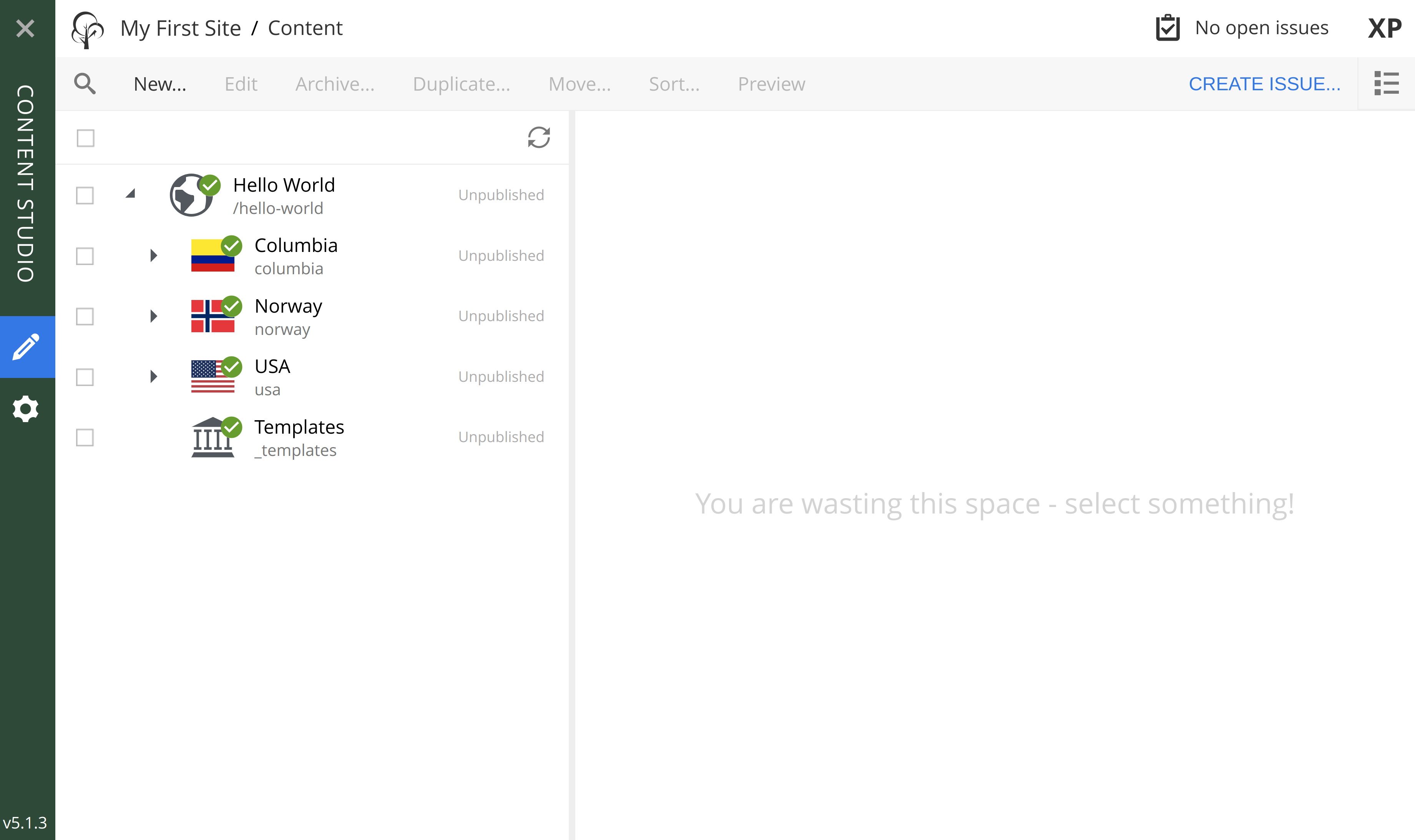
-
Expand the content tree - The root item of the tree is
Hello World. Its icon shows that it is a site. Expand it to revealColumbia,Norway,USA, andTemplatesas child items.
Ignore the Templates folder for now. You’ll get back to it in the page templates chapter. |
Sites and apps
A site is a content item with one or more apps assigned to it. Assigning an app gives the site, and Content Studio, access to what the app contains, such as content types and components.
Task: Find the app on the site
-
Open the site - Select the
Hello Worldcontent and click Edit. -
Verify the assigned app - In the form on the left-hand side, your app
My First Siteis listed underApplications: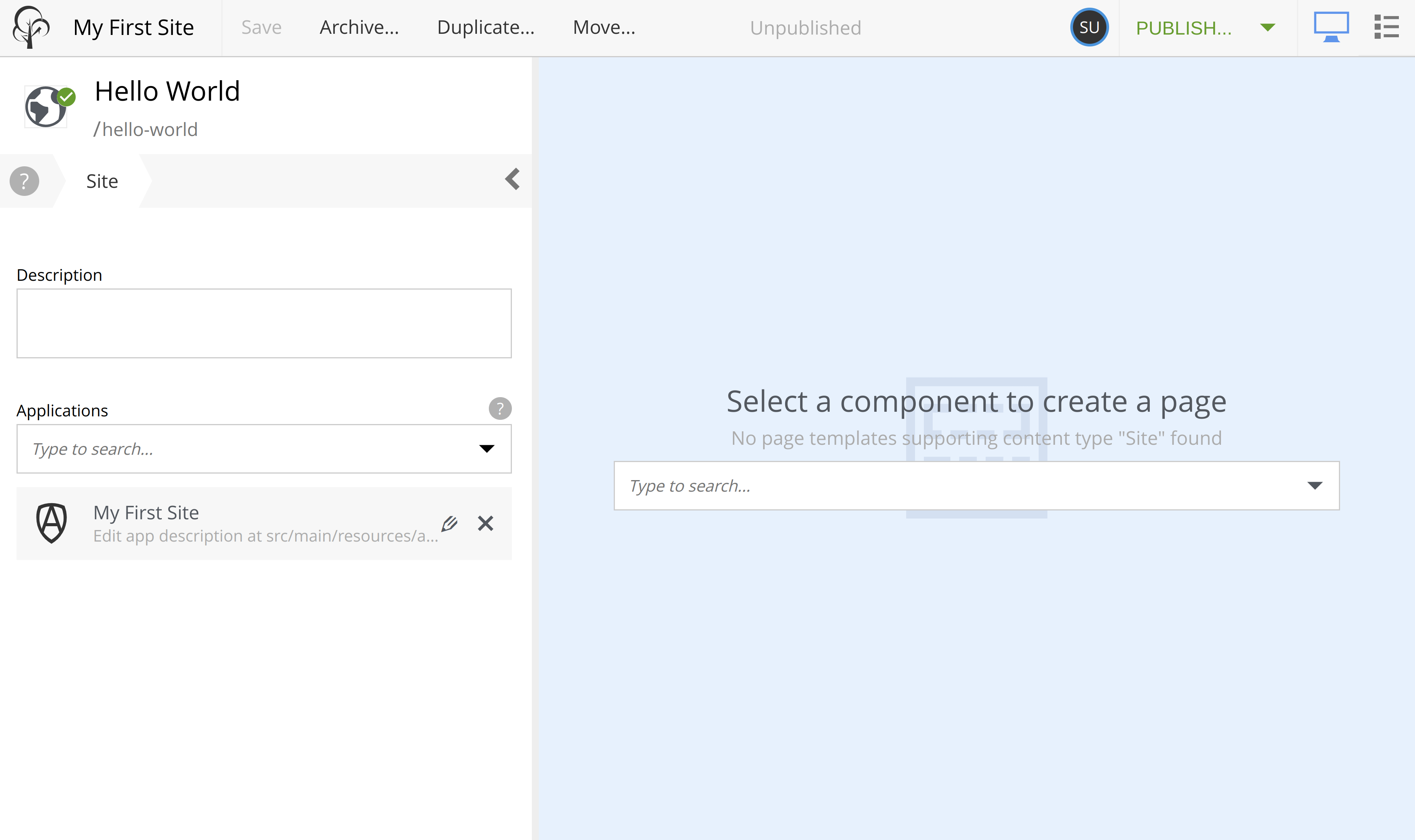
Content types
Every content item has a content type.
XP ships with a set of standard content types: Shortcut, Folder, Site, and a selection of media types that handle different kinds of files.
Apps can define their own content types. Your app contains two, Country and City, defined under src/main/resources/site/content-types/. A content type is defined in a descriptor file. This is the descriptor of City:
<content-type xmlns="urn:enonic:xp:model:1.0">
  <display-name>City</display-name>
  <description>Place where many people live</description>
  <super-type>base:structured</super-type>
  <form>
    <input type="ImageSelector" name="photo">
      <label>Photo</label>
      <occurrences minimum="0" maximum="1"/>
    </input>
    <input type="TextLine" name="slogan">
      <label>City slogan</label>
      <occurrences minimum="0" maximum="1"/>
    </input>
    <input type="Long" name="population">
      <label>Population</label>
      <occurrences minimum="1" maximum="1"/>
      <config>
          <min>1</min>
      </config>
    </input>
  </form>
</content-type>
Content Studio turns the descriptor into an editing form:
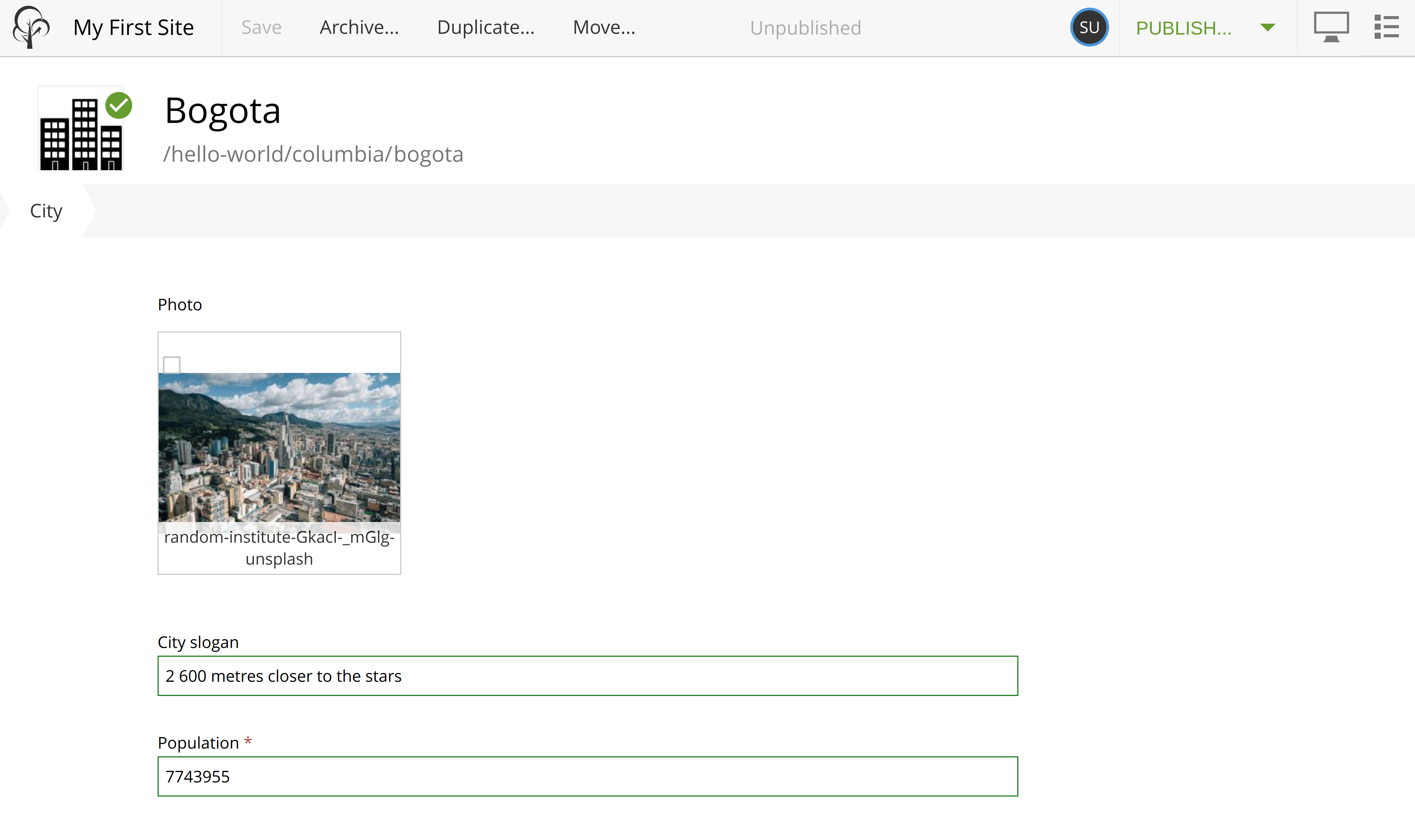
Task: Create your own content
-
Create a country - Select the
Hello Worldsite, click New, and select theCountrycontent type. Fill in the form with a country of your choosing, and save it. -
Add a city - Select your new country, click New, and select the
Citycontent type. Fill in the form, and save it. Add more cities if you like. -
Verify the result - Your country is listed in the content tree below
Hello World, with its cities as child items.
Summary
You’ve explored the sample content, seen how an app is assigned to a site, and created content from the two content types in your app.
| For more details, visit the reference documentation for content types and the schema system. |
Next, you’ll render the content with a page component.