Static assets
Contents
In this chapter, you’ll style the site by serving a CSS file through the asset service, and then serve a second stylesheet with an immutable URL using the Static Assets library.
Asset service
So far, the site is made up of dynamic HTML and images. Static assets, such as CSS and JavaScript files, are served by the asset service. Every file you place in the src/main/resources/assets folder is available at a URL.
Your app already includes a sample CSS file: src/main/resources/assets/mvp.css.
Task: Serve a CSS file
-
Update the view - Replace the content of the page component view with the following:
src/main/resources/site/pages/hello/hello.html<!DOCTYPE html> <html color-mode="user"> <head> <title data-th-text="${displayName}">Sample title</title> <link rel="stylesheet" data-th-href="${portal.assetUrl({'_path=mvp.css'})}" href="../assets/mvp.css" type="text/css" media="all"/> </head> <body> <header> <h1 data-th-text="${displayName} + ' - with regions'">Sample header</h1> </header> <main data-portal-region="main"> <div data-th-if="${mainRegion}" data-th-each="component : ${mainRegion.components}" data-th-remove="tag"> <div data-portal-component="${component.path}" data-th-remove="tag"></div> </div> </main> <footer>My first site - powered by Enonic</footer> </body> </html>Two things have changed: one line includes the CSS file, and an attribute on the
htmlelement activates dark mode support, if dark mode is switched on in your system. -
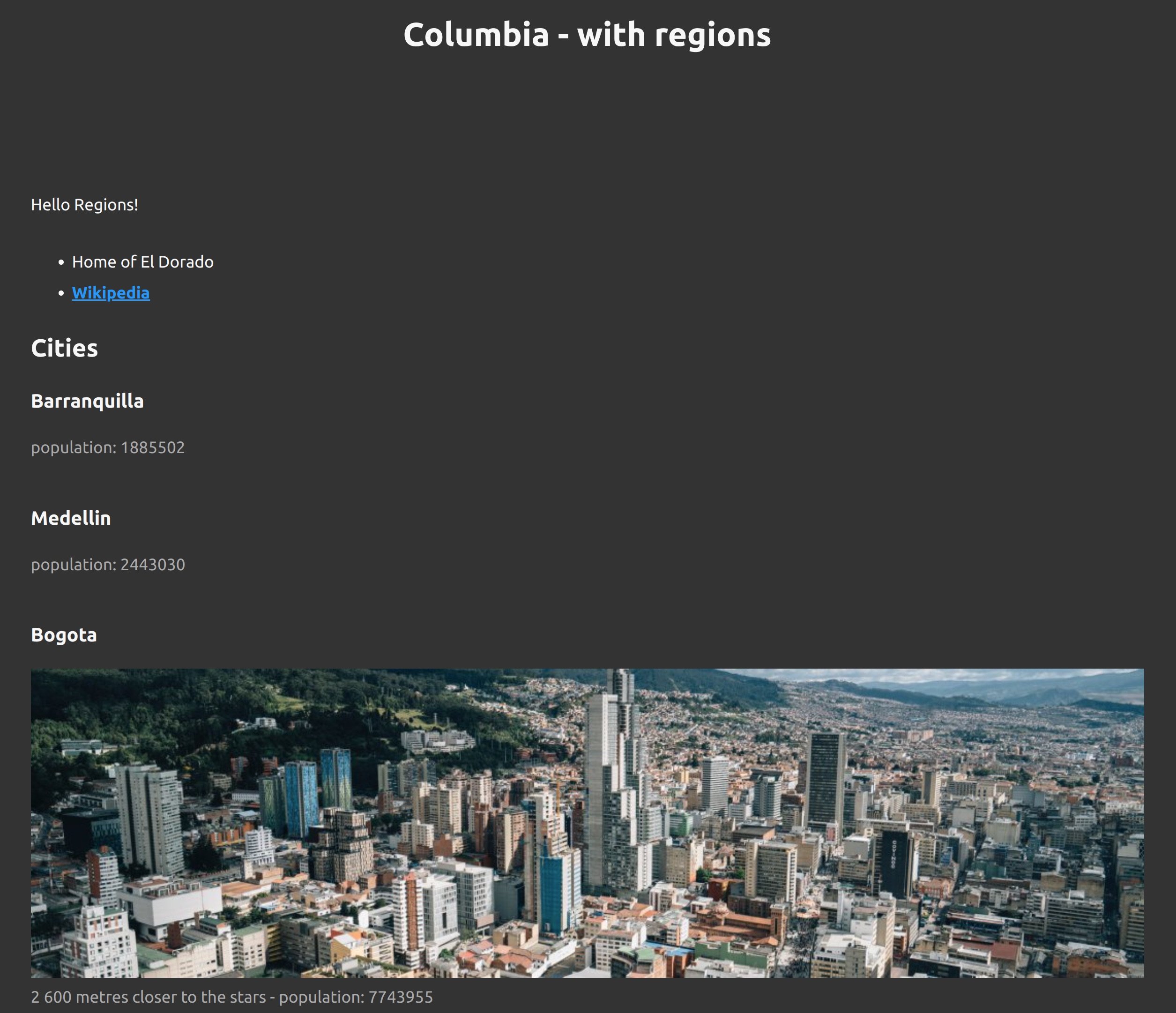
Verify the styling - Open a country page. With dark mode switched on, the result looks something like this:
Perfect cache
In production, XP serves every asset with cache headers that let browsers, proxies, and CDNs cache it, without ever having to download it again.
The generated asset URL contains a prefix based on a signature of the files in the app. The signature changes with every new version of the app. The assetUrl() function uses this signature when generating the URL, so clients always get the most recent version.
| In development mode, which you are using now, cache headers are deactivated. |
Static Assets library
With advanced build tools, assets may be split into chunks and served incrementally. Changing the URL of every asset on each deployment is then no longer optimal. The Static Assets library (lib-static) gives you full control over how assets are served.
The library is bundled with your app, and serves the files in the src/main/resources/static folder. To make the URLs immutable, a content hash is added to each file name at build time. The hash is generated from the content and location of the file, and only changes when they do. The browser can then cache the asset indefinitely, and load it from the cache every time it meets the URL.
Task: Serve an asset with an immutable URL
Add the Enonic logo to the page, through a stylesheet in the static folder.
-
Update the controller - Replace the content of the page component controller with the following:
src/main/resources/site/pages/hello/hello.tsimport type { Response } from '/index.d'; // @ts-expect-error no-types import { render } from '/lib/thymeleaf'; import { getContent } from '/lib/xp/portal'; import { getStaticAssetUrl } from '../../static'; // Specify the view file to use const VIEW = resolve('./hello.html'); // Handle the GET request export function get(): Response { // Get the content that is using the page const content = getContent(); // Prepare the model that will be passed to the view const model = { displayName: content.displayName, mainRegion: content.page.regions.main, staticCssUrl: getStaticAssetUrl('styles.css'), } // Prepare the response object const response: Response = { body: render(VIEW, model) }; return response; }The controller now passes a
staticCssUrlproperty to the view. The value is generated by thegetStaticAssetUrlhelper function, which takes the original file name of an asset and returns its full URL, including the hash. -
Update the view - Replace the content of the page component view with the following:
src/main/resources/site/pages/hello/hello.html<!DOCTYPE html> <html color-mode="user"> <head> <title data-th-text="${displayName}">Sample title</title> <link rel="stylesheet" data-th-href="${portal.assetUrl({'_path=mvp.css'})}" href="../assets/mvp.css" type="text/css" media="all"/> <link rel="stylesheet" data-th-href="${staticCssUrl}" href="static/styles.css" type="text/css" media="all"/> </head> <body> <header> <h1 class="enonic-logo" data-th-text="${displayName} + ' - with regions'">Sample header</h1> </header> <main data-portal-region="main"> <div data-th-if="${mainRegion}" data-th-each="component : ${mainRegion.components}" data-th-remove="tag"> <div data-portal-component="${component.path}" data-th-remove="tag"></div> </div> </main> <footer>My first site - powered by Enonic</footer> </body> </html>Two things have changed: a
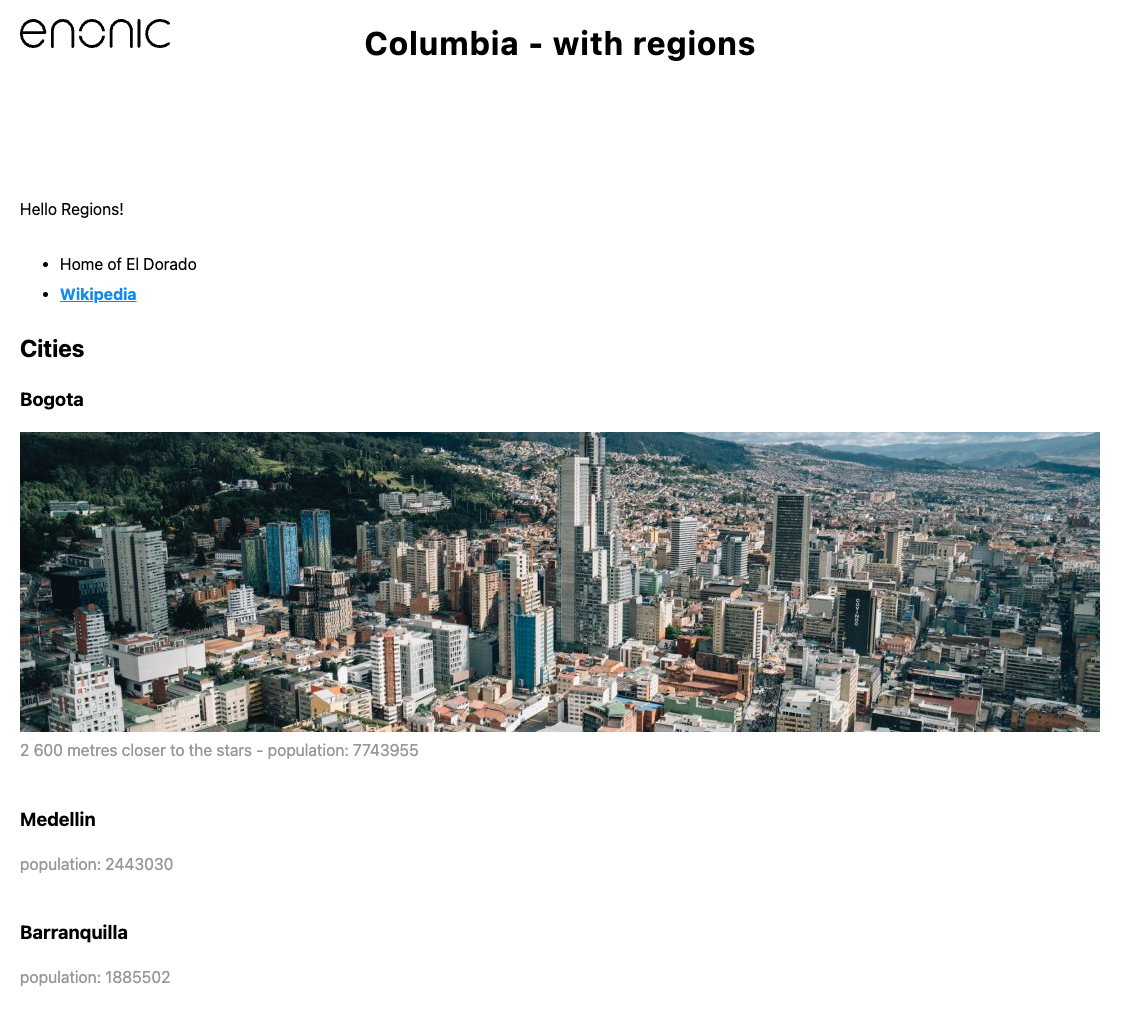
<link>tag references the static CSS file, and the<h1>tag hasclass="enonic-logo", which adds the Enonic logo through the CSS. -
Verify the result - Open a country page. The Enonic logo is shown next to the heading:
Summary
You’ve served a CSS file through the asset service, and a second one with an immutable URL through the Static Assets library.
Next, you’ll arrange components in columns with a layout.