Page templates
Contents
In this chapter, you’ll create page templates, so every country is rendered the same way without setting up each page by hand.
Reusable pages
With the current approach, you’d have to set up a page for every country. Page templates are more efficient. A page template is a content item that holds a page and supports one or more content types, for example Country. All content items of those types are then rendered by the template.
Page templates live in the Templates folder you saw in the content chapter.
Task: Save a page as a template
Take advantage of the page you’ve already built for a country.
-
Open the country - Select the country with the page, and click Edit.
-
Save the page as a template - Select the page component, and click Save as Template in its context menu.
-
Name the template - Give the template a suitable name, for example
Country template. -
Select the supported content type - Select
Countryin theSupportsdropdown.This video shows the process:
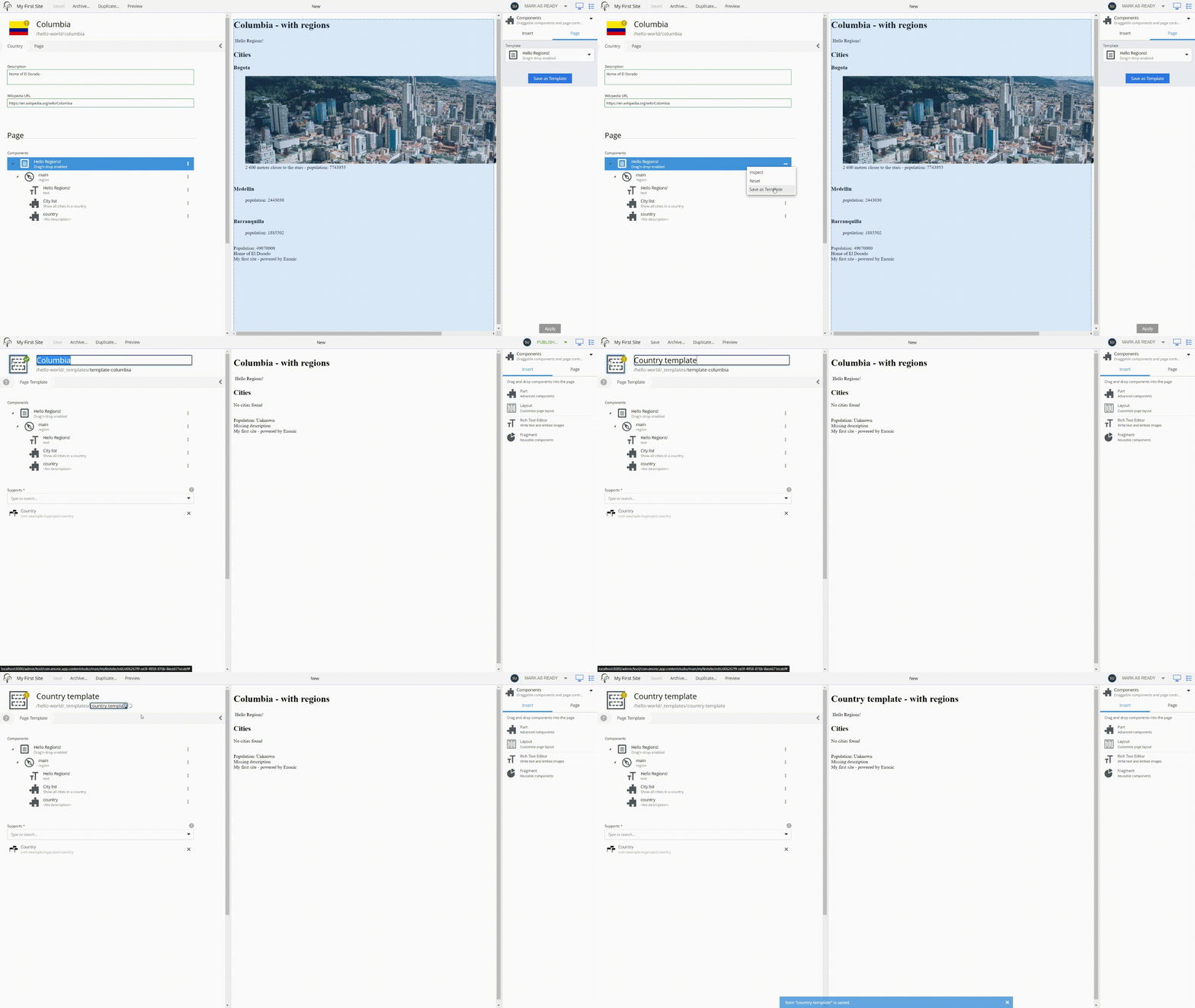
-
Verify the result - Select other countries in the content grid. Each of them is now rendered by the page template.
Task: Create a template from scratch
Like any other content, a page template can also be created from scratch.
-
Create new content - Select the
Templatescontent item and click New: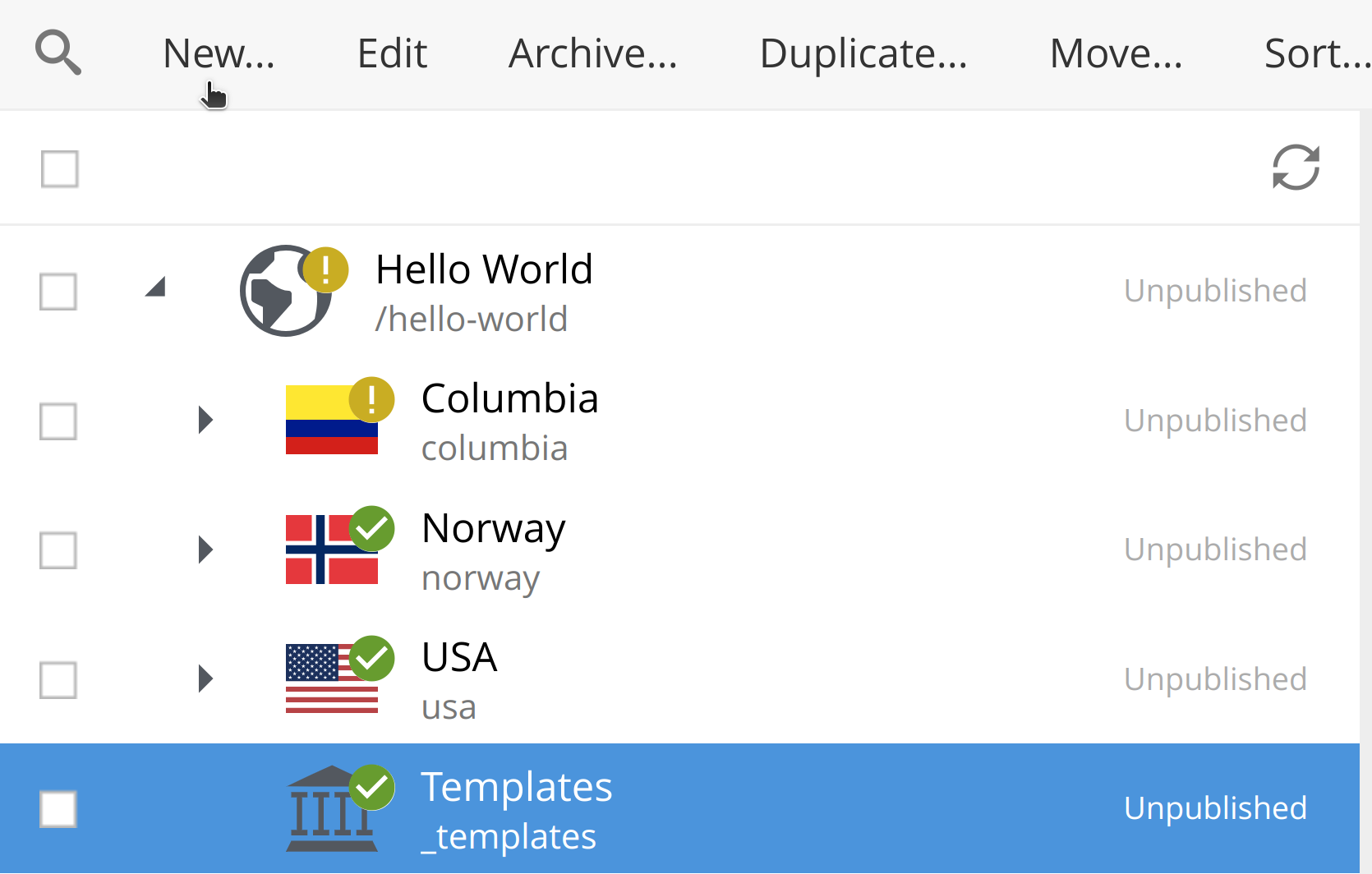
-
Select the content type - Select the
Page templatecontent type: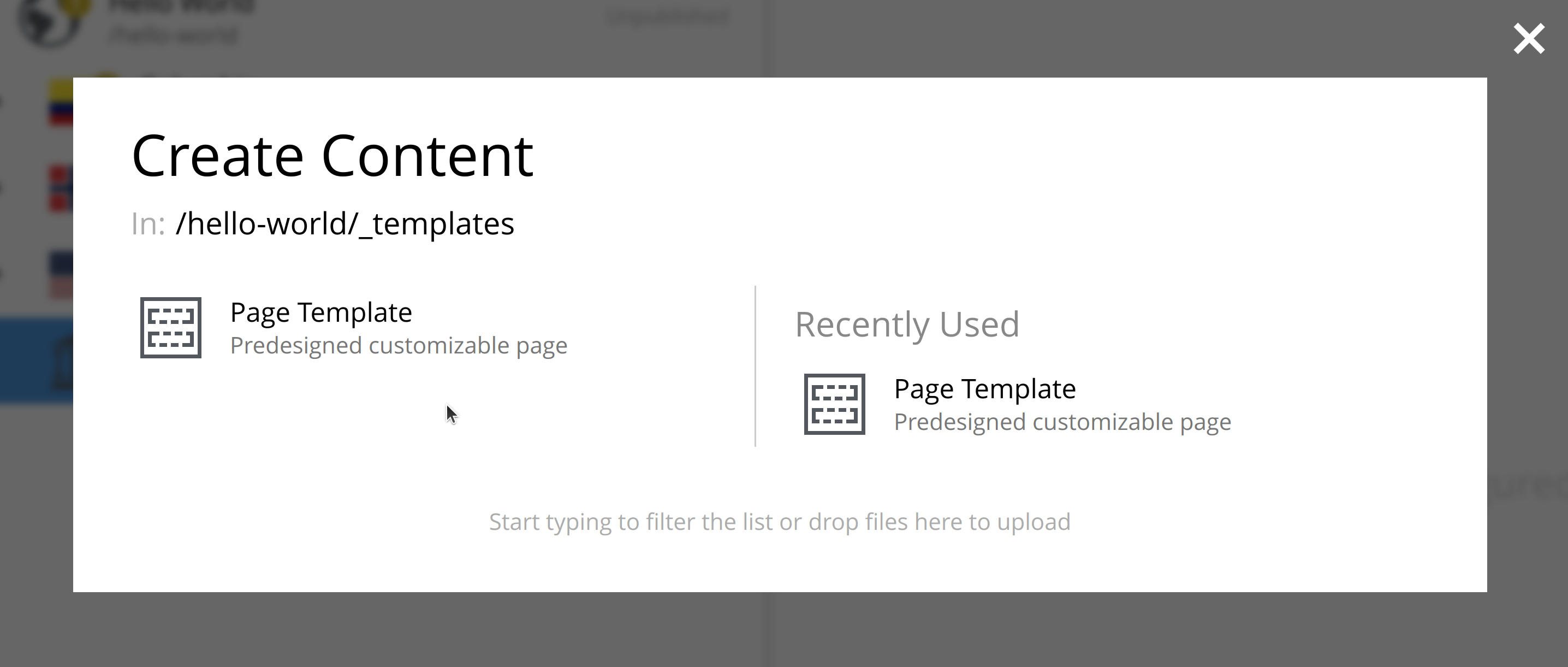
-
Select the supported content type - Select
Countryin theSupportsdropdown: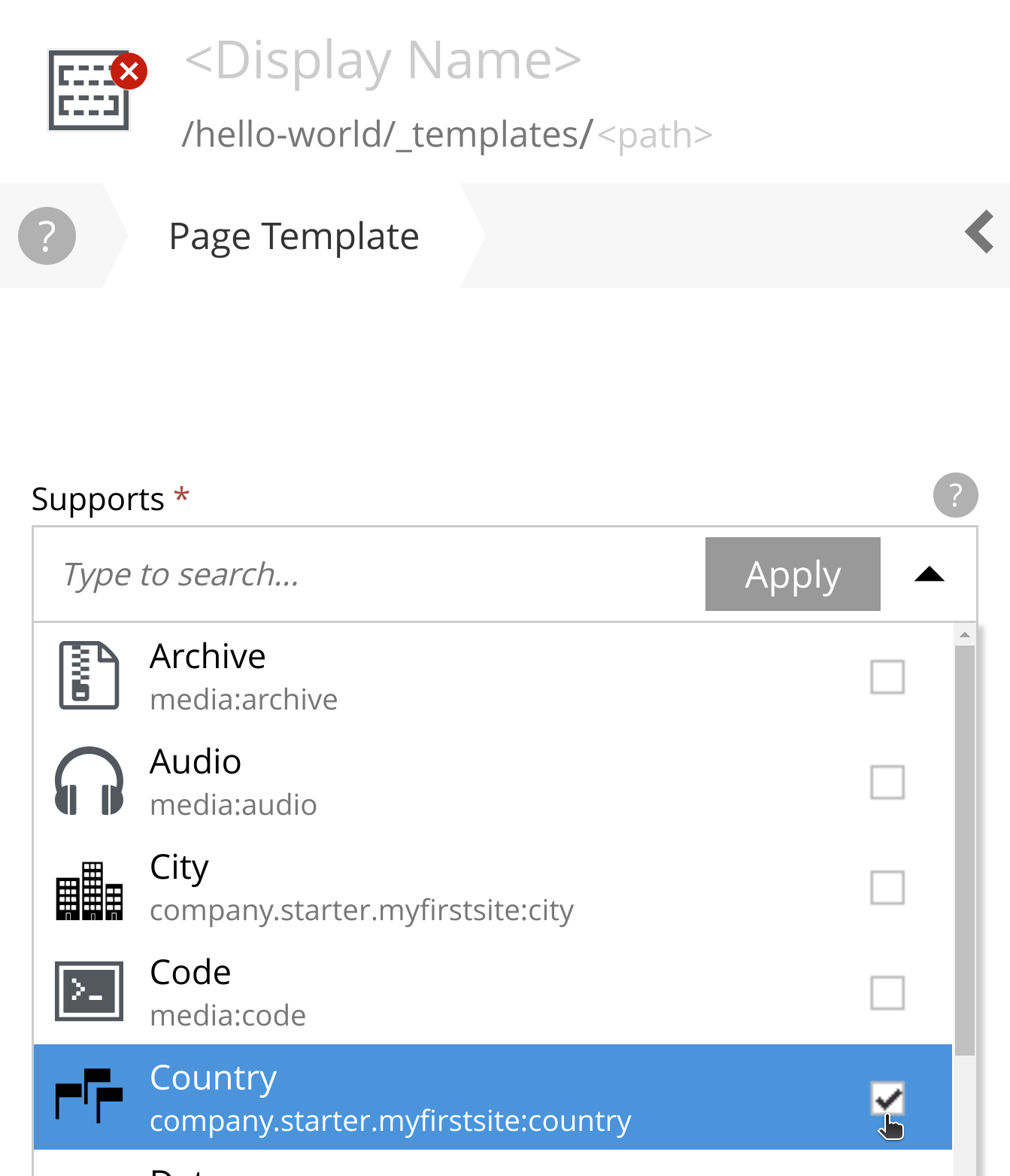
-
Select the page component - In the panel on the right-hand side, select the
Hello Regions!page component: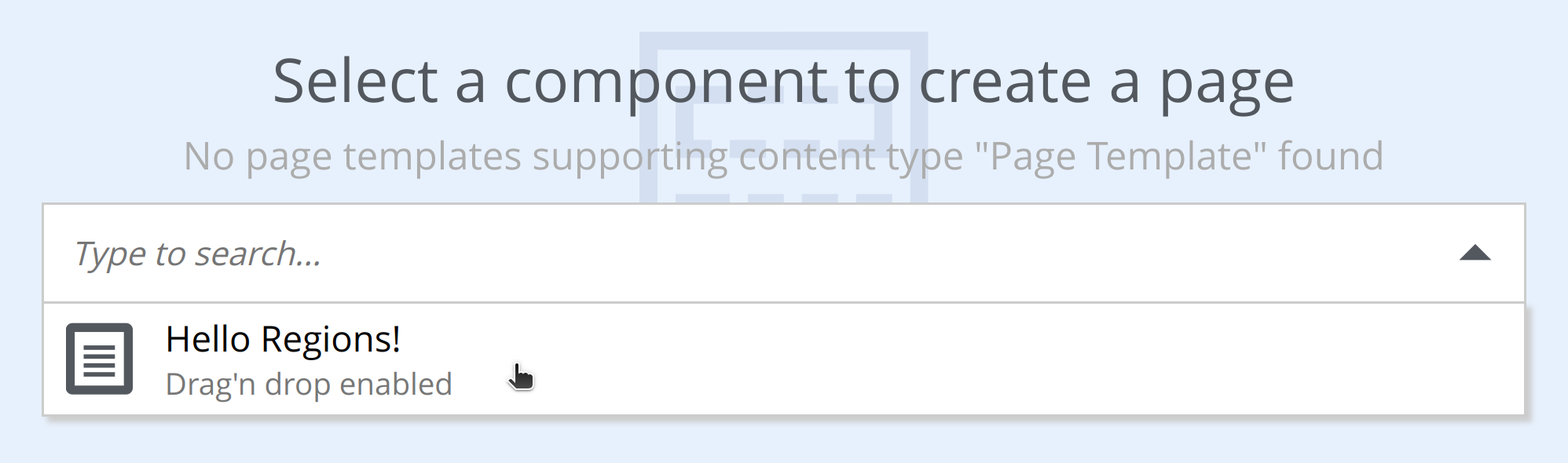
-
Add a part - Right-click the
Drop hereregion, selectInsert→Part, and then select theCity listpart: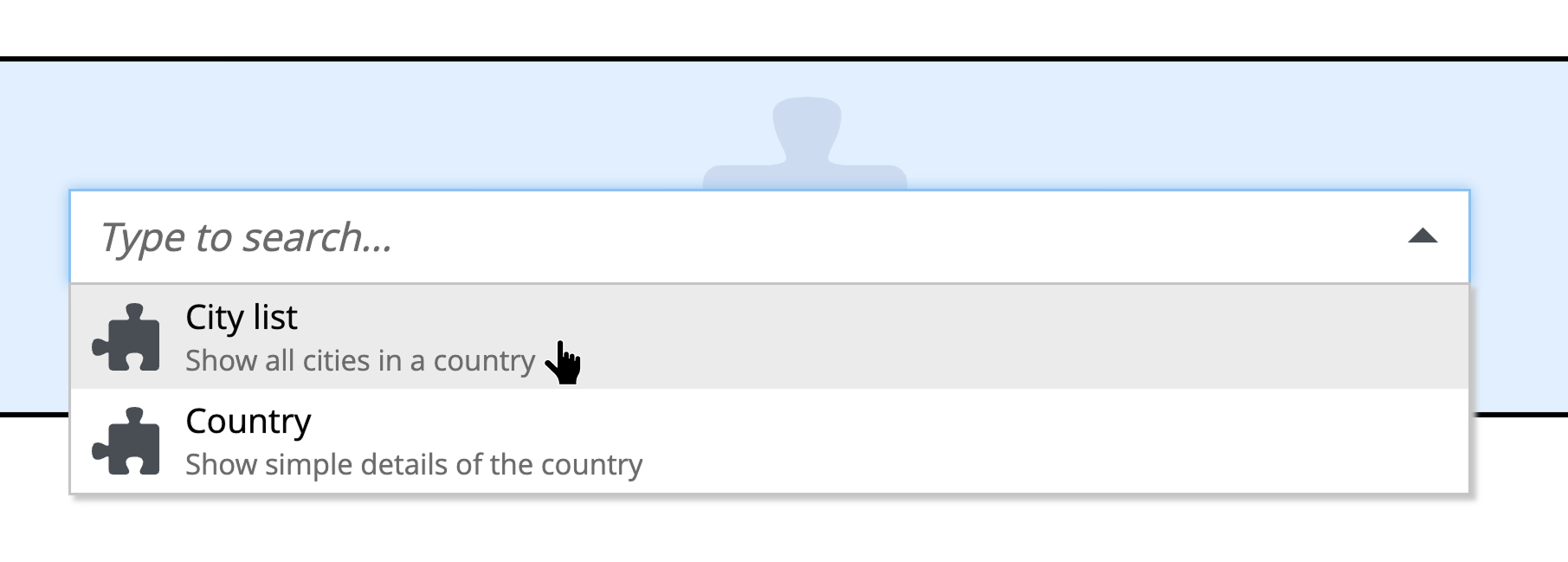
-
Name and save the template - Give the page template a name, such as
New Country Template, and save it. -
Verify the result - Select different countries in the content grid to check that they are rendered by the new template.
Automatic, fixed, or customized
Each content item can use its page in one of three ways: Automatic, which is the default and lets XP select a supporting template, a specific template that you select, or a customized page that is no longer linked to a template.
The country you set up by hand still uses its own custom page.
Task: Switch a page to automatic
-
Open the page - Edit the country you built the page on, open the page editor, and select the page.
-
Change the template setting - In the component view on the right-hand side, change the
Templatesetting fromCustomtoAutomatic. -
Verify the result - The country is now rendered by a page template, like the other countries.
You now have two page templates that support the Country content type. In Automatic mode, the newest template is used, in this case New Country Template. To use the other template, select it explicitly. |
Summary
You’ve created two page templates, one from an existing page and one from scratch, and rendered all countries with them. Page templates are content, so editors can manage and publish them like any other content.
| To control the rendering of certain pages without using page templates, check out controller mappings. |
Next, you’ll add and serve static assets.