Content Studio and content creation
Contents
In this chapter, you’ll create a content project in Content Studio, define your first content type, and create and publish some content.
Content Studio
Content Studio is Enonic’s editorial interface, where editors create and curate content without technical skills. It is already installed in your sandbox: open it from XP menu → Content Studio.
Content Studio has three parts: a project bar across the top, a menu bar on the left, and a main panel that fills the rest. The menu bar holds the content navigator, items contributed by installed apps, and Settings at the very bottom. For more than this chapter covers, see the Content Studio documentation.
Task: your first project
When you open Content Studio for the first time, it offers to create a project:
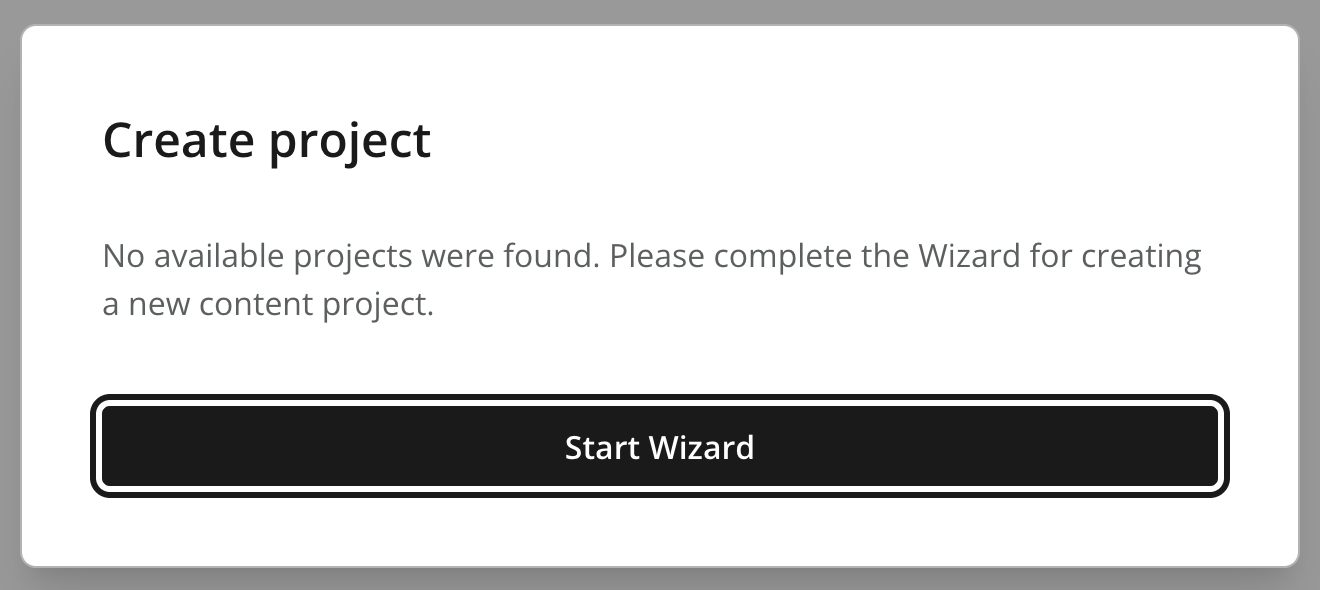
Content in Enonic is stored in content projects, or simply projects. Each project has its own permissions, languages and other settings, and its own selection of apps.
Click Start Project wizard and follow the steps to create your first project:
-
Choose the project language - Choose a default language, for instance
English. -
Name the content project - Give the project the display name "My First Project". The identifier is derived from it, and becomes
my-first-project.The project identifier is important, and cannot be changed later. Later chapters refer to the project as my-first-project, so stick with that name if you want to copy their examples verbatim. -
Allow public reading - Choose the
Publicaccess mode. This lets anyone read published content, which is what you want for a public website, for instance. -
Keep the default roles - Continue without changing the roles; your administrator session already has access.
-
Assign your app - In the "Applications" step, select the
Developer 101app you deployed earlier.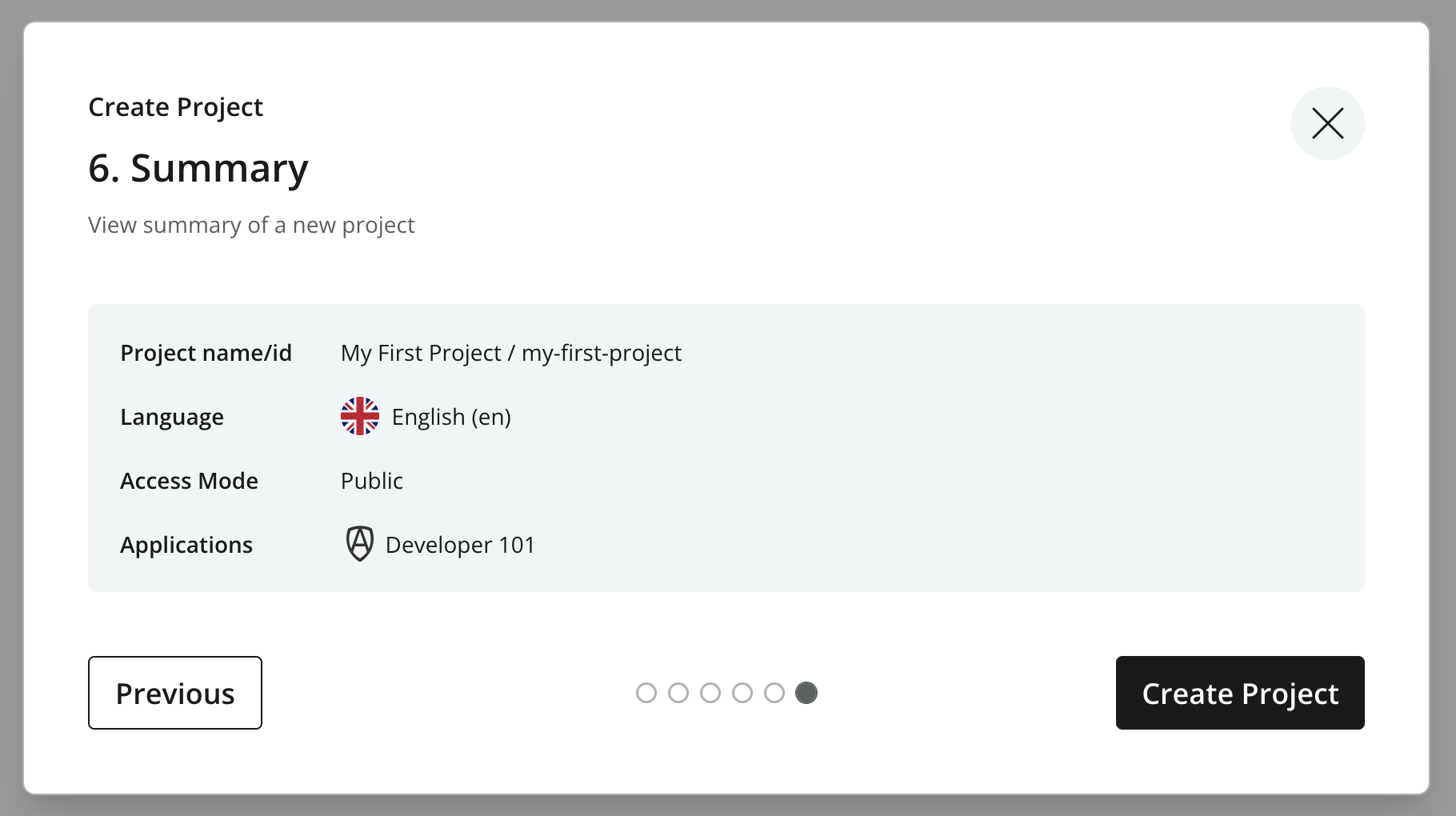 Figure 2. Project summary showing the values you have set in the wizard
Only apps that contain a CMS descriptor, cms/cms.yaml, can be assigned to a project. The vanilla starter includes one out of the box. |
What are content types?
Every content item has a content type, which defines the data fields the item can and must have. Content Studio validates the item against its content type as editors fill in the form.
Content types are defined in apps, while content projects hold the content. Assigning an app to a project is what connects the two: editors can then create the app’s content types in that project. This also means you may re-use the same apps and schemas across multiple projects.
XP also ships with built-in content types, such as Folder, that are available in every project.
Task: create a folder
Your app does not define any content types yet, so start with a built-in one: create a folder called "Artists" to hold the artists you’ll add later in this chapter.
| Content can be organized as a tree, much like files and folders on your computer. Grouping content in logical folders provides several benefits, as you will see later in this tutorial. |
-
Start a new content item - In Content Studio, make sure your project is selected, and press New …. The dialog lists only the built-in content types.
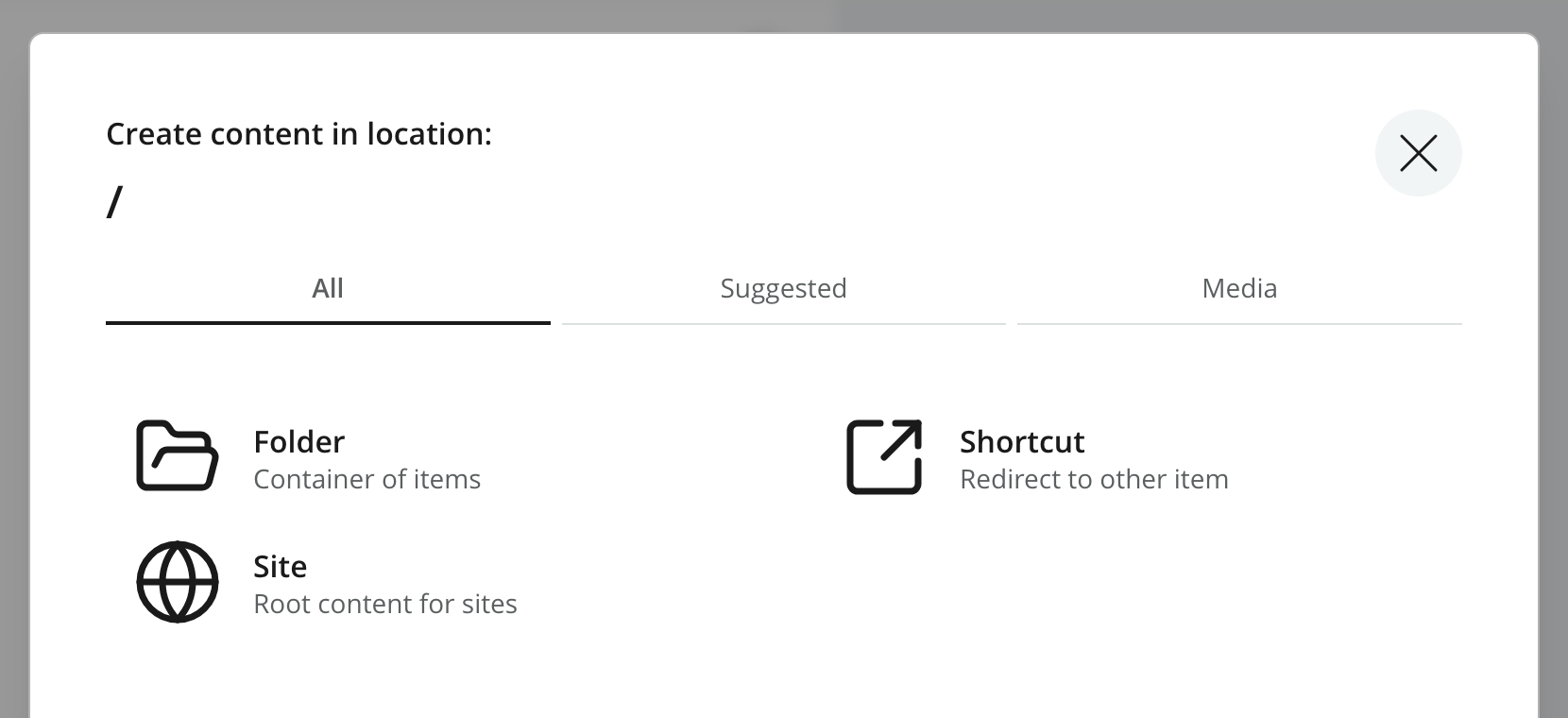 Figure 3. The content creation dialog showing the built-in content types
 -
Choose the folder type - Select Folder.
-
Name the folder - Give the folder the display name "Artists".
 Figure 4. The folder form with its display name filled in
 -
Save the folder - Save and close the tab.
Task: your first content type
You’ll create a custom content type Artist for artists, with two fields. Later, when editors create an Artist content item, Content Studio will show this form:
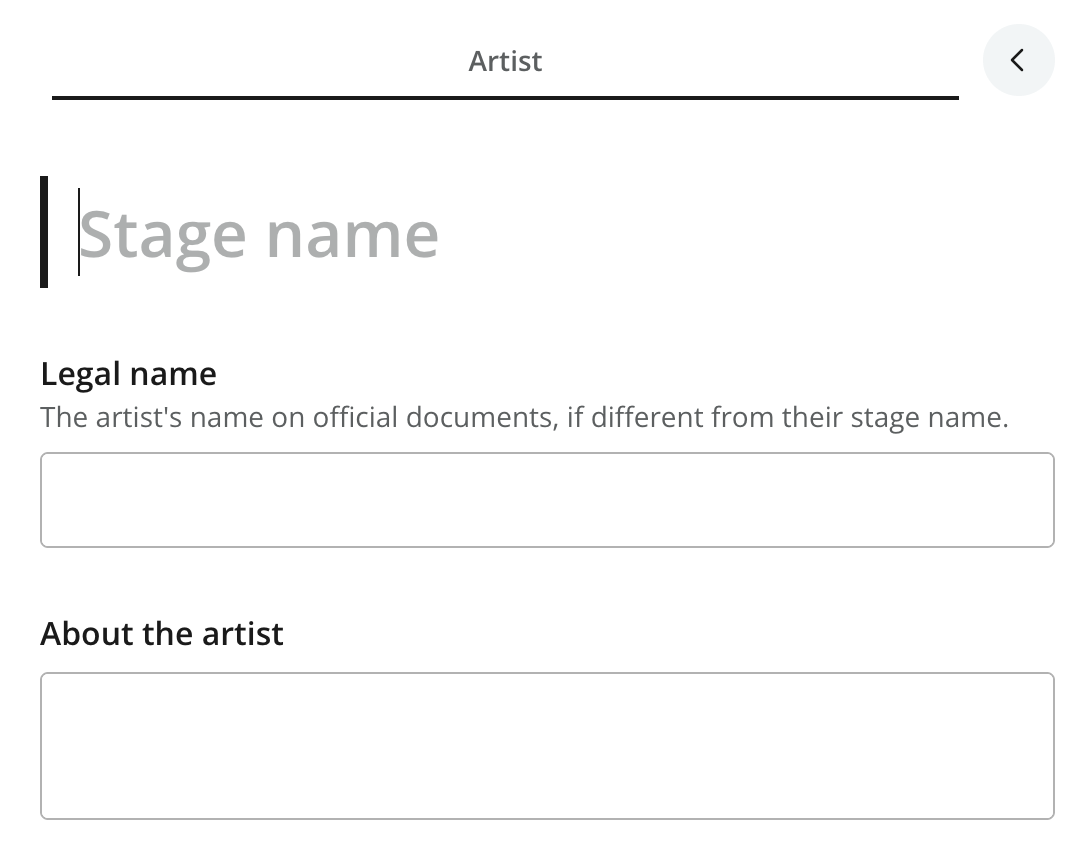
Content types live in src/main/resources/cms/content-types/, which the starter created. XP expects each content type in a directory of its own, with a dedicated yaml descriptor file:
-
Define the Artist schema - Add the following file to your app and save it:
src/main/resources/cms/content-types/artist/artist.yamlkind: "ContentType" title: "Artist" description: "Information about an artist" displayNamePlaceholder: "Stage name" superType: "base:structured" form: - type: "TextLine" name: "legalName" label: "Legal name" helpText: "The artist's name on official documents, if different from their stage name." - type: "TextArea" name: "about" label: "About the artist" -
Deploy the schema - Let the running
enonic devwatcher redeploy your app. If you stopped it, runenonic devin the app folder again.
The schema defines the form and its labels:
-
kind: Every schema file starts by declaring what kind of schema it is. -
title: The name editors see when they create content. -
description: Optional, but it helps your editors. -
displayNamePlaceholder: The hint shown in the built-in display name field, here telling editors it holds the artist’s stage name. -
form: The fields editors fill in. -
typeandlabel: The kind of input editors see, and its label.
XP validates the schema when it deploys, and reports mistakes such as helptext instead of helpText in the sandbox log. |
Display name field
Every content type has a built-in display name, so don’t add a title or name field that stores the same thing. Here the display name is the artist’s stage name and legalName is the name on their official documents, which is why both earn their place. Add a field only when it carries different information from the item’s display name. Also notice how the displayNamePlaceholder sets a different placeholder text for the display name field.
| Content types have more optional settings, described in the reference documentation. |
Names and namespaces
XP identifies the content type you just created as com.example.dev101:artist - the app name, a colon, and the file name. The app name acts as a namespace: everything an app ships, from content types to mixins and APIs, is prefixed with it. This isolates the schemas and functionality of one app from every other app on the same instance, so two apps never conflict, even if both define a content type called artist.
XP’s built-in content types have namespaces of their own, such as base:folder for the folder you created and media:image for images, which are reserved for XP. Your Artist content type already refers to one: superType: "base:structured". In the next chapter, you’ll use these full names, namespace included, to filter content by type.
| Read more about namespaces in the CMS reference docs. |
Task: create artists
Using the Artist content type, create these three artists, starting with Cardi B. Use the sample values below so your results match the queries in later chapters:
| Stage name | Legal name | About the artist |
|---|---|---|
|
Cardi B |
Belcalis Marlenis Almánzar |
Belcalis Marlenis Almánzar (born October 11, 1992), known professionally as Cardi B, is an American rapper and songwriter. |
|
Missy Elliott |
Melissa Arnette Elliott |
Melissa Arnette Elliott (born July 1, 1971) is an American rapper, singer, songwriter, and record producer. |
|
P!nk |
Alecia Beth Moore |
Alecia Beth Moore (born September 8, 1979), known professionally as Pink (stylized as P!nk), is an American singer and songwriter. |
-
Choose where to store artists - In Content Studio, select the "Artists" folder, so the new content is created inside it.
-
Start a new artist - Press New …. Since your app is assigned to the project, the dialog now lists Artist next to the built-in content types.
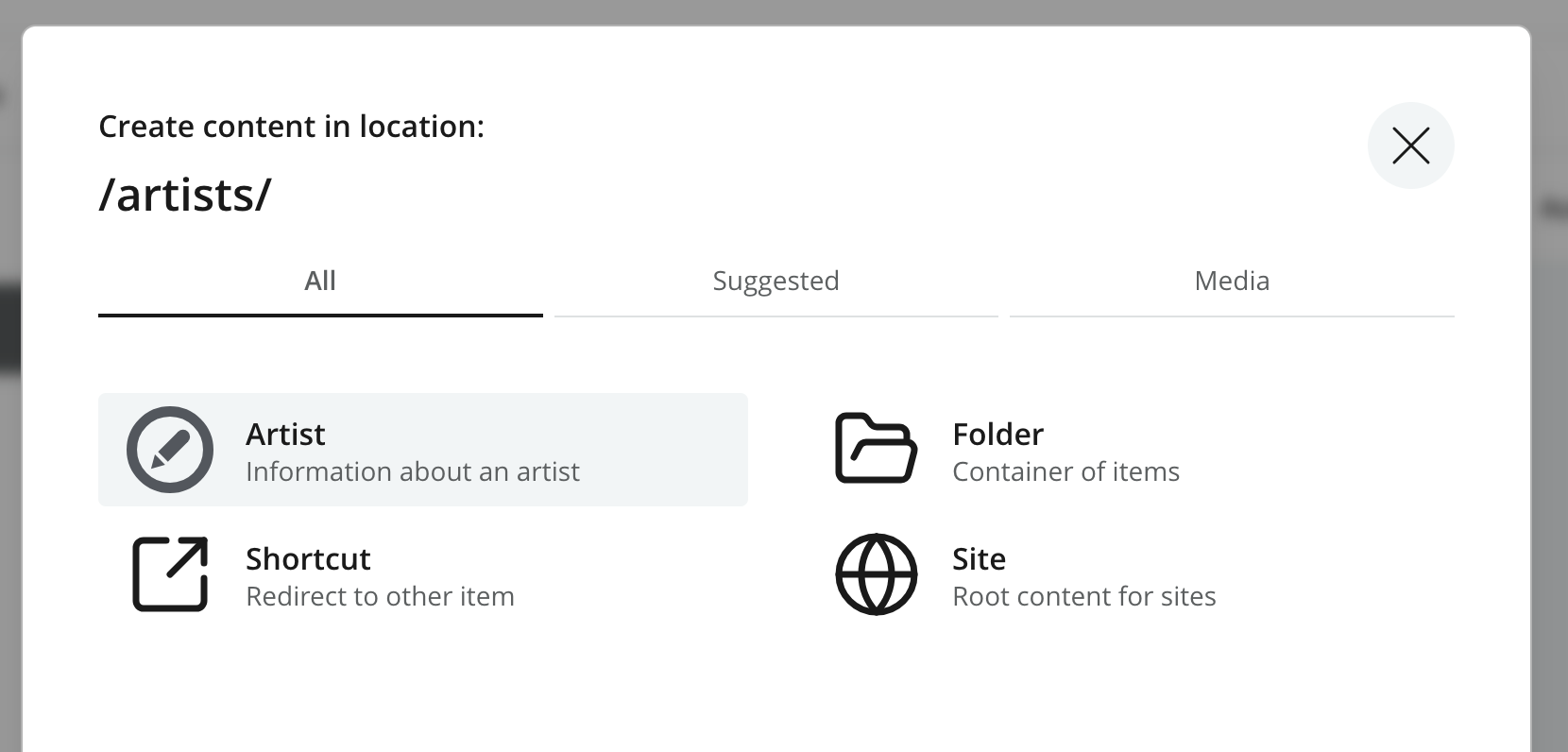 Figure 6. The content creation dialog showing the Artist content type
 -
Enter the artist details - Select Artist and fill in the form using Cardi B’s values from the table. Enter the stage name in the built-in display name field.
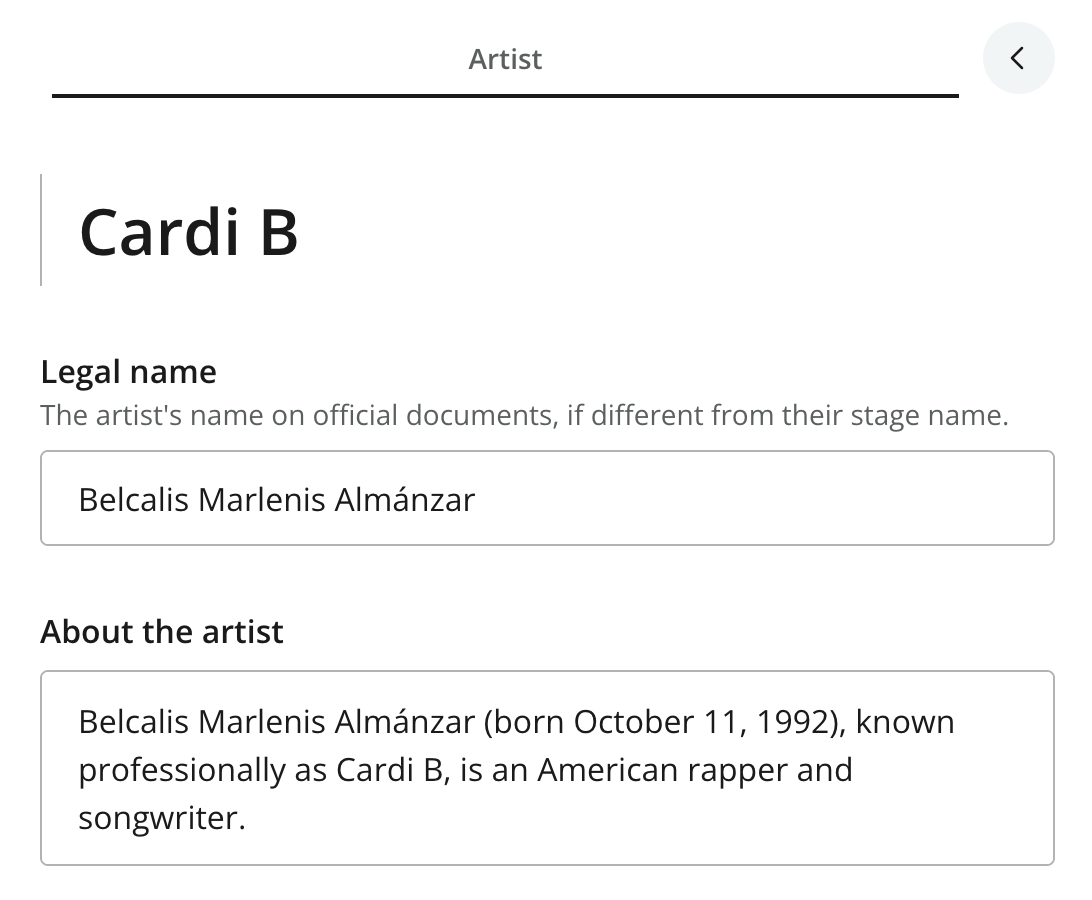 Figure 7. The content form filled out for the artist "Cardi B"
 -
Create the remaining artists - Save and close the tab, then create Missy Elliott and P!nk using the remaining rows of the table. Select the "Artists" folder each time: Content Studio nests new content under whatever item is selected.
Content Studio should now list the "Artists" folder and the three artists.
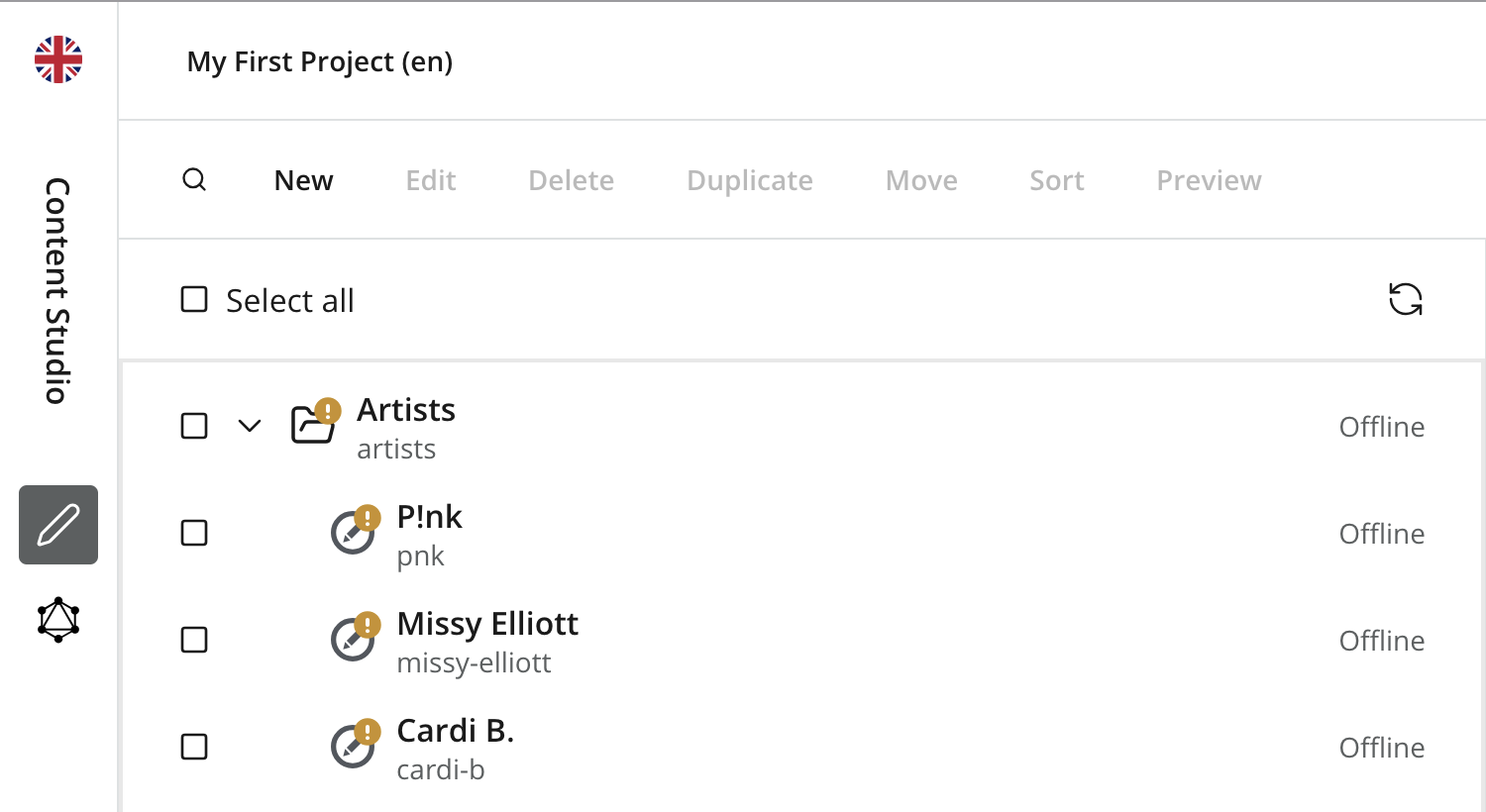 Figure 8. The hierarchy as it should look after creating some content
For more background, see the Wikipedia articles about Cardi B, Missy Elliott and P!nk.
Publishing
Every content project has two branches under the hood. You create and edit content in the draft branch, and publishing copies it to the master branch, which holds the published content.
When you edit published content, only the draft branch changes - until you publish again.
During the editing process, Content Studio has different workflow statuses like Invalid, Work in progress, and Ready for publishing.
Task: Publish all items
-
Open the Publishing Wizard - Select the "Artists" folder, right-click, and choose Publish. The content items should all be Work in progress.
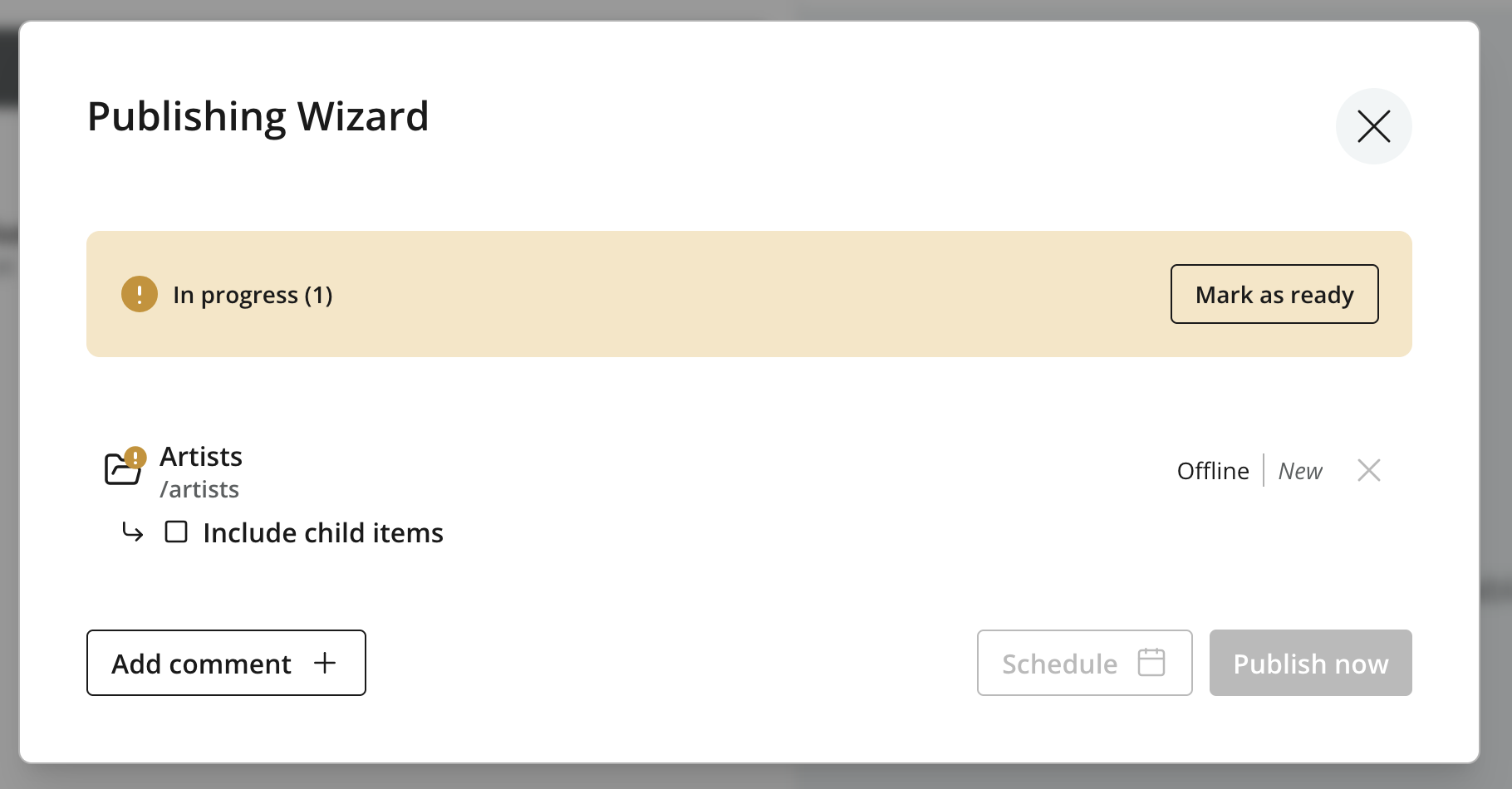 Figure 9. The publishing wizard
 -
Include the artists - Click the include child items checkbox, and then Apply. The whole tree of content under the "Artists" folder will now be included in the publication.
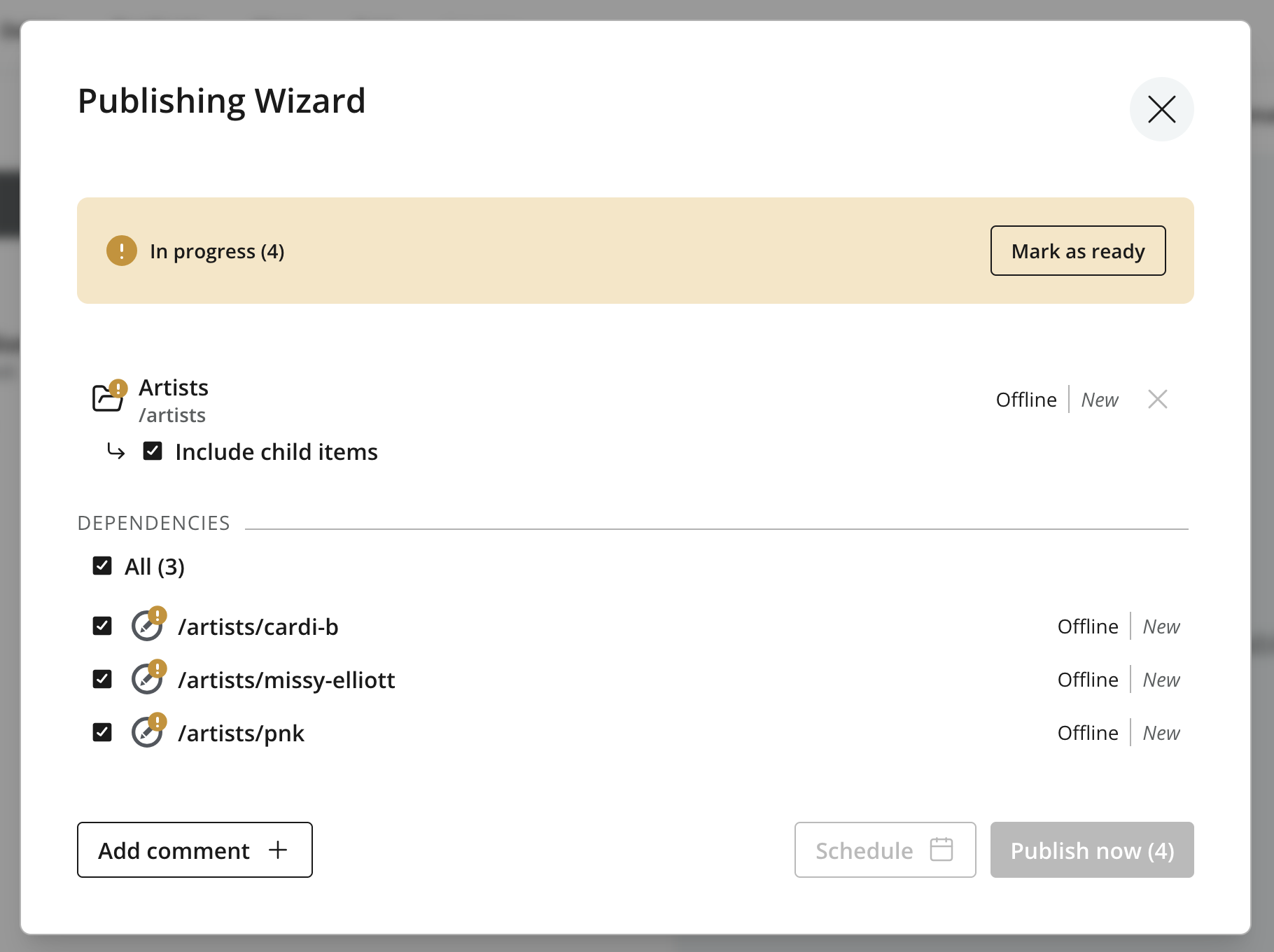 Figure 10. The publishing wizard with child items included
 -
Mark the content ready - Click Mark as ready to enable the publish button.
-
Publish the selection - Click Publish Now (4) to publish all items in a single batch.
After completing the publication, publishing state should have changed from Offline to Online.
| You can also publish a piece of content by using the keyboard shortcut: Windows: Ctrl+Alt+P | Mac: control+option+P. |
Coming up
You’ve created a content project, your first content type and some content. In the next chapter, you’ll read that content back through the Headless API.