Sets and form fragments
Contents
In this chapter, you’ll add filmography entries to your artists, describe animals with selectable options, and reuse fields with a form fragment. After each addition, you’ll enter content and query it through Guillotine.
Repeat a group of fields
In the previous chapter, otherNames repeated a single TextLine. An item set groups several fields into one object and can repeat that whole group. For an artist’s filmography, each entry will contain a title and a year. These entries belong to the artist; they are not separate content items like the referenced favorite animal.
Task: Add filmography to Artist
-
Define filmography entries - Append this item set to the Artist form, after
favoriteAnimal:src/main/resources/cms/content-types/artist/artist.yaml- type: "ItemSet" name: "filmography" label: "Filmography" occurrences: min: 0 max: 0 items: - type: "TextLine" name: "title" label: "Title" occurrences: min: 1 max: 1 - type: "Long" name: "year" label: "Year" occurrences: min: 1 max: 1 min: 0 -
Add Cardi B’s films - Save the schema and let your running
enonic devwatcher update the app. Reopen Cardi B in Content Studio and add two Filmography entries:Title Year Hustlers
2019
F9
2021
-
Save the filmography - Use Expand all if you want to view both entries together, then save the artist. The entries are part of the same draft as Cardi B’s other fields.
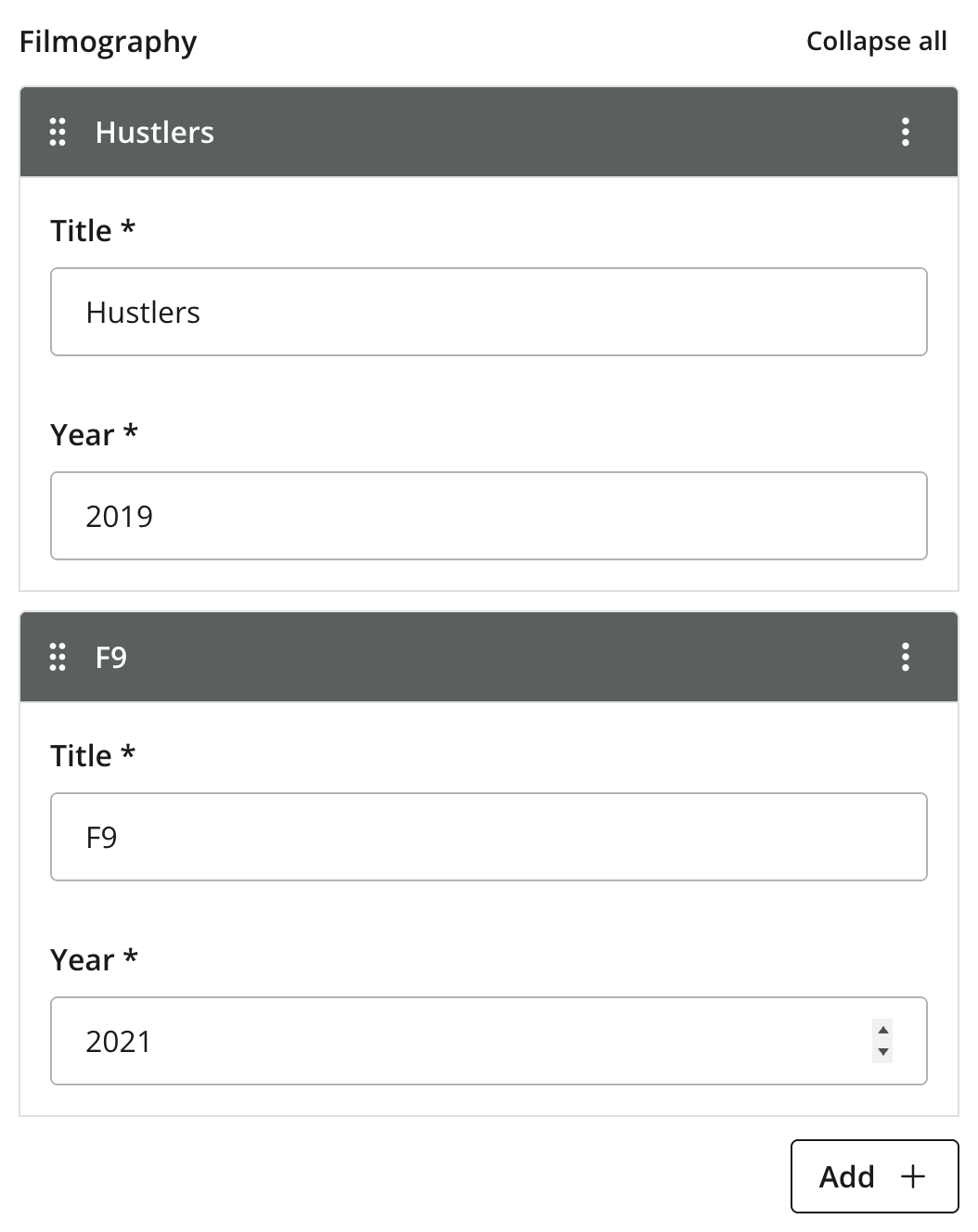 Figure 1. Two filmography entries on Cardi B
The item set defines the structure and limits of each entry:
-
itemscontains the fields in each filmography entry. -
The item set’s
occurrencesallows any number of entries, including none. -
Each entry requires both a
titleand ayear. -
Longstores the year as an integer. Themin: 0directly onyearlimits its numeric value;occurrences.mincontrols whether a value is required.
Task: Query the filmography
-
Fetch the filmography - Open Query Playground for "My First Project" and keep Draft selected throughout this chapter. Fetch Cardi B by path and select the fields within
filmography:{ guillotine { get(key: "/artists/cardi-b") { displayName ... on com_example_dev101_Artist { data { filmography { title year } } } } } }The
data.guillotine.getobject contains:{ "displayName": "Cardi B", "data": { "filmography": [ { "title": "Hustlers", "year": 2019 }, { "title": "F9", "year": 2021 } ] } }
Guillotine generates a GraphQL object type for the item set’s fields. Because filmography allows multiple occurrences, it returns a list of these objects, even when you enter just one film. You can select title and year directly inside each entry, without another inline fragment.
Choose an option with its own fields
An option set lets editors choose from named options, each of which can contain its own form items. For a deliberately simplified animal diet, you’ll offer Herbivore and Carnivore. Only Carnivore needs a list of prey.
Task: Add feeding behavior to Animal
-
Define the feeding options - Append this option set to the Animal form, after
images:src/main/resources/cms/content-types/animal/animal.yaml- type: "OptionSet" name: "feedingBehavior" label: "Feeding behavior" selection: min: 1 max: 1 options: - name: "herbivore" label: "Herbivore" helpText: "Subsists primarily on plant material." - name: "carnivore" label: "Carnivore" helpText: "Subsists primarily on animal tissue and meat." items: - type: "TextLine" name: "prey" label: "Prey" occurrences: min: 0 max: 0 -
Update the animal forms - Save the schema and let the watcher update the app, then reopen your animals in Content Studio.
-
Describe a carnivore - For Lion, add Feeding behavior, select Carnivore, and enter "Zebra" and "Giraffe" as separate Prey values. Save the animal.
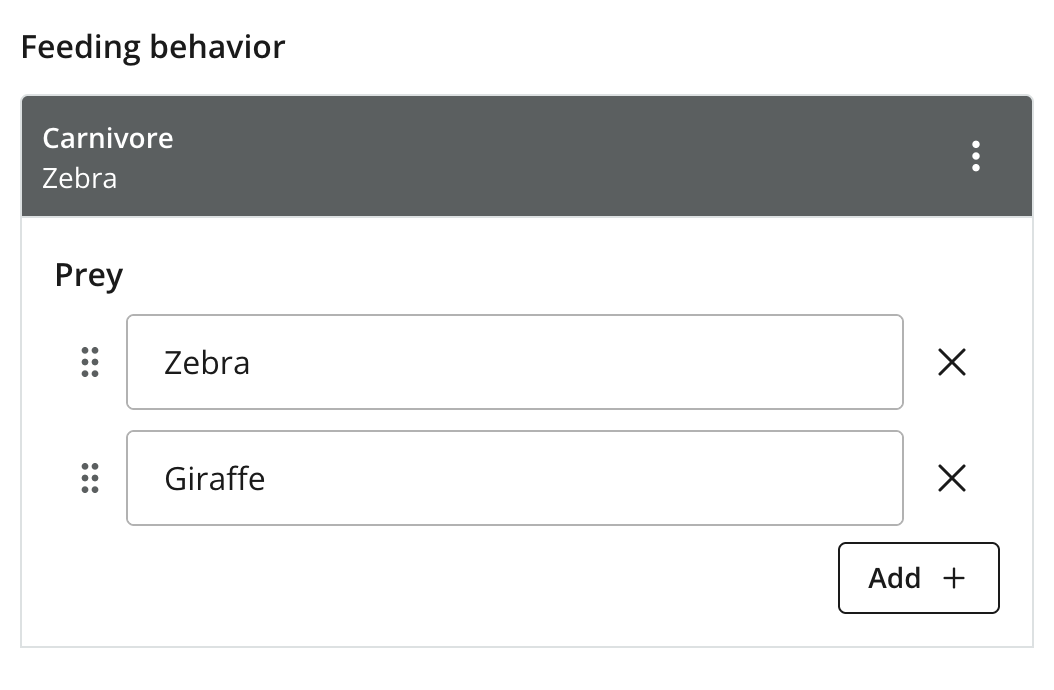 Figure 2. Lion’s feeding behavior with two prey values
 -
Describe a herbivore - For Reindeer, select Herbivore and save. Notice that there is no Prey field for this option.
There are two different limits to keep in mind:
-
occurrencescontrols how many instances of the whole option set can exist. Here it is omitted, so feeding behavior is optional and can occur at most once. -
selectioncontrols how many options can be selected within an instance. Here both limits are1, so an editor adding feeding behavior must choose exactly one option.
The herbivore option has no extra fields. The carnivore option contains a repeatable prey field.
Task: Query the selected option
-
Fetch Lion’s feeding behavior - Run this query for Lion:
{
  guillotine {
    get(key: "/animals/lion") {
      displayName
      ... on com_example_dev101_Animal {
        data {
          feedingBehavior {
            _selected
            carnivore {
              prey
            }
          }
        }
      }
    }
  }
}
The
data.guillotine.getobject contains:{ "displayName": "Lion", "data": { "feedingBehavior": { "_selected": "carnivore", "carnivore": { "prey": ["Zebra", "Giraffe"] } } } } -
Compare the herbivore option - Change the key to
/animals/reindeerand run the query again. The selected option is now"herbivore", andcarnivoreisnull. Use_selectedto identify the choice even when it has no extra fields, as with Herbivore.
The _selected field tells you which option was chosen, using its schema name rather than its label. For this single selection, it is a string. The carnivore object contains that option’s fields.
Reuse fields across options
Next, you’ll record where an animal lives. An animal may live on several continents, so this option set will allow multiple selections. Each selected continent needs its own Notes field.
A form fragment defines form items once so you can include them in several places. You’ll use one here to give all seven continent options the same field definition.
Task: Create the distribution form fragment
-
Define the shared Notes field - Create this file in your app:
src/main/resources/cms/form-fragments/distributionData/distributionData.yamlkind: "FormFragment" title: "Distribution data" form: - type: "TextArea" name: "notes" label: "Notes"
As with content types, the folder and filename match the schema name: distributionData. Its form contains the fields to insert wherever the fragment is included.
Task: Add distribution to Animal
-
Include the fragment for each continent - Append this option set to the Animal form, after
feedingBehavior:src/main/resources/cms/content-types/animal/animal.yaml- type: "OptionSet" name: "distribution" label: "Distribution across continents" helpText: "Continents where the animal can be found in the wild" selection: min: 0 max: 7 options: - name: "africa" label: "Africa" items: - include: "distributionData" - name: "antarctica" label: "Antarctica" items: - include: "distributionData" - name: "asia" label: "Asia" items: - include: "distributionData" - name: "australia" label: "Australia" items: - include: "distributionData" - name: "europe" label: "Europe" items: - include: "distributionData" - name: "northAmerica" label: "North America" items: - include: "distributionData" - name: "southAmerica" label: "South America" items: - include: "distributionData" -
Enter Lion’s distribution - Save both files, let the watcher update the app, and reopen Lion. In Distribution across continents, click Add, select Africa and Asia, and enter these notes:
Continent Notes Africa
Found in parts of sub-Saharan Africa.
Asia
Found in Gujarat, India.
-
Save the distribution - Save the animal.
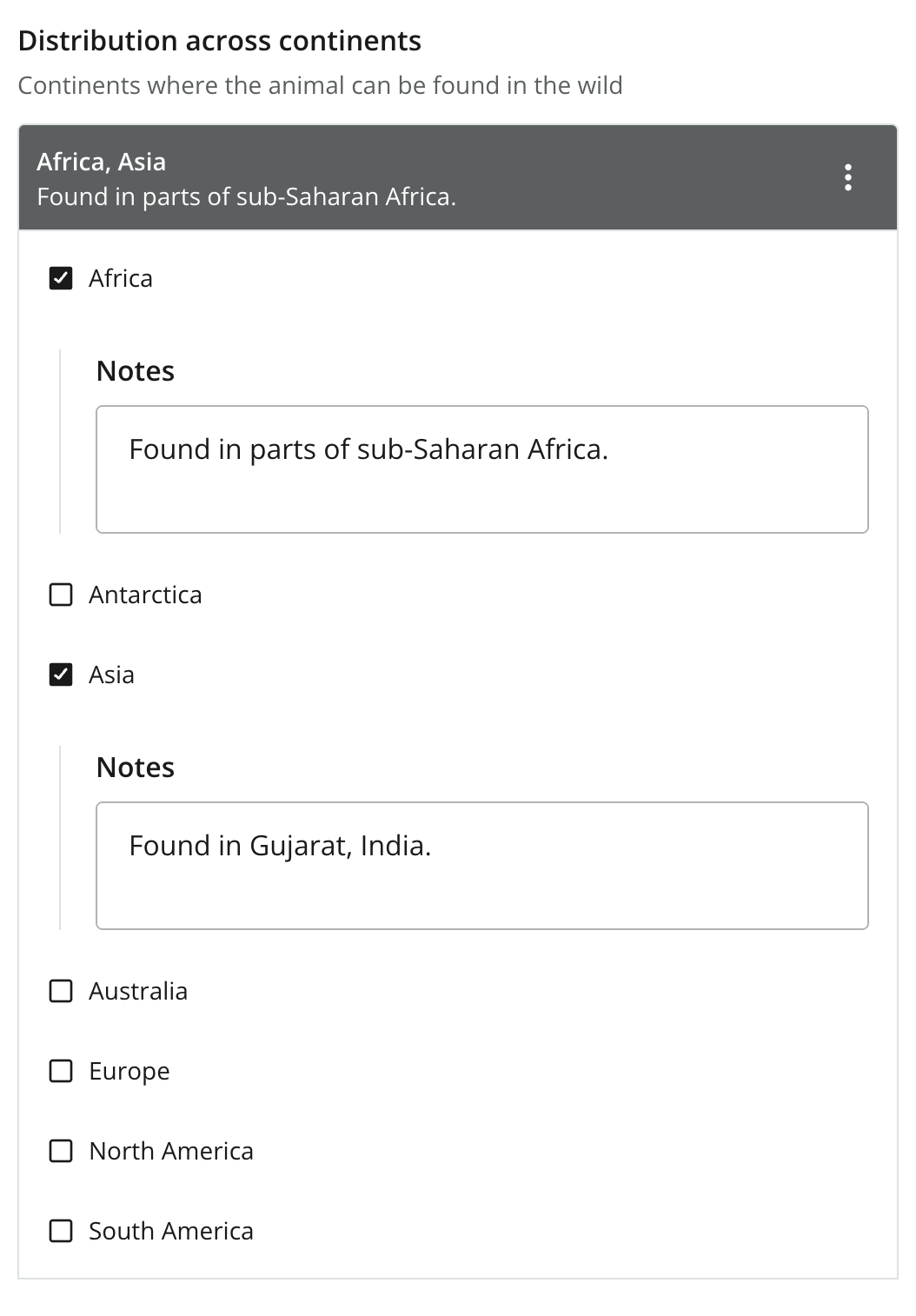 Figure 3. Lion’s distribution with separate notes for each selected continent
selection.min: 0 and selection.max: 7 allow any number of the seven continents to be selected. Each include: "distributionData" inserts the fragment’s Notes field into that option.
The fragment shares the field definition, not its values: Africa and Asia each have their own notes. Changing the fragment updates the form wherever it is included, and it adds no extra level to the stored data or GraphQL response. A CMS form fragment is also separate from a GraphQL fragment, which groups fields in a query.
Task: Query the distribution
-
Fetch the distribution notes - Run this query to fetch both selected continents and their notes:
{
  guillotine {
    get(key: "/animals/lion") {
      displayName
      ... on com_example_dev101_Animal {
        data {
          distribution {
            _selected
            africa {
              notes
            }
            asia {
              notes
            }
          }
        }
      }
    }
  }
}
The
data.guillotine.getobject contains:{ "displayName": "Lion", "data": { "distribution": { "_selected": ["africa", "asia"], "africa": { "notes": "Found in parts of sub-Saharan Africa." }, "asia": { "notes": "Found in Gujarat, India." } } } }
This time, _selected is a list because the option set allows multiple selections. The whole distribution value is still one object: the number of selected options is independent of the number of occurrences of the set. The fragment’s notes field appears directly inside each continent, with no distributionData wrapper.
Visual grouping and further reading
If you only want to organize a form visually, a field set puts a heading around a group of form items without changing their data structure. It has a label and nested items, but no property name of its own. For example, grouping Artist’s existing fields in a field set would leave their GraphQL paths unchanged.
The CMS reference covers the additional settings and nesting possibilities for field sets, item sets, option sets and form fragments.