Mixins
Contents
In this chapter, you’ll add an Editorial mixin to Artist and Animal, enter separate notes on each, and query them through Guillotine.
A mixin adds a group of fields to content types without editing each content type’s schema. Use one for fields such as editorial notes that apply across different kinds of content, or to extend built-in types such as folders and media. Unlike a form fragment, which inserts fields into a schema’s form, a mixin keeps its values separately under x.
Add editorial notes to artists and animals
You’ll define the fields in a mixin schema, then register it in the app’s CMS descriptor to choose which content types receive them. Your app is already assigned to "My First Project", so the registration applies there.
These notes follow the content item’s read permissions and can be queried through the API by anyone who can read that item. The name "Editorial" does not make them private; you’ll explore read access in the permissions chapter.
Task: Create the mixin
-
Define the Editorial mixin - Create this file in your app:
src/main/resources/cms/mixins/editorial/editorial.yamlkind: "Mixin" title: "Editorial" form: - type: "TextLine" name: "notes" label: "Notes" occurrences: min: 0 max: 3
The folder and filename identify the mixin as editorial, and title gives its tab the label "Editorial" in Content Studio. The form contains one repeatable TextLine field named notes, allowing up to three notes per content item.
Task: Register the mixin
-
Choose which content types get the mixin - Update your app’s existing CMS descriptor to include the registration:
src/main/resources/cms/cms.yamlkind: "CMS" mixins: - name: "editorial" allowContentTypes: "com.example.dev101:artist|com.example.dev101:animal" -
Deploy the mixin - Save both files and let your running
enonic devwatcher update the app.
name: "editorial" selects the mixin from this app. allowContentTypes is a regular expression matched against the full content type name; this one selects Artist and Animal. If you chose a different app name, update the app key in the expression to match. Leaving out allowContentTypes makes the mixin available on all content types in the content project where the app is assigned.
For other registration options, including mixins that editors enable per content item, see the CMS descriptor reference.
Task: Add notes to two content types
-
Find Lynx’s mixin fields - Open Lynx at
/animals/lynxin Content Studio and select the Editorial tab beside Animal. -
Add Lynx’s notes - Enter "Review the habitat description." in the first Notes field. Click Add and enter "Add a source for the diet information." in the second, then save Lynx.
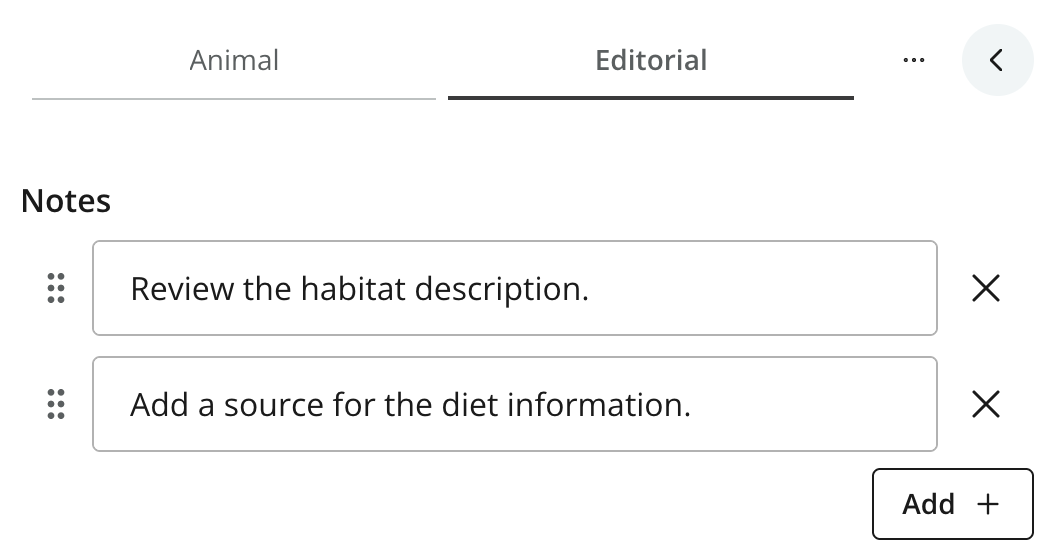 Figure 1. The Editorial mixin on Lynx
 -
Add Cardi B’s note - Open Cardi B at
/artists/cardi-band select its Editorial tab beside Artist. Enter "Check the filmography for new releases." and save.
Both content types now use the same mixin form, but each content item has its own values. You did not need to change either content type’s schema.
Query the notes
The content type’s own fields are under data; mixin fields are under x, grouped by app and mixin. The typed fields let your client request just the values it needs.
Task: Fetch Lynx’s notes
-
Fetch Lynx’s mixin fields - Open Query Playground for "My First Project", select Draft, and run:
{
  guillotine {
    get(key: "/animals/lynx") {
      displayName
      x {
        com_example_dev101 {
          editorial {
            notes
          }
        }
      }
    }
  }
}
The response contains:
{ "data": { "guillotine": { "get": { "displayName": "Lynx", "x": { "com_example_dev101": { "editorial": { "notes": [ "Review the habitat description.", "Add a source for the diet information." ] } } } } } } } -
Compare Cardi B’s note - Change
keyto/artists/cardi-band run the same query. The typednotesfield returns a list, even when the content item has only one note.
The three levels inside x are the app ({app-name-query}), the mixin (editorial), and its field (notes). Dots in the app key become underscores in the GraphQL field name. Unlike the content type’s data, x is available on the shared Content interface, so this query needs no Animal inline fragment.
Task: Inspect the JSON representation
-
Fetch all stored mixin values - Query
xAsJsonto inspect the values without selecting their individual fields:{ guillotine { get(key: "/animals/lynx") { xAsJson } } }The
xAsJsonvalue contains:{ "com-example-dev101": { "editorial": { "notes": [ "Review the habitat description.", "Add a source for the diet information." ] } } }
Notice the app key: the JSON representation uses hyphens (com-example-dev101), while the typed GraphQL field uses underscores ({app-name-query}). The values are the same, but JSON does not apply the GraphQL field types: a single note appears as a string in xAsJson, while the typed field remains a list. Use the typed fields when your client needs a predictable shape and only selected values. The CMS mixins reference covers the underlying storage in more detail.
Mixins from other apps
Apps can provide mixins for content types they do not define. For example, the SEO Meta Fields app provides fields for search and social sharing metadata across content types and exposes them through Guillotine. The same registration mechanism lets an app add shared fields without changing your Artist or Animal schemas.
Choosing the right tool
You’ve now used the main content modeling tools in this tutorial. Use this recap when deciding how to represent new content:
| What you want to build | Use |
|---|---|
|
Content that editors manage and publish independently |
Content type |
|
Relationships between independently managed content items |
Reference (ContentSelector, ImageSelector) |
|
Images and other uploaded files, managed as content with a source attachment |
Media |
|
Visual groups of fields without changing the data structure |
FieldSet |
|
Nested or repeatable groups of fields that belong to one content item |
ItemSet |
|
A single selection, optionally with fields for the chosen option |
OptionSet with one selection per occurrence |
|
Multiple selections, optionally with separate fields for each chosen option |
OptionSet allowing multiple selections per occurrence |
|
Ordered lists of content blocks, such as text, images and quotes for a basic landing page |
Repeatable OptionSet with one selection per occurrence |
|
Reusable form definitions included in several schemas or options |
Form fragment |
|
Formatted prose with links, images and macros |
HtmlArea |
|
Shared fields added across content types, including types provided by other apps |
Mixin |
An OptionSet can support multiple selections with separate fields for each selected option, as you did with continents and their notes in the sets chapter. A repeatable OptionSet with one selected option per occurrence lets editors build a sequence of blocks, such as text, images and quotes, for your front-end to render. See the OptionSet reference for configuration examples. For visual editing or more advanced page composition, explore XP’s page model in the Introduction to Enonic or the Next.js tutorial.
Coming up
You’ve added and queried a mixin across two content types, completing the tutorial’s content model. In the next chapter, you’ll publish your content and explore read and editorial permissions.