Rich text
Contents
In this chapter, you’ll add rich text to Animal, insert a link, an image and a macro, and query each addition through Guillotine. You’ll use a new animal, Lynx, for the exercises.
Add a description
The HtmlArea form item lets editors write formatted text with embedded content. Use it for free-form prose; use the option sets from the previous chapter when your front-end needs separate, structured entries.
Task: Add the field and create Lynx
-
Define the rich text field - Append this field to the Animal form, after
distribution:src/main/resources/cms/content-types/animal/animal.yaml- type: "HtmlArea" name: "description" label: "Description" helpText: "Describe the animal. Where its habitats are, what it eats, etc." exclude: "*" include: "Format Link Macro Image" -
Create Lynx - Save the schema and let your running
enonic devwatcher update the app. In Content Studio, create an Animal named "Lynx" in the Animals folder, with the path/animals/lynx.
exclude: "*" removes the default toolbar tools, and include adds the tools used in this chapter. The field is optional and accepts one value, since occurrences is omitted. Keep the toolbar focused on the formatting your front-end supports; the HtmlArea reference covers the other settings.
Link to another animal
An internal link stores the target content item’s ID, just like a ContentSelector reference. Moving or renaming the target preserves that reference; your front-end still needs to resolve it to the appropriate URL.
Task: Link to Lion
-
Write the description - In Lynx’s Description, enter this text:
Lynx are cats, just like lions.
-
Choose the link text - Select the word "lions" and click the Link toolbar button.
-
Select the link target - In the Content tab, search for and select Lion at
/animals/lion.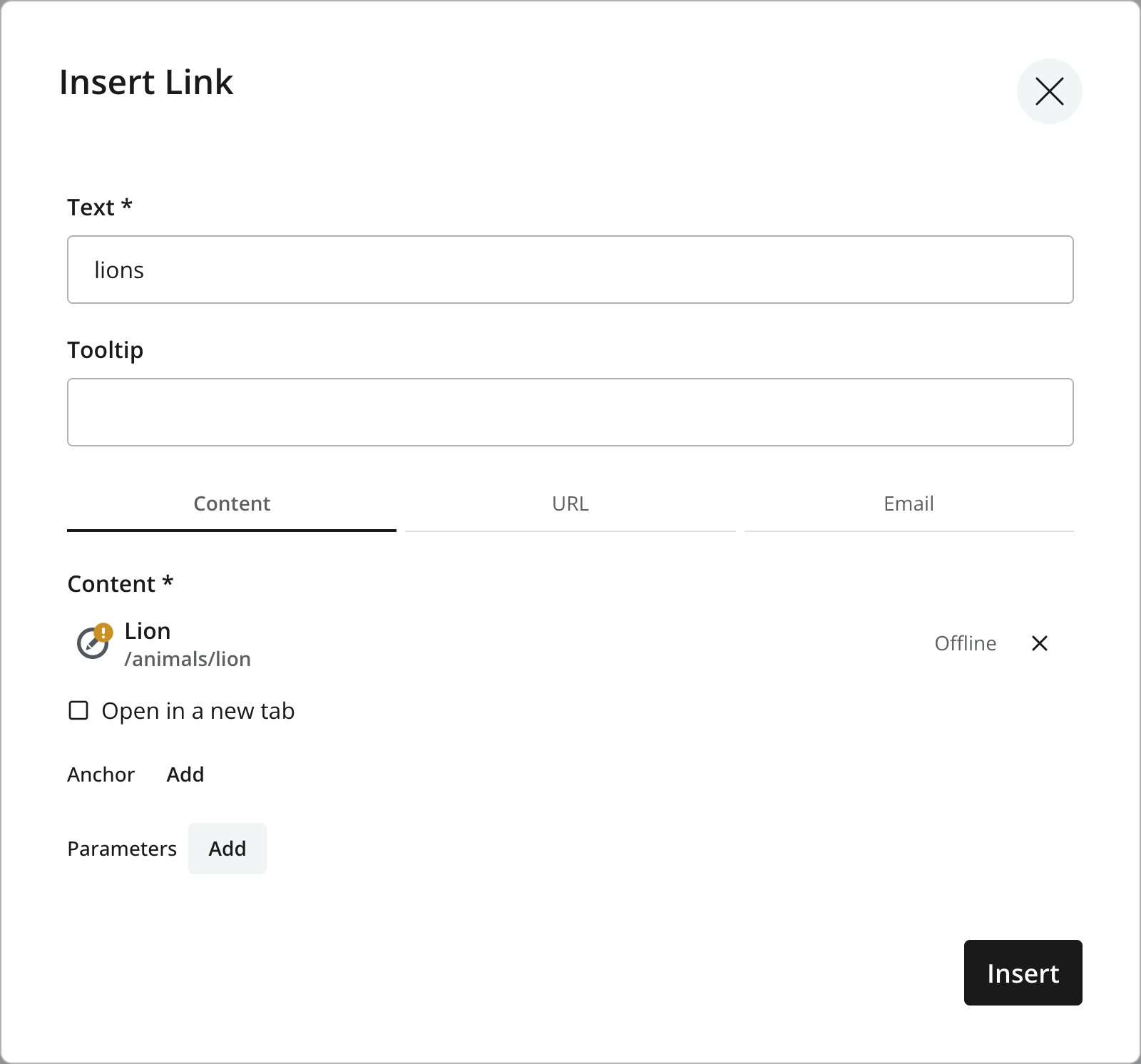 Figure 1. Selecting Lion as the link target
 -
Save the link - Click Insert, then save Lynx.
Task: Inspect the link
Unlike TextArea, which returns a string, HtmlArea exposes a GraphQL object with several fields. raw is the stored markup; processedHtml is the result of processing it for delivery.
-
Compare the raw and processed link - Open Query Playground for "My First Project" and keep Draft selected throughout this chapter. Query both forms of the HTML together with the link’s target and URL components:
{
  guillotine {
    get(key: "/animals/lynx") {
      ... on com_example_dev101_Animal {
        data {
          description {
            raw
            processedHtml
            links {
              ref
              content {
                displayName
                _path
              }
              pageUrl {
                baseUrl
                path
                queryString
              }
              fragment
            }
          }
        }
      }
    }
  }
}
The response shows how processing changes the internal link:
{
  "data": {
    "guillotine": {
      "get": {
        "data": {
          "description": {
            "raw": "<p>Lynx are cats, just like <a href=\"content://95cd658d-a645-4f63-a3de-4601b06507bd\">lions</a>.</p>\n",
            "processedHtml": "<p>Lynx are cats, just like <a href=\"/animals/lion\" data-link-ref=\"8aafba0c-cb32-457c-86c8-3b7772ea4750\">lions</a>.</p>\n",
            "links": [
              {
                "ref": "8aafba0c-cb32-457c-86c8-3b7772ea4750",
                "content": {
                  "displayName": "Lion",
                  "_path": "/animals/lion"
                },
                "pageUrl": {
                  "baseUrl": null,
                  "path": "/animals/lion",
                  "queryString": ""
                },
                "fragment": ""
              }
            ]
          }
        }
      }
    }
  }
}
In raw, the link’s href contains content:// followed by Lion’s content ID. In processedHtml, it contains /animals/lion instead, and data-link-ref connects the HTML element to the structured links entry. The HTML values are JSON strings; a JSON parser handles the escaped quotes and newlines.
Match data-link-ref in the HTML with ref in the link data from the same response. Your content IDs and reference values will differ from this example. The default href is the target’s content path; it is not a guarantee that your front-end serves content at that URL. Use the target and URL components to construct your own route, supplying your front-end’s base when baseUrl is null, and append any queryString and fragment. The Guillotine rich-text examples show how to apply the resulting URL.
Insert an image
Images inside rich text reference media content too. The caption and alternative text you enter here belong to this use of the image in the description.
Task: Add a lynx photograph
-
Choose a lynx photograph - Download this lynx photograph by Zdeněk Macháček and save it as
lynx.jpg, or choose your own image. -
Choose where to insert the image - Reopen Lynx and place the cursor in a new paragraph below its description. Click the Image toolbar button.
-
Upload the photograph - Drop
lynx.jpgonto the upload area in the Insert Image dialog, or click the upload area to choose the file. The uploaded image is selected automatically. -
Set the presentation and caption - Leave the image style as <None> and Custom width unchecked. For the supplied photograph, enter "Lynx in human care. Photo: Zdeněk Macháček." as the caption.
-
Add alternative text and save - Under Accessibility, choose Alternative text and enter "Lynx walking through grass." Click Insert, then save Lynx.
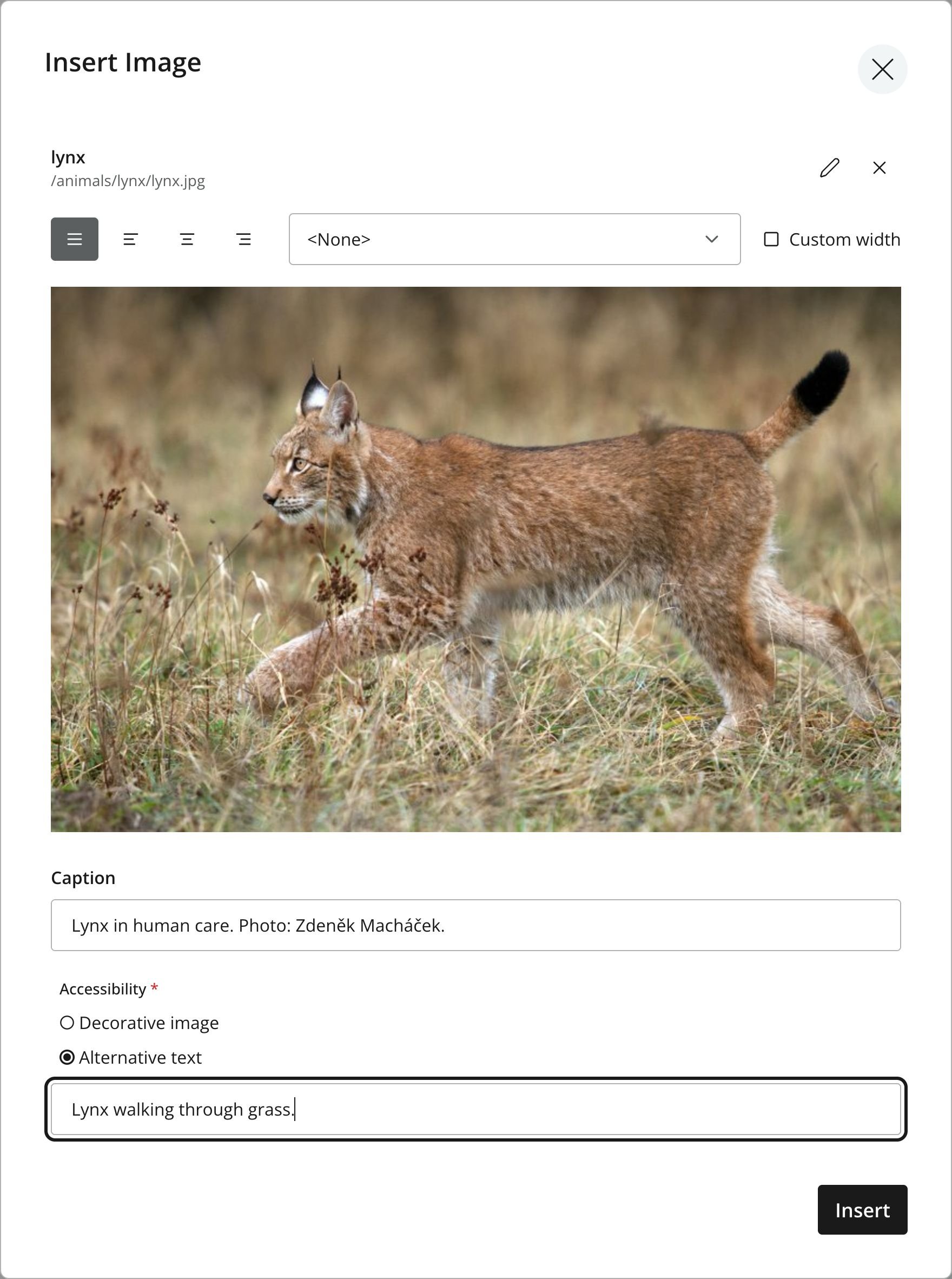 Figure 2. Caption and alternative text for the inserted photograph
 -
Find the uploaded content - Return to the content tree and expand Lynx to find the new image at
/animals/lynx/lynx.jpg.
Uploading through this dialog creates a separate media content item under the animal you’re editing. The description references that image by ID, and the uploaded file is an attachment of the image content item, as explained in the media chapter.
Use the Decorative image option only when an image adds no information beyond its surrounding content. For more editing controls, see the Content Studio rich-text editor documentation.
Task: Inspect the image URL
-
Fetch the image URL components - Query
imagesalongside the processed HTML:{ guillotine { get(key: "/animals/lynx") { ... on com_example_dev101_Animal { data { description { processedHtml images { ref src { path queryString } } } } } } } }The inserted image appears in
processedHtmlas a<figure>with an<img>and a<figcaption>:<figure class="captioned editor-align-justify"><img alt="Lynx walking through grass." src="/media:image/my-first-project:draft/304b9ac8-406e-4d05-80d7-86b868c225ed:2eb15046035b4e5f05e511c853da1216/width-768/lynx.jpg" style="width:100%" data-image-ref="52918d8b-9c15-49a2-9190-4b3249f90528"> <figcaption>Lynx in human care. Photo: Zdeněk Macháček.</figcaption> </figure>Its
data-image-refmatches this entry in theimagesarray:{ "ref": "52918d8b-9c15-49a2-9190-4b3249f90528", "src": { "path": "/media:image/my-first-project:draft/304b9ac8-406e-4d05-80d7-86b868c225ed:2eb15046035b4e5f05e511c853da1216/width-768/lynx.jpg", "queryString": "" } }
Build the image URL as http://localhost:8080/api + path + queryString, just as in the media chapter. Use it for the matching image’s src; the relative media path alone will point at your front-end’s host when rendered there. Your IDs and URL fingerprints will differ from this example.
Apply an image style
A custom image style gives editors a named choice for cropping or filtering images. You’ll add a square crop with a grayscale filter.
Task: Create and apply the style
-
Define the image style - Create this file in your app:
src/main/resources/cms/style/style.yamlkind: "Style" styles: - type: "Image" name: "square-grayscale" label: "Square grayscale" aspectRatio: "1:1" filter: "grayscale()" -
Apply the style to Lynx’s image - Save the file and let the watcher update the app. Reopen Lynx, double-click the image in Description, and choose Square grayscale from the style selector. Click Update and save the animal.
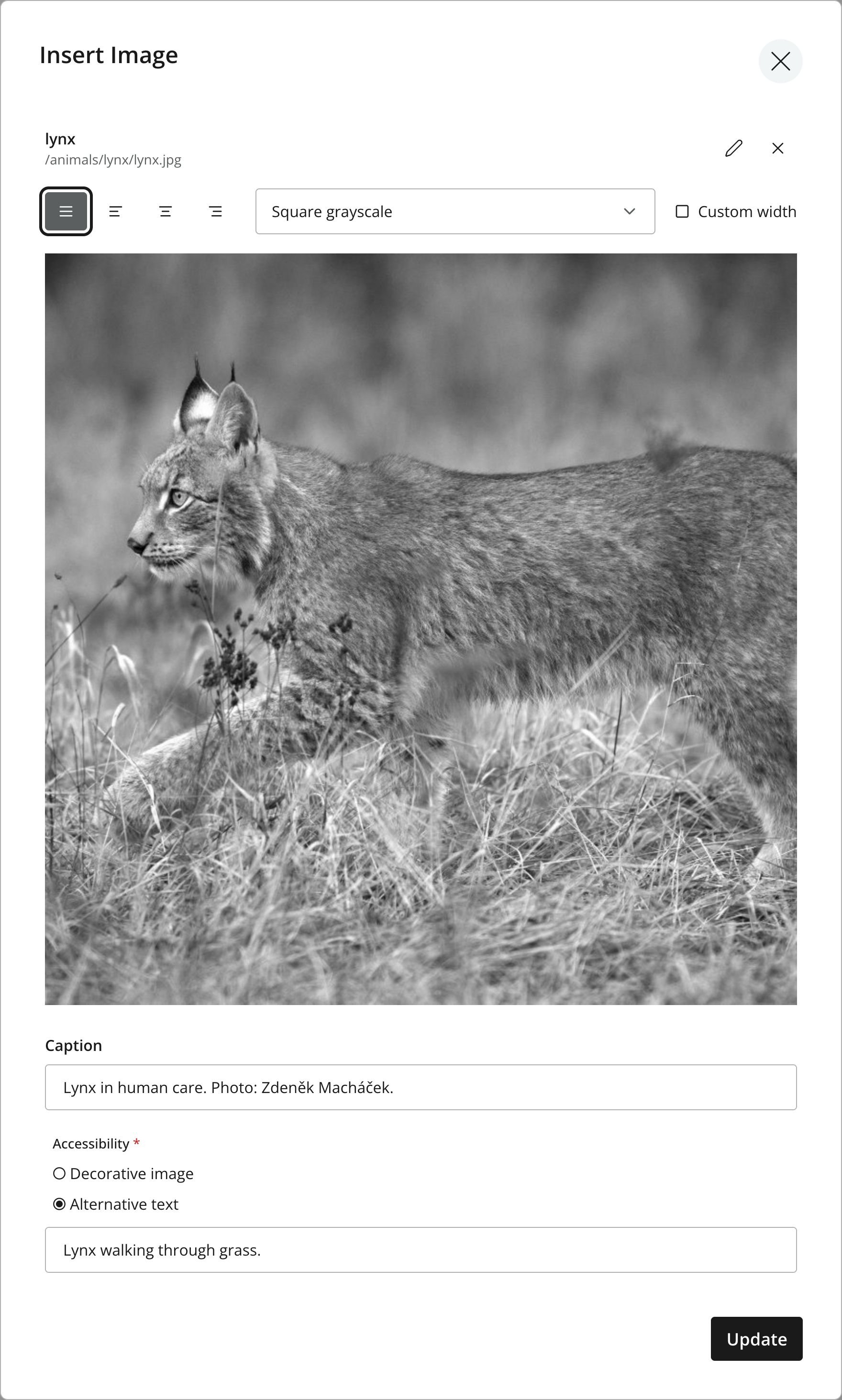 Figure 3. Square grayscale selected for the Lynx image
 -
Inspect the styled image - Run the image query again. The returned URL now includes the crop and filter instructions; use both its
pathandqueryStringwithout modifying them. -
Fetch the style settings - Add this field next to
srcinsideimagesand run the query:style { name aspectRatio filter }The
styleobject contains:{ "name": "square-grayscale", "aspectRatio": "1:1", "filter": "grayscale()" }
aspectRatio: "1:1" requests a square crop, and filter: "grayscale()" removes color. Styles are available from apps assigned to the content project, including your app. For effects that only concern presentation, consider client-side CSS instead of server-side filters, as discussed in the media chapter.
The style is not a stylesheet for your whole front-end: captions, text and layout still use your front-end’s own styling. See the CMS styles reference for more options.
Insert a macro
A macro embeds a configurable component in rich text. The built-in Embed IFrame macro lets editors provide an iframe, such as a video embed. In Guillotine, it becomes a placeholder plus configuration data for your client to render.
Task: Add an iframe embed
-
Configure the video embed - In Lynx’s Description, place the cursor in a new paragraph after the image and click Insert macro. Choose Embed IFrame and enter:
<iframe src="https://www.youtube.com/embed/gr5EwZo_CHQ" title="Lynx video" width="560" height="315" allowfullscreen></iframe>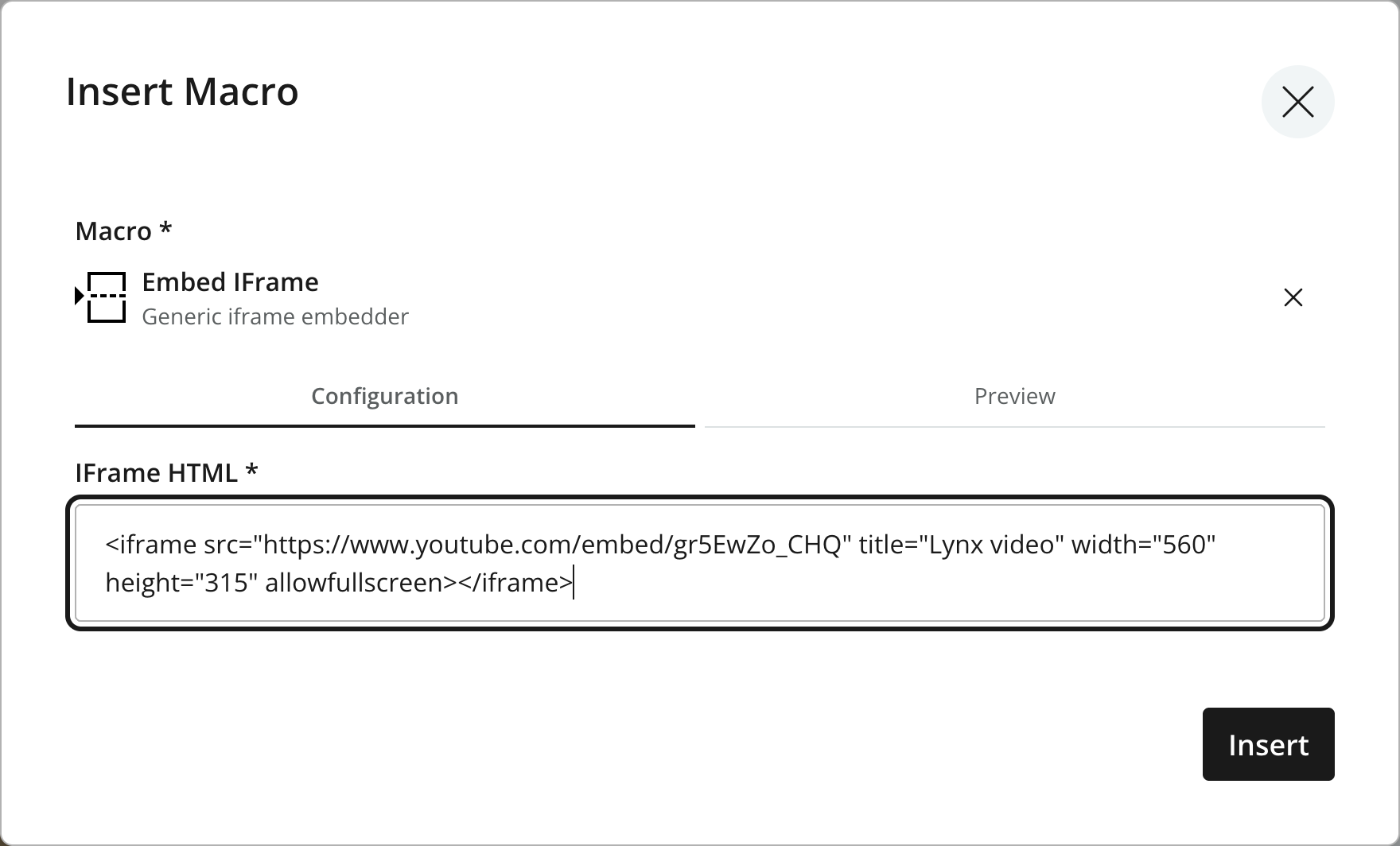 Figure 4. Configuring the built-in Embed IFrame macro
 -
Save the embed - Insert the macro and save Lynx. The macro stores the iframe configuration in the rich text.
Task: Query the macro configuration
-
Fetch the macro configuration - Query the typed
macrosfields:{ guillotine { get(key: "/animals/lynx") { ... on com_example_dev101_Animal { data { description { processedHtml macros { ref name descriptor config { embed { body } } } } } } } } }The processed HTML contains this macro placeholder:
<editor-macro data-macro-name="embed" data-macro-ref="c0357643-ddda-4e54-a3d9-c3ea39d1ba2f"><iframe src="https://www.youtube.com/embed/gr5EwZo_CHQ" title="Lynx video" width="560" height="315" allowfullscreen=""></iframe></editor-macro>The
macrosarray contains its configuration:{ "ref": "c0357643-ddda-4e54-a3d9-c3ea39d1ba2f", "name": "embed", "descriptor": "system:embed", "config": { "embed": { "body": "<iframe src=\"https://www.youtube.com/embed/gr5EwZo_CHQ\" title=\"Lynx video\" width=\"560\" height=\"315\" allowfullscreen=\"\"></iframe>" } } }
Match data-macro-ref with ref, then use the macro’s name and configuration to render it in your client. In this example, config.embed.body contains HTML entities such as < and >. These remain after parsing the JSON; a client rendering this iframe must decode them as part of handling the embed macro. Returning processedHtml does not execute the macro or automatically turn its placeholder into a working video.
The Guillotine RichText reference also describes macrosAsJson for inspecting all macro data as JSON. The CMS macros reference covers macro definitions and other built-in macros.
Optional: Request responsive images
Use processHtml.imageSrcWidth to change the default width of the main src image, and imageWidths to request additional sizes for srcset. This example requests an 800-pixel main image and two responsive alternatives:
{
  guillotine {
    get(key: "/animals/lynx") {
      ... on com_example_dev101_Animal {
        data {
          description(processHtml: {
            imageSrcWidth: 800
            imageWidths: [320, 640]
          }) {
            processedHtml
            images {
              ref
              src {
                path
                queryString
              }
              srcset {
                width
                imageUrl {
                  path
                  queryString
                }
              }
            }
          }
        }
      }
    }
  }
}
The images entry now has an 800-pixel-wide src image, replacing the default width of 768, and two srcset candidates with widths of 320 and 640. The Square grayscale style still applies, so the main image is 800 × 800 pixels and retains the grayscale filter. Build its URL from http://localhost:8080/api + src.path + src.queryString. For each candidate, combine http://localhost:8080/api with its imageUrl.path and imageUrl.queryString. The Guillotine image examples show how to populate src and srcset from these components. Request sizes through Guillotine; do not construct them by editing the returned URL paths.