Setup
Contents
In this chapter, you’ll install the Enonic CLI, start a local XP sandbox, and create the app that will hold your content types. It takes a few minutes, and everything you install here is used in every later chapter.
Tested versions
This tutorial was produced and tested with the following stack:
| Component | Version |
|---|---|
|
Enonic CLI |
4.1.4 |
|
Enonic XP |
8.1.2 |
|
Content Studio |
6.1.0 |
|
Guillotine |
9.0.0 |
Some screenshots were captured on XP 8.1.0. The sandbox command below selects XP 8.1.2 to match the tested runtime. The Essentials template installs apps separately, so their versions may differ from those listed here.
Install the CLI
Enonic provides a Command Line Interface (CLI) for working with XP. It manages local XP instances, creates projects from starters, and builds and deploys your apps.
Task: Install the CLI
-
Install the command-line tool - If you have
npmon your machine, run:npm install -g @enonic/cliIf not, there are alternative ways to install the Enonic CLI.
-
Verify the installation - Run
enonic -v. This should print the version of the CLI; this tutorial expects version 4 or newer.
| You do not need to install Java or Gradle. The sandbox you create next bundles the Java runtime, and the CLI uses it when building your app. |
Create a sandbox
A sandbox is a local developer instance of Enonic XP, with its own data and configuration. You can have several, each on its own XP version.
The essentials template installs a set of applications from Enonic Market, including Content Studio and Guillotine, which you will meet in the coming chapters. The -v flag selects the XP version; -f accepts the defaults for the remaining prompts.
Task: Start a sandbox
-
Create and start the sandbox - Run this command in your terminal:
enonic sandbox create 101tutorial -v 8.1.2 -t essentials -f -
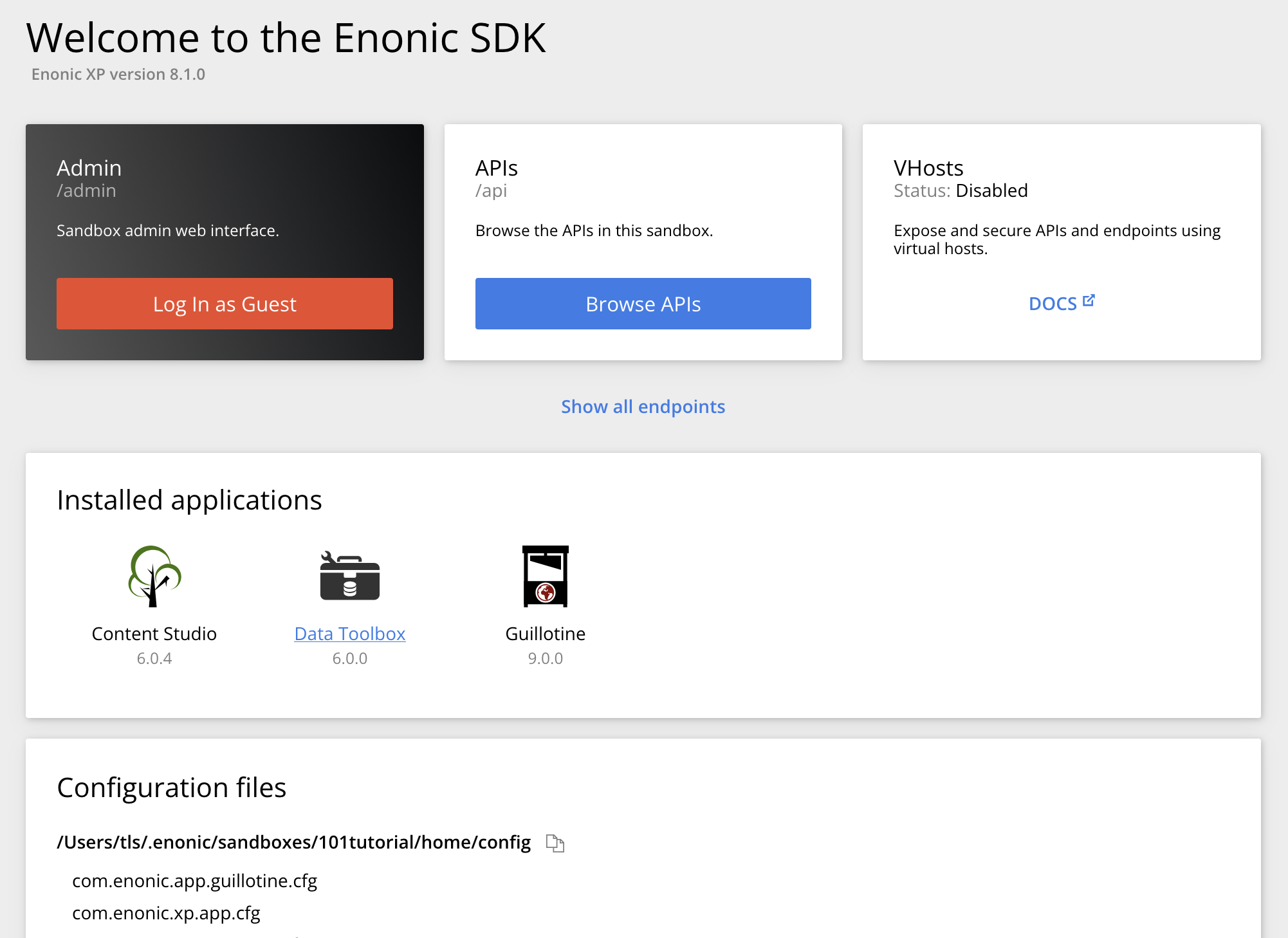
Open the sandbox welcome page - Wait for the terminal to report that Enonic XP has started, then open http://localhost:8080 in your browser. You should see the Enonic SDK welcome page, listing the sandbox’s installed applications:
-
Sign in to the admin interface - Click Log In as Guest. This signs you in as the sandbox’s built-in super user (
su), with full administrator access. We’ll call this your administrator session throughout the tutorial. You should see something like this: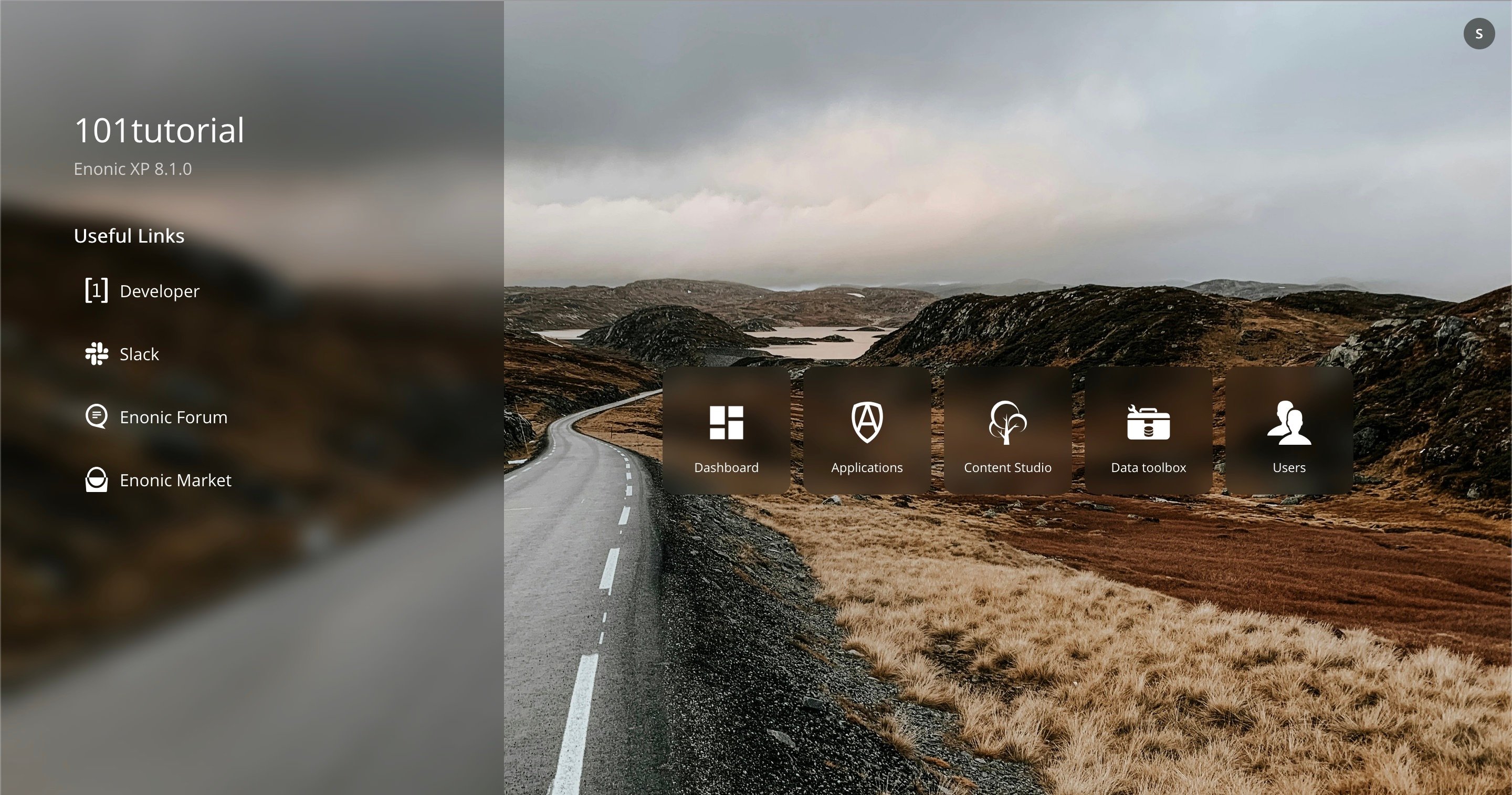
-
Check the installed app versions - Open
XP menu→Applicationsand select Content Studio and Guillotine in turn to see their versions. The exercises use Content Studio 6.1 and Guillotine 9; earlier versions may differ from the examples.
The XP menu is the start page of the XP admin. It lists the admin tools your user has access to. Dashboard, Applications and Users come with the platform, and applications such as Content Studio add their own. Once inside a tool, click the XP icon in the top right corner to return to the XP menu and switch to another tool.
In this tutorial, a path such as XP menu → Applications means: open the XP menu, then click the Applications tile.
To stop the sandbox, press ctrl-c in its terminal. To start it again, run enonic sandbox start 101tutorial. |
Create an app
Almost everything in Enonic is an application: Content Studio is an app, Guillotine is an app, and the content types you are about to define live in an app of your own.
Creating an app from scratch can be daunting for any system you’re not familiar with. To make things easier, Enonic provides starters. We’ll use the "Vanilla" starter, which contains the bare minimum.
Task: Create your app
-
Create the app from a starter - Open a new terminal window, leaving the sandbox running in the first one, and run this command:
enonic create com.example.dev101 -r starter-vanilla -s 101tutorial
This uses starter-vanilla as a template, gives the app the name com.example.dev101, places the code in the folder dev101, and links the app to the 101tutorial sandbox.
You don’t need to open the starter docs, so type N and press Enter if asked. |
App names matter. XP does not run two apps with the same name in a single instance, and the name acts as a namespace for everything the app defines, so it becomes part of the content type and GraphQL type names you will see later in this tutorial. If you choose a different name, substitute it wherever com.example.dev101 appears. |
The app folder contains a minimal Enonic application. The parts you will touch in this tutorial are:
src/
  main/
    resources/
      enonic.yaml (1)
cms/ (2)| 1 | The application descriptor, holding the app’s title, description and vendor information. |
| 2 | Where the content schemas you will create go. |
The other files in the folder, such as build.gradle and gradle.properties, belong to the build. You will not need to edit them in this tutorial. |
Build and deploy
Task: Run the app
-
Start the development watcher - Change to the app folder and start it in development mode:
cd dev101
enonic dev
This builds the app, deploys it to the
101tutorialsandbox, and then keeps watching the folder. Every time you save a file, the app is rebuilt and redeployed. Keep this command running in its own terminal while you follow the tutorial.The first build downloads a few things, so give it a moment. Look for lines like these to confirm it has completed:
Deploying 'dev101.jar' to '/Users/you/.enonic/sandboxes/101tutorial/home/deploy' BUILD SUCCESSFUL Waiting for changes to input files... -
Verify the deployed app - Open
XP menu→Applicationsin the XP admin. Your app is listed as "Vanilla Example":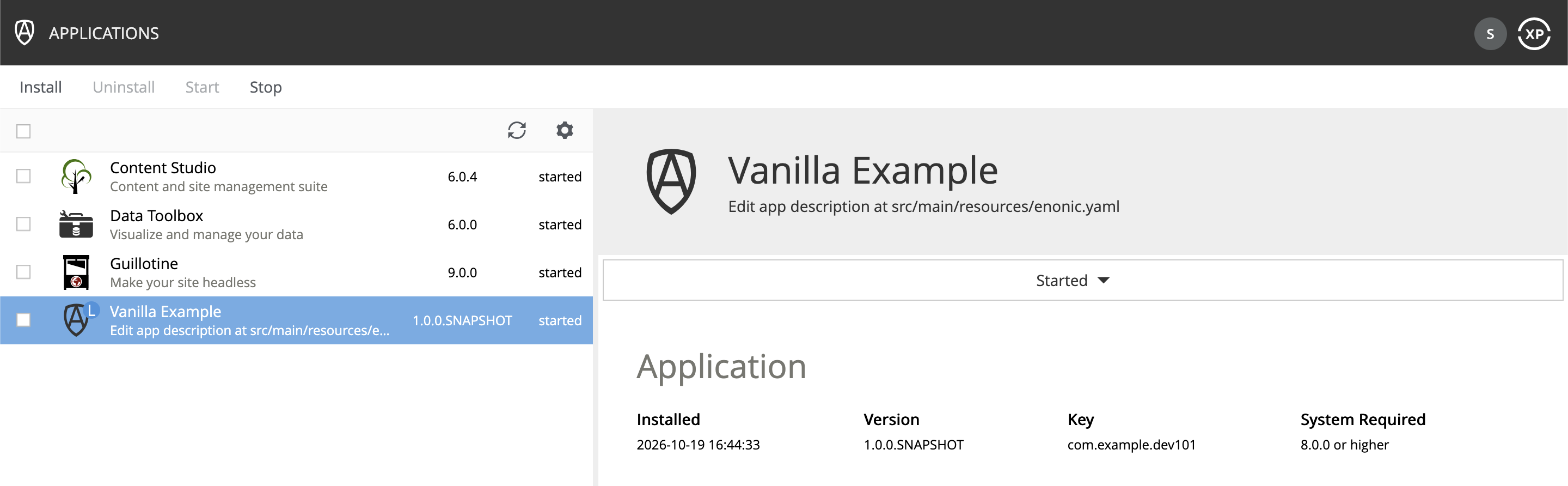
Task: Change the app’s title
-
Update the app’s identity - Open the application descriptor,
enonic.yaml, in your editor, and change thetitleanddescription:src/main/resources/enonic.yamlkind: "Application" title: "Developer 101" (1) description: "Content types and schemas from the Developer 101 tutorial" (2) vendorName: "Acme Inc" vendorUrl: "https://example.com"1 The starter calls the app "Vanilla Example". Give it a more descriptive title. 2 Replace the stock description while you’re at it. -
Verify the update - Save the file and watch the
enonic devterminal rebuild and redeploy. Revisit the Applications tool and confirm that it shows your new title.
Troubleshooting
If the app doesn’t show up in the Applications tool, check the terminal running enonic dev for build errors first, then the sandbox terminal for errors from XP.
If the build works but nothing shows up, make sure the app is linked to the sandbox that is running. Run this command from the app folder and select 101tutorial:
enonic project sandboxFor anything else, the CLI documentation covers every command and option, and the platform documentation covers the sandbox’s configuration and ports.
Coming up
You now have the CLI, a running sandbox with Content Studio and Guillotine, and your own app deployed to it. In the next chapter, you’ll get familiar with Content Studio and create your first content type.