Permissions and publishing
Contents
In this chapter, you’ll publish the content you’ve created, control who can read it, and learn how editorial permissions separate editing from publishing.
Publishing copies the current draft to the master branch. Permissions determine who can read that version, and who can edit or publish the content. You’ll explore reading access first, then editorial permissions.
Publish the tutorial content
Some artists were published earlier, but the later chapters added content and changed existing items. Start by publishing all those additions and changes using your administrator session from the setup chapter.
Task: Publish the folders and their contents
-
Select the tutorial content - In Content Studio, open "My First Project" and select the Animals, Artists and Images folders together.
-
Include the folders' contents - Open the publishing action’s dropdown and choose Publish tree. This opens the Publishing Wizard with Include child items selected automatically for each folder.
-
Review the selection - Review the wizard to ensure that the content includes
/animals/lynx/lynx.jpg. If the wizard reports items are in progress, click Mark as ready. -
Publish the content - Once the content is valid and ready, click Publish now and verify that the content is Online with no pending changes.
The Content Studio publishing documentation explains the wizard’s other options.
Public and restricted access
You chose Public when creating the content project. This gives its content public read access by default, represented by the Everyone role, which includes anonymous callers.
Even if your project is Public, published items can still be restricted. Regardless of the project’s or item’s access mode, draft items are never accessible to anonymous callers.
Task: Read the published content anonymously
This query fetches the published Lynx:
{
  guillotine(project: "my-first-project", branch: "master") {
    get(key: "/animals/lynx") {
      displayName
    }
  }
}
Query Playground supplies your login, so it cannot demonstrate anonymous access from your administrator session.
-
Fetch Lynx anonymously - Run the same query from a terminal with this ready-to-run cURL command, which sends no login credentials or browser cookies:
curl 'http://localhost:8080/api/com.enonic.app.guillotine:graphql' \
  -H 'Content-Type: application/json' \
  --data-binary '{"query":"{ guillotine(project: \"my-first-project\", branch: \"master\") { get(key: \"/animals/lynx\") { displayName } } }"}'
Lynx is returned:
{
  "data": {
    "guillotine": {
      "get": { "displayName": "Lynx" }
    }
  }
}
The next chapter explains the HTTP request format in more detail.
Task: Restrict Lynx
-
Find Lynx’s access settings - Open Lynx in Content Studio, show the Context Panel, and select Details if another panel is active.
-
Restrict public access - Click Edit permissions. Under Access Mode, choose Restricted, leaving the listed users and roles unchanged.
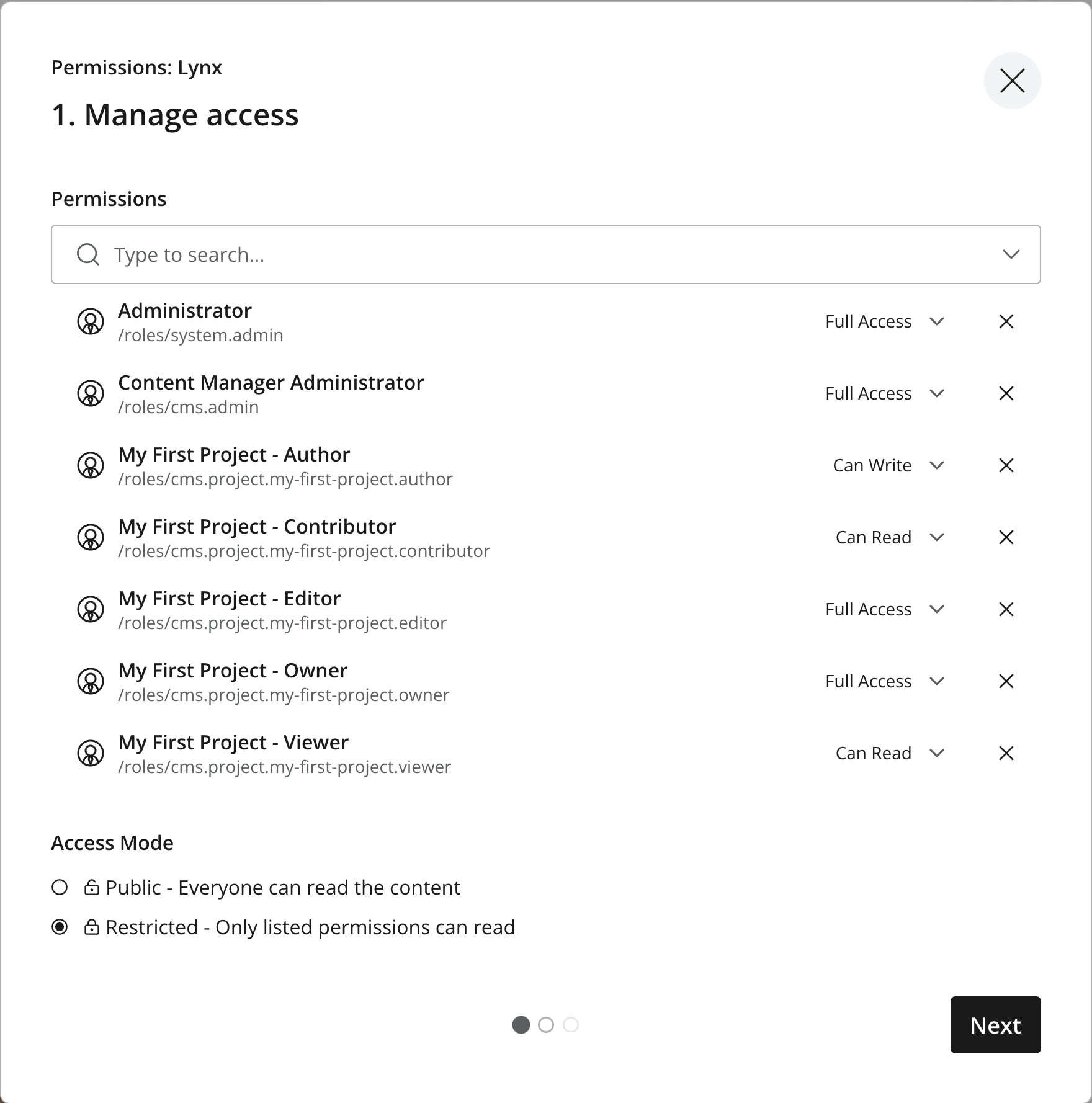 Figure 1. Restricting Lynx while preserving access for its project roles
 -
Apply the restriction to Lynx only - Click Next and choose This item as the scope. Continue to the summary and click Apply changes.
-
Test anonymous access - Fetch Lynx and its still-public child image with this expanded query:
{ guillotine(project: "my-first-project", branch: "master") { animal: get(key: "/animals/lynx") { displayName } image: get(key: "/animals/lynx/lynx.jpg") { displayName } } }animalandimageare GraphQL aliases: they name the two results so the query can callgettwice.Run this updated anonymous cURL request:
curl 'http://localhost:8080/api/com.enonic.app.guillotine:graphql' \
  -H 'Content-Type: application/json' \
  --data-binary '{"query":"{ guillotine(project: \"my-first-project\", branch: \"master\") { animal: get(key: \"/animals/lynx\") { displayName } image: get(key: \"/animals/lynx/lynx.jpg\") { displayName } } }"}'
The restricted animal is hidden, but the public image is returned:
{
  "data": {
    "guillotine": {
      "animal": null,
      "image": { "displayName": "lynx" }
    }
  }
}
Your image’s display name may differ if you chose another photograph.
-
Test administrator access - In Content Studio’s Query Playground, run the expanded GraphQL query using your administrator session. Confirm that both items are visible to this administrator.
-
Restore public access - Reopen Lynx’s permissions and change Access Mode back to Public. Choose This item as the scope, review the summary, and apply the changes. Run the two-item anonymous request again and confirm that both items are returned, ready for the front-end chapter.
Lynx remained published throughout this exercise; the results changed with the caller’s read access. Permission changes take effect on draft and published content without republishing.
The image stayed public because it has its own permissions, copied from its parent when created. Changing the parent’s permissions later only affects existing children if you explicitly include them.
Read permissions cover the entire content item, including mixin values: naming a mixin "Editorial" does not make its Notes field private. See the Content Studio permissions documentation for more on access levels and available operations.
XP can grant read access to individual users, groups, or roles on each content item. Restricted content can therefore be available to selected customers, partners, or employees. Guillotine applies those permissions to the authenticated caller, so different users can receive different results from the same query.
Users can sign in through an organization’s existing identity provider, such as Microsoft Entra ID, using an appropriate XP ID provider integration. Authentication establishes who the user is; content permissions determine what they can read or manage. The ID provider documentation explains how XP connects to external identity systems.
Who can edit and publish?
You’ve used your administrator session so far, with full access to the content. An ordinary content author has a different set of permissions. Project roles provide the usual access levels, and content permissions control the operations allowed on individual items.
Two common project roles separate editing from publishing:
| Project role | Default content access |
|---|---|
|
Author |
Read, create, edit and delete content, without publishing it |
|
Editor |
Author access plus publishing and changing content permissions |
An Author can save changes in Draft and mark the content ready, but publishing requires an Editor or another account with publishing permission. Marking an item ready changes its workflow status; it does not grant permission or update the published version. Authors can request publishing from an authorized editor.
The project roles reference explains how to assign users and groups, along with the other available roles. Your tutorial content is now published and publicly readable, ready for the front-end examples.
Coming up
You’ve published your content, compared public and restricted access, and learned how editorial roles separate editing from publishing. In the next chapter, you’ll fetch the published content from a front-end.