Permissions
Contents
Permissions determine who can access content and what actions they can perform.
Introduction
Granular permissions such as Read and Modify are granted to principals for each content item. Principals are users, groups, and roles managed by your administrator.
Every content project defines the default permissions for content in that project.
When a content item is created, it receives a copy of its parent’s permissions. An item created directly at the project root therefore receives a copy of the project’s default permissions. From that point, the permissions are independent: later changes to the parent do not automatically affect the item.
Permissions can be changed for an individual item or explicitly applied to its child items.
Principals
Individual users can be given permissions, but using groups or roles generally simplifies access management. When a group is granted permissions, all direct and indirect members receive those permissions for the content. Similarly, all users assigned a role receive the permissions granted to that role.
A user’s effective access combines permissions granted directly and through group and role membership.
Detail panel
Use the Details panel to see and edit content permissions. The public or restricted status of the item appears at the top, followed by a summary of the principals with access, grouped by permission level.
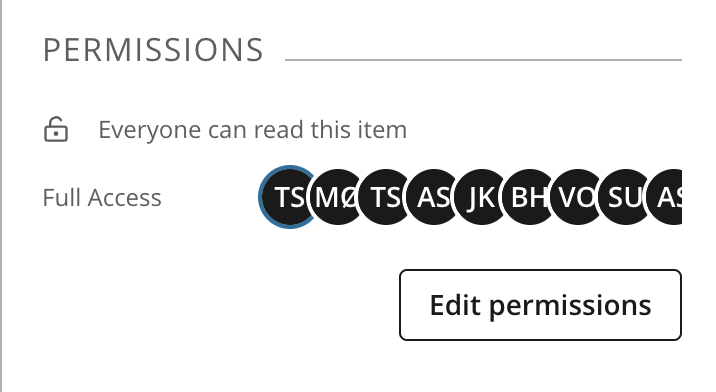
Click Edit permissions to open the permissions wizard and change the permissions for the content item.
Editing permissions
Changing permissions on one content item does not automatically affect any other item. The permissions wizard can explicitly apply the selected changes to child items, with an option to replace their permissions completely.
| Only users with the Permissions permission can edit an item’s permissions. Full Access includes this permission. |
Step 1 of the permissions wizard shows the current principals and their permission levels. The list of principals can be filtered by name or type.
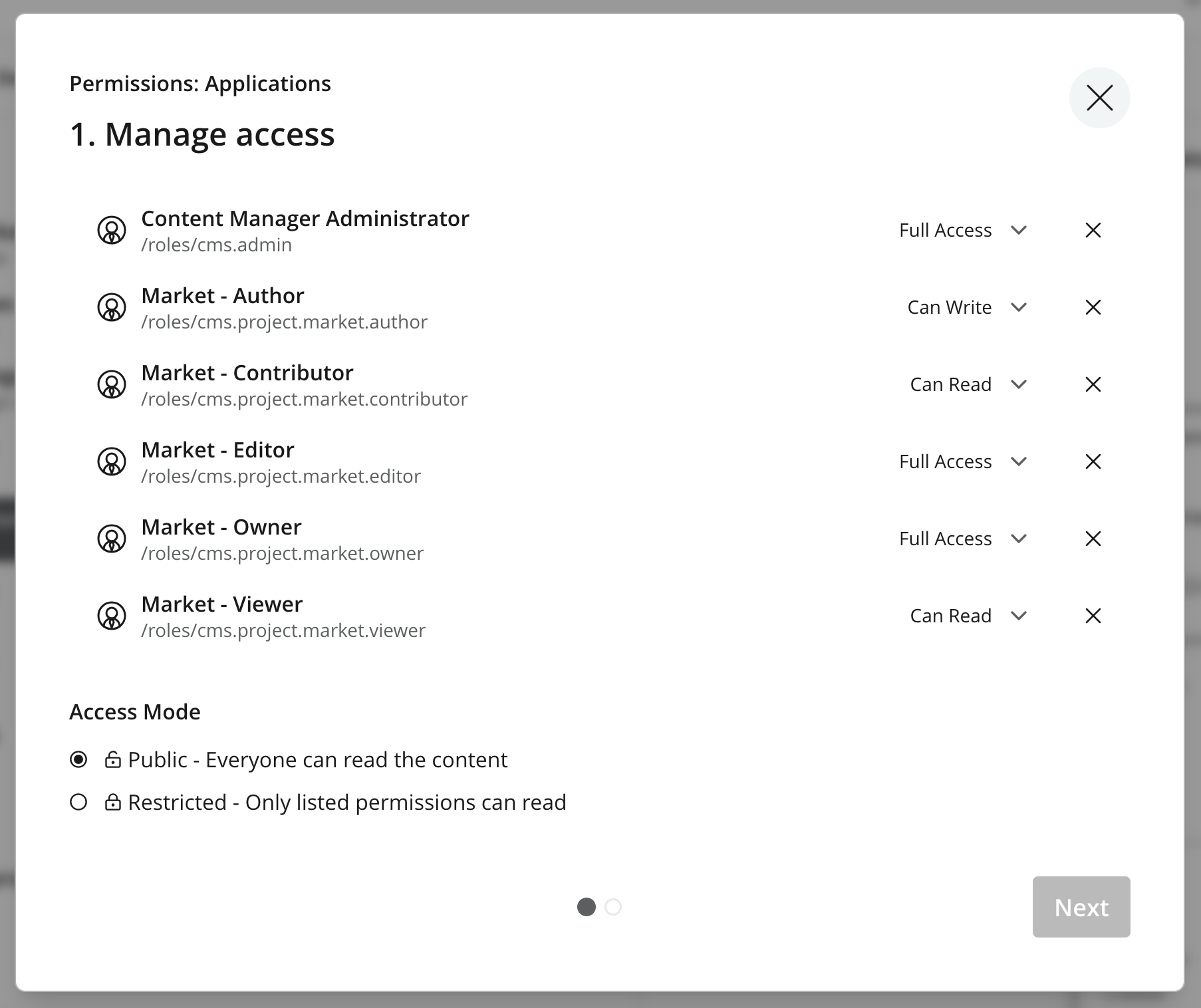
From the access step, you can add or remove principals and change their permission levels. If the item’s permissions differ from its parent, Copy from parent replaces the current settings with a copy of the parent’s permissions. For an item at the project root, the button is labeled Copy from project.
Permission levels
These are the available permission levels:
-
Can Read: The principal can see this content.
-
Can Write: The principal can create child items and edit or delete this content.
-
Can Publish: The principal has Can Write access and can publish this content.
-
Full Access: The principal has Can Publish access and can change the permissions of this content.
-
Custom: The principal can be granted any combination of granular permissions.
Custom permissions
Permission levels are pre-configured sets of permissions. Select Custom to grant any combination of the permissions in the table.
| Permission | Allows the principal to | Can Read | Can Write | Can Publish | Full Access |
|---|---|---|---|---|---|
|
Read |
See the content. |
✓ |
✓ |
✓ |
✓ |
|
Create |
Create child items under the content. |
✓ |
✓ |
✓ |
|
|
Modify |
Edit the content and save changes. |
✓ |
✓ |
✓ |
|
|
Delete |
Delete the content. |
✓ |
✓ |
✓ |
|
|
Publish |
Publish the content from the draft branch to the master branch. |
✓ |
✓ |
||
|
Permissions |
Change the content’s permissions. |
✓ |

Public or restricted
For anonymous visitors to access content, the access mode must be Public and the content must be published. With Restricted access, only principals granted the Read permission can access the content.
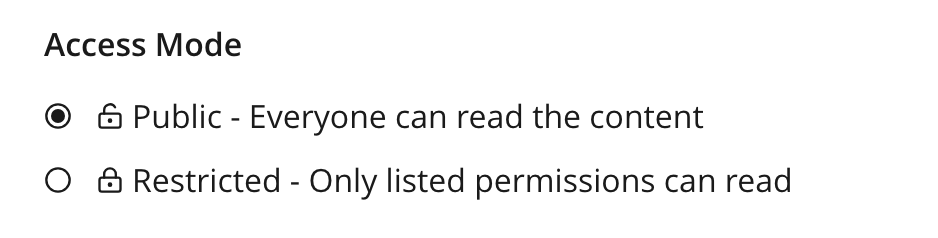
Under the hood, Public grants the Everyone role the Read permission. |
Applying to children
If the content has child items, Step 2 lets you apply the changes to this item, its children, or both.
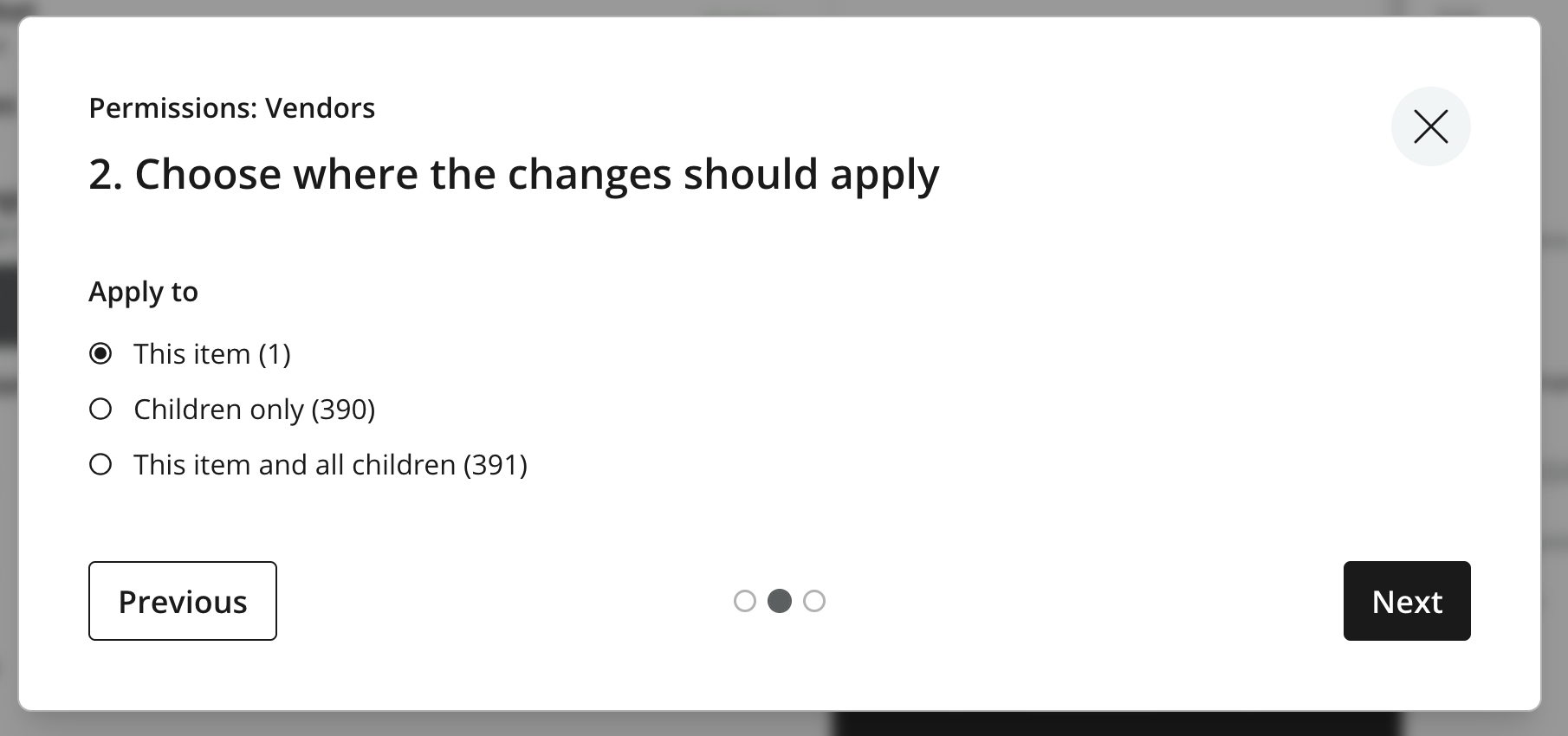
| When changes are applied only to the current item, existing children remain unaffected. New child items will still receive a copy of the current item’s permissions when they are created. |
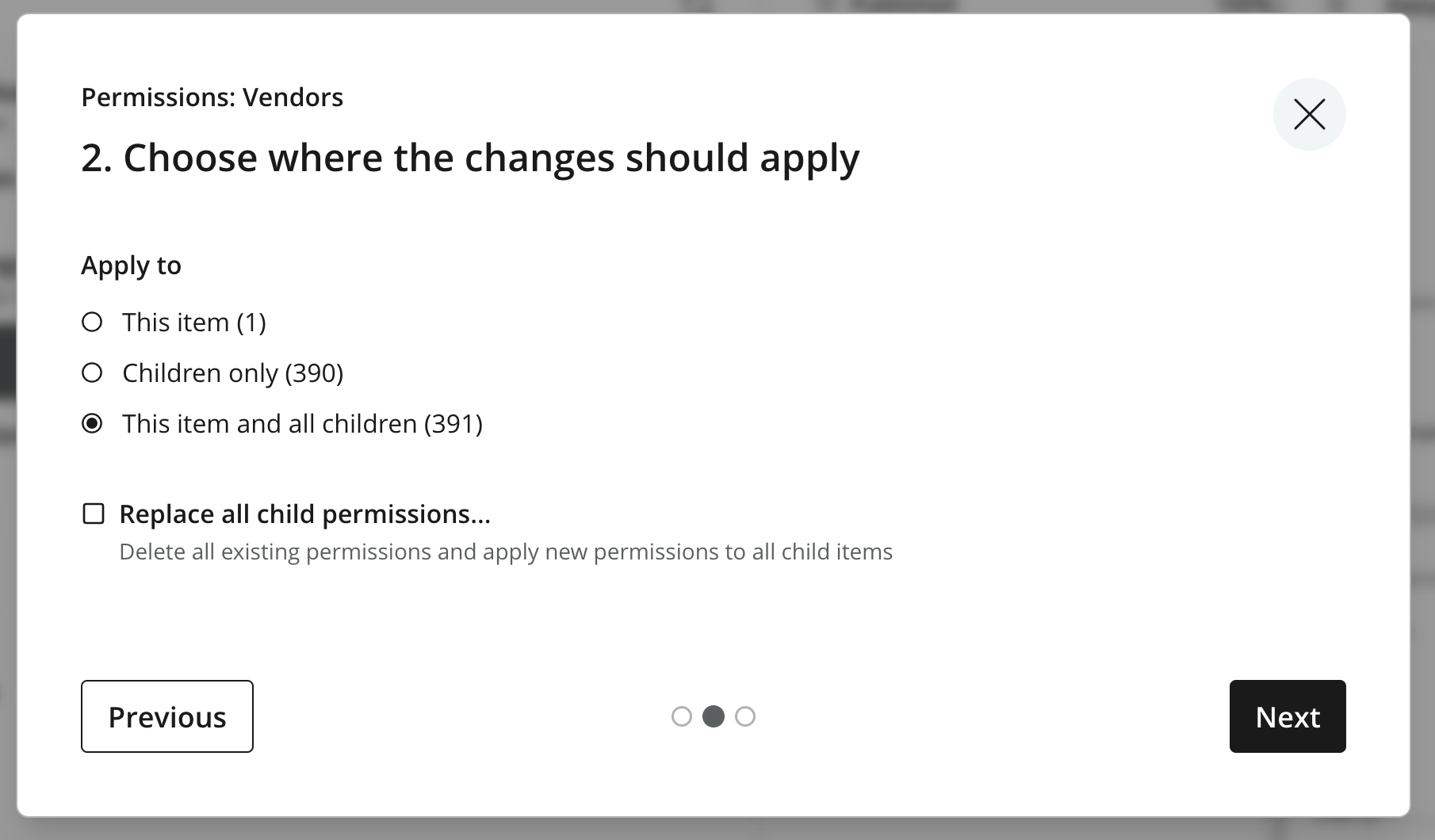
By default, only the changes made in Step 1 are applied to the selected child items; their other permissions are preserved. Select Replace all child permissions to remove their existing permissions and replace them with the permissions configured in Step 1.
| There is no automatic undo after permissions are applied. To reverse the changes, edit the permissions again. |
Summary
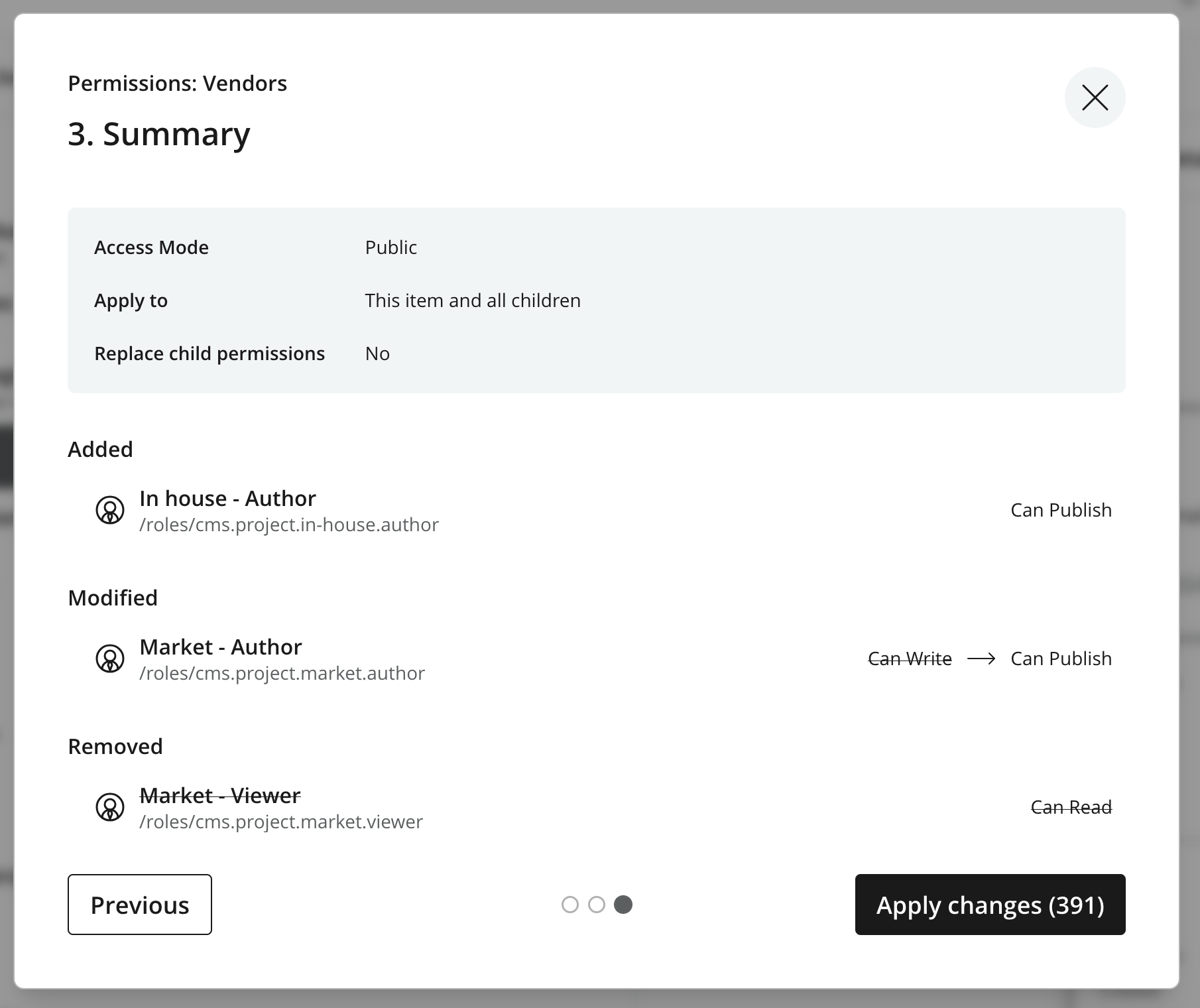
The final step of the wizard summarizes the changes that will be applied. Click Apply changes to save them.
| Permission changes take effect across all branches, so both draft and published versions are affected. |