Preview
Contents
The Preview panel delivers pluggable visualization of the selected content item.
The preview panel appears in the Navigator and the Archive, to the right of the content list, and in the Editor, to the right of the content form. For smaller screens, the preview panel will only appear when a user select an item, or manually activates it.
In the Navigator the preview is dynamic — clicking a link will navigate you to the target page, both inside the preview panel and the content list. Only the Draft version of content is visible.
The btn:[Preview] button in the Navigator and Editor toolbars opens the content full screen, in a new browser tab — see the Preview action.
| The preview mode selected in the panel is also used in the new tab. |
Toolbar
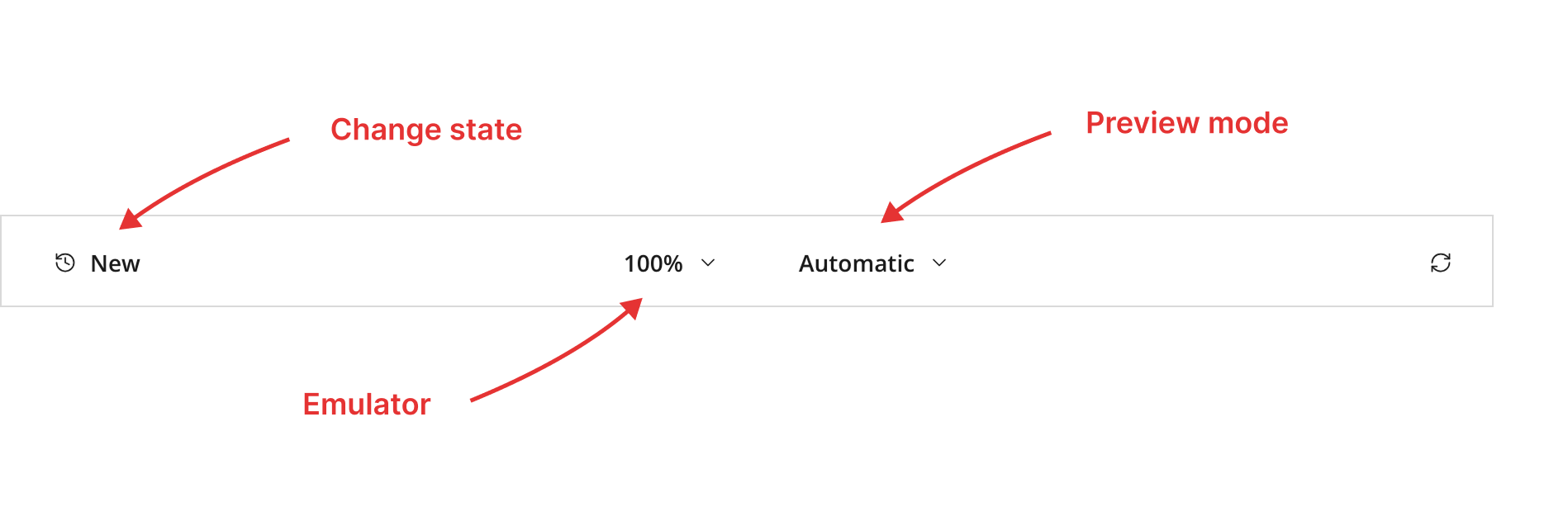
The preview-panel toolbar contains the following controls:
-
Change status — shows the change status of the selected content item — New, Modified, Moved, Unpublished or Published — telling you what has happened to the item since it was last published. Clicking it opens the Version history panel, where the changes can be inspected and reverted.
-
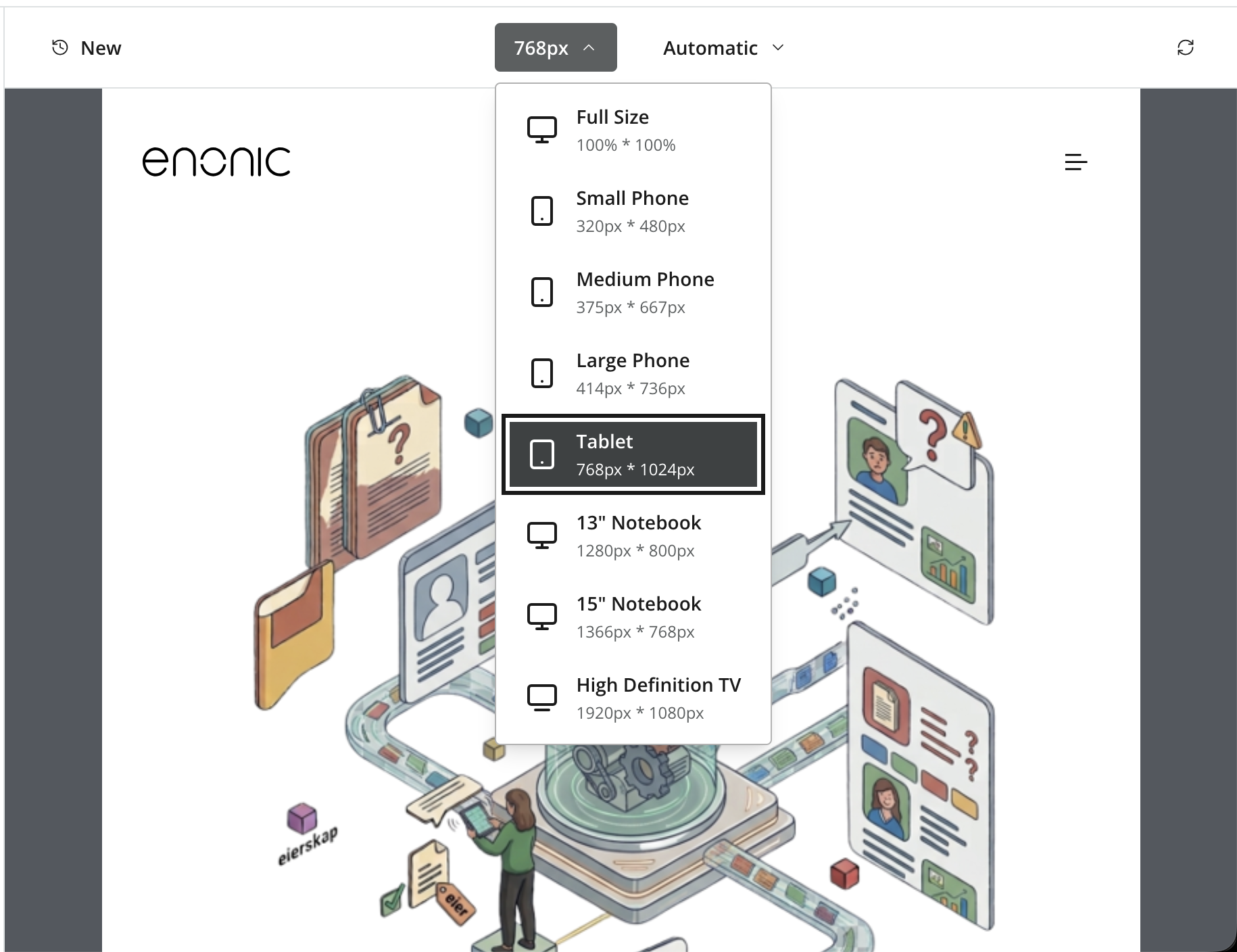
Emulator dropdown to emulate screen resolutions of various device types (monitor, tablet, mobile).
-
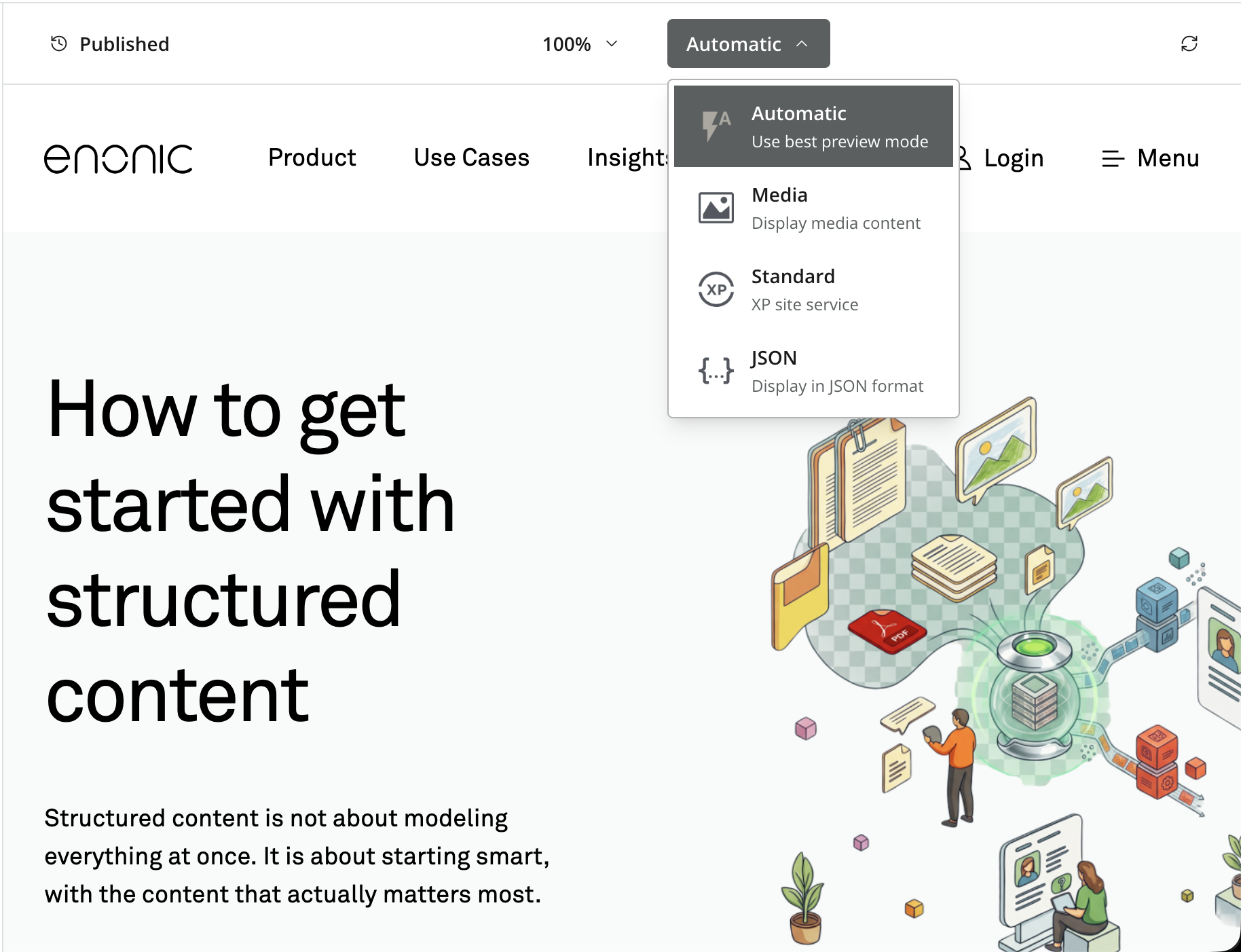
Preview mode dropdown — explicitly select one of the preview modes instead of letting Automatic choose.
-
Refresh — reloads the rendered preview.
Preview modes
By default, the panel offers the following preview modes:
-
Automatic — picks the first mode that supports the current content. This is the default.
-
Media — for image, video and other media content types. Shows the media itself at its original resolution, with basic metadata.
-
XP Site service — renders content using XP’s Site service. See Preview CSP configuration for controlling the resources it can load.
-
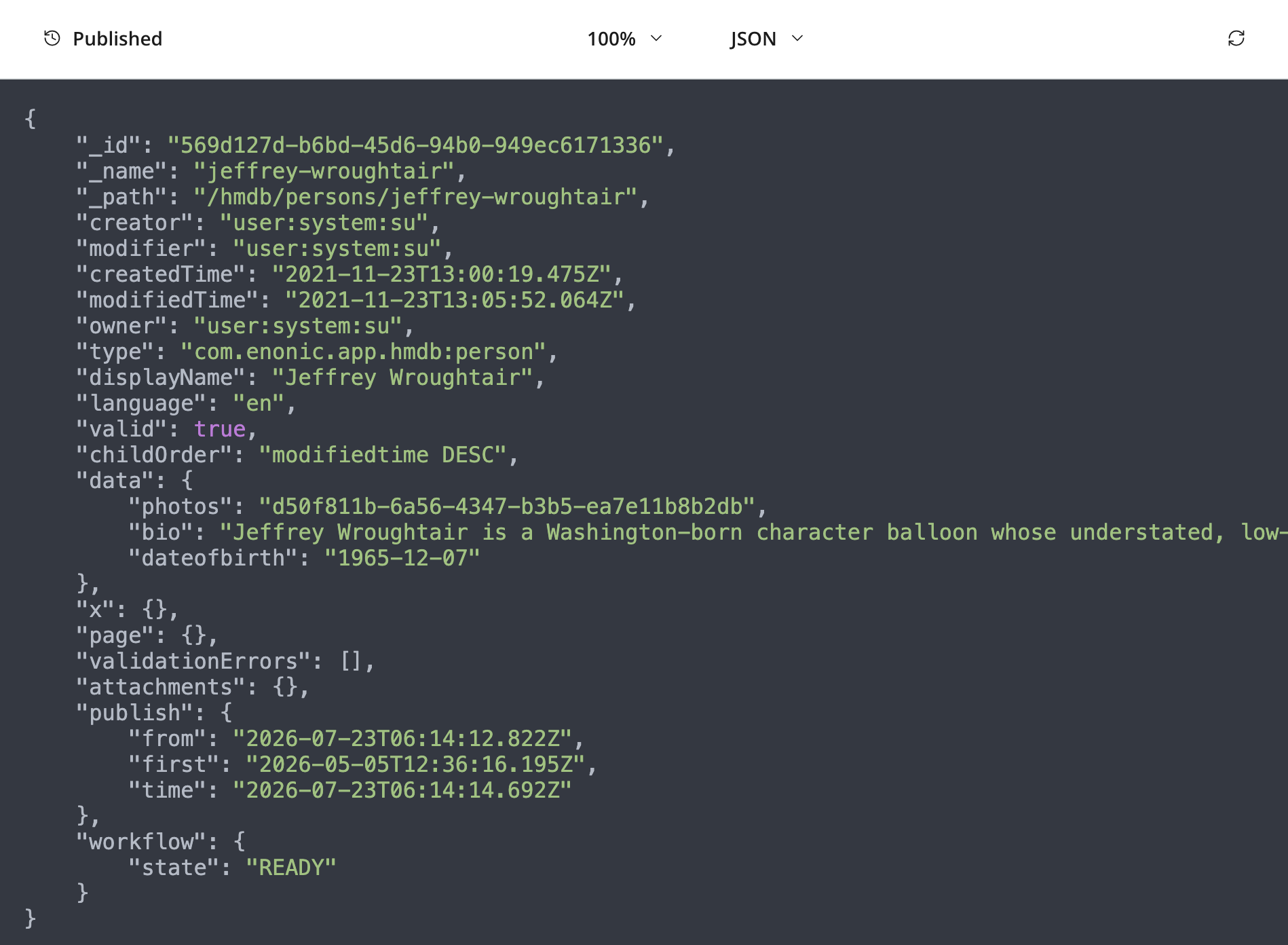
JSON — displays the current content in JSON format. Available for any content, but not used as a fallback by Automatic.
Automatic mode is the default, and will pick the first mode that supports the current content.
For content that cannot be rendered by any of the available preview modes, the Preview panel shows a placeholder saying "No preview available". However, you may still manually select the JSON preview mode to see the content in raw JSON format.
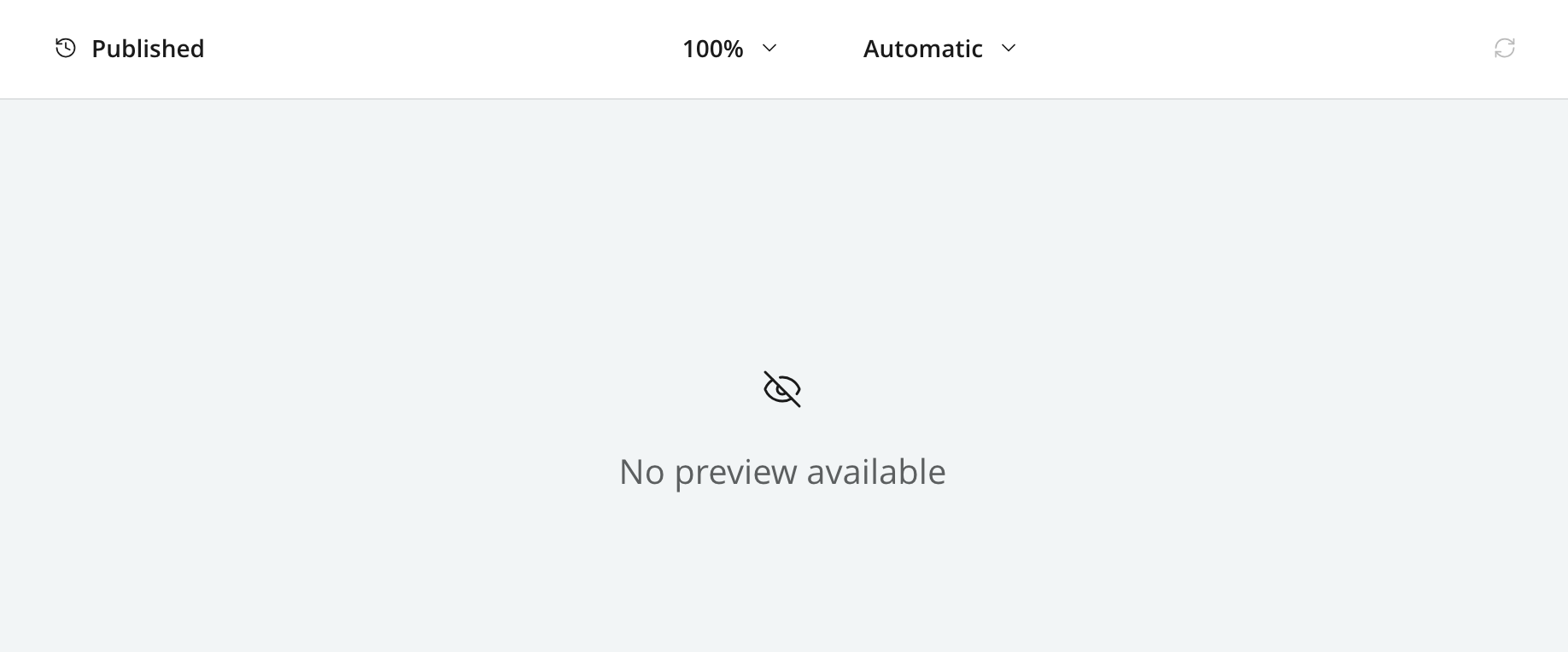
Users may manually select the JSON preview mode to see the content in raw JSON format, even if no other preview is available.
Pluggability
In order to facilitate previewing of content that is not supported by the built-in modes, applications may contribute their own preview modes. Custom modes appear in the preview-mode dropdown alongside the built-ins.
The order of the previews matter, as the Automatic mode will pick the first mode that supports the current content. See the Live view extension reference for implementation details.