Site
Contents
Defines the root of a scoped content area within a content project, usually representing a website. Content is organized beneath it, and the Site’s configuration determine which content types, mixins, page components, and other CMS features are available within that area.
Concept
A Site is usually created directly under the project root. As a regular content item, it can contain other content, have its own page, and participate in permissions, versioning, publishing, and workflow. The site content is different from other content in that it allows administrators to configure applications it’s scope, similar to how a project works. It also features a baseUrl setting.
Creating a site also unlocks support for pages. Sites may also contain regular structured content, without using page components for presentation.
Site fields
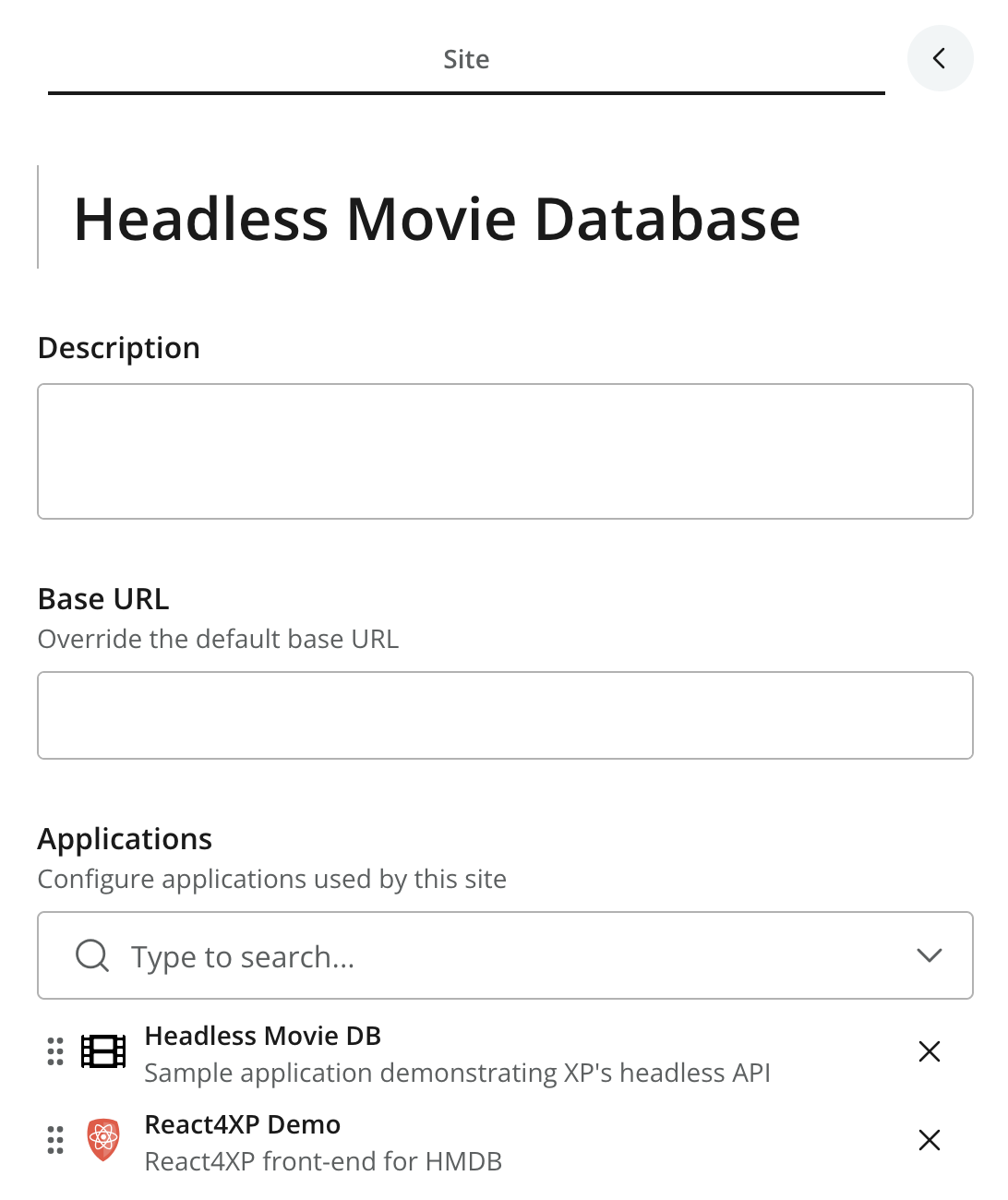
The Site form contains these fields:
- Description
-
A plain-text description of the Site. Whether it is presented by a front end depends on the implementation.
- Base URL
-
The external base address associated with the Site, such as
https://www.example.com. When set, it overrides the default base URL used by XP when generating absolute URLs for the Site. It does not deploy or configure the front end itself. - Applications
-
The applications assigned to the Site and the configuration associated with each application.
The standard Settings and Security sections work as they do for other content items; see the Content Form.
Site applications
An application must already be installed and running on XP before it can be added for a Site. Assigning it to a Site does not install or deploy the application. Instead, it makes the application’s CMS features available within it’s scope. Depending on the application, these can include:
-
Content types and mixins used by the Content Form.
-
Page, Part, and Layout components used in the Page Editor.
-
Rich-text macros and styles.
-
Content Studio extensions and more
| Similar to projects, only applications that offer CMS functionality may be added to a site. |
Applications assigned at the project level apply to content outside Sites. They do not automatically apply inside a Site; assign the required applications directly to the Site as well.
This distinction allows different Sites in the same project to use different content models and page-building features.
Managing applications
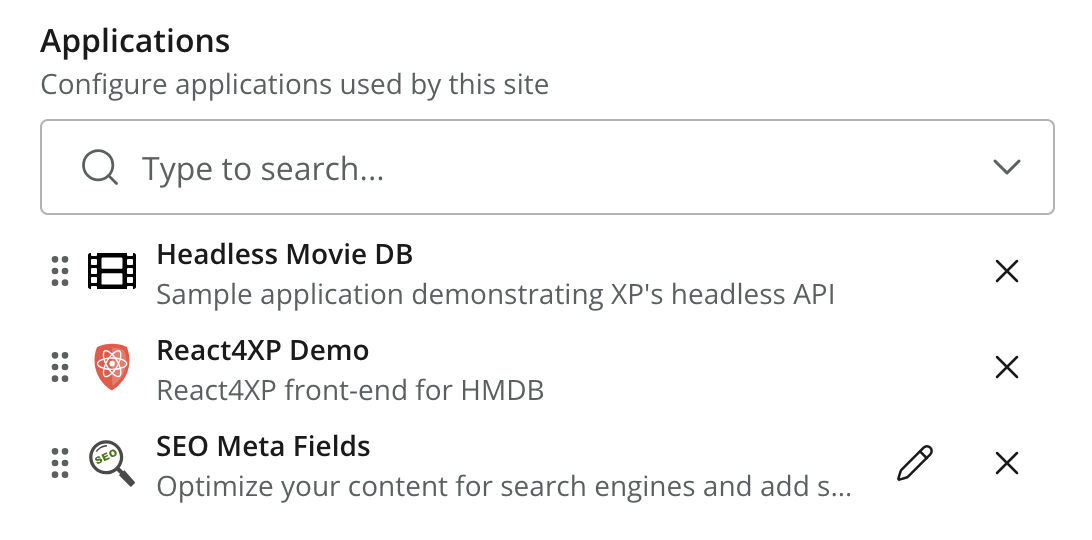
Use the Applications selector to search for and add available applications. Selected applications appear beneath the selector and can provide these actions:
- Configure
-
Click the pencil icon to open the application’s configuration form. The icon is only shown when the application provides configurable fields.
- Remove
-
Click the X icon to remove the application from the Site.
- Reorder
-
Drag applications to change their order in the list.
Only project Owners and users with the CMS Administrator or Administrator role can create Sites or change their application assignments and configuration. Other users may edit the remaining Site fields when their permissions allow it, but the application controls are read-only. See Project roles.
Application configuration
Similar to projects, an application’s configuration form is defined by the application and therefore varies between applications. It can contain the same kinds of fields and validation rules as other forms in Content Studio.
-
Click the pencil icon beside the application.
-
Complete or update the configuration fields.
-
Click Apply to accept the values and close the configuration dialog.
-
Click Save in the Content Editor toolbar to save the Site and create a new version.
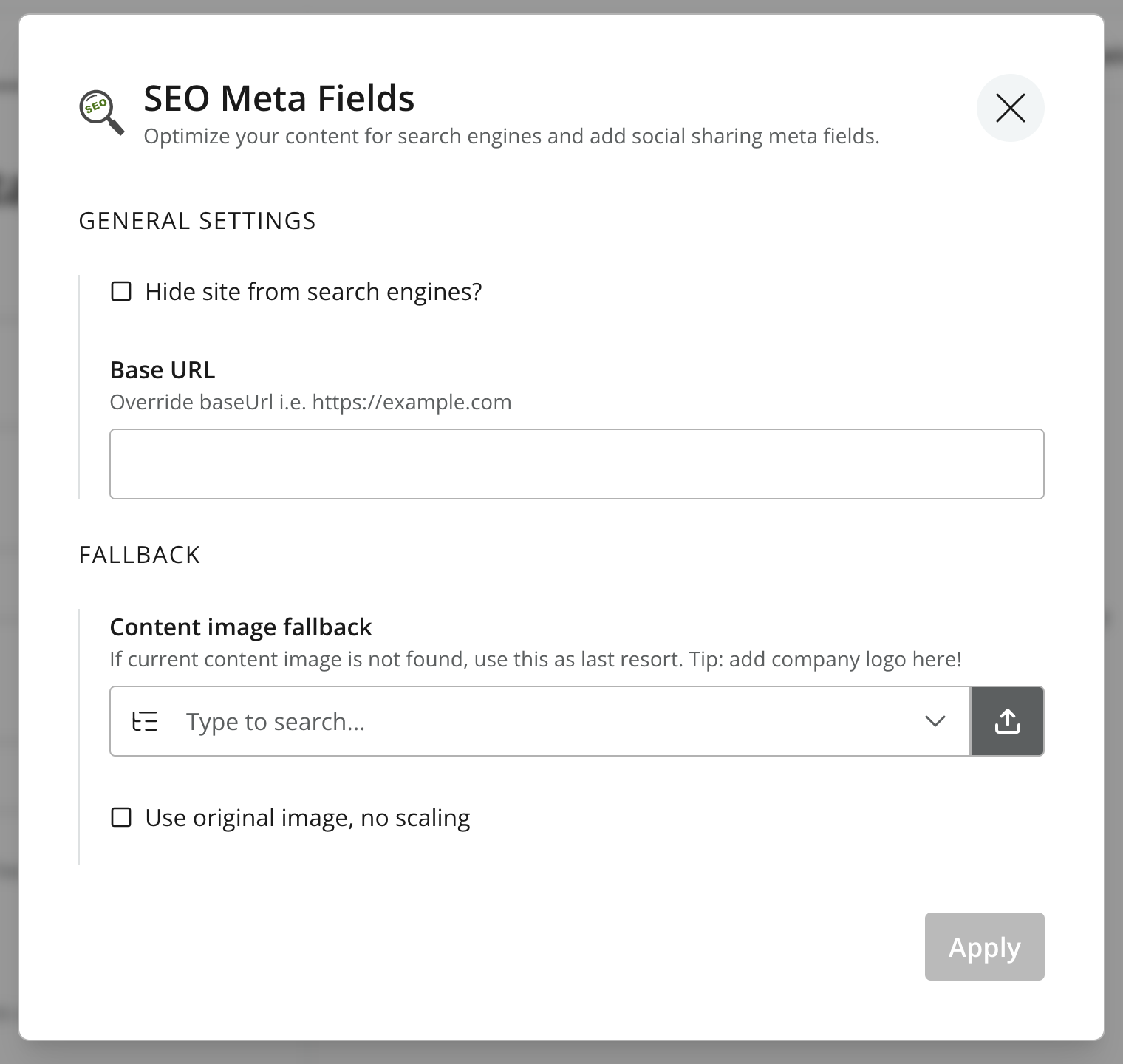
Apply only accepts the values in the configuration dialog. The Site itself must still be saved, and the Site must be published before the changes are available on the published branch.
| In contrast to projects, the site configuration is not effective until the changes have been published. |
|
Removing an application does not delete content or page components created with it. However, its content types, mixins, components, and configuration are no longer available within the Site. Existing content may consequently become invalid or impossible to edit as intended. Review affected content before removing an application. |
Sites and pages
The Site content item can have a page structure of its own, commonly used as the website’s front page. Descendant content can also have pages when the assigned applications provide suitable Page components.
Without an application that provides a Page component, editors cannot create an item-specific page structure within the Site. This does not prevent the Site from being used for structured or headless content that does not need pages.
See the Page Editor for creating and editing pages, components, and page settings.
Templates folder
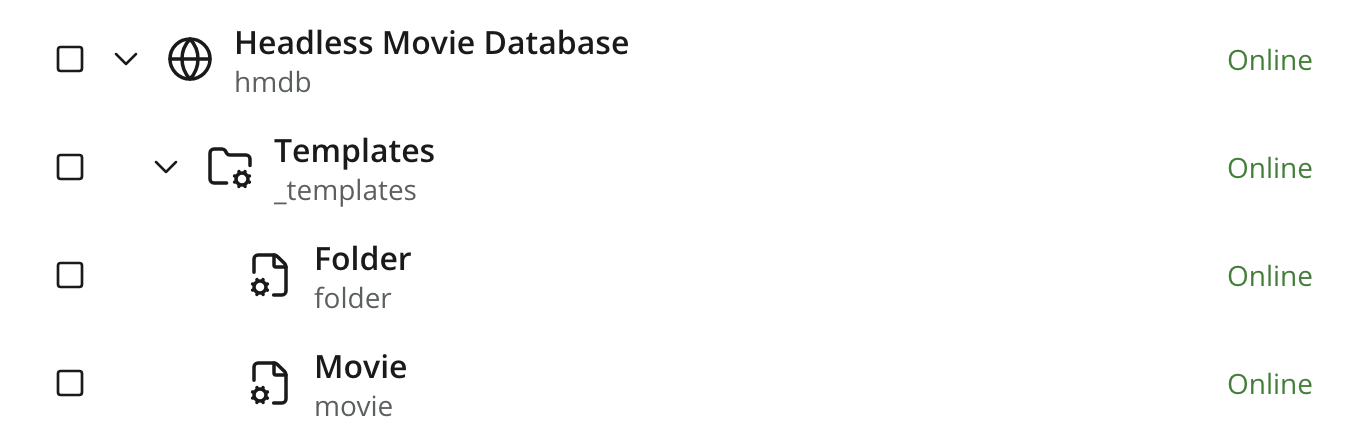
Creating a Site automatically creates a _templates/ folder as its direct child. This is a system-managed folder with a distinct icon, and it can only contain Page template content items.
Page templates provide reusable page structures for specified content types. When several templates support the same content type, the first compatible template in the folder is used by default. Editors normally work with the content type while Content Studio resolves the template behind the scenes.
See the Page template reference for template selection and customization behavior.
For the underlying Site model and application configuration, see the Enonic CMS Site reference.