Version history
Contents
The Version history panel records changes and other activities for the selected content item. Use it to inspect the item’s history, compare content versions, or restore an older version.
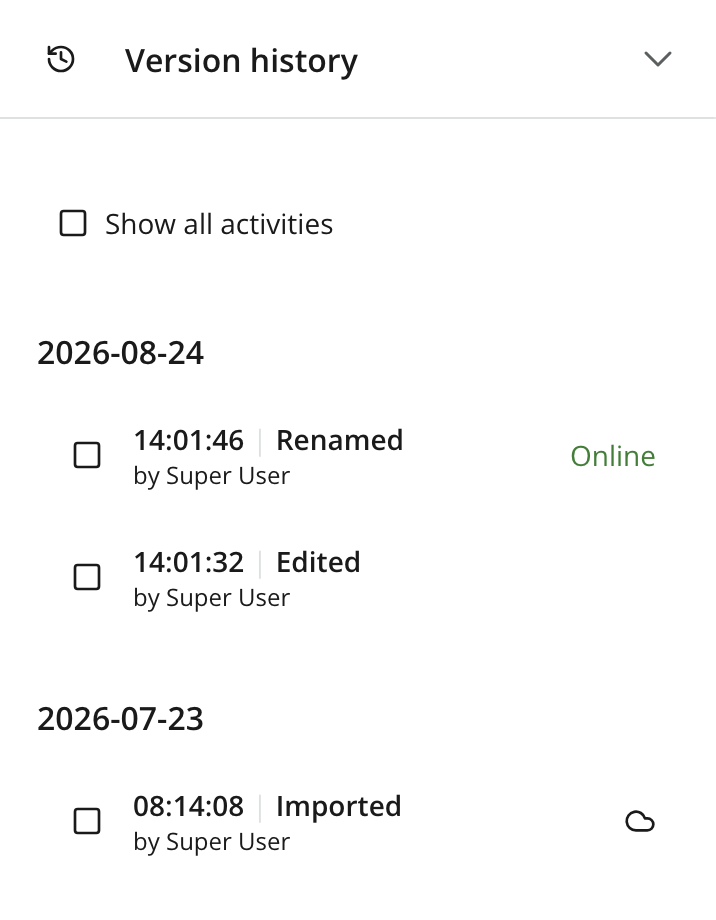
Version list
Entries are grouped by date and ordered from newest to oldest. Each entry shows the time, the activity that created it, and the user responsible for the change.
The indicator on the right describes the entry’s publishing status:
- Online
-
The version is currently published.
- Cloud icon
-
The version was published previously, but is no longer the version that is online.
Checkboxes on the left are used to select entries for comparison. They do not indicate whether a version can be restored.
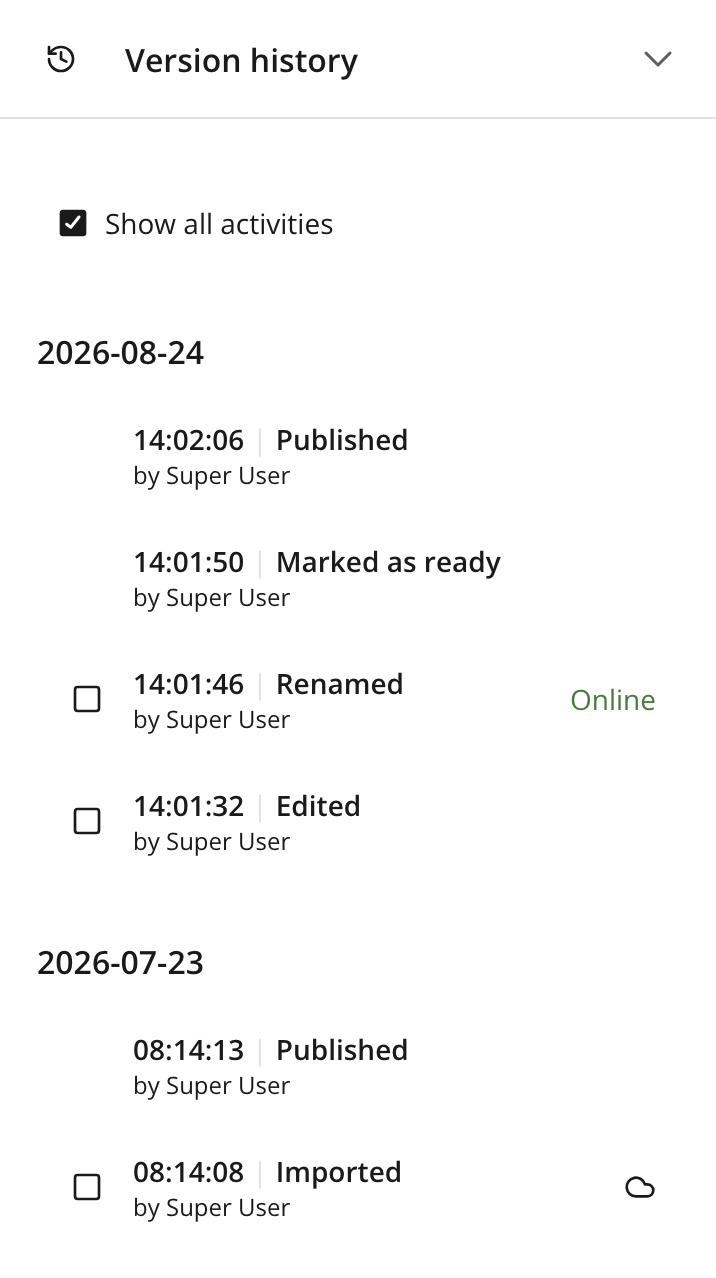
Show all activities
The panel shows editorial changes by default. Select Show all activities to include additional recorded activities, such as:
-
Publishing and unpublishing
-
Marking the item as ready
-
Permission changes
-
Patches applied through an API
Comparing versions
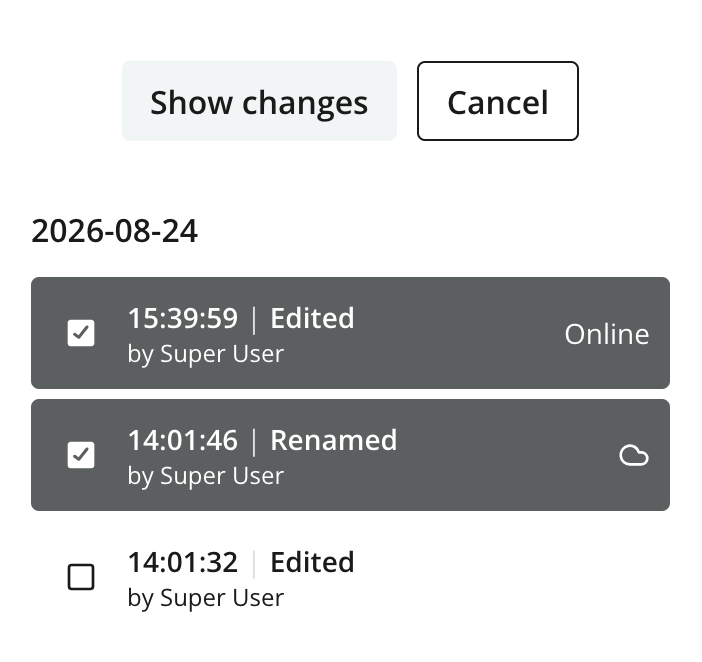
Use the checkboxes to select two entries, then click Show changes. Select Cancel to clear the selection without opening the comparison.
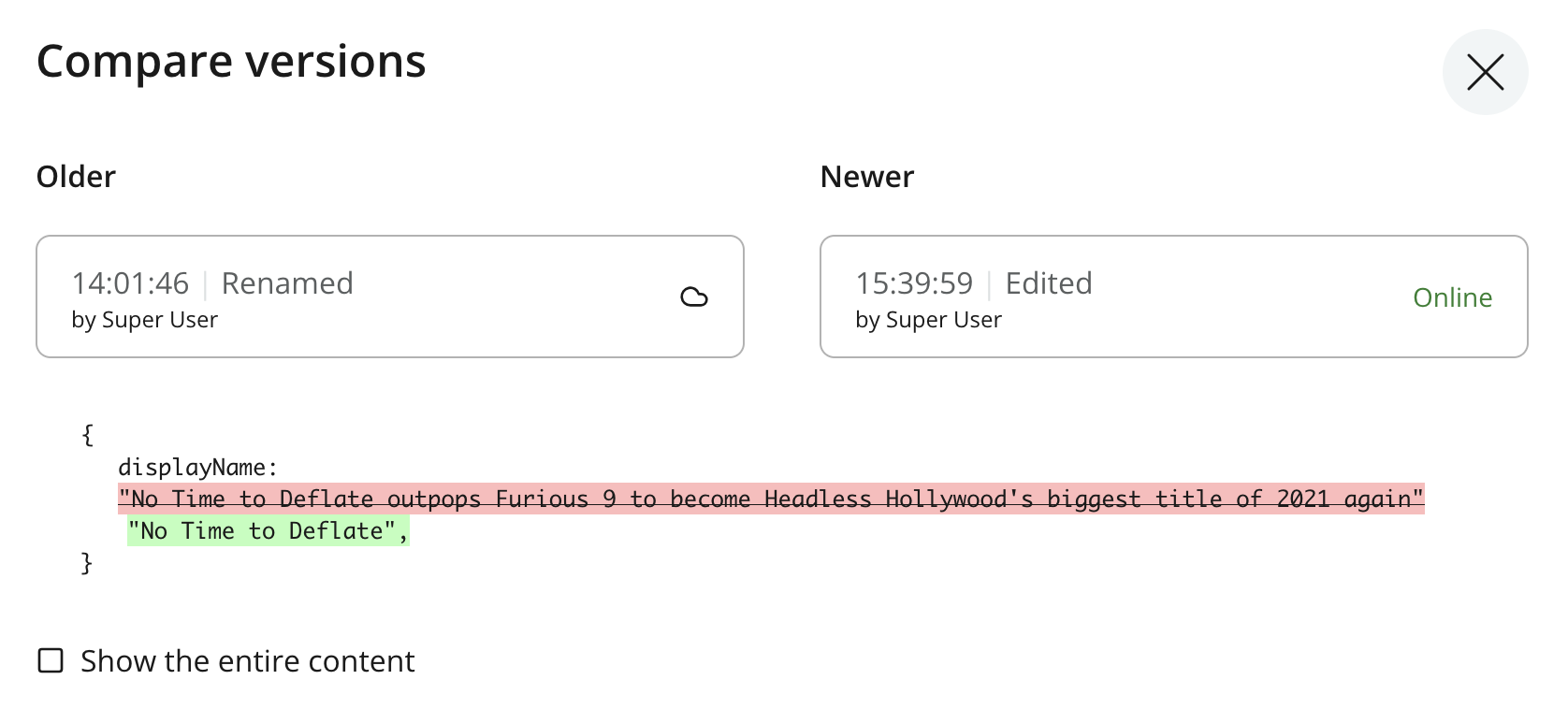
The Compare versions dialog places the older version on the left and the newer version on the right. It presents the differences as a text diff: red marks content present in the older version but removed in the newer version, while green marks content added in the newer version.
Select Show the entire content to include unchanged content in the comparison.
Restoring an older version
Select an entry to expand it. If the version can be restored, the expanded entry displays a Restore button.
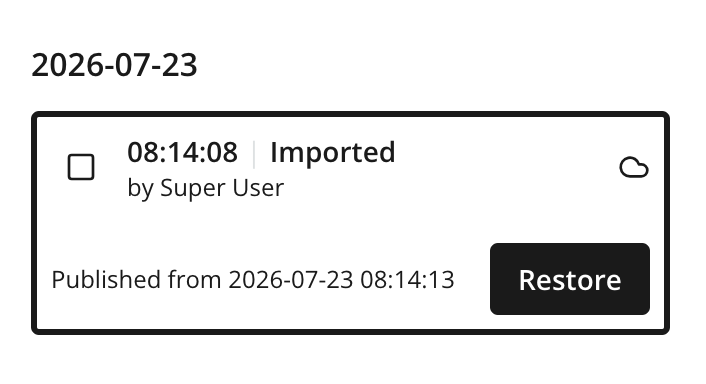
Not every activity contains a restorable content version. When an entry cannot be restored, the panel does not offer the Restore action.
Restoring makes the selected version the active draft and adds a new entry to the history; it does not remove the versions created after it. If the content is online, publish the restored draft to make that version live.