Layers context panel
Contents
The Layers context panel provides an instant overview of the selected content across its project layer tree.
| Content Studio+ feature. The Layers panel requires a valid Content Studio+ subscription. |
Overview
The panel shows the localization and publishing status of the selected item in relevant layers. It also provides shortcuts for opening the item in another project or editing it in the current project.
The panel is available for content in any project that belongs to a layer tree, including the root project. Open it from the Context panel selector, or select the Layers indicator shown on an inherited or localized item in the Navigator.
Layer branch
The panel initially shows the branch of the layer tree that contains the current project. The current project is identified by the CURRENT LAYER label, with its Ascendants listed above and its Descendants below.
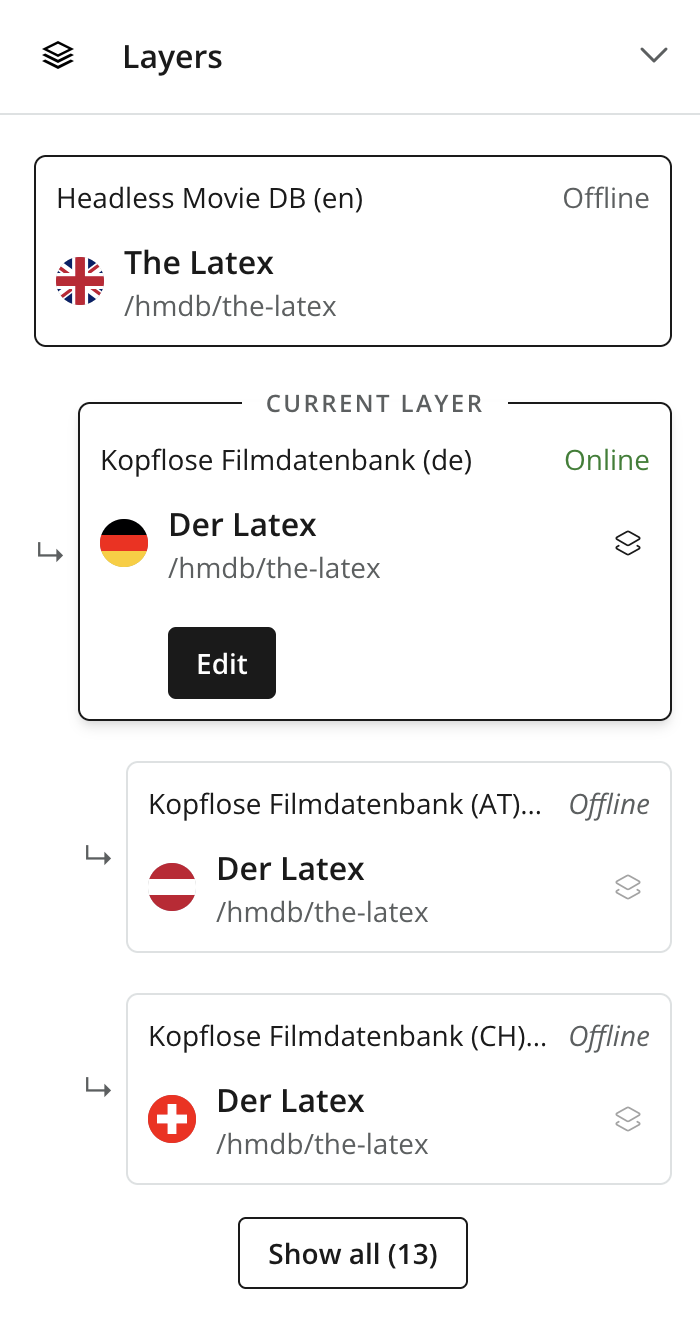
Each layer card identifies the project and its default language together with the corresponding content item’s display name, path, publishing status, and localization state. Because inherited items retain the same content ID, the panel can follow an item even when it has been renamed or moved in an individual layer.
Available actions
Select a layer card to reveal the actions available for that representation of the item:
- Open
-
Opens the item in the selected layer in a new browser tab.
- Edit
-
Appears only for the current layer and opens the item for editing in a new browser tab.
| Opening an item in another layer does not move or copy it between projects. It opens the representation that already exists in that layer. |
A user must have access to the selected project and the required content permissions to open or modify the item there.
All layers
The branch shown in the panel is only one route through a layer tree. Sibling layers and their descendants may contain other representations of the same item.
Click Show all to open a dialog containing the complete layer tree for the item. The number on the button is the total number of layers in which the item exists and can therefore be greater than the number of cards currently displayed in the panel.
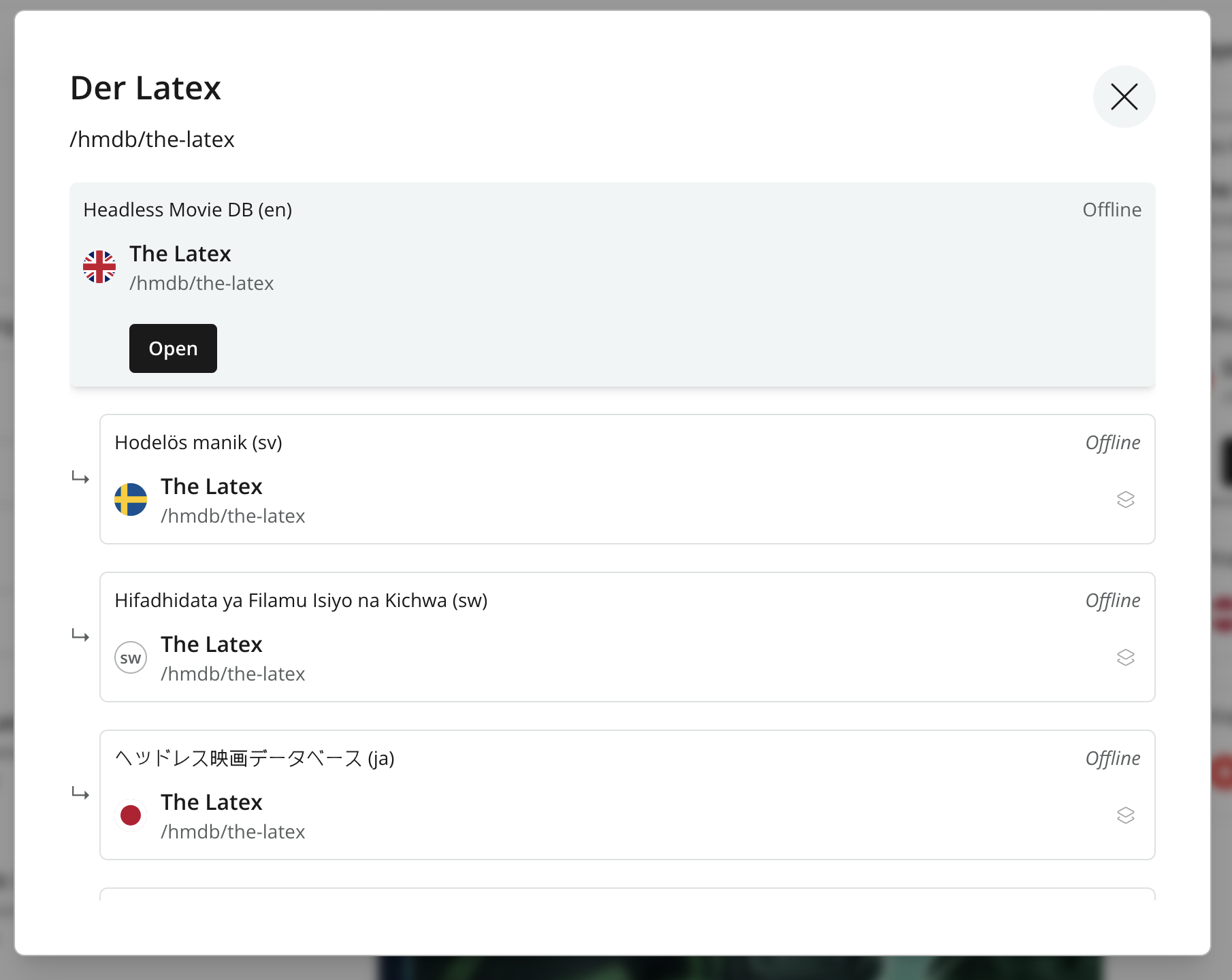
As in the branch view, select a card in the dialog to open the item in the corresponding layer. Close the dialog to return to the branch view.
Understanding localization state
The panel’s localized state refers primarily to the item’s Content data. A localized item may still inherit its name, tree location, or child sort order. Conversely, an inherited item can have a local name or location while continuing to inherit its content form.
See Content inheritance for the four independent inheritance dimensions, propagation rules, and publishing model. To replace local adaptations with inherited values, see the Reset action.