Sort
Contents
The Sort action configures the default order of an item’s direct children in the CMS. Saving stores the selected sort field and direction, or the manual arrangement, as part of the content’s draft. This setting persists across sessions and is used by the Navigator tree.
Websites, applications, and other API clients can use this stored default order or choose their own sorting when fetching or displaying content. For example, a client can list children alphabetically even when their CMS order is manual. Changing Sort affects clients that use the stored order; it does not enforce an order on every client.
Opening the dialog
Select a single parent item in the Navigator and choose Sort from the toolbar or Sort from its right-click menu. For example, select the Posts folder to order the posts inside it.
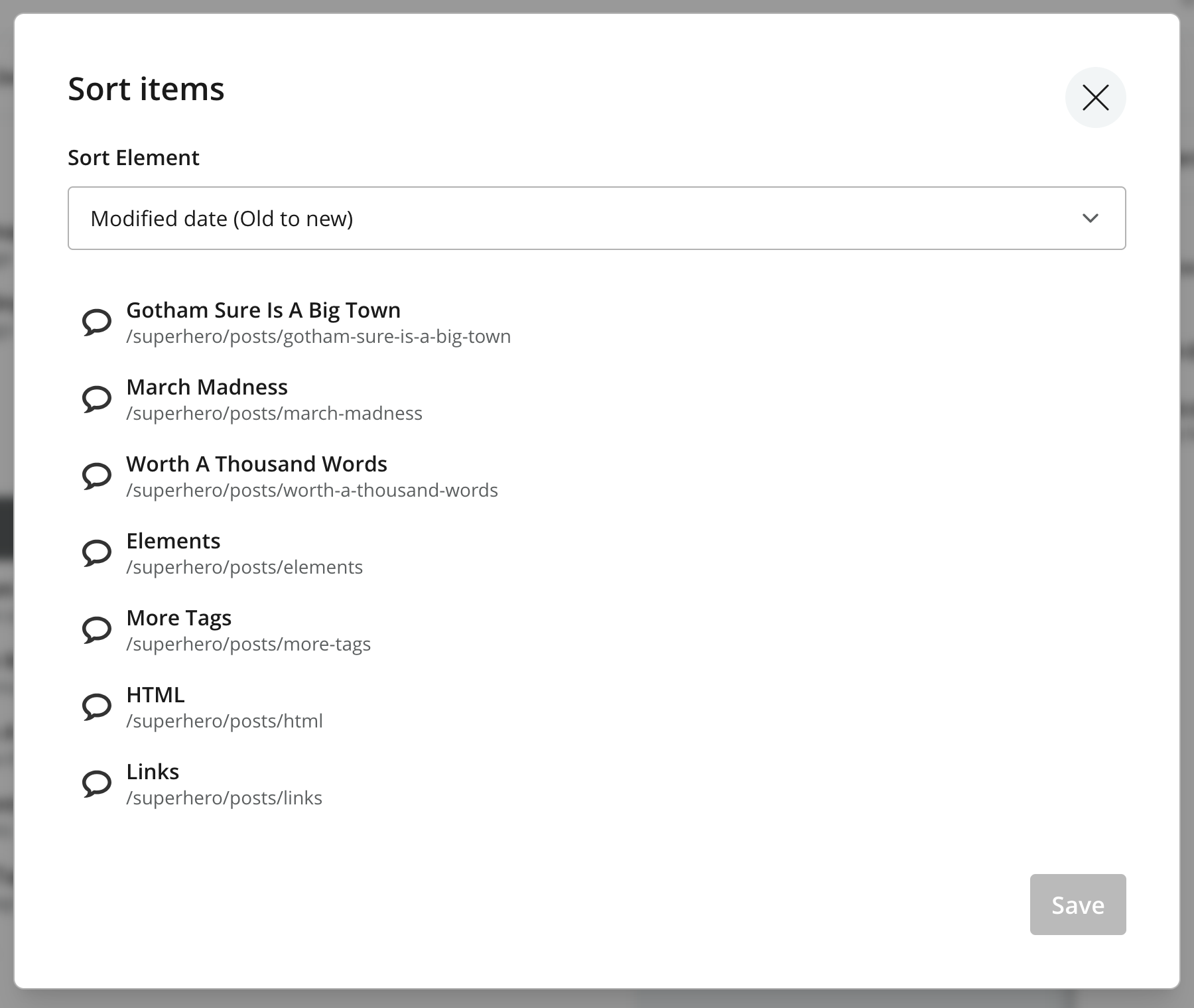
The Sort items dialog shows the parent’s current order in the Sort Element selector and lists its direct children. Sorting this list does not change the order inside each child’s own subtree.
Automatic ordering
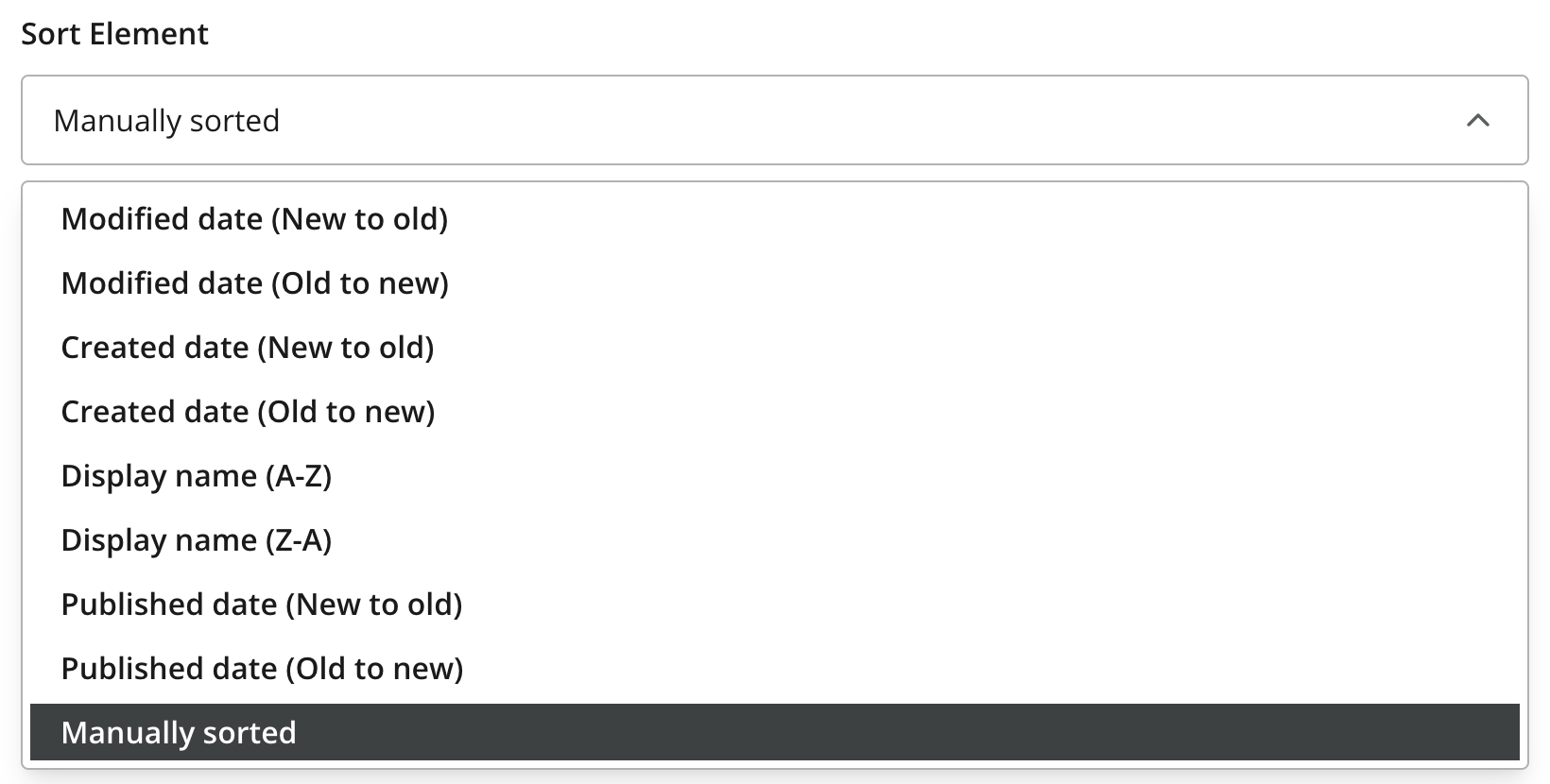
Modified date is the initial default, before a different order is saved for the parent. Choose a field and direction from Sort Element to configure its stored default order. The available fields are:
| Field | Order based on |
|---|---|
|
Modified date |
When each child was last modified. |
|
Created date |
When each child was created. |
|
Display name |
The child’s display name, in A–Z or Z–A order. |
|
Published date |
When each child was first published. |
Date fields offer New to old and Old to new choices. Selecting an option refreshes the list so you can review the resulting order before saving.
Automatic ordering stores a sorting rule. The resulting order follows that rule as children are added or their values change.
Manual ordering
Choose Manually sorted to arrange the children yourself. Drag rows using the handles on the left and drop them at the desired positions. Dragging a row while an automatic order is selected also switches the dialog to manual ordering.
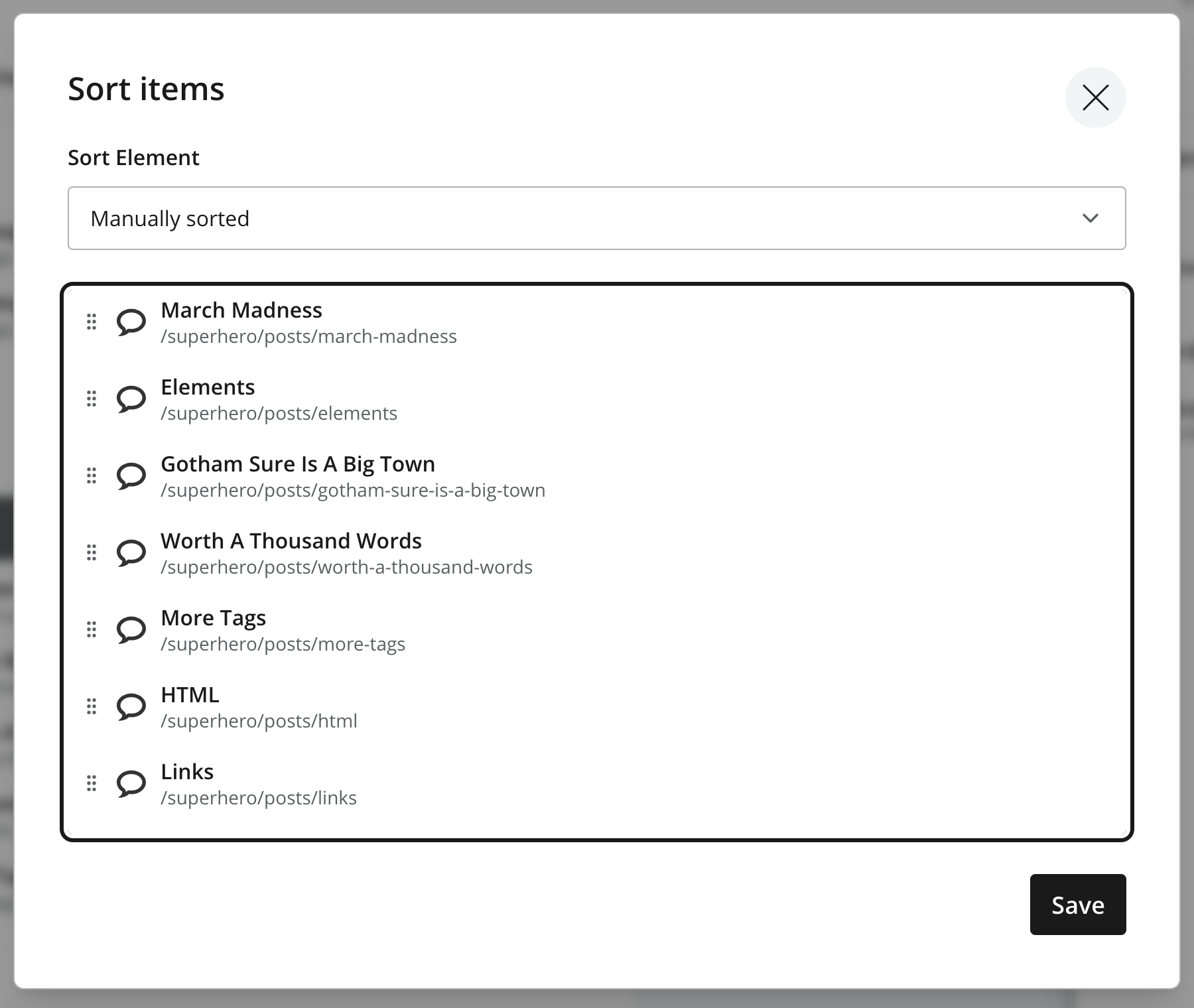
Items created under a manually sorted parent are inserted at the top of the list. Items moved into that parent also appear at the top. The existing children keep their relative order. Reopen Sort to place the new items where you want them, then click Save.
Selecting an automatic order again replaces the manual arrangement with the order determined by that field.
Saving and publishing
Click Save to store the order in the CMS and apply it in the Navigator. Save is enabled when the selected order or manual arrangement differs from the saved state. Closing the dialog without saving discards the pending changes.
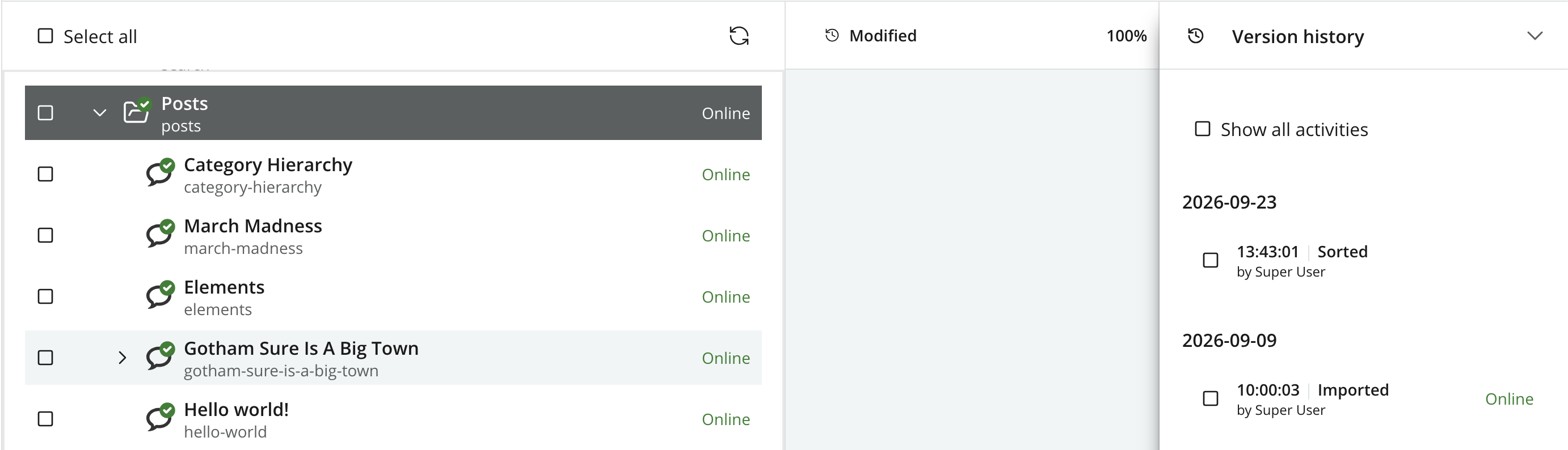
Sorting changes the draft and is recorded as Sorted in Version history. For published content, a changed sort order can give the parent change status Modified while its publish state remains Online. Sorting does not itself change the workflow state to In progress.
Layers
Changing the order in a layer makes the parent’s Sort inheritance local. Its content data can continue to inherit from the parent layer. See Rename, move, and sort for the inheritance rules.