Move
Contents
The Move action relocates selected content to a different parent in the current project’s content tree. All descendants move with their parent, preserving the subtree and its existing permissions.
Opening the dialog
In the Navigator, select one or more items and choose Move from the toolbar or Move from the right-click menu. The keyboard shortcut is Alt + M.
In the Content Editor, Move applies to the item open in that tab and its descendants.
Selecting a destination
The Select destination field identifies the new parent for all selected items. Type to search for content, or open the dropdown to browse the tree. The Move button is disabled until a destination is selected.
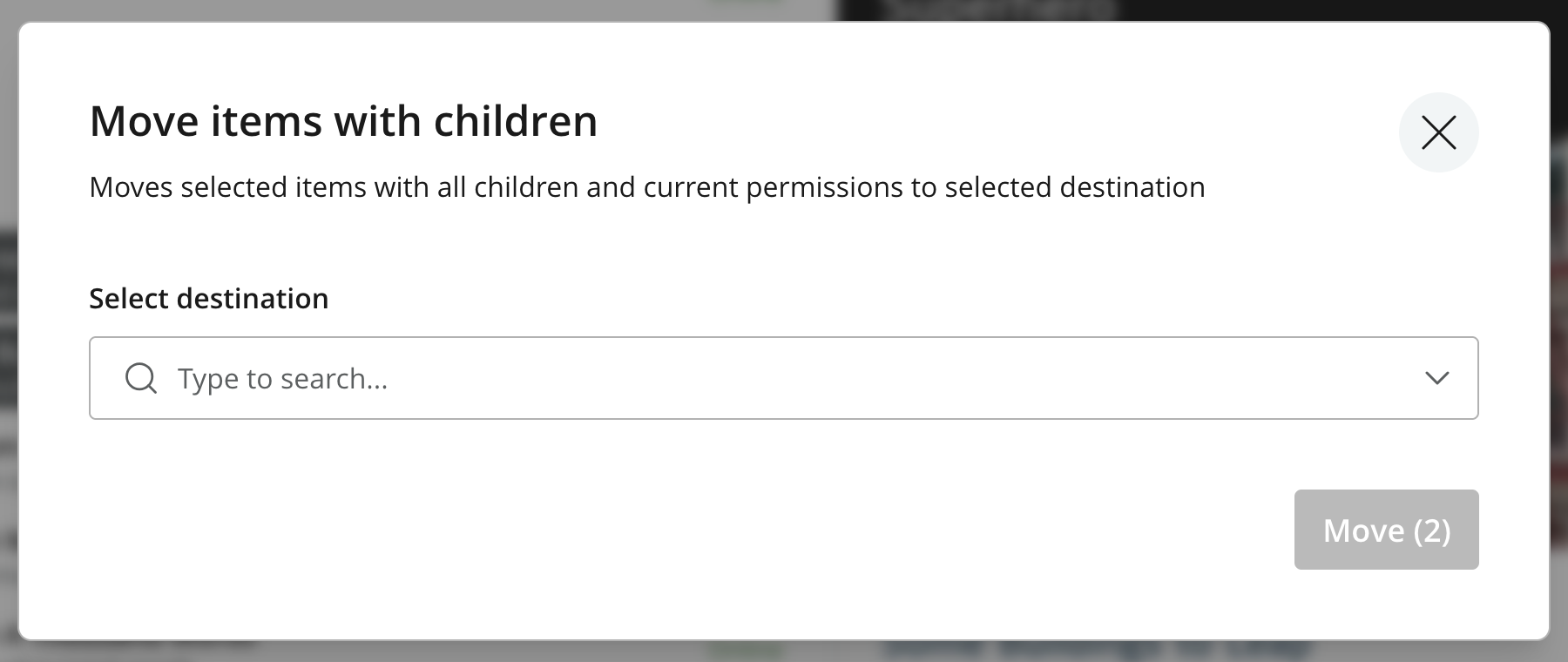
The selected items, their descendants, and their current parents cannot be selected as destinations. The destination must allow the content types being moved. You also need permission to modify the selected items and create content under the new parent; see Permissions.
Choose Project root to move the selection to the top level of the current project. This option is unavailable when the selection already contains an item at the project root. Use the X beside a selected destination to clear it and choose another.
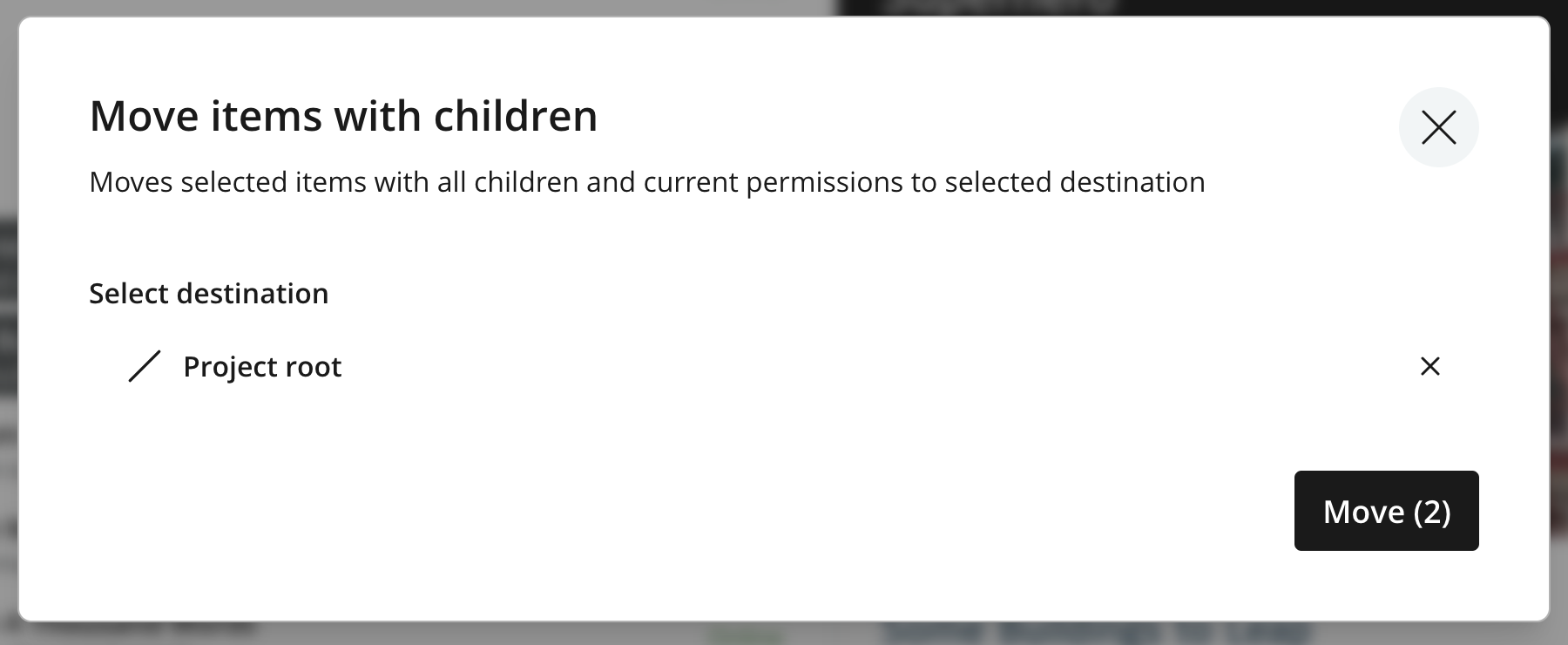
The number on Move counts the selected items. Their descendants are moved automatically and are not included in this button count. There is no option to leave children behind. Click Move after selecting the destination.
Moving out of a site
When the destination is outside an item’s current Site, including inside a different Site, Content Studio asks for confirmation. Content can depend on its Site’s applications and page templates for rendering, so moving it out may make it unreachable as a page.
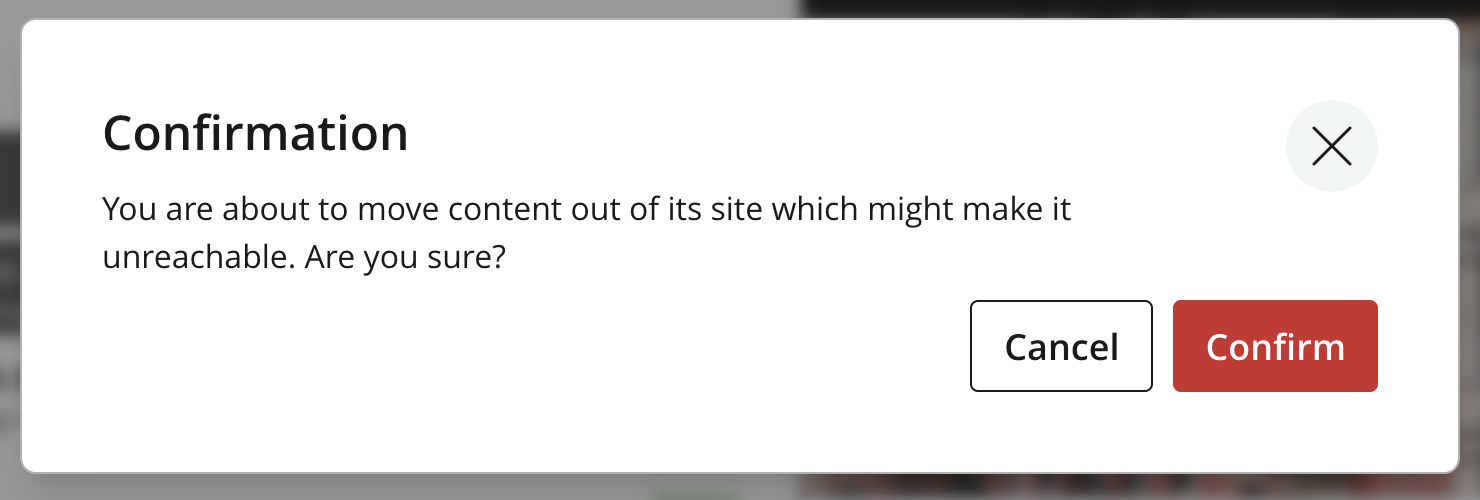
Click Cancel to return to destination selection, or Confirm to proceed. The dialog displays progress during the move and a notification reports completion. In the Navigator, the success notification includes the destination path.
Effect on the content
Move keeps each item’s content ID, display name, and path name. Its full path changes because it has a new parent. For example, moving /superhero/posts/hello-world into /superhero/archive gives it the path /superhero/archive/hello-world. Its descendants' paths change with it.
If the destination already contains an item with the same path name, that item cannot be moved there. Use the rename dialog to resolve the conflict or choose another destination.
References stored by content ID continue to identify the moved items. Links that use a fixed path or URL may need updating. Moving content can also change its Site context, so review its preview at the new location.
The moved items retain their existing permissions. Moving them under a different parent does not copy that parent’s permissions onto them.
Publishing
Move changes the draft location. For published content, the live version remains at its previous location until the move is published. The draft has change status Moved, which can appear alongside Modified when it also contains edits. Content that has never been published remains New. See Change status for these indicators.
Layers
Move operates within the current project or layer. Moving inherited content makes its Parent inheritance local without localizing its content data. See Rename, move, and sort for the effects on inheritance.