Variants
Contents
Variants are linked copies of a content item that can be edited and published independently. They are primarily intended for A/B testing, where an external testing tool serves the variants through their separate IDs or path and measures their performance.
| Content Studio+ feature. The Variants panel is part of the Content Studio+ subscription. |
Use cases
Create variants when you need multiple versions of selected content without changing the original. Common uses include:
-
Testing alternative headings, images, layouts, or calls to action.
-
Preparing campaign-specific versions of a page or content item.
-
Translating a small number of selected items when a complete localization structure is unnecessary.
Variants do not provide language inheritance, automatic propagation, or a separate content tree per language. For a multilingual site or any setup where translations should remain connected to source content, use layers and localization instead.
Each variant remains associated with its original item, but is otherwise managed as a regular content item. Content Studio creates and manages the variants; it does not run the A/B test or select a winning version.
Creating a variant
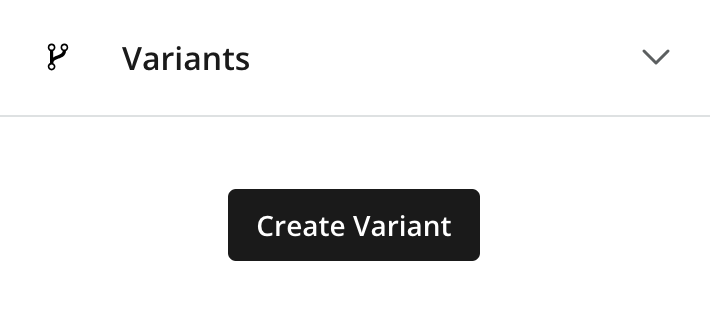
Select the original content item in the Navigator, open Variants from the Context panel selector, and click Create Variant.
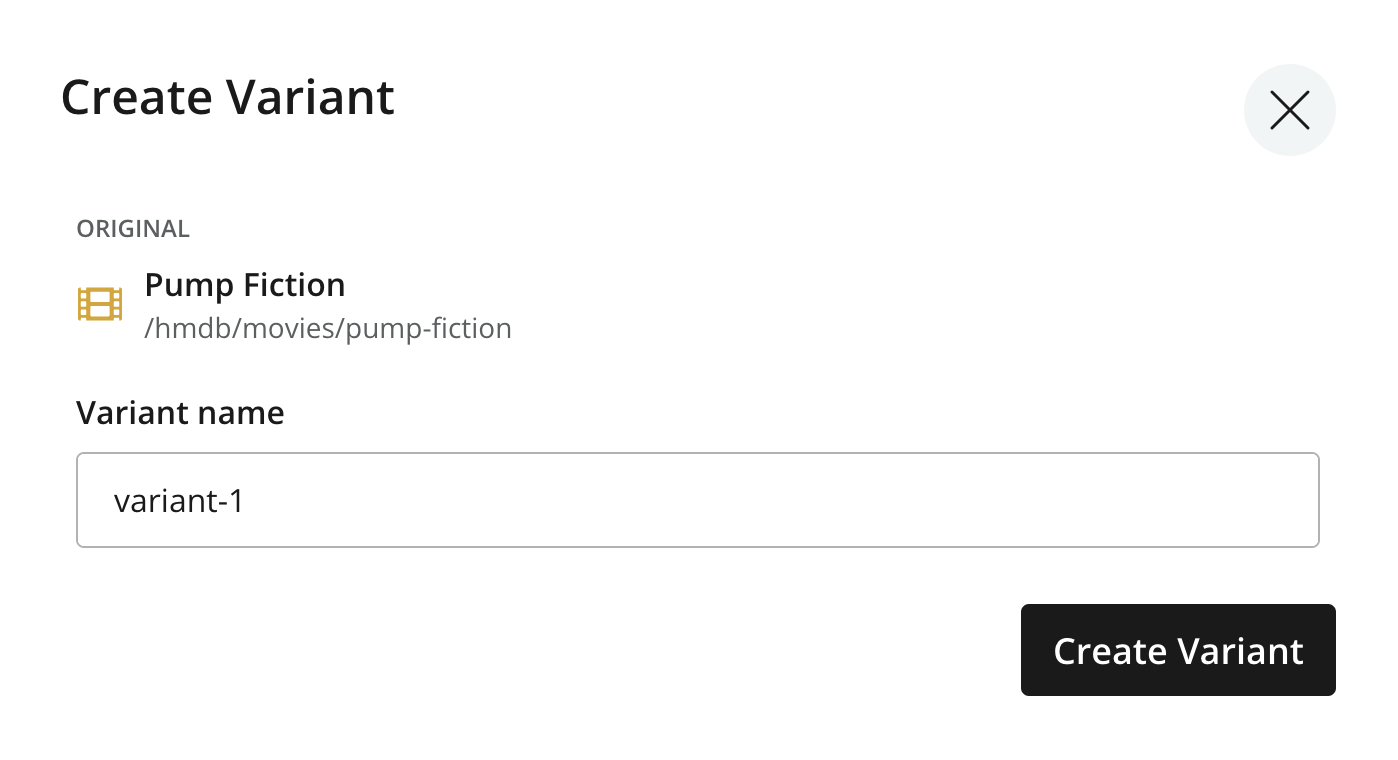
The Create Variant dialog shows the original item and suggests an available variant name, such as variant-1 or variant-2. The name becomes the variant’s path segment and must be unique beneath the original item. Change the suggested name if necessary, then click Create Variant.
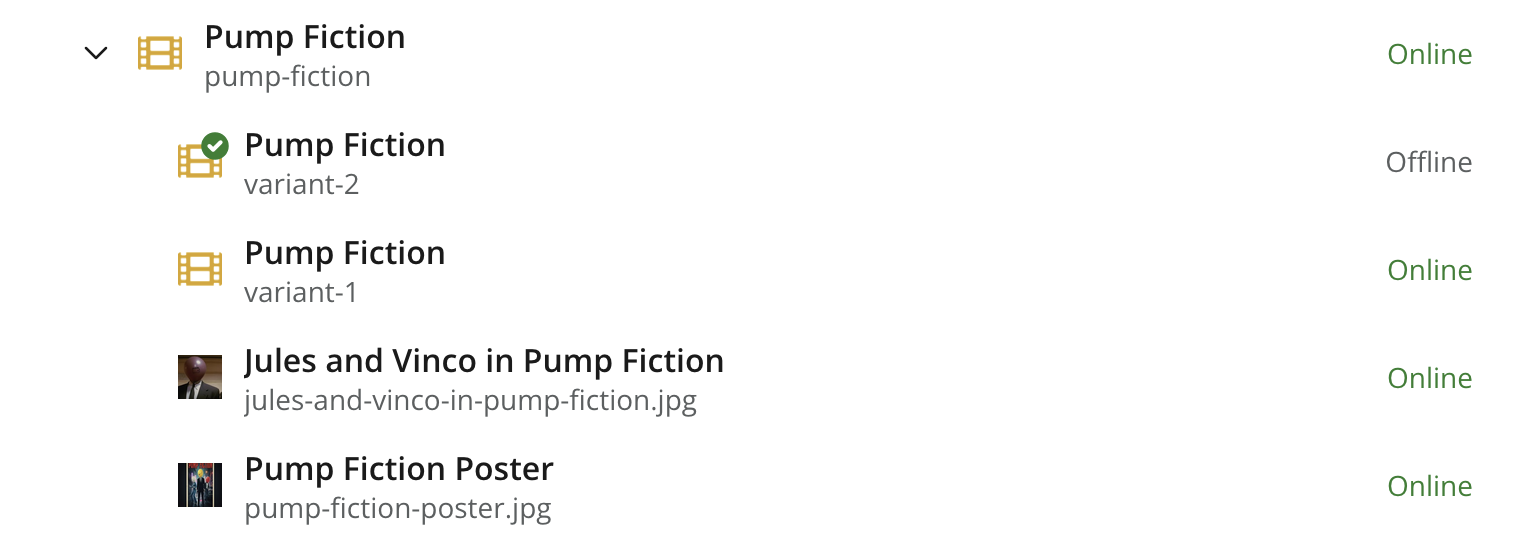
The new variant copies the original item’s content, including its display name, and appears directly beneath the original in the content tree.
Managing variants
The variants panel groups the related items into Original and Variants. Each card shows the item’s display name, path, content type, and publishing status. The Current marker identifies the item currently selected in Content Studio.
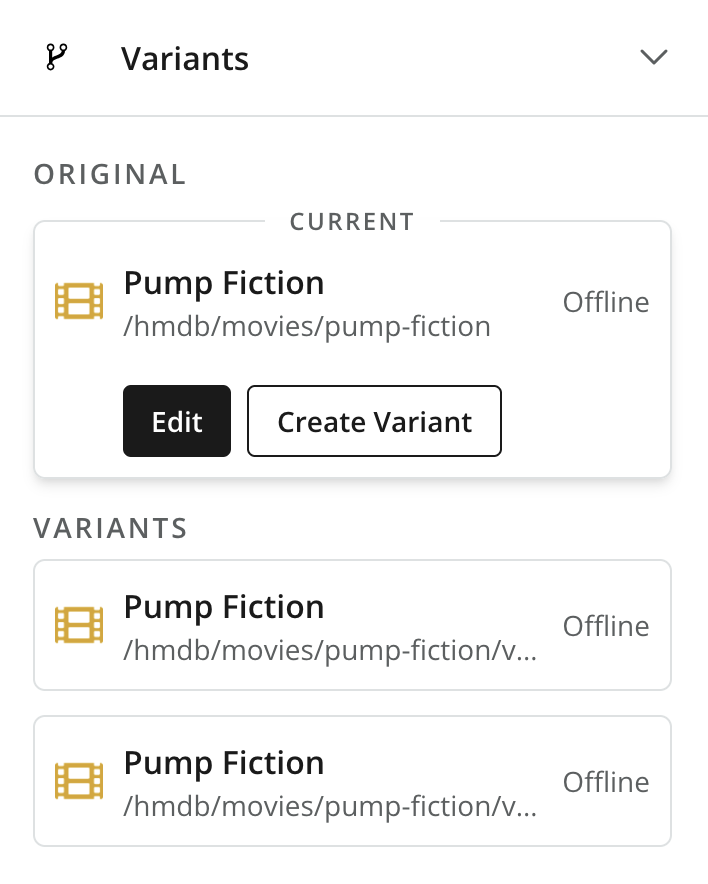
The original item’s card provides these actions:
- Edit
-
Opens the original item in the Content Editor.
- Create Variant
-
Creates another variant from the original item.
Variants provide these actions:
- Edit
-
Opens the variant in the Content Editor.
- Duplicate
-
Creates another variant from the selected variant.
Variants also appear as children of the original item in the Navigator. Use the standard content actions to manage them:
-
Use Edit to change a variant without changing the original or its other variants.
-
Use Duplicate from a variant’s context menu to create another variant associated with the same original.
-
Use Publish and Unpublish to control whether each variant is online.
-
Use Delete to move a variant to the Archive.
Because each variant has its own path and publishing state, an external A/B-testing or delivery system can address the variants separately.
Each variant also maintains its own Version history, so you can track changes and publishing activity or restore a previous version independently of the original item and other variants.