Details
Contents
The Details context panel is the default panel that shows the basic properties of the selected content item.
Overview
The Details panel shows the core metadata an editor typically needs to know without opening the item. It is shown by default in the Context panel.
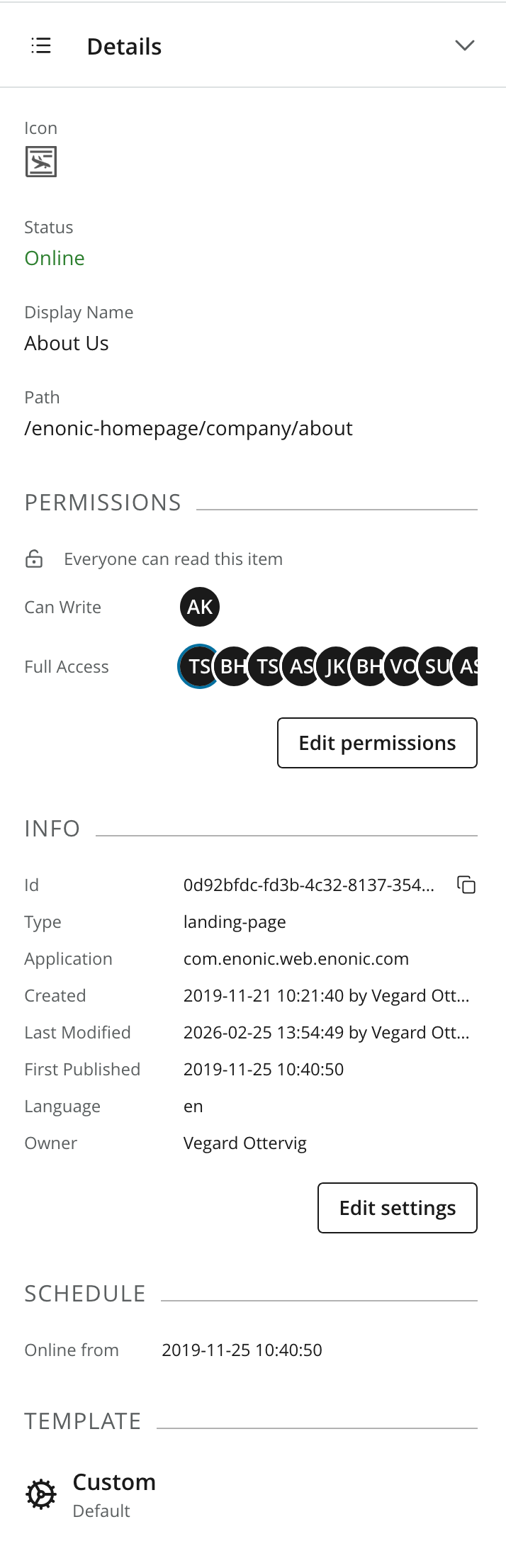
The panel is organised into sections:
Main section
- Icon
-
Shows the content icon. Select the icon to replace it with a custom image.
- Status
-
Shows the current workflow, publishing, and change status. See Workflow for the complete state model.
- Display name
-
The display name shown for the item throughout Content Studio.
- Path
-
The item’s full location in the content tree.
Permissions
Shows a summary of the principals that have access to the content item, grouped by their effective level of access.
- Public / Private
-
A lock icon symbolizes public or private mode
- Can Read
-
Optionally lists users with
Can readpermissions - Can Write
-
Optionally lists users with
Can writepermissions - Can Publish
-
Optionally lists users with
Can publishpermissions - Full Access
-
Optionally lists users with
Full accesspermissions - Custom
-
Optionally lists users with
Custompermissions
Click btn:[Edit permissions] to open the permissions dialog.
| Only users with the Write permissions permission can edit an item’s permissions. |
Info section
The Info section contains system metadata for the selected item:
- ID
-
The item’s immutable content ID. Use the copy button to copy the complete ID to the clipboard.
- Type
-
The content type used by the item.
- Application
-
The application that provides the content type, if applicable.
- Created
-
When the item was created and which user created it.
- Last modified
-
When the active version was last changed and which user made the change.
- First published
-
When the item was first published. This field is only shown after the item has been published.
- Language
-
The language assigned to the item, if any.
- Owner
-
The user registered as the content owner.
Click btn:[Edit settings] to change the item’s owner or language. The availability of this action depends on the current user’s permissions.
Schedule
The Schedule section shows the item’s publishing window:
- Online from
-
The date and time when the item became, or is scheduled to become, available online.
- Online to
-
The date and time when the item is scheduled to go offline. This field is omitted when no end time has been set.
The publishing schedule is read-only. It can only be configured via the publishing wizard, or manually unpublishing the item. See Scheduled publishing.
The section is only visible if publishing dates are available for the selected item.
Template
For content with a page, this section optionally shows the page template supplying its component structure. Content with a customized page is identified as Custom.
The Template section is only shown for content that supports pages.
Attachments
This section lists files attached to the content item. Select an attachment to download it.
The Attachments section is only shown when the selected item has one or more attachments.