Media
Contents
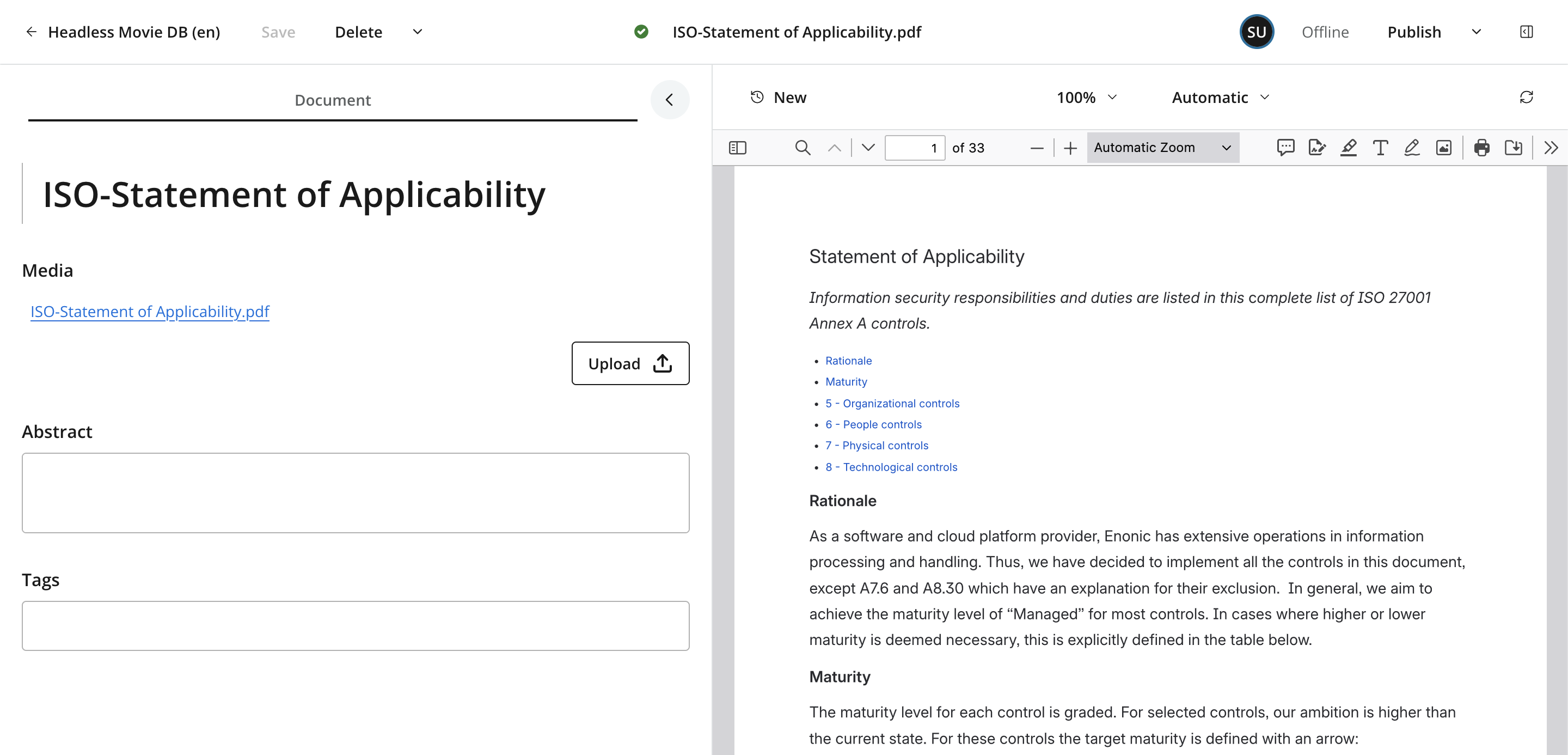
Media is the equivalent of files in a traditional file system. Unlike other content, Media can only be created by uploading files such as images, video, audio, and documents. Files will automatically be detected and saved as their appropriate Media type based on the file’s MIME type.
As content items, media files participate in search, permissions, workflow, publishing, and version history. Media content cannot contain child items.
Media types
Files will be saves as a particular media type, which determines the fields and preview available in the Content Editor. Built-in media types cover:
-
Bitmap images — see Image for the specialized image fields and editing tools.
-
Audio and video files.
-
Text and source-code files.
-
Documents, spreadsheets, and presentations.
-
Vector images.
-
Archives and executable files.
-
Other binary or unknown file formats.
See the Enonic CMS media type reference for the complete technical list and MIME-type mapping.
Upload and replace
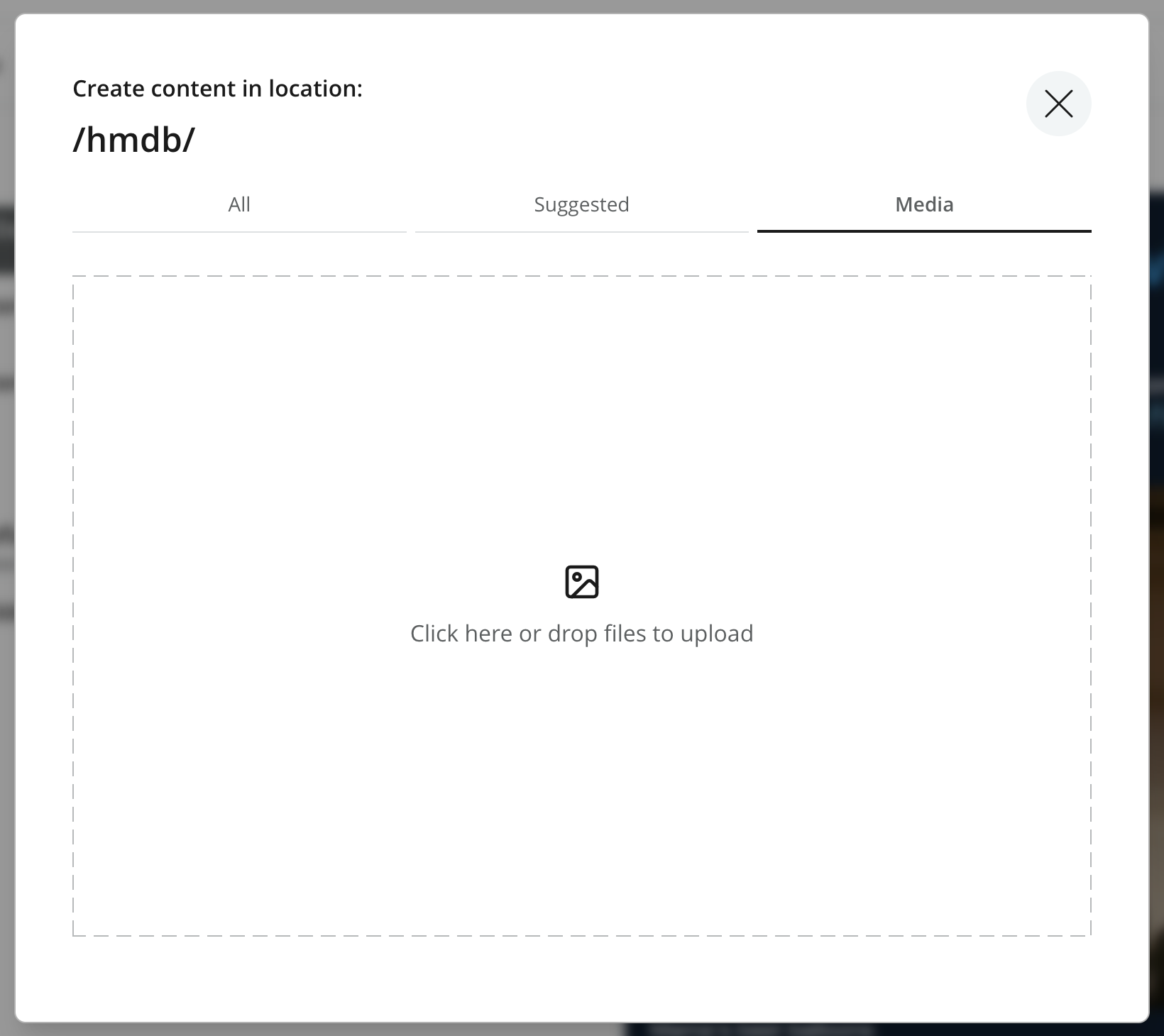
Create media from the New Content dialog using either of these methods:
-
Drag one or more files into the dialog.
-
Click the upload button and select the files.
The underlying file can be replaced after creation via the upload icon.
Replacing a file adopts the new attachment filename but does not rename the media item or change its content path, even before the item has been published. Use the Rename action separately if the content name should match the replacement file.
Media content and attachments
A media item consists of the content item and its uploaded file. The content item provides the identity, fields, permissions, workflow, and version history, while the file is embedded as a source attachment.
The attachment is not a separate item in the content tree and does not have independent permissions or publishing status. It is versioned and published together with the media item. Replacing the file updates the attachment without changing the content ID, so existing references to the media item remain valid.
To download the current file, click its filename in the Content Form. Alternatively, select the media item, open the Details context panel, and click the file under Attachments.
Other content types can also contain attachments, but for Media the attachment is the item’s primary payload. See the Enonic CMS attachment reference for the underlying attachment data.
Content paths and attachment URLs
A media item’s path identifies the content item, not its uploaded file. A URL such as /documents/report.pdf is therefore handled as a content route and does not automatically download the PDF in your front-end.
In order to ensure optimal use of CDN and caching, the files are normally served through the Attachment API. A typical attachment URL looks like this:
/_/media:attachment/<project>/<content-id>:<fingerprint>/<filename>?downloadThe URL components serve these purposes:
- Project
-
Identifies the content project.
- Content ID
-
Keeps the URL independent of the item’s name and location.
- Fingerprint
-
Identifies the current binary and supports long-lived caching. It changes when the file is replaced.
- Filename
-
Identifies the attachment stored on the content item.
-
?download -
Asks the browser to download the file instead of displaying it inline.
The public API prefix may differ depending on the virtual-host configuration. Integrations should therefore use URLs generated for their environment rather than constructing attachment URLs from content paths. See the Attachment API reference for the complete URL structure and configuration options.
Fields, metadata, and indexing
All media types include a Tags field for adding searchable labels. Other editorial fields depend on the detected media type.
For text-bearing files, indexing also happens at the attachment level. When a plain-text file, PDF, word-processing document, spreadsheet, presentation, or another supported format is uploaded, XP automatically extracts the readable text from the source attachment and includes it in the media item’s full-text search data. This allows Content Studio to find a media item by words inside the uploaded file, even though the extracted text is not displayed as an editable field in the Content Form.
The attachment remains part of the media item rather than becoming a separate searchable content item. Replacing the file causes the text of the new attachment to be extracted and indexed. Files without readable text do not contribute attachment text to the search index.
Images have the most extensive editorial fields and automatically extracted metadata. See Image for details.
See the Enonic CMS media-indexing reference for the supported extraction model and underlying searchable fields.
Preview
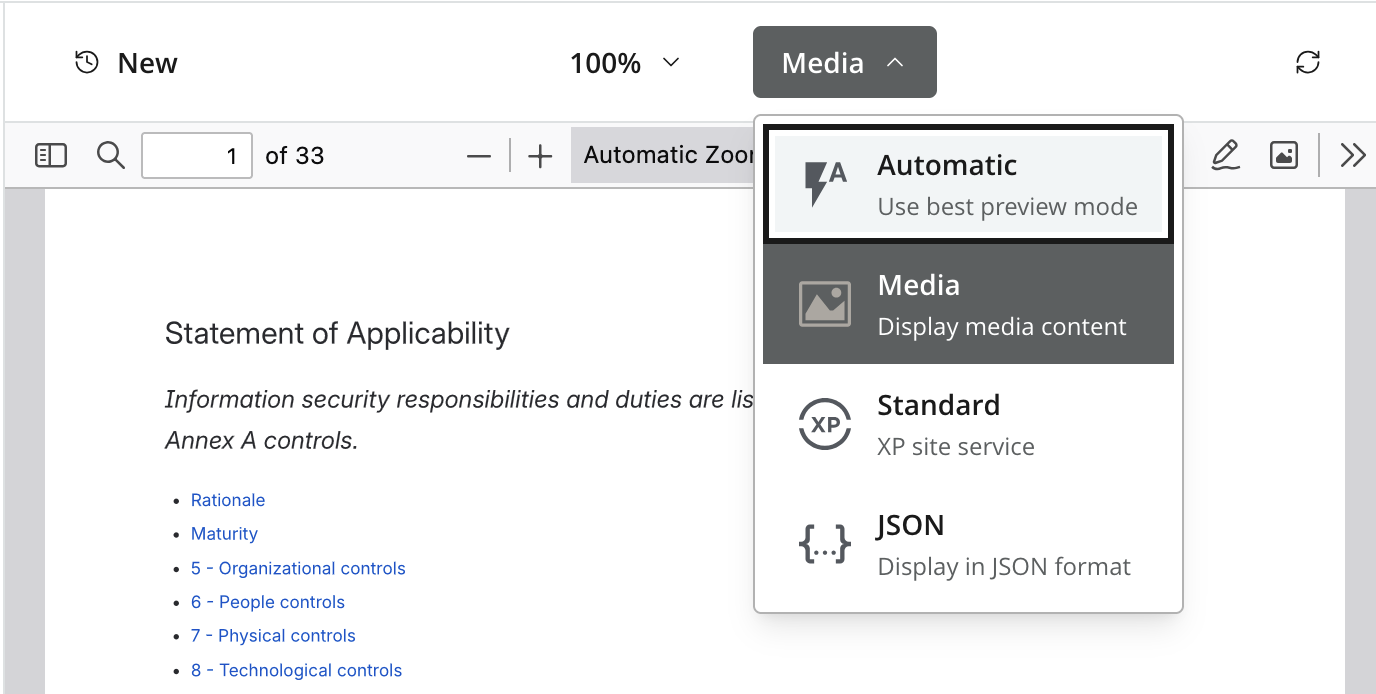
When available, Content Studio will automatically detect and apply the media preview to media content. Like any other content, users may choose an alternative preview like JSON.
Referencing media
Media items can be referenced from content selectors, rich-text, and and other fields in the Content Form. References are stored by content ID, so renaming or moving a media item keeps existing references intact, just like any other content item.