Duplicate
Contents
The Duplicate action creates independent copies of selected content, optionally including its descendants. Each copied item gets its own unique content ID and can be edited and published separately from the original.
Opening the dialog
In the Navigator, select one or more items and choose Duplicate from the toolbar or Duplicate from the right-click menu. In the Content Editor, Duplicate opens the dialog for the item in that editor tab.
Duplicate content dialog
The selected items appear at the top of the dialog. For an item with children, Include child items is selected by default. This includes all descendants, preserving their hierarchy. Clear the checkbox to copy only the selected item. If you change the selection, use Apply to update the list before duplicating.
Descendants included in the operation appear under Other items that will be duplicated. The number on the Duplicate button is the total number of items to copy, including the selected items and their included descendants.
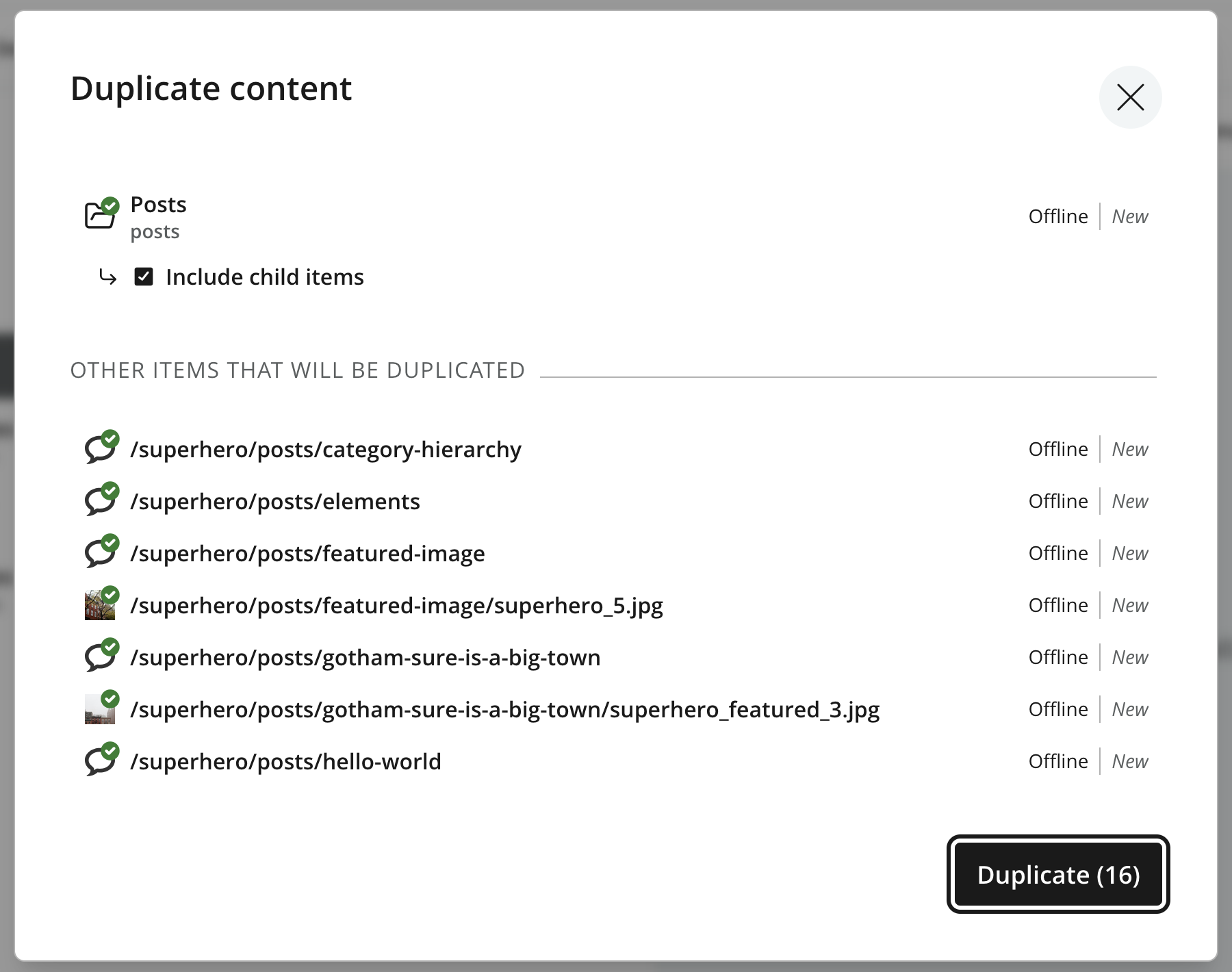
The paths and state indicators in the dialog describe the source items. The copies receive new paths and initial states as described below.
Click Duplicate to start the operation. The dialog displays progress while the items are copied.
Location and names
Each selected item is copied beside its original, under the same parent in the current project or layer. An item at the project root is copied to that root. Included descendants are created beneath the copied parent, rather than beside their individual originals.
- Display name
-
The copy keeps the original item’s display name. Duplicate does not append "copy" to this label.
- Path name
-
The selected item’s copy receives a unique path name with a
-copysuffix. If that name is already taken, Content Studio tries-copy-2,-copy-3, and so on. Descendants copied as part of the subtree keep their original path names beneath the new parent.
For example, duplicating /superhero/posts with its children creates:
| Original path | Copy path |
|---|---|
|
|
|
|
|
|
The copied folder still has the display name Posts. Use the Content Form to change its display name, the rename dialog to change its path name, or Move to place it under another parent.
Identity and initial state
Every copied item, including each copied descendant, receives a new content ID. Editing the copy does not edit the original, and existing references to the original continue to identify that original item.
Copies are made from the current draft content. They start with these states, regardless of whether the source is ready, published, or scheduled:
- Publish state
-
Offline. Copies are created in draft and are not published. The original’s publishing schedule is not carried over.
- Change status
-
New. Each copy is a new item that has never been published.
- Workflow state
-
In progress. Copies must be reviewed and marked ready before publishing. If copied content fails validation, the interface shows Invalid instead.
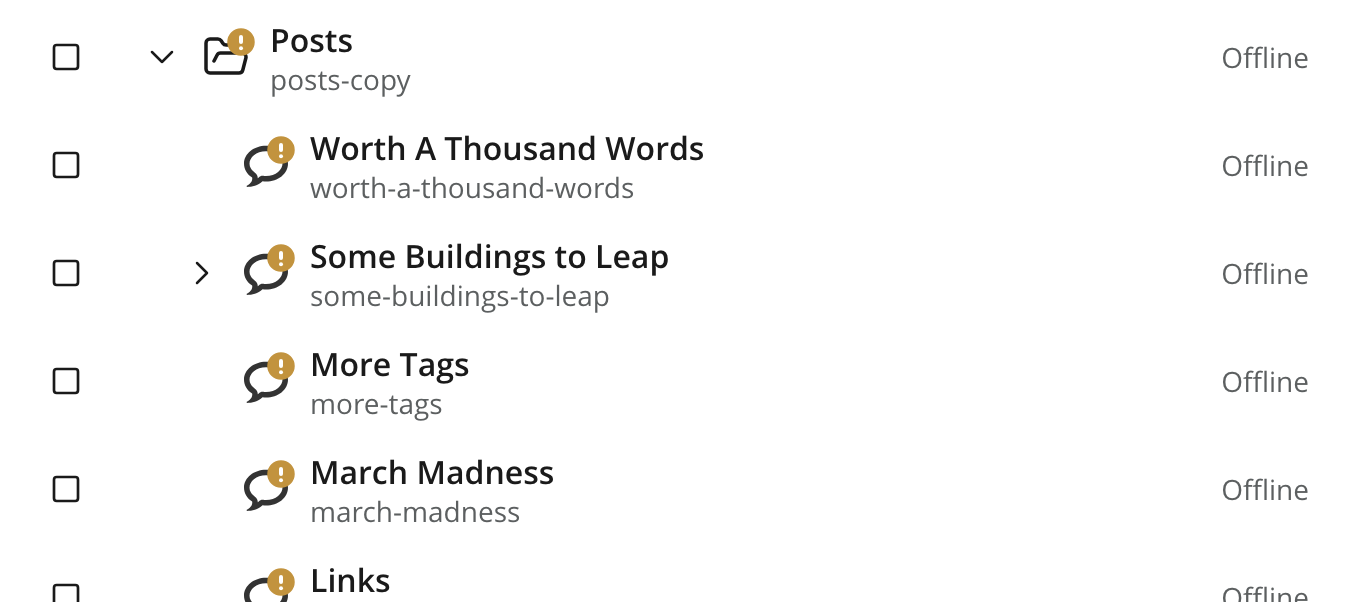
The yellow exclamation marks indicate In progress. The folder keeps the display name Posts, while its path name is posts-copy. Duplicating the original again creates posts-copy-2, then posts-copy-3, as those names are taken. The copied descendants keep their names beneath the new folder.
Duplicating inherited content in a layer creates independent local items. The copies do not retain the originals' inheritance relationship with the parent layer.