Image
Contents
Image is the specialized Media content type for bitmap image files. Content Studio creates an Image content item automatically when a supported image file is uploaded.
In addition to the standard content properties, the Image form provides editorial fields, extracted image metadata, and tools for cropping and setting a focal point.
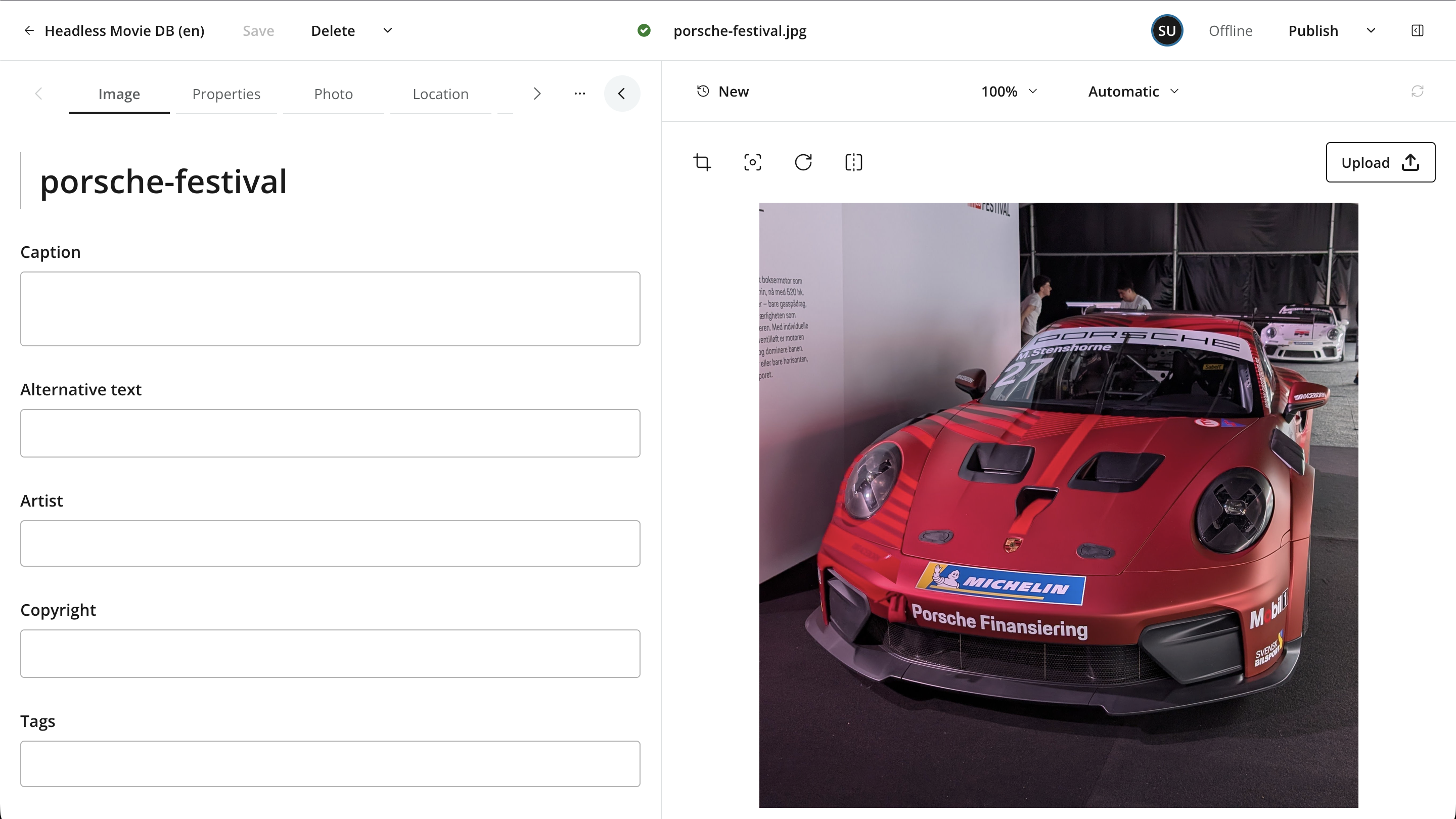
Image editor
The image preview includes a lightweight editor for preparing an image for delivery. Its toolbar provides controls for cropping, setting a focal point, rotating, flipping, resetting, and replacing the source file.
Image edits are non-destructive. Content Studio stores the crop, focal point, and orientation as properties on the image content item; it does not rewrite the source attachment. The saved properties can then be applied when an integration requests a transformed image. Downloading the source attachment still returns the original uploaded file.
The toolbar contains the following controls:
- Crop
-
Define the area of the source image that should be retained.
- Focal point
-
Identify the subject that should be prioritized if an integration needs to crop the image further for a different aspect ratio.
- Rotate clockwise
-
Rotate the presentation of the image 90 degrees clockwise. Click repeatedly to continue rotating it.
- Flip
-
Mirror the presentation of the image horizontally.
- Reset
-
Appears after an adjustment has been made and removes the applicable image edits. Outside crop or focal-point mode, this returns the crop, focal point, rotation, and flip settings to their defaults.
- Upload
-
Replace the source attachment with a different image file. This also clears image edits that belonged to the previous file. The attachment filename changes, but the content item keeps its existing name and path; see Upload and replace.
Rotation and flipping are applied immediately in the preview. Cropping and focal-point selection use a dedicated editing mode with these actions:
- Reset
-
Clear the current crop or return the focal point to the center of the available image area.
- Apply
-
Accept the current edit and return to the normal image preview.
- Cancel
-
Discard changes made since entering the current editing mode.
| Apply confirms a crop or focal-point edit within the image editor. Use Save in the Content Editor toolbar to save all image changes as a new version of the content item. |
Focal point
A focal point identifies the image’s most important subject. It is used when a delivery integration requests an image variant whose aspect ratio requires additional cropping. For example, the focal point can keep a person’s face in view when the same image is delivered as both a wide banner and a square thumbnail.
-
Click the focal-point icon in the image toolbar.
-
Click the subject that should be prioritized, or drag the focal-point marker into position.
-
Click Apply to accept the position. Use Reset to return it to the center of the cropped area, or to the center of the complete image when no crop is set.
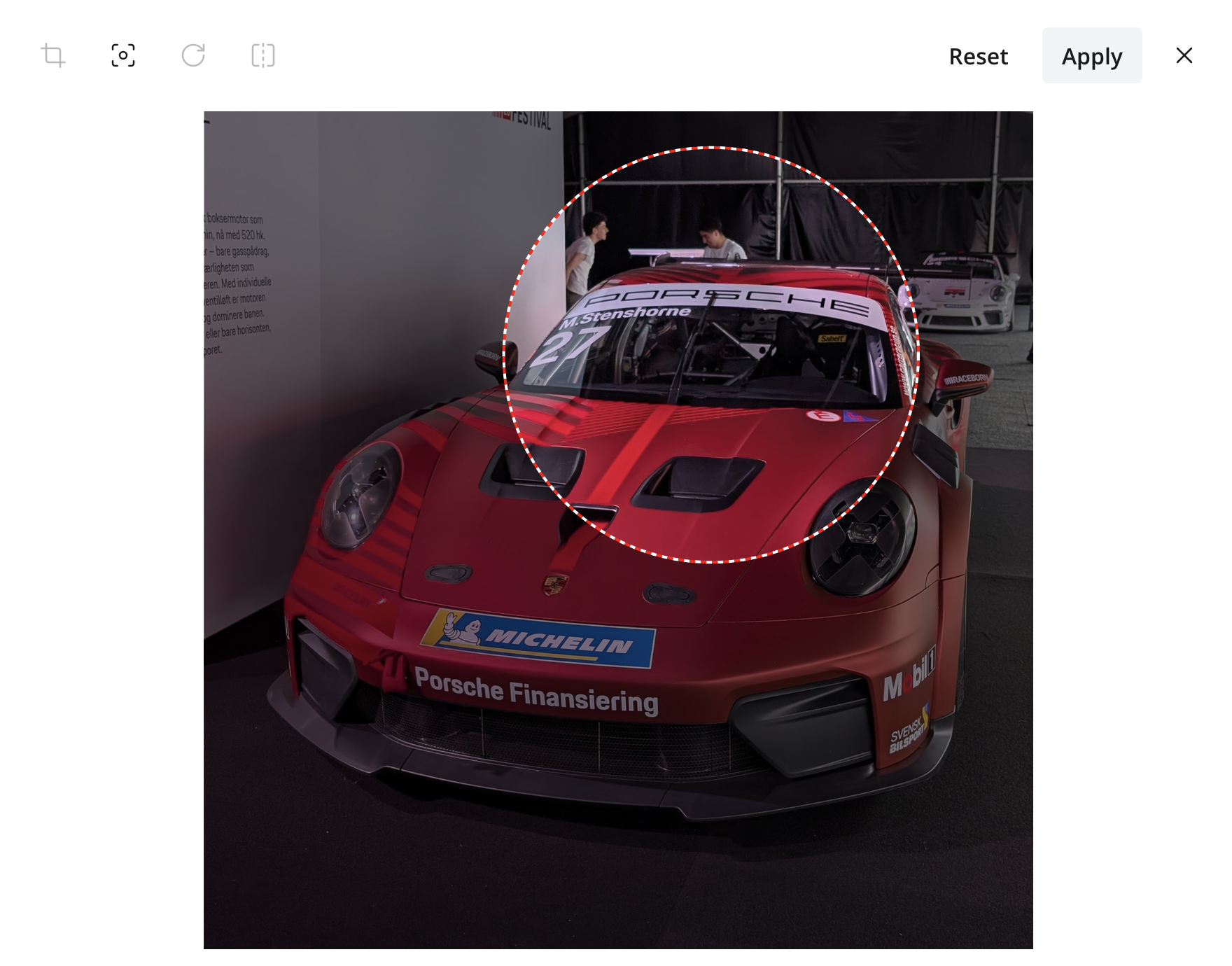
The focal point does not crop the image by itself. Its effect depends on the front-end integration and the image transformation it requests. See the Enonic CMS Image API reference for the available delivery transformations.
Examples of what the above image might look like when delivered by the image API to the front-end based on different aspect ratio requests:


Cropping
Cropping defines a persistent boundary around the useful part of the source image. Image variants generated from the content item use this cropped area as their starting point.
-
Click the crop icon in the image toolbar.
-
Drag a side or corner handle to resize the crop area. The dimmed area will be excluded.
-
Drag inside the crop area to reposition it without changing its size.
-
Click Apply to accept the crop, or use Reset to remove it.
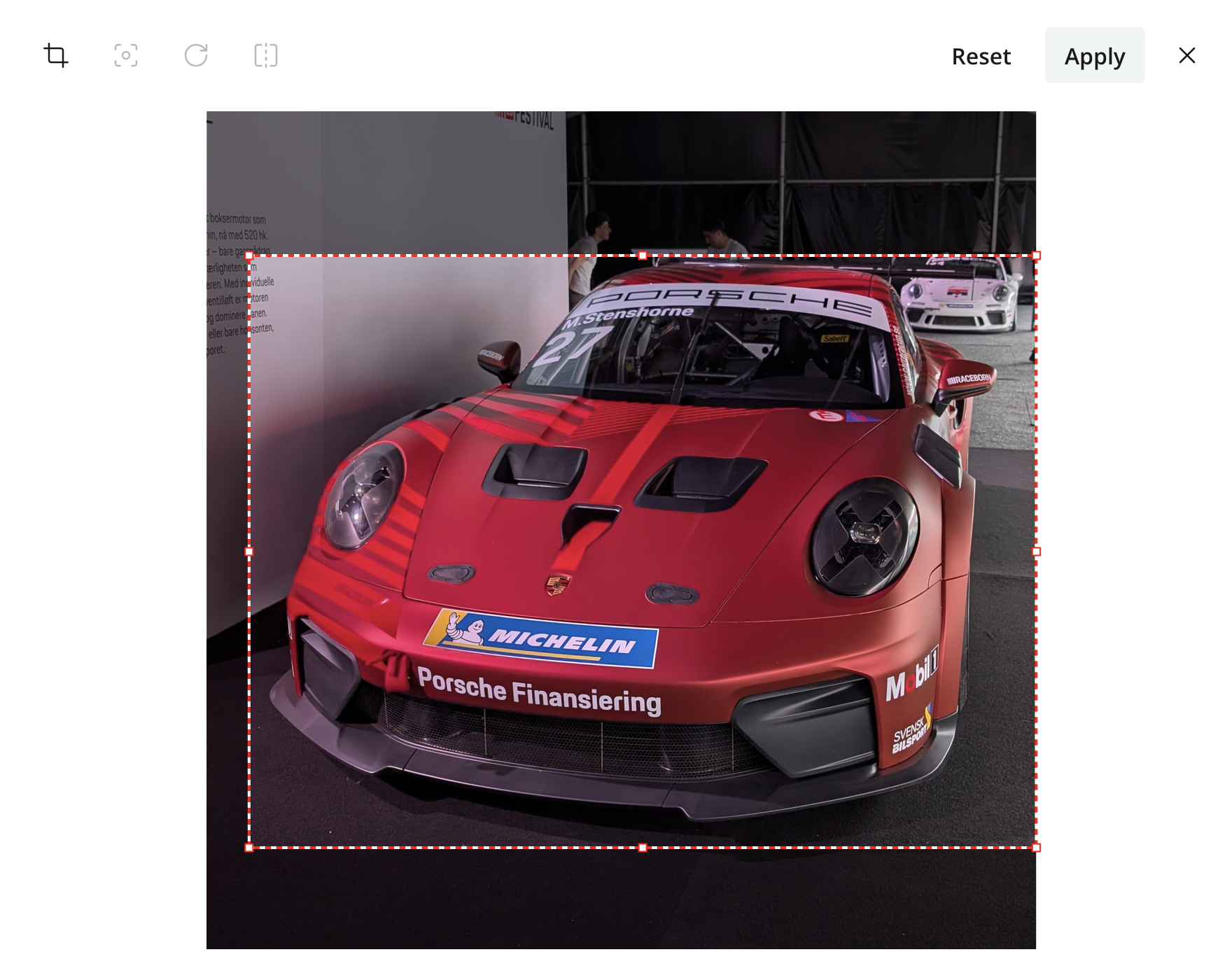
Cropping does not constrain the image to a predefined aspect ratio. Choose a crop that preserves the useful image area while leaving enough space for the aspect ratios required by the intended channels.
Fields and metadata
The Image tab contains the editorial fields used to describe and classify the image:
- Caption
-
A description or caption intended for presentation with the image. Whether and where it is displayed depends on the site or delivery integration.
- Alternative text
-
A concise text alternative for readers who cannot see the image. Describe the meaning or purpose of the image rather than its appearance alone. Images used only for decoration may not require alternative text, depending on the implementation.
- Artist
-
One or more names identifying the photographer, illustrator, or other creator. This is a tag field, so existing values can be reused.
- Copyright
-
A copyright or rights notice for the image.
- Tags
-
One or more reusable labels that help editors classify and find the image.
Content Studio automatically extracts available EXIF, IPTC, and XMP metadata from the uploaded file. Depending on the source image, this can include dimensions, camera and exposure details, and geographic coordinates.
For the mapping between these fields and their source metadata properties, see the Enonic CMS image metadata reference.
Editorial and extracted metadata are indexed and searchable, allowing images to be found by values such as artist, camera model, or focal length.
The available metadata varies by file and by the software or device that produced it. Empty fields are therefore normal. Applications can also add mixins, so an image may contain tabs in addition to the built-in Image, Properties, Photo, and Location tabs.
Properties
The Properties tab contains technical information about the source file and the image itself:
- Size (px)
-
The total number of pixels, calculated as width multiplied by height.
- Height (px)
-
The image height in pixels.
- Width (px)
-
The image width in pixels.
- Orientation
-
The embedded orientation value that indicates how the stored pixels should be rotated or mirrored for display.
- Content Type
-
The file’s media type, such as
image/jpegorimage/png. - Description
-
A description extracted from the file’s embedded metadata. This is separate from the editorial Caption and Alternative text fields.
- Size (bytes)
-
The size of the source attachment in bytes.
- Color Space
-
The embedded color-space information, when available.
- File Source
-
Information recorded by the source device or software about how the image was created.
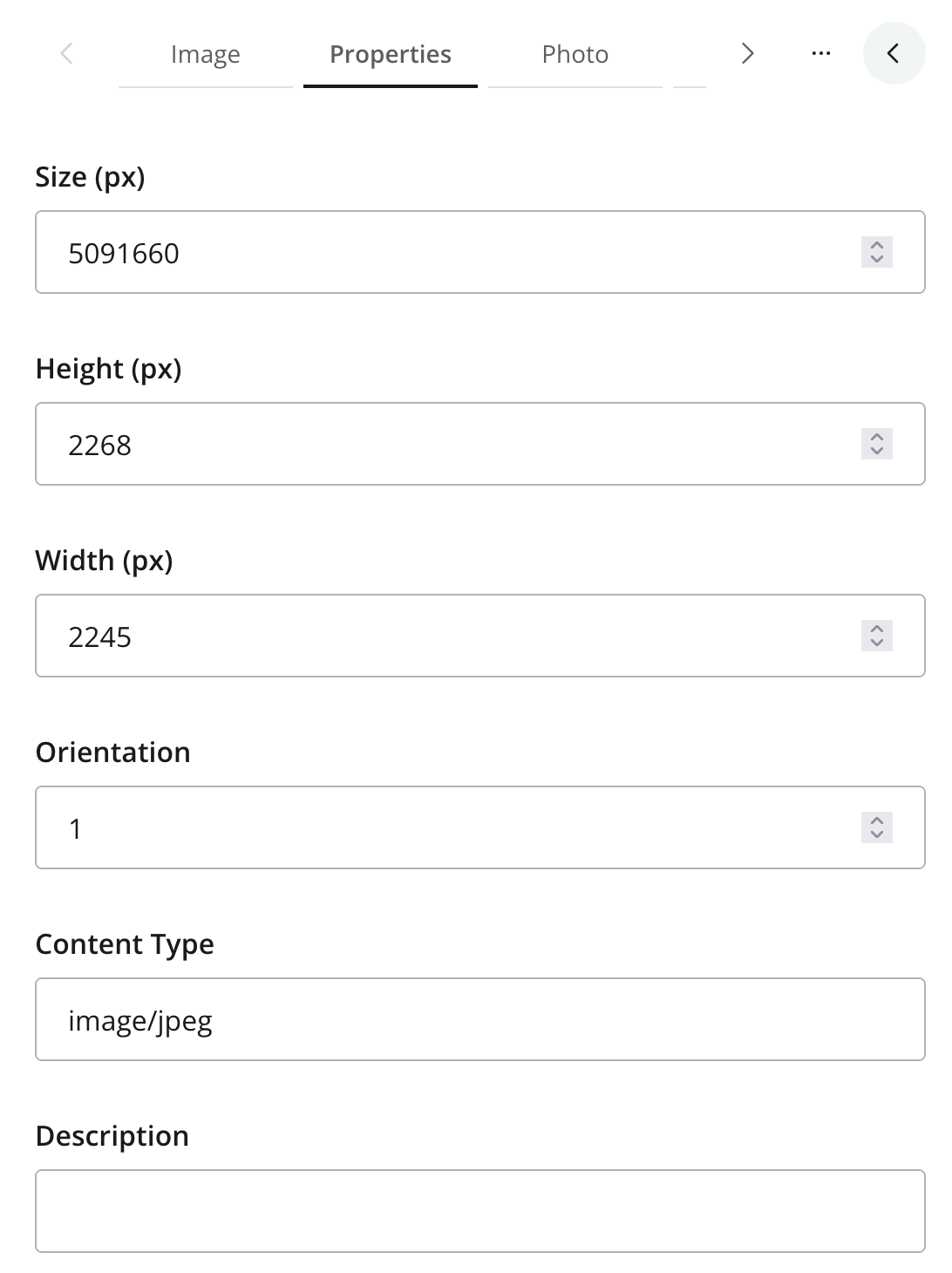
Photo
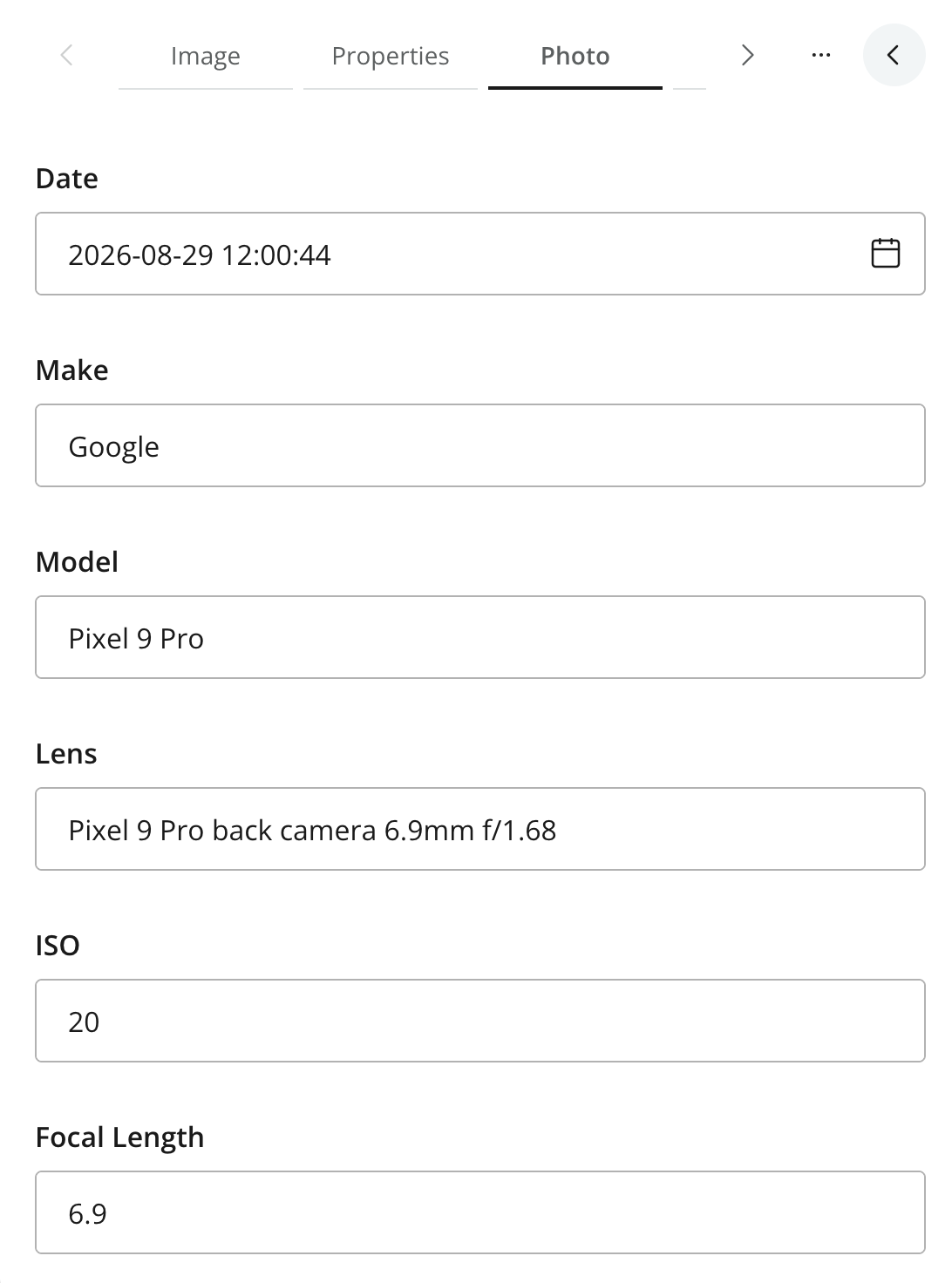
The Photo tab contains camera, lens, and exposure information extracted from photographic metadata:
- Date
-
The date and time when the image was captured.
- Make
-
The camera or device manufacturer.
- Model
-
The camera or device model.
- Lens
-
The lens model or description.
- ISO
-
The camera sensitivity used for the exposure.
- Focal Length
-
The lens focal length used when the image was captured.
- Focal Length 35mm
-
The equivalent focal length on a 35 mm camera, which makes the field of view easier to compare across sensor sizes.
- Exposure Bias
-
The exposure compensation applied by the camera.
- Aperture
-
The lens aperture used for the exposure, expressed as an f-number.
- Shutter Time
-
The exposure duration.
- Flash
-
Information about whether and how the flash fired.
- Auto Flash Compensation
-
Flash-exposure compensation applied automatically by the camera.
- White Balance
-
The white-balance setting used by the camera.
- Exposure Program
-
The camera program used to determine the exposure.
- Shooting Mode
-
The camera’s selected scene or shooting mode.
- Metering Mode
-
The method used by the camera to measure light.
- Exposure Mode
-
Indicates whether the exposure was selected automatically, manually, or by exposure bracketing.
- Focus Distance
-
The recorded distance from the camera to the subject.
- Orientation
-
The orientation recorded by the camera for the photograph.
Location
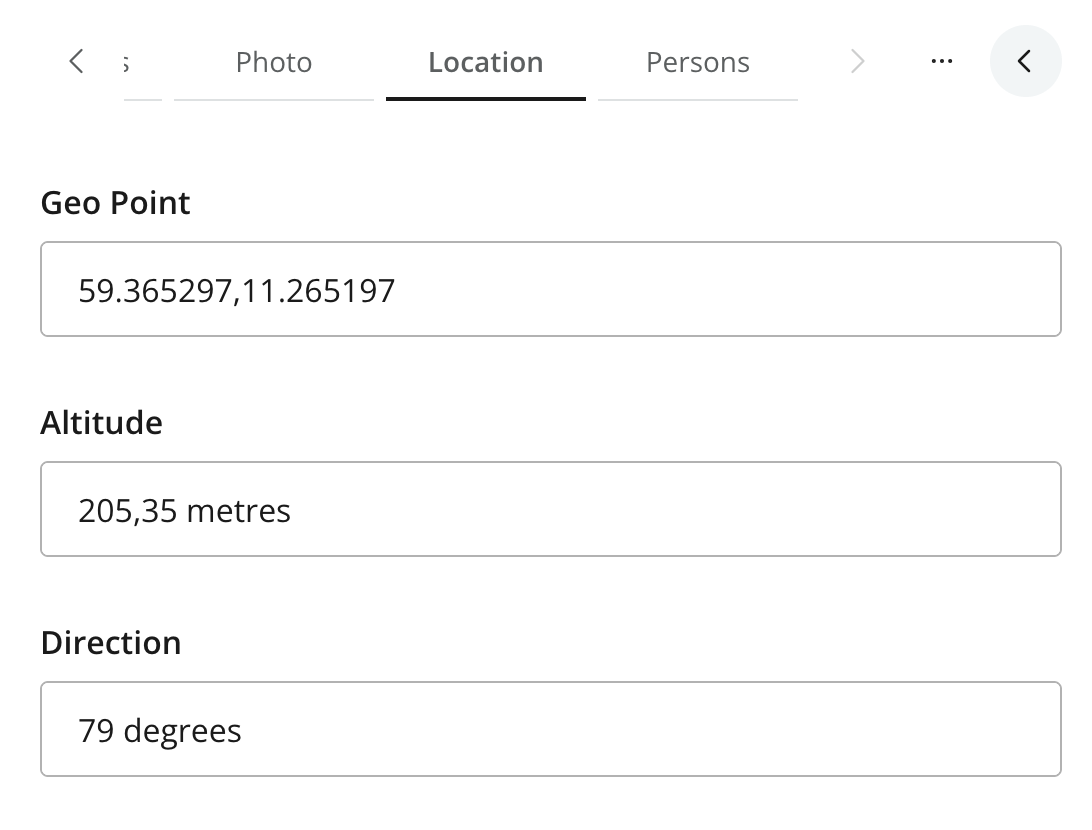
The Location tab contains positioning information recorded when the image was captured:
- Geo Point
-
The latitude and longitude of the capture location.
- Altitude
-
The recorded elevation at the capture location.
- Direction
-
The direction the camera was facing, normally expressed in degrees.
| Location metadata can reveal a precise capture location. Review it before publishing or exposing image metadata through an API. |