Image API
Contents
The Image API provides real-time processing and delivery of raster images from media content.
Location
By default, the Image API is available at:
8080:/api/media:image/
The exact public URL can differ per environment based on virtual host configuration, which is commonly used to expose the API on a friendlier path — for example https://media.example.com/image/.
URLs to the Image API is usually generated by using the Guillotine API, imageUrl field.
| Enonic app developers may use the Portal API, imageUrl function |
URL structure
An image URL consists of the following components:
-
Base URL
:8080/api/media:image/ -
Media Locator with an optional (branch)
<project>(:<branch>)/<content-id>
Branch is specified only if it is notmaster(published content). Specifyingmasterbranch is an error - to avoid cache pollution. Since we only havemasteranddraftthere are only two options:/<project>/and/<project>:draft/ -
(Optional) fingerprint
:<image-fingerprint>- the fingerprint of the image.
If fingerprint is not supplied the response will not contain "immutable"Cache-Controlheader. -
Scaling (method followed by arguments, separated by dashes), followed by a forward slash.
Example:block-300-100/ -
File name equal to content name.
Example:content-name.png -
(Optional) Format extension, preceded by a period.
Example:.jpg -
URL parameters, such as background or filter (URI encoded, filter values are semicolon-separated)
Example:?background=0x777777&filter=sharpen%28%29%3Brounded%2820%2C3%29
| If format extension is specified, content gets converted to a corresponding format. Otherwise, the MIME type is derived directly from the content. |
Supported format extensions are .jpg, .png and .gif. Other extensions may still work but are not supported. |
Content with MIME type image/gif, image/avif, image/webp and image/svg+xml is returned as-is without any processing. |
Example of an image URL on the root of a live site behind a Virtual Host:
/media:image/myproject/c82262a6-77d6-4276-b0e7-fe82f4eb57b8:1feb57ed672f8c3b9fd6d4614878dafd9882298b/block-300-100/content-name.png.jpg?background=0x777777&filter=sharpen%28%29%3Brounded%2820%2C3%29
Media scope
You may limit which projects and branches are accessible by mounting the API in a Virtual Host.
Use the setting endpoint.media.scope = <project1:draft>, <project2> in the Virtual Host Context.
Scaling methods
Block
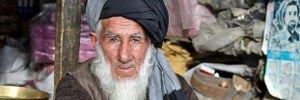
Scales the image to fill the given dimensions, then crops off any overflowing content based on the focal point position. This is the most common scaling method for web purposes, since the image will always have the exact dimensions as the given input.
- Arguments
-
Both arguments below are required:
- width
-
Width in pixels
- height
-
Height in pixels
- Example
block-300-100
Height
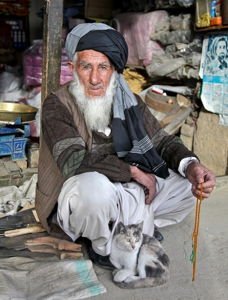
Scales the image proportionally to match the given height. No cropping. Width may vary depending on aspect ratio.
- Arguments
-
- height
-
Height in pixels
- Example
height-300
Max
Scales the image proportionally until the longest edge has the given number of pixels. Typically used if the image will be displayed inside a square container but must not be cropped (e.g. diagrams or logo images that must fit inside a square table cell)
- Arguments
-
- size
-
The length of the longest edge in pixels. Required.
- Example
max-300
Square
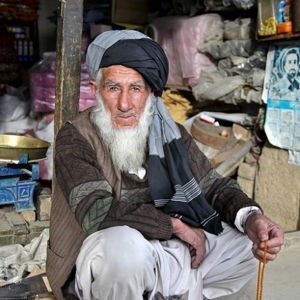
Scales the image proportionally to match the shortest edge, resulting in a square image. Any overflowing content will be cropped based on the focal point position.
- Arguments
-
- size
-
The length of both sides in pixels
- Example
square-300
Wide
Similar to scale Block, but will never crop off the left/right sides of the image. The resulting image would always be as wide as the given width, but if the image has a wider aspect ratio than given, it would end up being lower than the given height.
- Arguments
-
- width
-
Width in pixels
- height
-
Maximum height in pixels
- Example
wide-300-100
Width
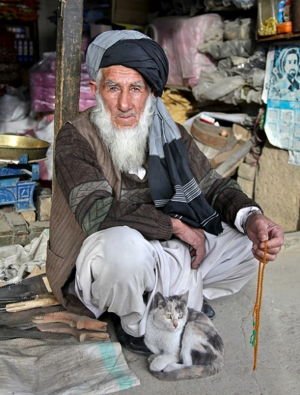
Scales the image proportionally to match the given width. No cropping. Height may vary depending on aspect ratio.
- Arguments
-
- width
-
Width in pixels
- Example
width-300
Filters
| Some (but not all) of the filters below perform under-the-hood calculations measured in pixels, which means that images of various dimensions will have the effect applied differently. This is especially apparent if the images are forced to fit a specific container size on the client. In order to ensure a consistent result, consider upscaling your image to a specific size before applying the filter, or downscale if the effect should be larger in relation to the image. |
RGB Adjust
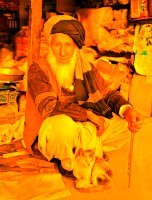
Adjust the red, green and blue levels in the image.
Values between -1.0 and 0.0 subtract that color channel in the image. A value of 0 results in no adjustment for that channel. Values between 0 and 255 boosts that color channel in the image. The boost is logarithmic, so small boost values between 0 and 1 are often enough.
- Arguments
-
- red
-
Decimal value with the adjusted red level for the image. Required.
- green
-
Decimal value with the adjusted green level for the image. Required.
- blue
-
Decimal value with the adjusted blue level for the image. Required.
- Example
rgbadjust(0.0,-1.0,-1.0) (1)
rgbadjust(0.0,0.0,-1.0) (2)
rgbadjust(1.0,0.0,-1.0) (3)
| 1 | Red channel only, otherwise black |
| 2 | No blue channel, otherwise unmodified |
| 3 | No blue channel, boosted red channel (as seen in the image above) |
HSB Adjust
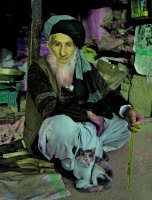
Adjust the hue, saturation and brightness levels in the image.
| This effect is a lot more rudimentary than the Hue/Saturation effect in Photoshop. For instance, when reducing saturation, all colors below a certain threshold are strictly converted to grayscale instead of being desaturated. The use of values outside of +/-0.2 is not recommended. |
- Arguments
-
- hue
-
Decimal value from -1 to 1, of how far around the color wheel to move the hue of the image. Required. (0 is no change)
- saturation
-
Decimal value from -1 to 1 to adjust the intensity of the colors in the image. Default: 0
- brightness
-
Decimal value from -1 to 1 to adjust the brightness of the image. Default: 0
- Examples
hsbadjust(-0.15,0.2,-0.2)
Block
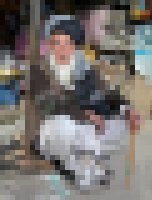
Reduces the image down to a mosaic of larger square pixels. Also known as pixelate.
- Arguments
-
- size
-
The size of each square mosaic block, in pixels. Default: 2
- Example
block(5)
Blur
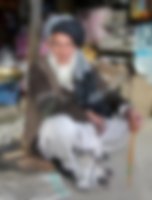
Applies a Gaussian blur-like effect, based on the given pixel radius. The opposite of Sharpen, although it’s not possible to reverse a sharpen with a blur.
- Arguments
-
- radius
-
How many pixels of blur to apply. Higher values lead to a more blurry image, values below 2 result in no blur. Default: 2
- Example
blur(8)
Border
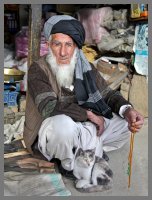
Applies a rectangular border with a solid color around the image.
- Arguments
-
- width
-
The width of the border in pixels. Default: 2
- color
-
The color of the border as a decimal or hexadecimal number. Default: 0x000000 (black)
- Examples
border(5)
border(4, 0x777777)
Bump
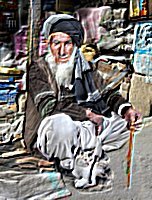
Creates a pseudo-3D bevel effect based on edge contours in the image.
- Arguments
-
No arguments
- Example
bump()
Colorize
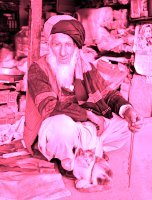
Makes a grayscale image, then applies a tint based on the color given with red, green and blue values.
- Arguments
-
- red
-
Red boost value. Default: 1
- green
-
Green boost value. Default: 1
- blue
-
Blue boost value. Default: 1
- Example
colorize(3,1,1.5)
HSB Colorize
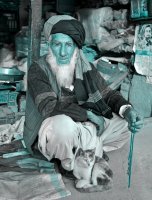
Makes a grayscale image, then applies a tint based on the color given with hue, saturation, and brightness.
- Arguments
-
- color
-
The tint color as a decimal or hexadecimal number. Default: 0xFFFFFF
- Example
hsbcolorize(0x00AAAA)
Edge
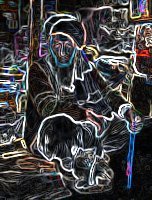
Creates an abstract image by brightening every edge contour and darkening every even surface of the image.
- Arguments
-
No arguments
- Example
edge()
Emboss
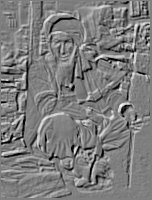
Creates a grayscale image with a pseudo-3D bevel effect based on edge contours in the image. Areas with no contours are normalized to a neutral gray. If colors need to be kept as they were, consider using Bump instead.
- Arguments
-
No arguments
- Example
emboss()
Flip horizontally
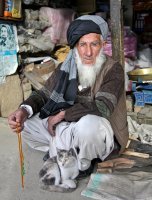
Flips an image horizontally (mirrored left-right).
- Arguments
-
No arguments
- Example
fliph()
Flip vertically
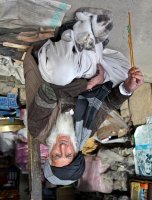
Flips an image vertically (mirrored upside down, like a water reflection).
- Arguments
-
No arguments
- Example
flipv()
Grayscale
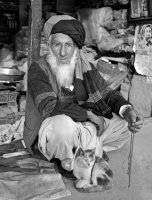
Creates a grayscale variant of the image.
| Use an adjustment filter in front of the grayscale filter in order to affect how bright or dark different portions of the image will be, e.g. to highlight skin tones. |
- Arguments
-
No arguments
- Example
grayscale()
Invert
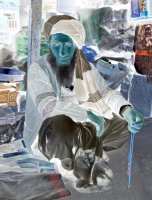
Inverts the colors and brightness of the image.
| The human eye does not have a linear response across the whole visible spectrum, so inverting the image may have unexpected effects on text contrast in relation to the processed image. |
- Arguments
-
No arguments
- Example
invert()
Rotate 90
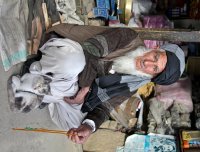
Rotates an image clockwise 90 degrees. Width and height dimensions get swapped, e.g. a 200x100 pixel image becomes 100x200 pixels.
- Arguments
-
No arguments
- Example
rotate90()
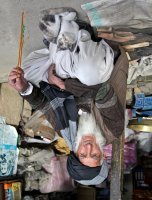
Rotate 270
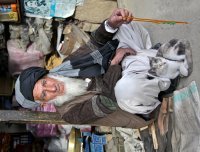
Rotates an image clockwise 270 degrees (i.e. counter-clockwise 90 degrees). Width and height dimensions get swapped, e.g. a 200x100 pixel image becomes 100x200 pixels.
- Arguments
-
No arguments
- Example
rotate270()
Rounded
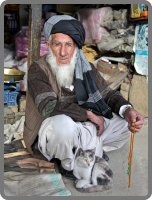
Rounds the corners of the image, with an option of adding a border around the rounded image which also has rounded corners.
| To create a circular image, apply a scale square at a desired number of pixels for the diameter, and then apply rounded with radius set to half that amount of pixels for the radius. |
| If the image format has been set to PNG, the negative space outside the rounded corners is rendered as transparent. If the image format has been set to JPG, the negative space outside the rounded corners is rendered as the background color. |
- Arguments
-
- radius
-
The number of pixels from each corner where the rounding starts. Default: 10
- borderSize
-
The width of the border in pixels. Default: 0
- borderColor
-
The color of the border as a decimal or hexadecimal number. Default: 0 / 0x000000 (black)
- Examples
rounded()
rounded(15)
rounded(10,1)
rounded(8,4,0x777777)
Sepia
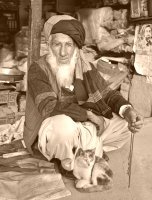
Creates a grayscale image with a yellow-reddish tint to make it look like an old photograph.
- Arguments
-
- depth
-
The brightness of the tint. Default: 20
- Examples
sepia()
sepia(25)
Sharpen
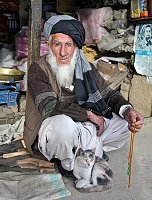
Applies a sharpening filter to the image, making edge contours more pronounced. The opposite of Blur, although it’s not possible to reverse a blur with a sharpen.
| If the source image has a lot of compression artifacts or has very low resolution, sharpening the image will make these artifacts stand out even more, which usually is undesired. |
- Arguments
-
No arguments
- Example
sharpen()
Response
A successful response streams the rendered image in the body. The API accepts GET, HEAD, and OPTIONS — any other method returns 405 Method Not Allowed.
Unlike the Attachment API, the Image API does not support range requests. Each scaled+filtered rendition is generated on demand from the source image and meant to be cached as a single immutable resource — there is no Accept-Ranges header, and Range request headers are ignored. |
Status codes
-
200 OK -
The rendered image is returned in the body.
-
400 Bad Request -
Invalid scaling arguments or query parameters (
filter,quality,background). -
404 Not Found -
Content does not exist, is not an image, or the underlying
sourceattachment cannot be resolved. -
429 Too Many Requests -
The image service is throttling — too many concurrent render operations. Clients should retry with backoff.
Headers
-
Content-Type -
Set to the rendered image’s MIME type. When the URL specifies a format extension (
.jpg,.png,.gif), the image is converted to that format; otherwise the source MIME type is preserved. GIF, AVIF, WebP, and SVG content are streamed as-is without processing. -
Content-Length -
Size of the rendered image, in bytes.
-
Cache-Control -
Set only when the URL includes a fingerprint that matches the current image hash. The value is taken from
media.public.cacheControlfor content publicly readable on themasterbranch, and frommedia.private.cacheControlotherwise. Requests without a fingerprint, or with a stale one, receive noCache-Controlheader and are therefore treated as non-cacheable by intermediaries. -
Content-Security-Policy -
Set when configured via the
media.contentSecurityPolicyportal config option. SVG responses use the separatemedia.contentSecurityPolicy.svgsetting, which lets you tighten policy specifically for the inline-script-capable image format. -
Content-Encoding -
Set to
gziponly for.svgzsource images — this is a property of the file format (SVGZ is gzipped SVG) and instructs the browser to decompress before rendering.For all other formats, no
Content-Encodingis set by default. The platform-wide Jetty gzip filter is disabled out-of-the-box (gzip.enabled = false), so images are served uncompressed unless an operator opts in. This default keeps the API edge-cache and CDN friendly — services like Fastly can perform their own conditional compression without conflicting with an upstreamContent-Encoding.
Configuration
The Image API is driven by two configuration files in your XP installation.
- CMS configuration
-
Controls media-serving behaviour:
media.public.cacheControl,media.private.cacheControl,media.contentSecurityPolicy,media.contentSecurityPolicy.svg, and the per-virtual-hostendpoint.media.scopeattribute. - System configuration
-
Controls platform-wide HTTP behaviour, including the Jetty gzip filter (
gzip.enabled,gzip.minSize) referenced in the headers section above.