Publishing report
Contents
Provides a detailed report on what has been published for an item between two points in history.
| Content Studio+ feature. The Publishing report panel requires a valid Content Studio+ subscription. |
What it does
Unlike Version history, which lists all recorded activity and can restore a draft, Publishing report focuses on versions that went online. It is a read-only comparison and does not publish, unpublish, or restore content.
The publishing report can be used to generate a detailed record of what has been published for an item, and act as a source of truth in legal disputes, or for other purposes where it is crucial to know what has been published, by whom and when.
Generating a report
To generate a report, follow these steps:
-
Select the content item in the Navigator or open it in the Content Editor.
-
Open Publishing report from the Context panel selector.
-
Enter the beginning of the reporting period in From and its end in To.
-
Click Generate.
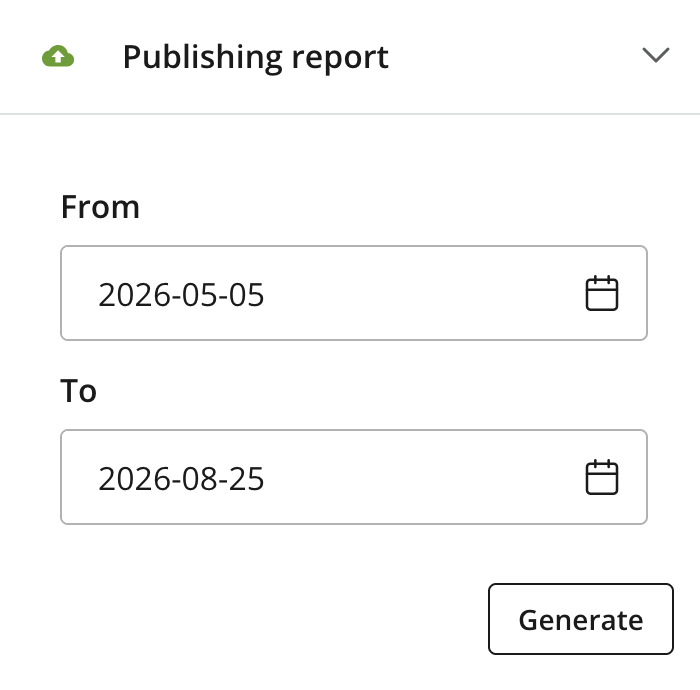
| By default, the from and to dates are set to the content creation date, and current date respectively - generating a complete report of all published versions. |
The start date must be earlier than the end date. A report also requires publication history for the selected item. Content Studio displays a message when the content has never been published or when no applicable publications exist for the chosen period.
Reading the report
The report compares all published versions associated with the selected date range and highlights their differences. It also identifies transitions in availability, including when the item went online or offline. If the item was offline for part of the period, that interval is called out so the comparison is not mistaken for continuous publication.
A period can legitimately contain no comparison—for example, when the item remained offline or had no publication event in the selected range. In that case, the report explains why no published versions were found instead of presenting a content diff.
Click Print in the report dialog to open the browser’s print flow. From there, use the browser and operating-system options to print the report or save it as a PDF.