Fragment
Contents
A Fragment contains a reusable component tree. Pages reference the Fragment instead of storing a local copy, so the Fragment can be maintained in one place and reused across multiple pages.
Overview
Similar to a page, every Fragment has a root component. This component is normally a Part or Layout. A Layout may include additional components within the Layout’s regions. The entire structure belongs to the Fragment and is shared by every page that references it.
Like any other content, Fragments live in the content tree with their own path, status, permissions, workflow, publishing state, and version history. Changes to a Fragment affect all references, while components placed directly on a page are configured independently.
Creating a Fragment
Fragments are created from components on pages. They are not available in the New Content dialog, and Save as Fragment is not available for Page templates.
-
Open a content item with a page and select the component in either the visual editor or component tree.
-
Open the component’s context menu.
-
Select Save as Fragment.
Content Studio creates a Fragment content item as a child of the current content item and stores the selected component tree in it. On the original page, Content Studio replaces the selected component with a reference to the Fragment.
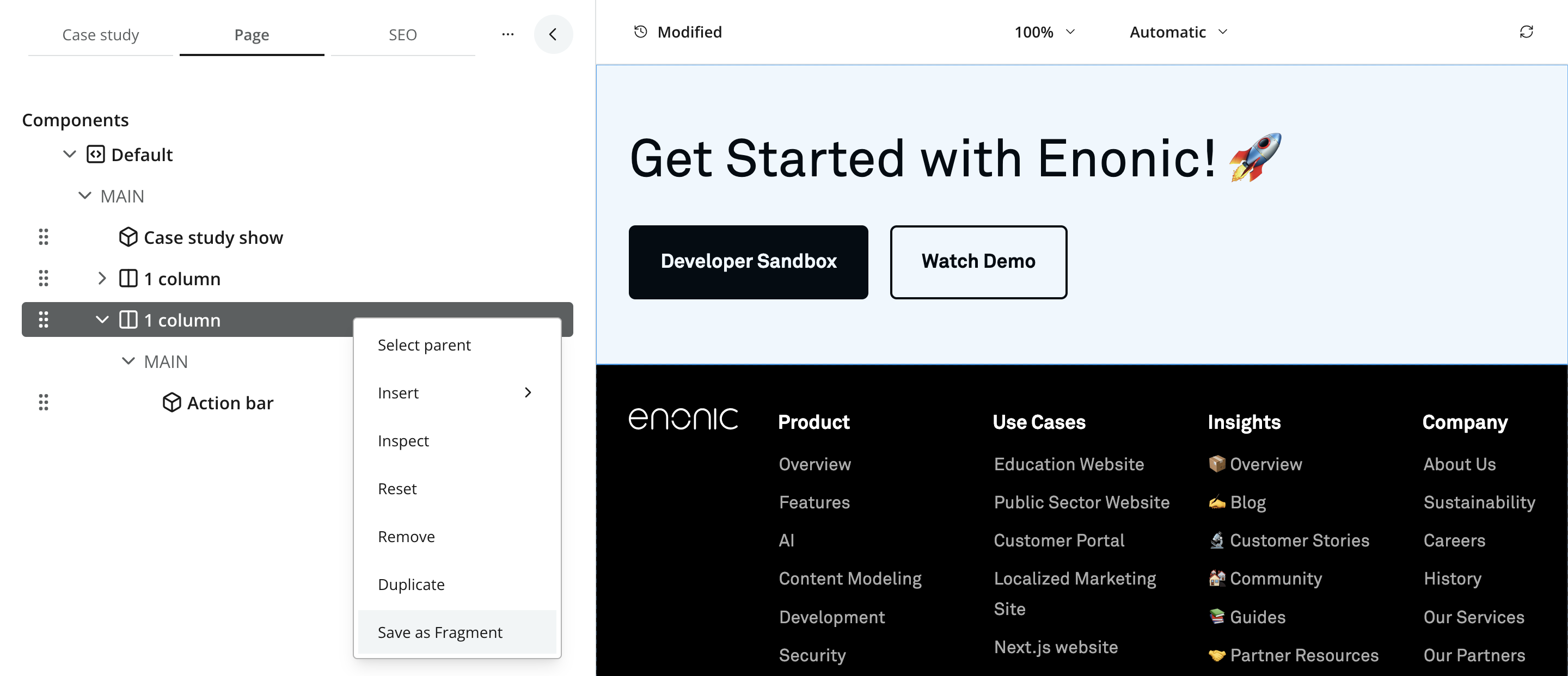
The Fragment receives an automatically generated name and can subsequently be renamed or moved within the Site without breaking existing references.
Reusing a Fragment
To place an existing Fragment on another page:
-
Drag a Fragment component from the Insert tab into a region, or insert one from a component context menu.
-
Select the empty Fragment component.
-
Choose the content item from the Fragment selector in the Inspect tab.
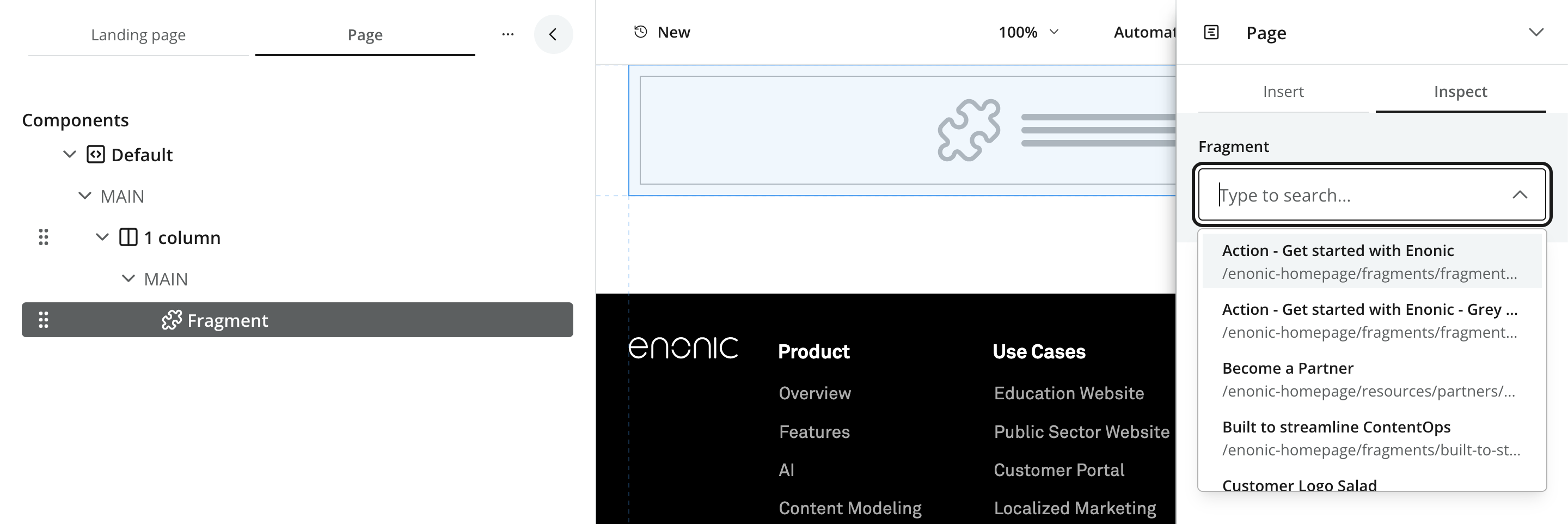
Inside a Site, the selector lists Fragments from that Site. For content outside a Site, it searches the current project. The application that supplies the Fragment’s wrapped component must also be available in the destination context.
The page stores the Fragment’s content ID. Renaming or moving the Fragment therefore keeps the reference intact.
See Fragment components for the corresponding Page editor controls.
Editing a Fragment
Open a Fragment directly from the content tree, or select a Fragment reference on a page and use Edit Fragment. The Fragment content type has no editorial fields of its own; its editable data is the wrapped component and its configuration.
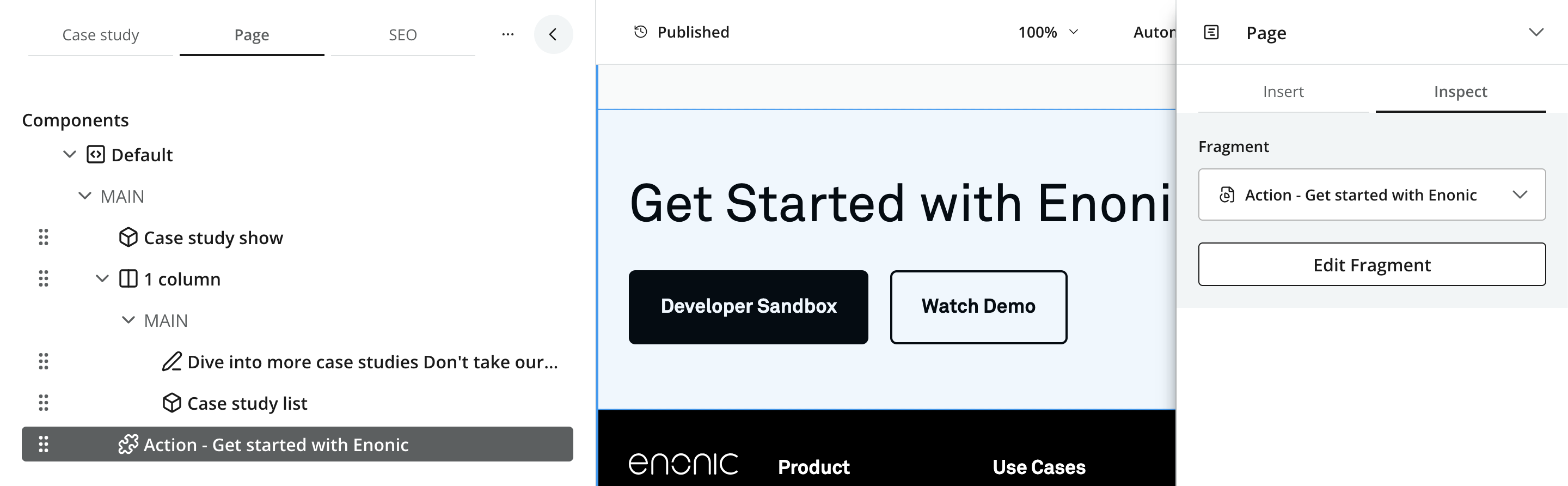
The component tree shows the wrapped component at its root. A Layout Fragment can contain Parts, Fragments, and other supported components in its regions. Select a component to edit its application-provided configuration in the Page context panel.
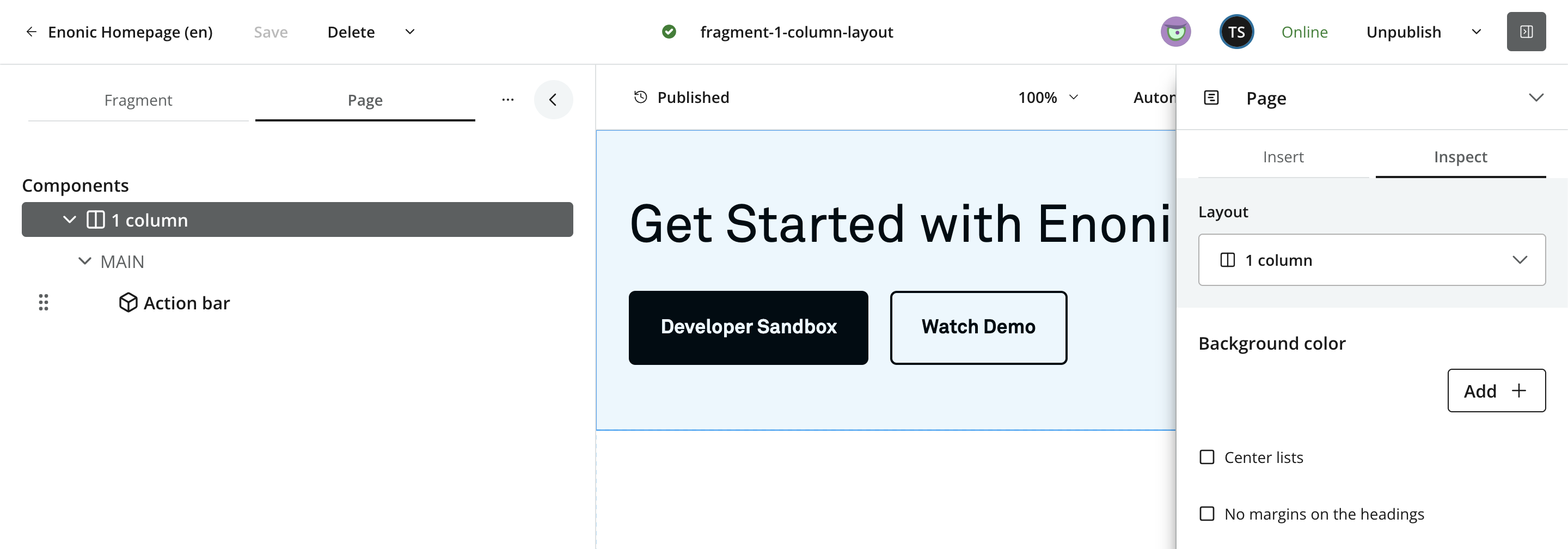
Visual preview depends on the front-end integration. The component tree and configuration controls remain available even when the Fragment cannot be previewed in isolation.
Page operations are saved automatically. Configuration changes are accepted with Apply. These changes update the Fragment’s draft but do not publish it.
Draft previews that resolve the Fragment use its updated draft. Published pages continue to use the published Fragment until the Fragment changes are published.
|
Editing a Fragment can change many pages at once. Check its incoming dependencies before making a substantial change. |
Detaching a Fragment
Detach a reference when one page needs an independent variation of a shared Fragment:
-
Select the Fragment component on the page.
-
Open its context menu and select Detach from Fragment.
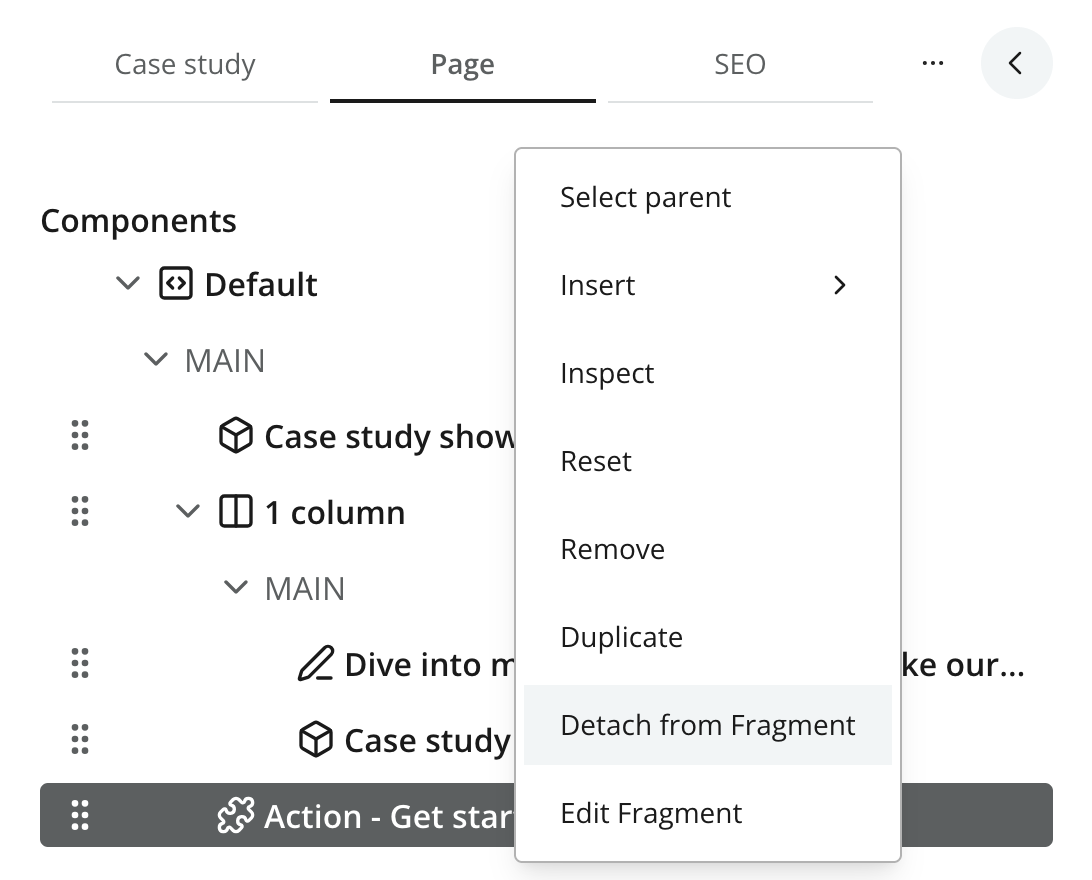
Content Studio replaces the reference with a copy of the Fragment’s wrapped component on that page. Later Fragment changes no longer affect the detached copy. The Fragment content item and its references from other pages are not changed or deleted.
Dependencies and lifecycle
Each page that uses a Fragment creates an incoming dependency on the Fragment. The Dependencies context panel lists these pages and can open a complete dependency search.
A Fragment is published and versioned independently from the pages that reference it. Publishing an updated Fragment makes the new version available to already published pages without republishing each page. Publishing a page with a new Fragment reference also includes the required Fragment in the publishing dependencies.
Deleting or unpublishing a Fragment can leave pages with a missing reference, so Content Studio warns when other content depends on it. Moving or renaming it is safe because references use its content ID.
Search and indexing
Searchable text and component configuration stored in a Fragment are indexed on the Fragment content item. They are not copied into the search data of pages that reference it. A search for text contained only in a Fragment can therefore return the Fragment itself without returning the pages where it appears.
This distinction is particularly important for customer-facing search. A front end may need to exclude Fragment content from direct results and index the resolved page output separately when Fragment text should contribute to its containing pages.
For the underlying content model and API behavior, see the Enonic CMS Fragment reference.