Layers and localization
Contents
Content layers let editors reuse or adapt content across languages, regions, brands, or channels while changing only what each destination needs.
Project layering
A layer is a content project that has a parent project. Like any other project, it has its own repository, default language, permissions, editorial workflow, and published content. The difference is that it inherits content from the parent project. The project at the top of a layer tree is the root project.
Layers can be nested or arranged as siblings. For example, a global project can have Norwegian and German child layers, while the German layer can have separate Austrian and Swiss descendants. Content and changes can therefore flow through several generations of layers.
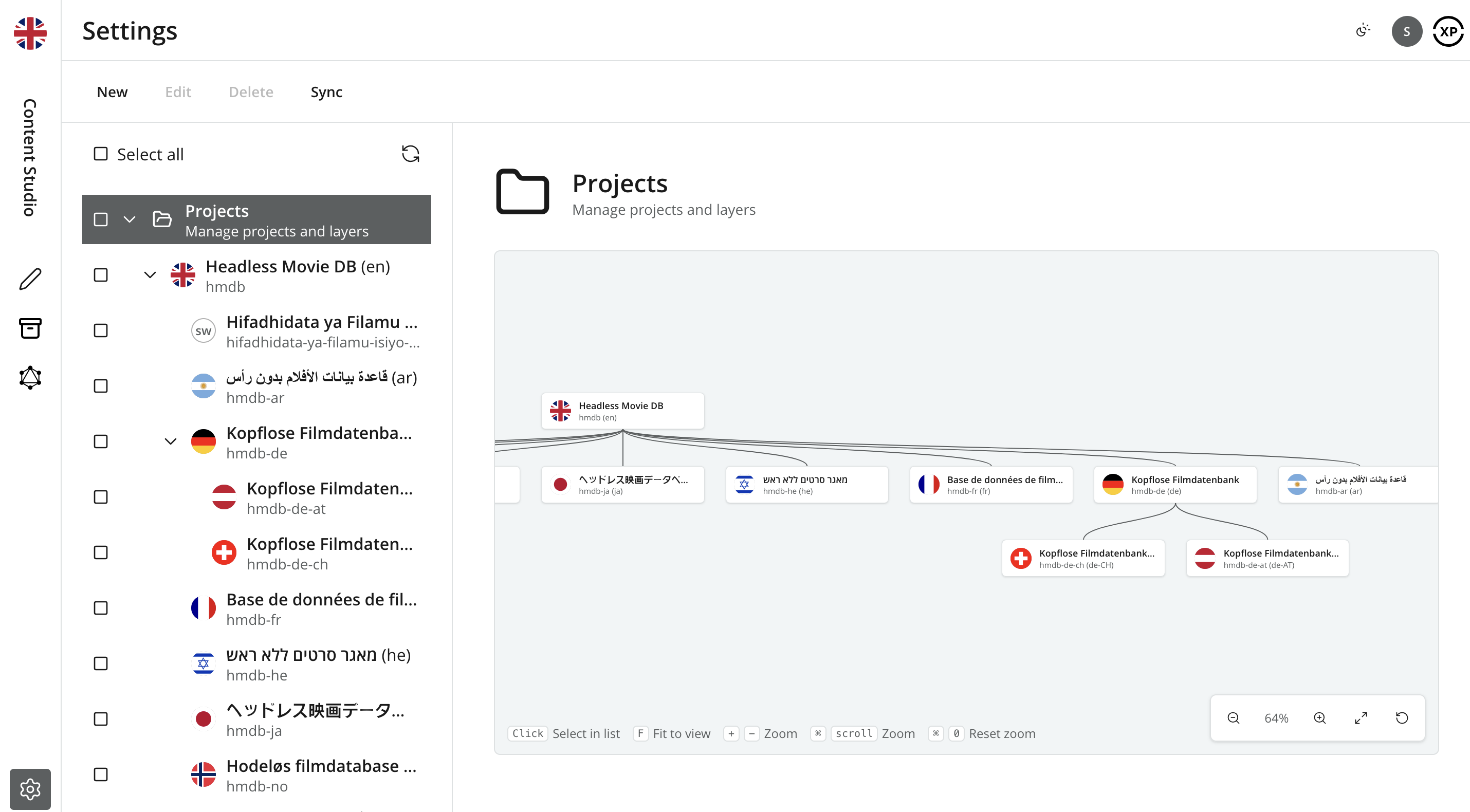
Creating a layer
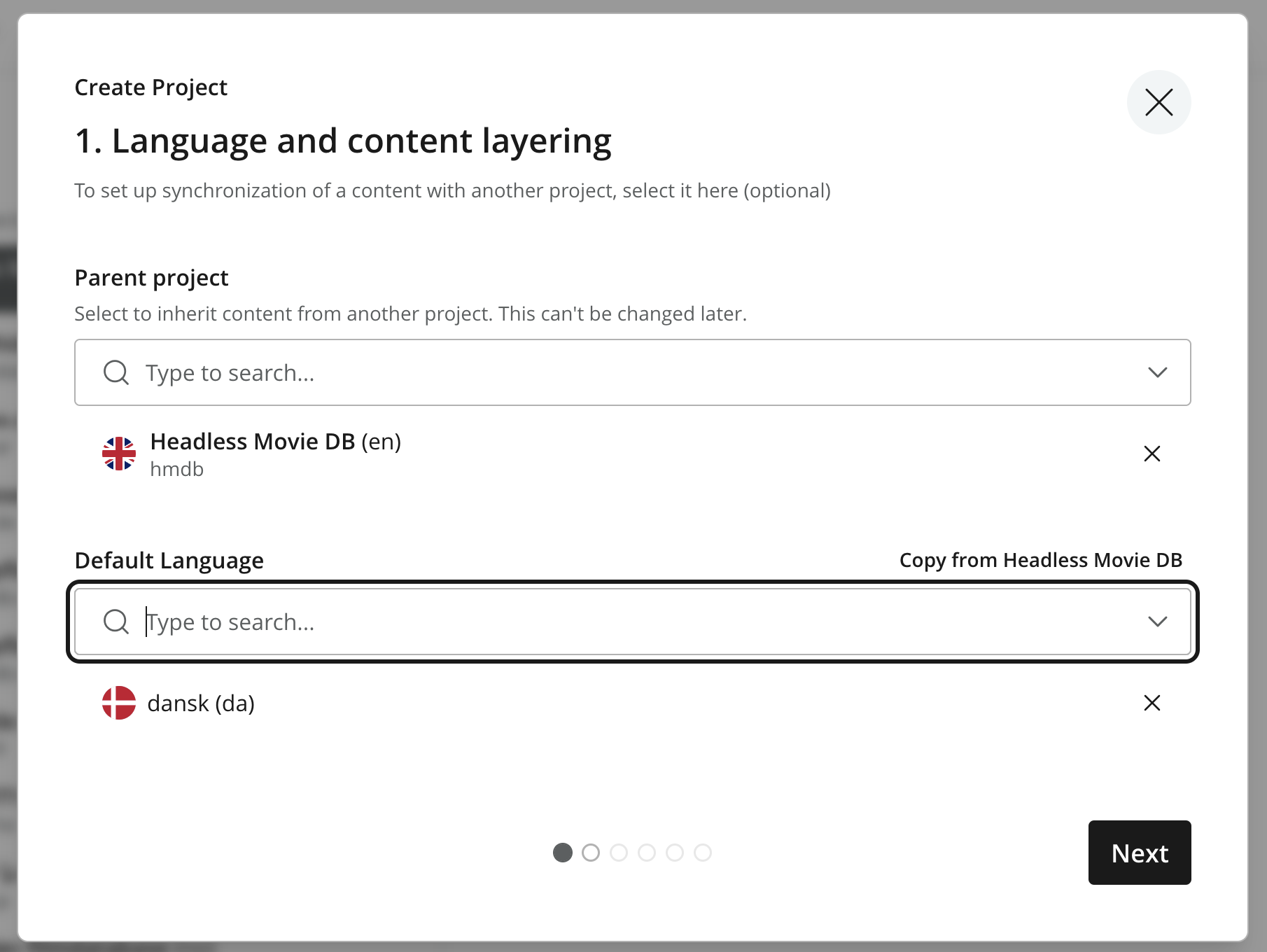
Create a layer with the project wizard. On the first step, select the project that the new layer should inherit from, then choose the layer’s default language. Use the Copy from… option to use the same language as the parent.
Name the layer and review its generated identifier. Keeping the identifier similar to the parent’s makes the relationship easier to recognize. For example, a Swedish layer below hmdb could use hmdb-se.
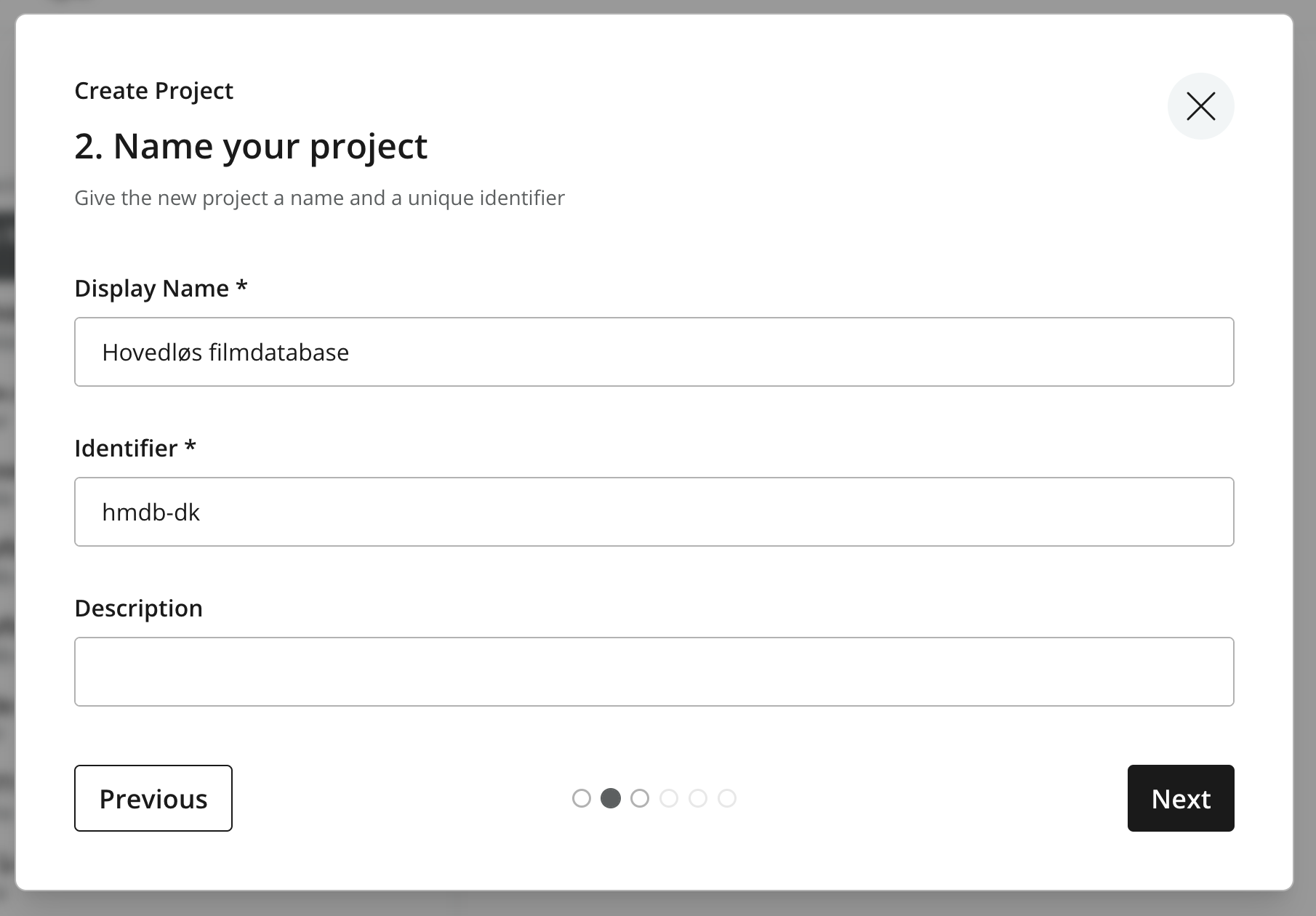
| The parent project and project identifier cannot be changed after the layer is created. The default language and other project settings can be changed later. |
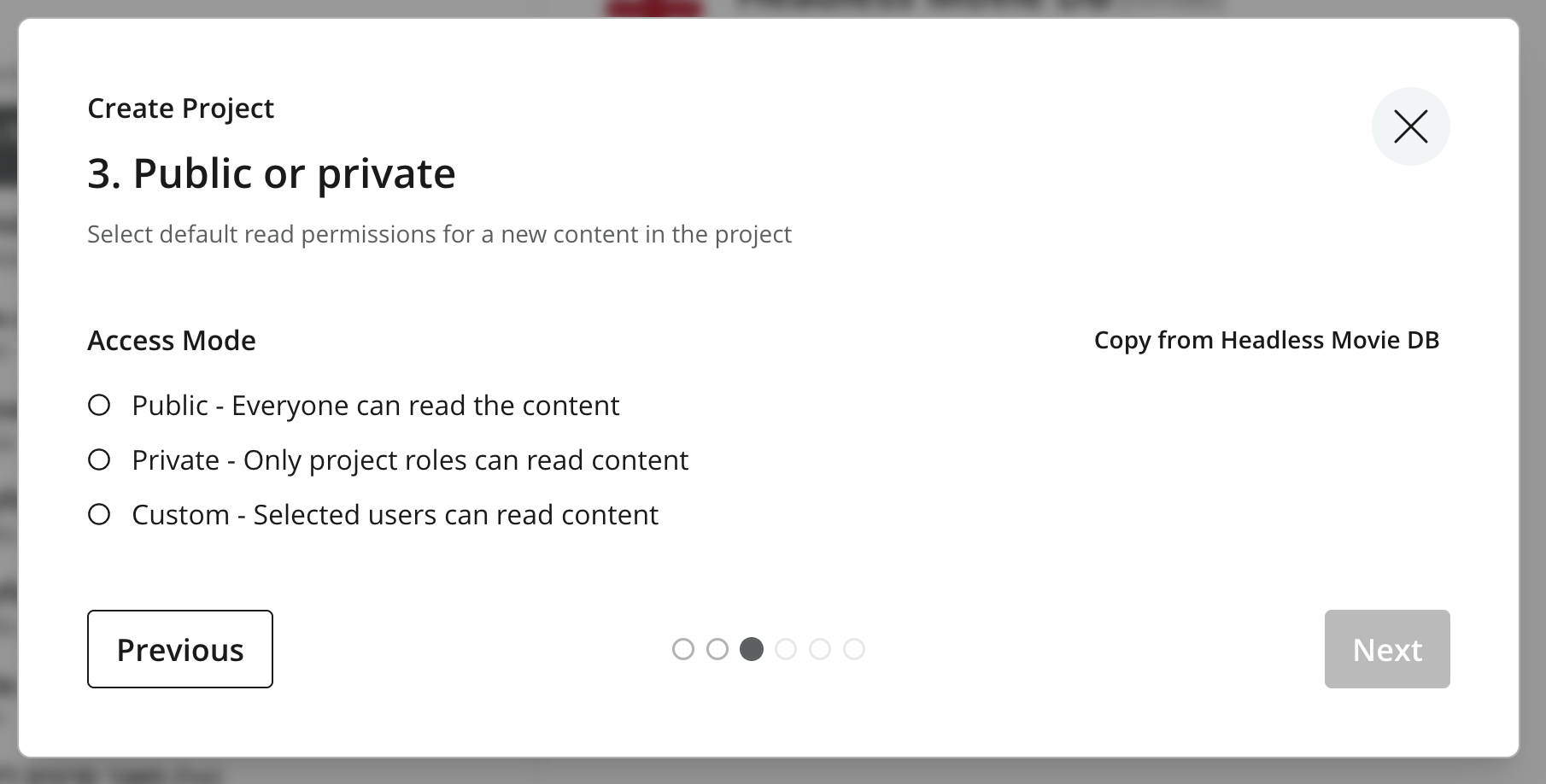
Choose the layer’s access mode. Use the Copy from… option to apply the same default content visibility as the parent.
Complete the remaining project wizard steps to assign roles and review the applications inherited from the parent. When the project is created, a background synchronization job starts copying the parent’s content into the new layer.
Layer configuration
Roles and access
Each layer has its own project roles and content permissions, allowing access to be controlled independently for every layer.
Access to a parent project does not automatically grant access to its child layers, or vice versa. Assign users the appropriate project role in every layer where they work.
| Users with the Content Manager Administrator or System Administrator role can access all layers by default. |
Applications
A layer inherits the project applications assigned to its parent. Inherited applications cannot be removed from the child layer, but additional applications can be assigned there. Application inheritance follows the project hierarchy independently of whether individual content items have been localized.
Content inheritance
An inherited item keeps the same content ID in every layer. Content Studio can therefore identify corresponding items across the layer tree even when their names, locations, or editorial data differ.
| A layer can also contain local content created directly in that layer. These items are not visible in parent projects, but are inherited by descendants of the layer where they were created. |
Inheritance is tracked independently for four dimensions:
| Dimension | What is inherited | What makes it local |
|---|---|---|
|
Content |
Editorial data, including values entered in the content form. |
Localizing the item in the layer. |
|
Name |
The path name of the corresponding parent item. |
Renaming the item in the layer. |
|
Parent |
The item’s location beneath its parent in the content tree. |
Moving the item in the layer. |
|
Sort |
The default ordering of the item’s children. |
Changing the sort order in the layer. |
Content Studio updates the relevant inheritance dimension automatically when an editor localizes, renames, moves, or sorts an item. Changing one dimension does not stop the others from inheriting. For example, an item can have a local name and location while its content form continues to receive changes from the parent layer.
| In Content Studio, an item described simply as localized normally has localized Content data. It may still inherit its name, parent, or sort order. |
Propagation
Parent changes are automatically replicated to descendants for each dimension that they still inherit. If one dimension is local, the remaining dimensions continue receiving updates.
Consider three nested layers, A → B → C:
-
If B localizes only the content data, later content changes from A stop at B. Name, parent, and sort changes from A can still propagate through B to C.
-
The localized content from B becomes the inherited source for C, unless C has localized its own content.
-
Content created locally in B is inherited by C, but does not appear in A.
New items and their changes initially propagate to child layers. After an item is marked Ready in the parent layer for the first time, only subsequent versions marked Ready propagate. This keeps unfinished parent edits out of established downstream workflows and reduces unnecessary versions. See Workflow for the available workflow states.
Replication normally runs in the background immediately after a change. A consistency job also reconciles the layers if initial synchronization or an individual update is interrupted.
Working in a layer
Editors create, organize, and publish content in a layer much as they do in any other project. Actions are performed on the item in the current layer; an item is never moved between layers for editing.
Navigator indicators
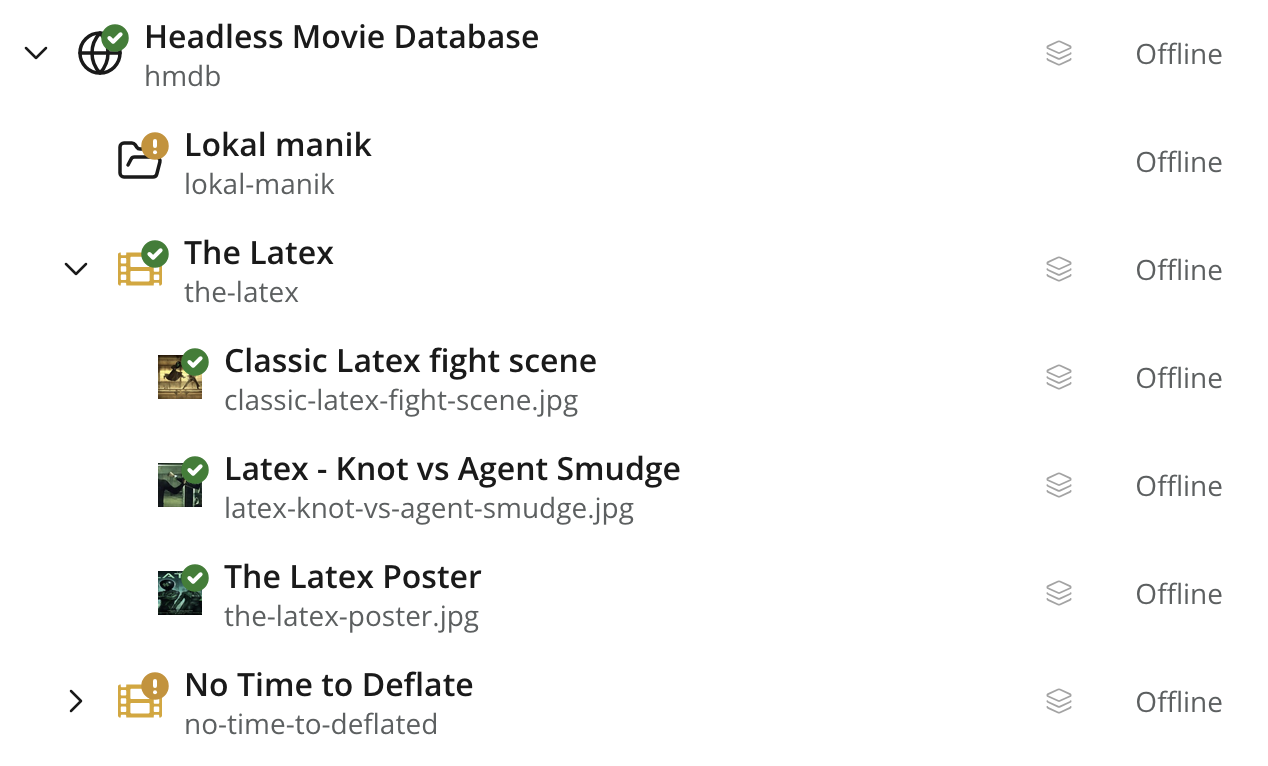
Items whose content data is still inherited are visually subdued in the Navigator. A Layers indicator appears beside the publishing status of inherited and localized items. When the Layers panel is available, selecting the indicator opens the panel for that item.
Layers context panel
The Layers context panel shows the corresponding item throughout the layer tree, including its publishing and localization status in each project. Use it to inspect the item’s state, edit it in the current layer, or open it in another accessible layer.
Edit and Localize
Inherited content data is read-only. The Edit action opens an inherited item in the Content Editor with its form in a disabled state. The Localize action in the editor stops content-data inheritance and enables editing in the current layer.
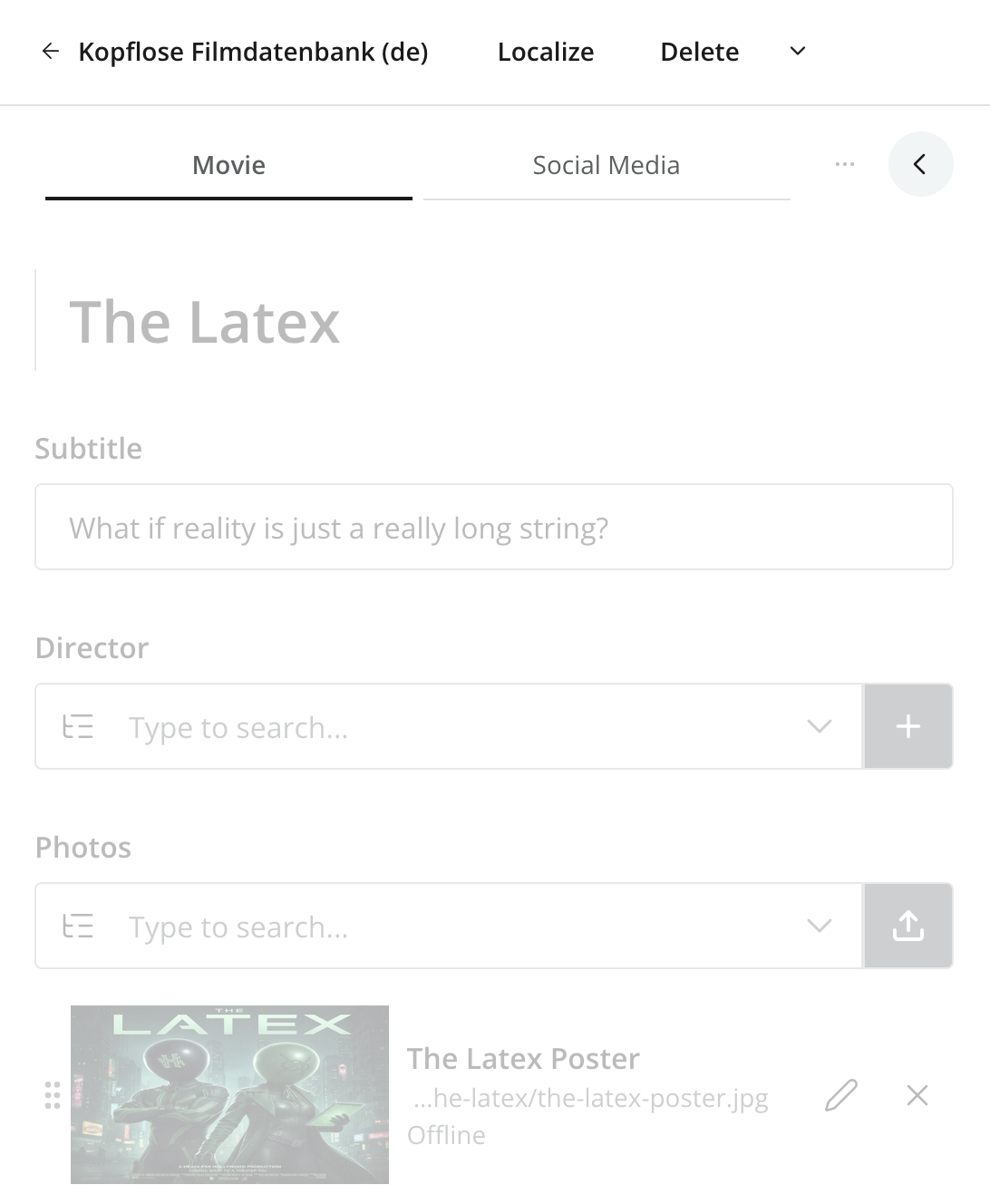
Localizing the item:
-
stops Content inheritance from the parent;
-
assigns the layer’s default language;
-
enables the item for editing in the Content Editor; and
-
leaves name, parent, and sort inheritance unchanged.
The localized draft can be edited and published independently of the corresponding item in every other layer.
Also notice that the editor toolbar presents the inheritance icon together with the content name, giving you a visual indication of inheritance status.

Clicking the icon will open the Layers panel if it is available.
AI translation
When enabled, the AI Translator opens after an item is localized and can translate supported text into the current layer’s language. Review the translated values in the Content Editor before saving or publishing them.
Rename, move, and sort
Renaming, moving, and sorting inherited content do not localize its content data. Each action makes only its corresponding inheritance dimension local:
-
Move changes Parent inheritance when the item is moved to another parent.
-
Renaming the path in the Content Form changes Name inheritance.
-
Sort changes Sort inheritance for the parent whose children are reordered.
The content form continues to inherit parent changes until the item is explicitly localized.
Reset inheritance
Once an item’s content data has been localized, the Reset action is available in the Content Editor. Reset restores inheritance for every dimension that was made local, refreshes those values from the parent, and returns the content data to a read-only state.
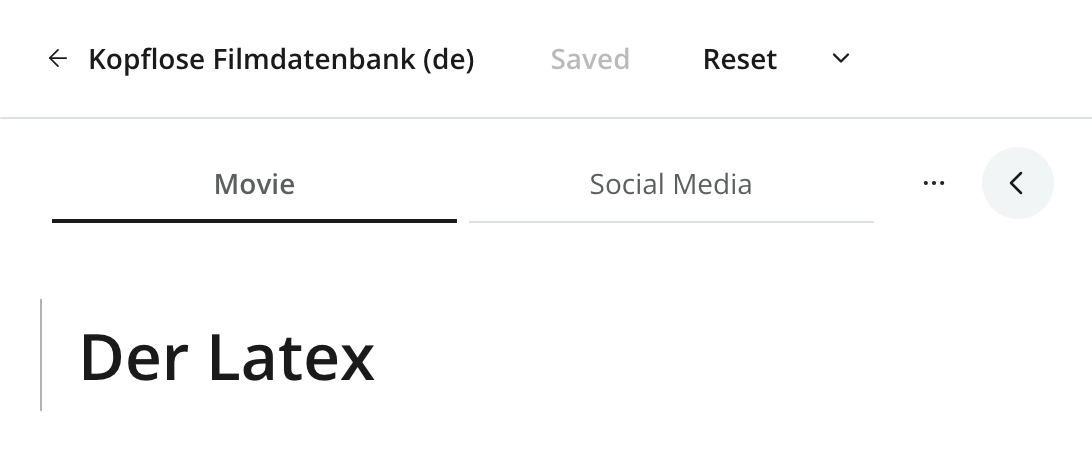
| Reset replaces local content data, name, location, and sort order with the current values from the parent. Earlier local versions remain available in Version history, but the reset action itself cannot be undone directly. |
Publishing and versions
Every layer has its own draft and master branches. Inheritance updates the layer’s draft, but does not publish the item there. Each layer can review, schedule, publish, and unpublish its corresponding item independently.
Version history is also scoped to the current layer. The panel shows versions and activities recorded in that layer without mixing in timelines from its parent, siblings, or descendants.
Archive and delete
Archiving an item moves that item and its descendants into the current layer’s Archive and takes any published versions offline. If the item was inherited, its archived copy becomes local and stops receiving inherited changes. The corresponding item in the parent layer is not affected.
When an item is archived in a parent layer, the action propagates to descendants that still inherit both its Content and Parent dimensions. A descendant remains active if either dimension is local or if inbound references from items outside the archived selection prevent it from being archived.
Restoring an item from a layer’s Archive restores that layer’s archived copy as local content. If an inherited item is permanently deleted while its origin still exists in the parent, synchronization can create a fresh inherited copy in the layer. Permanent deletion is therefore not a way to exclude parent content from a layer; leave the item archived instead.
See Delete in layers for the complete Delete workflow.
Understanding the CMS model
For details about the underlying properties and replication engine, see the Content layers reference.