Dependencies
Contents
Content items reference each other — pages embed images, shortcuts target content, text fields link to other items. Those references are dependencies. Content Studio tracks them in both directions, and makes them inspectable via the Dependencies panel in the Context panel.
-
An inbound dependency is content that uses the selected item — for example, a page that embeds it, or a shortcut that points at it.
-
An outbound dependency is content that the selected item uses — for example, images referenced in its rich-text fields, or targets of content selectors.
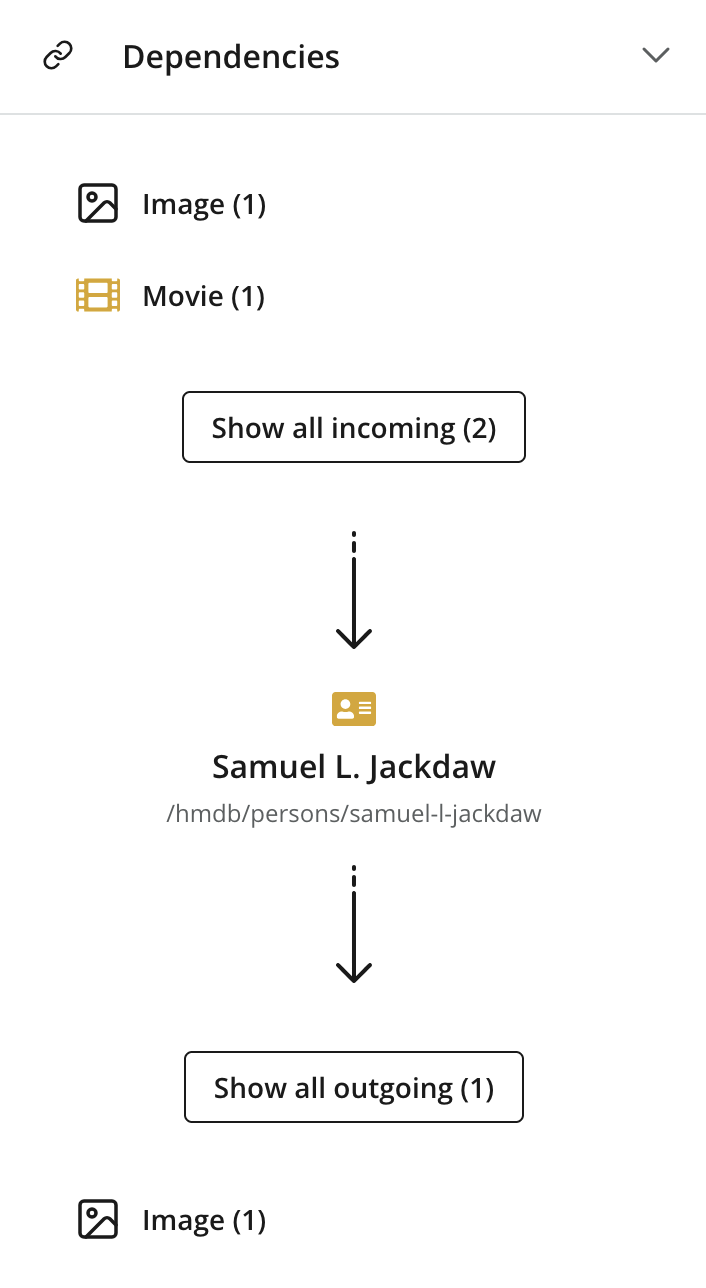
Inbound dependencies are listed above the content box, outbound below. When there are no dependencies of a kind, the panel shows a placeholder (No incoming dependencies, etc.). When there are dependencies, a button displays the total count, with icons and counts broken out per content type.
Dependency search
Click Show all incoming or Show all outgoing to open the dependency search in a new browser tab. Selecting a content-type icon opens the same view with that content type preselected.
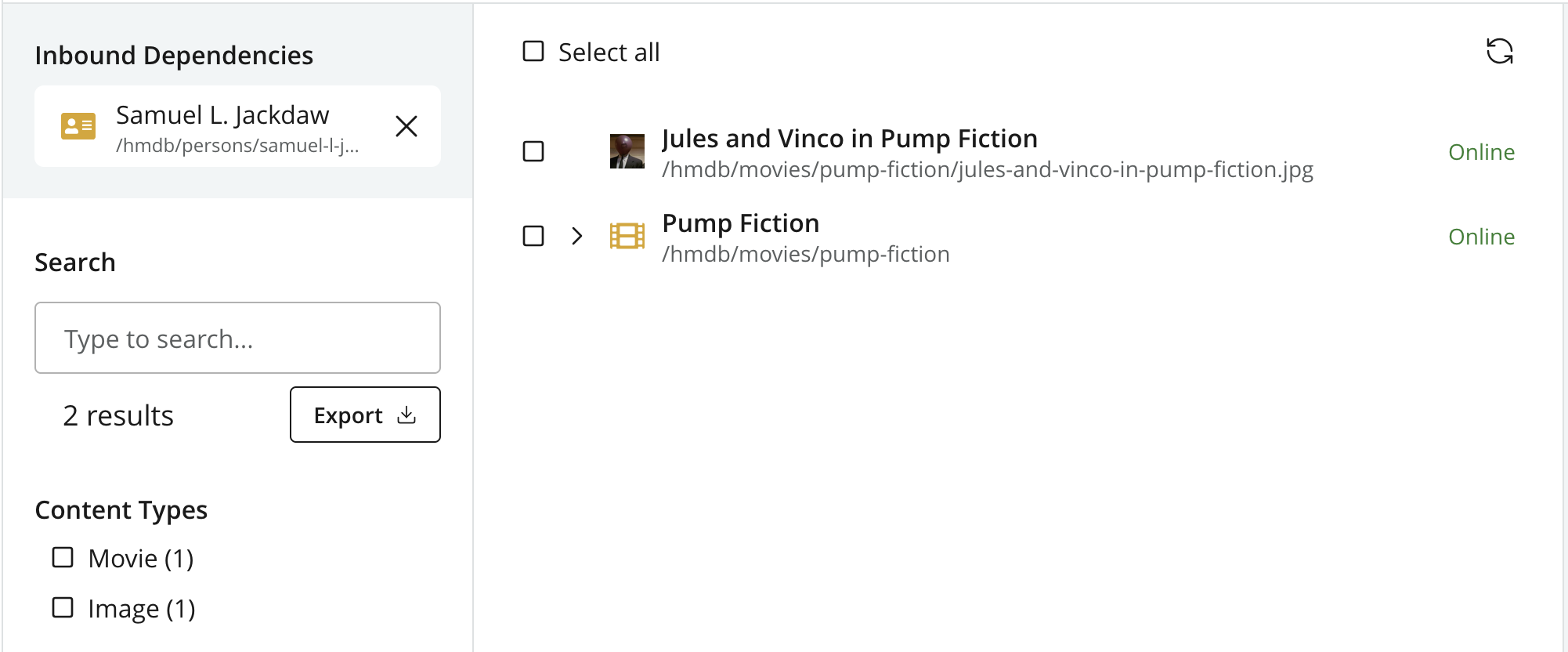
The selected content item remains fixed as a filter in the search panel. The results list shows dependencies in the chosen direction, including each item’s display name, path, content type, and publishing status.
Use the search field to filter the results by text, or the Content Types checkboxes to include only specific content types. Select individual results with their checkboxes, or use Select all. Click the refresh button to update the results. The Export action downloads the dependency search results.
Dependencies in content actions
Content Studio checks dependencies when performing actions that could affect related content:
-
Publishing loads related dependencies into the publishing batch. Required dependencies cannot be excluded; optional dependencies can be included or excluded before publishing.
-
Delete warns when other content depends on the item being deleted.
-
Unpublish warns when published content depends on the item being taken offline.
Reference checks
Delete and Unpublish check for inbound references to the affected content, including descendants. When referring content outside the affected set depends on these items, the dialog displays an Inbound references warning and blocks the action. The action references above explain which references are checked and whether changes to the referring content must be saved or published.
Show references
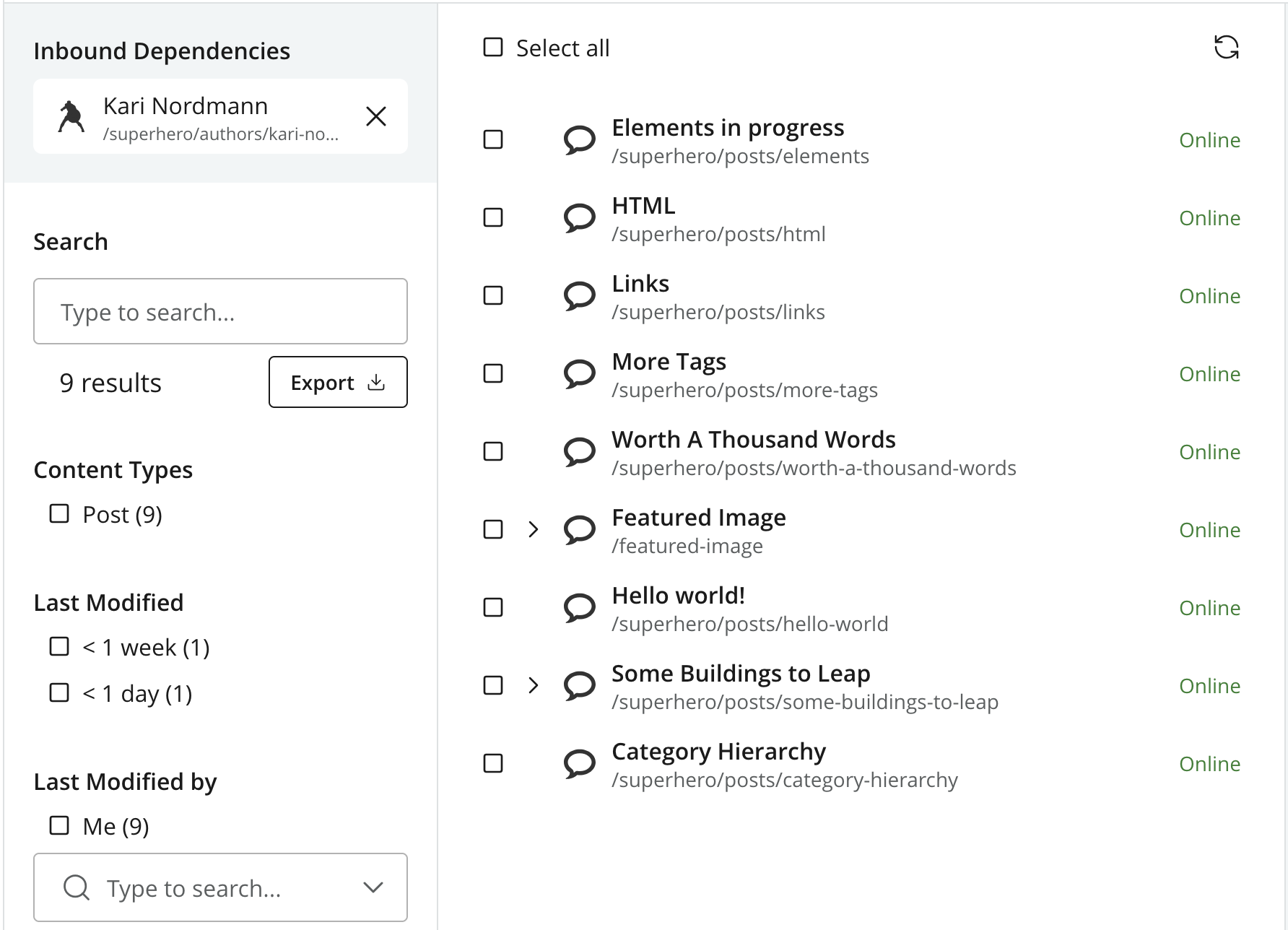
Click Show references beside an affected item to open its inbound dependency search. The referenced item is fixed as a filter, and the results show content that uses it. Use the results to find the referring items and remove or replace their references. See Dependency search for filtering and working with the results.
Ignore inbound references
Click Ignore inbound references to allow the action despite the references. This clears the reference block; it does not perform the action until you confirm with Delete or Unpublish.
Ignoring the check leaves the references in place. Referring content may then have broken links or missing embedded content because the referenced items are archived or offline.