Exporting and importing content
Contents
In this chapter, you’ll export the Animals folder and import it into a second content project using Content Studio. You’ll inspect the imported content and query the copy.
Export the content
The Content Exports context panel exports a content item, its descendants and their attachments. It copies the current Draft content; it does not include the full version history or reproduce which items are published. Continue using your administrator session: the panel is available to Content Administrators and System Administrators.
The Animals export includes its animals and the image stored beneath Lynx. References outside that tree, such as Lion’s image in the Images folder, do not bring their targets into the export.
Task: Export the Animals folder
-
Open the exports panel - In "My First Project", select Animals, show the Context Panel, and choose Content Exports from its selector.
-
Name the export - Click Export and keep the suggested name
animals.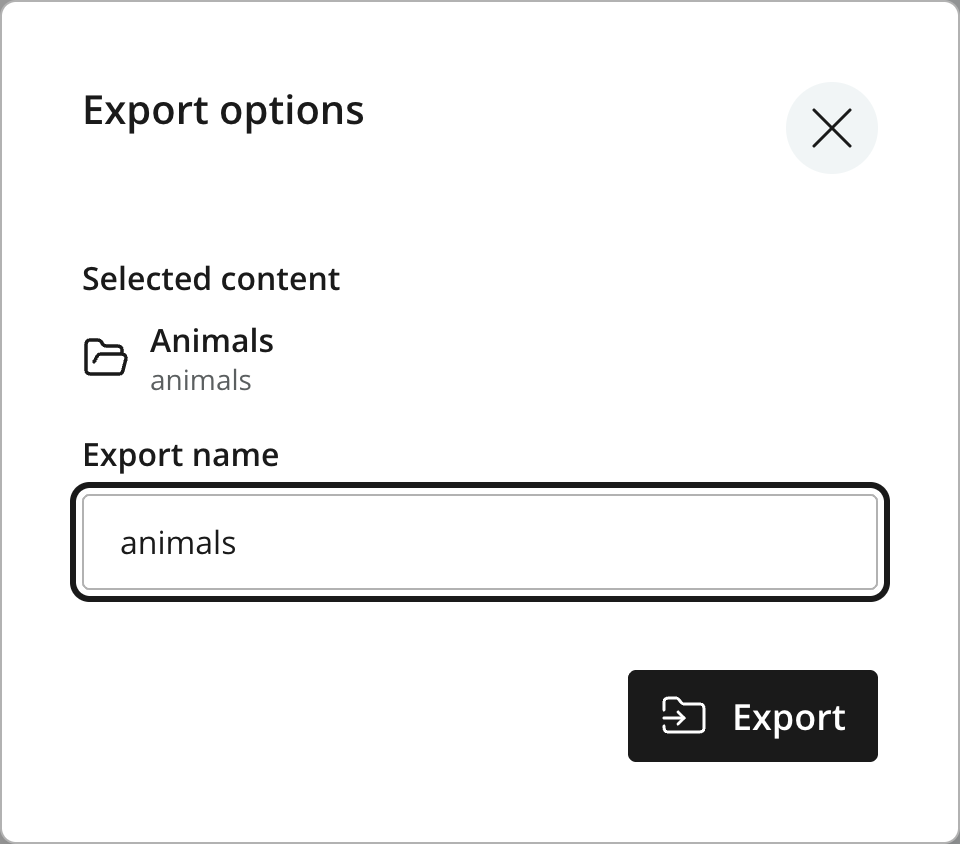 Figure 1. Exporting Animals and its descendants
 -
Create the export - Click Export in the dialog and wait for the result. Content Studio adds the installation, project and timestamp to the name, so you can distinguish it from other exports. Close the dialog.
The export stays on the sandbox’s server; nothing is downloaded to your browser. It will be available in the panel when you switch projects on this sandbox.
| To download an export for transfer to another installation, open the Data Toolbox admin tool, select it under Node exports, and choose Archive and download selected node exports. Data Toolbox also lets you upload exports on the destination server. For command-line export and import operations, see the Enonic CLI documentation; these commands use exports stored on the server and do not download them to your computer. |
Prepare another project
The export contains content data, while your app supplies the schemas that describe it. Assign the same app to the destination project so Content Studio can edit the imported animals and Guillotine can expose their fields.
Task: Create the destination project
-
Start a separate project - Open Settings at the bottom of Content Studio’s menu bar and click New. Leave Parent project empty and choose the same language as your original project.
-
Name the copy - Set Display Name to "Tutorial Copy" and check that Identifier is
tutorial-copy. Choose Public access and continue without adding project roles. -
Assign the schemas - Select the Developer 101 app in the Applications step, review the summary, and click Create Project.
Import the folder
Importing preserves content IDs, which lets references resolve when their targets are present in the destination project. An import can also update items with matching IDs, so importing again may replace edits made in the destination. It does not delete other content.
Task: Import the Animals folder
-
Open the destination - Return to Content and use the project selector in the top bar to switch to "Tutorial Copy". Show the Context Panel and choose Content Exports.
-
Choose the Animals export - Under Imports, select the export whose name contains
my-first-project-animals-and the timestamp from your export. Click Import. -
Import at the top level - Check that Import into is Project root. Leave Preserve original first-published timestamp selected and click Import. Wait for the result, then close the dialog.
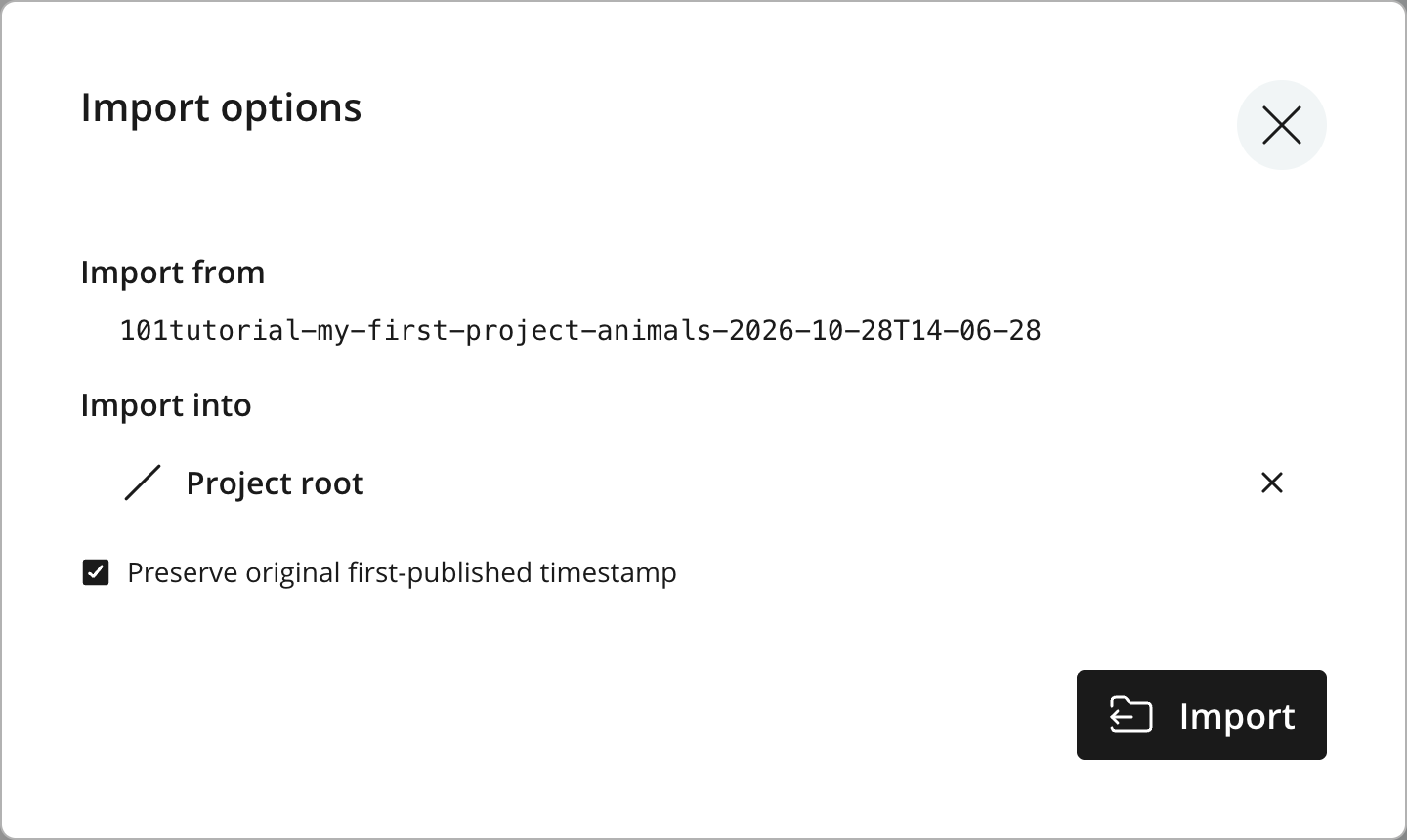 Figure 2. Importing Animals at the destination project’s root
The imported content is in Draft, ready for review. Preserving its first-published timestamp retains metadata; it does not publish the imported items.
Verify the copy
Task: Check the imported content
-
Inspect the content and media - In "Tutorial Copy", open Lynx and check its rich text, linked Lion and inserted image. Check that
/animals/lynx/lynx.jpgexists. Lion’s selected image is unavailable in this project because it was outside the exported tree. -
Query the imported content - Open Query Playground and run this query against the destination project’s Draft branch:
{
  guillotine(project: "tutorial-copy", branch: "draft") {
    get(key: "/animals/lynx") {
      displayName
      _path
    }
  }
}
The response should contain Lynx at
/animals/lynxin "Tutorial Copy". The copy remains in Draft; publishing is a separate action, as in the permissions chapter.
The two projects now hold separate copies of the content. Editing one does not update the other; importing is a one-time transfer, not ongoing synchronization.
For the panel’s other options and transferring exports between installations, see the Content Studio export documentation.
Where to go next
You’ve modeled content, queried it through Guillotine, controlled access, and copied it into another project. Continue with these guides to use your content in an application or explore more of Enonic:
- Guillotine usage
-
Sending requests from cURL, JavaScript and other clients, authentication, CORS configuration, and further query examples.
- React SPA tutorial
-
Building a React application with content lists, detail views, routing, rich text, images and macros.
- Building sites with Enonic and Next.js
-
Building Next.js sites with Enonic as your CMS, including visual editing.
- Building a custom GraphQL API
-
Building your own GraphQL API on Enonic XP, with mutations and subscriptions.