Macros
Contents
Macros enable editors to add rich functionality or include dynamic content in the HtmlArea editor.
Usage
In the HtmlArea editor, a macro is written in plain text. They are similar to HTML or XML tags, but uses square brackets instead of angle brackets.
A macro has a name, a set of attributes, and optionally a body:
[macroname attrib1="value1" attrib2="value2"] body [/macroname]
Sample macro without the body:
[macroname attrib1="value1" attrib2="value2"/]
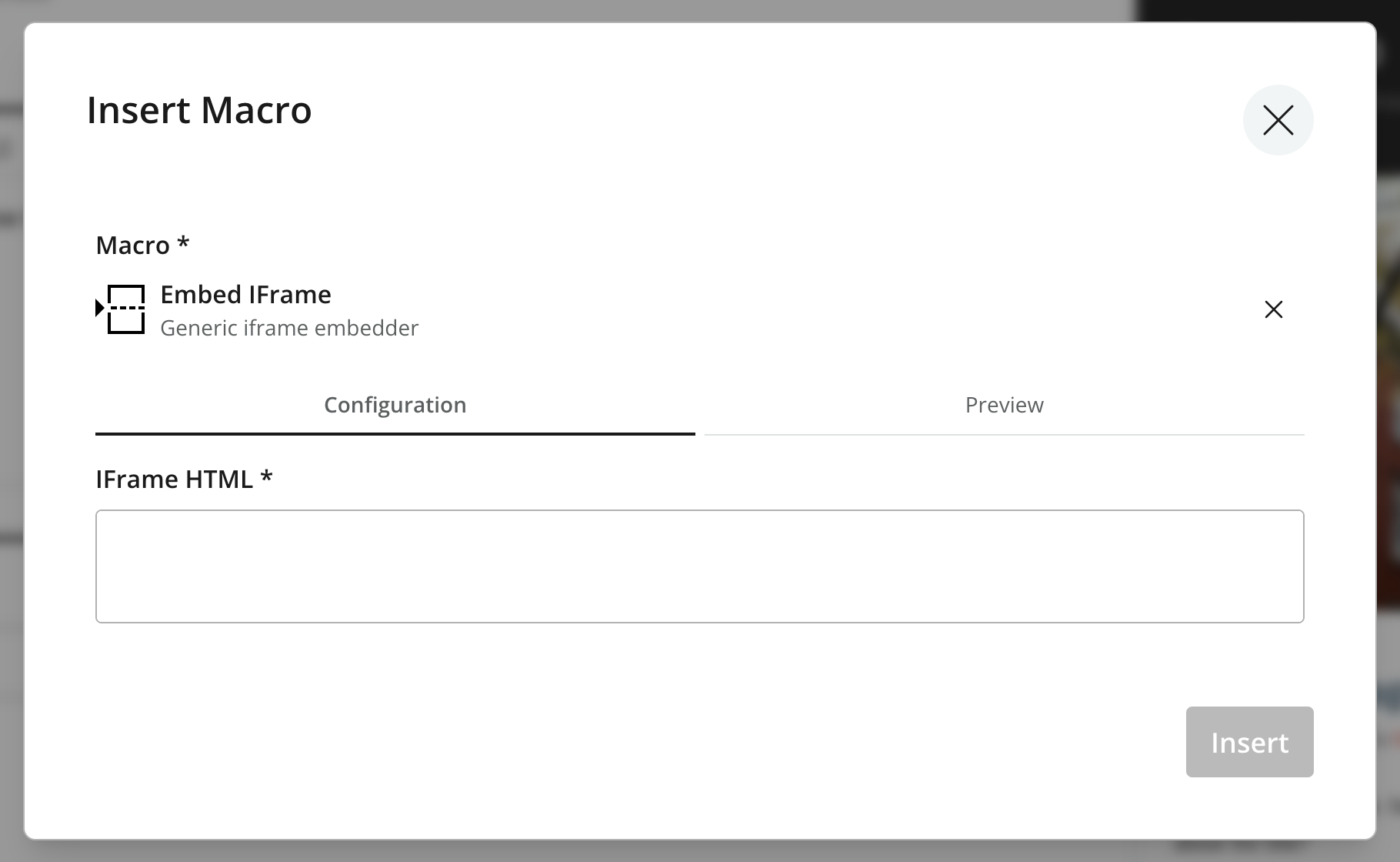
A user can add macro instructions by typing in the macro manually. But more conveniently by clicking the Insert macro button and selecting one of the macros available in Content Studio.
Appearance
In Content Studio, the Insert macro dialog lists the available macros with their title and description. The user can search for a macro by name, and insert it by clicking on it.
Descriptor
A macro descriptor is a YAML file that assigns a user-friendly name and description to the macro, and defines the types and names of its parameters.
Its path follows the pattern src/main/resources/cms/macros/<macroName>/<macroName>.yaml
kind: "Macro"  (1)
title:  (2)
  text: "Current user"
  i18n: "a-macro.display-name"
description:  (3)
  text: "Shows currently logged user"
  i18n: "a-macro.description"
form:  (4)
  - type: "TextLine"
    name: "body"  (5)
    label: "Macro body"
  - type: "TextLine"
    name: "defaultText"
label: "Text to show if no user logged in"| 1 | kind identifies this as a Macro schema. |
| 2 | title (required) A human readable display name shown in the Insert macro dialog. Optionally use localization via the text/i18n object pattern to map the value to a resource bundle key. |
| 3 | description (optional) A description shown in the Insert macro dialog in Content Studio. Also supports localization. |
| 4 | form (required) A Form where each input element corresponds to a macro parameter. Nested elements are not supported, so Item Sets are not allowed in the macro form. The HtmlArea input type is also disallowed, since it may contain macros itself. |
| 5 | body (optional) The macro body is represented by an input named body. If the form has no body input, the generated macro tag will be self-closing — for example, [macro attr="value"/]. |
| The macro texts (title, description, label and help-text from form input types) can be provided in multiple languages. Visit Schema localization for more details. |
Macro function
A macro is rendered by a function declared under src/main/resources/cms/macros/<macroName>/<macroName>.js. The function receives a context with the macro’s name, body, and params, and returns the HTML to insert at the macro’s position.
Writing macro functions is an Enonic XP app-development task — see the Enonic XP app-development docs for the full context object, response shape, and page-contribution support.
Output
During HTML processing, each macro instruction is translated into an <editor-macro> placeholder tag in processedHtml, carrying data-macro-ref and data-macro-name attributes. The HtmlArea GraphQL type also exposes a macros field whose ref matches the data-macro-ref attribute, so a front-end can render each macro from its name and typed config.
Guillotine only processes macros that have a descriptor, plus the built-in disable and embed macros; any other macro instruction is left untouched. |
{
  guillotine {
    get(key: "/articles/hello") {
      ... on com_example_myapp_Article {
        data {
          body(processHtml: {type: absolute}) {
            processedHtml
            macros {
              ref  (1)
              name
              config {
                embed {
                  body
                }
              }
            }
          }
        }
      }
    }
  }
}| 1 | Matches the data-macro-ref attribute in processedHtml, so a front-end can map each placeholder to its macro element. |
{
  "data": {
    "guillotine": {
      "get": {
        "data": {
          "body": {
            "processedHtml": "<editor-macro data-macro-ref=\"9d4e8f12-...\" data-macro-name=\"embed\"></editor-macro>",
            "macros": [
              {
                "ref": "9d4e8f12-...",
                "name": "embed",
                "config": {
                  "embed": {
                    "body": "<iframe src=\"https://www.youtube.com/embed/cFfxuWUgcvI\" allowfullscreen></iframe>"
                  }
                }
              }
            ]
          }
        }
      }
    }
  }
}
The macros field returns the macros used in the value without rendering them, so a front-end maps each editor-macro placeholder (by ref) to its own component using the typed config. The config is keyed by macro name, exposing each parameter declared in the macro’s descriptor. Guillotine also exposes a descriptor field per macro and a macrosAsJson field returning all macros as JSON in document order.
Built-in macros
There are currently 2 built-in macros that are included in XP and available for any site:
- disable
-
The contents (body) of this macro will not be evaluated as macros. That allows rendering another macro instruction as text without executing it. It is useful for documenting macros, for example. This macro has no parameters.
- embed
-
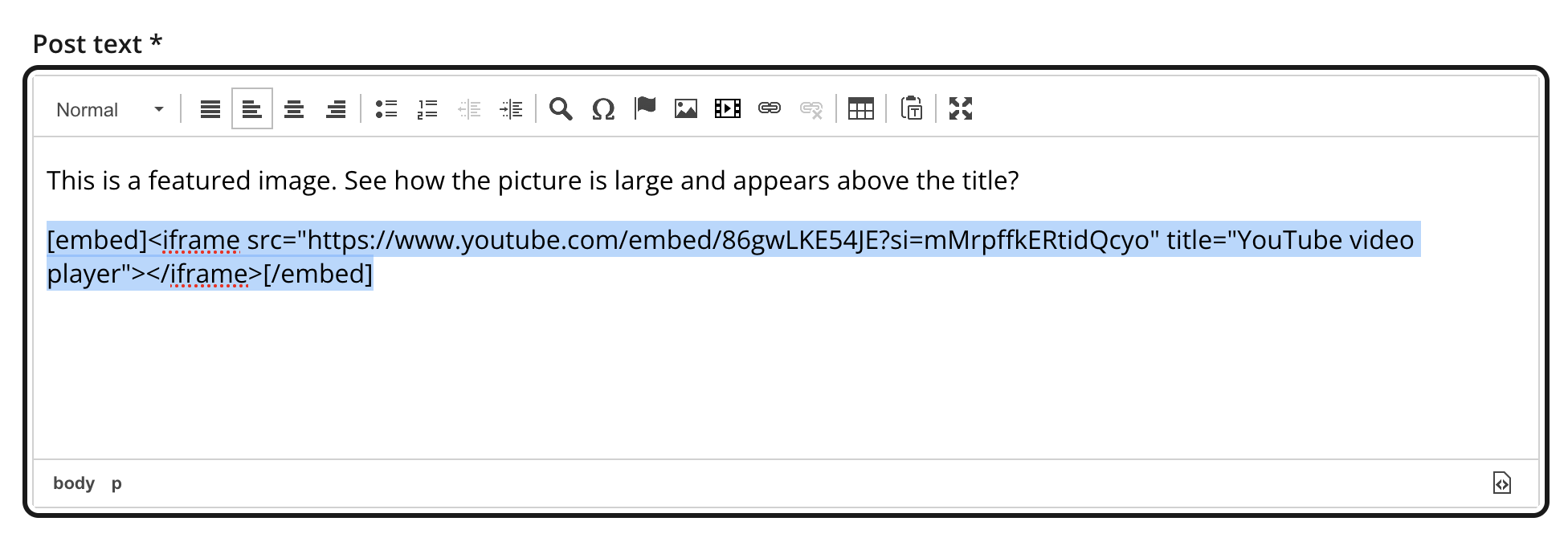
It allows embedding an <iframe> element in an HTML area. This is a generic way for embedding content from an external source (e.g. YouTube videos). This macro has no parameters.
Example using the disable macro:
Example of macro instruction: [myMacro param1="value1"/]
Example using the embed macro:
[embed]<iframe src="https://www.youtube.com/embed/cFfxuWUgcvI" allowfullscreen></iframe>[/embed]
A macro may optionally have its own specific icon. The icon can be assigned to the macro by adding a SVG file with the same name, in the macro folder, e.g. site/macros/myMacro/myMacro.svg |