Move
Contents
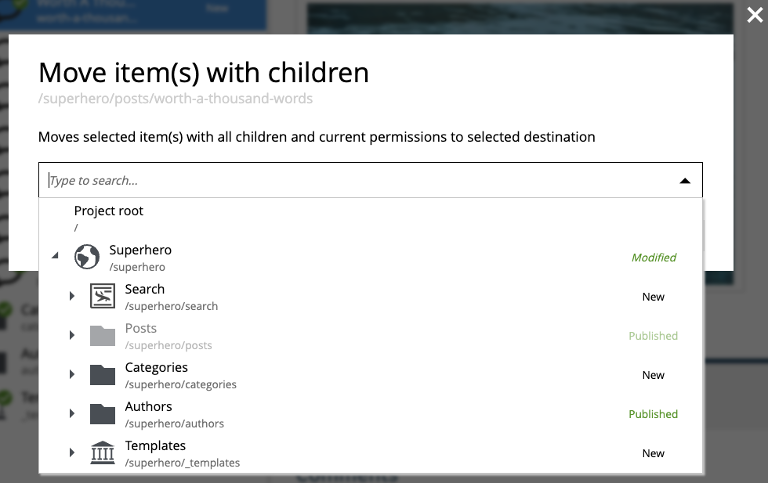
The Move action launches the Move item(s) with children dialog for the selected content. It relocates the selection — together with all its children and current permissions — to a different parent in the content tree.
There are three ways to invoke Move:
-
Select one or more items in the Content Navigator and click the Move button in the toolbar.
-
The Move entry in the context menu (right-click an item in the Navigator).
-
The Move button in the Content Editor toolbar (moves only the currently opened item).
In the dialog, type into the input to search for a new parent, or use the dropdown to browse. The current parent and the item itself are disabled in the dropdown list.
| The dropdown has a special Project root entry at the top. Select it to move the selection to the root of the content project. |
Once the move completes, a notification appears at the bottom of the screen. If the move was triggered from the Content Navigator, the notification includes the new parent path — click it to locate and expand the new parent in the Navigator.
