Publish request
Contents
A publish request asks another user to review and publish one or more content items. It is the standard path for an editor who lacks publish permission, and it is also useful when the editor has permission but wants a reviewer to sign off before content goes live.
Publish requests are separate from Tasks but share the same list in the Open Issues dialog — tasks and requests appear on different tabs.
Creating a request
The Request publishing action is available from the same places as Publish — the toolbar, the context menu, and the Content Editor — but it replaces the Publish button for users without publish permission.
| When Request publishing is invoked on a single item that is currently In progress, the item is automatically marked Ready for publishing, on the assumption that requesting a publish signals the work is finished. |
The Publish Request wizard has two steps.
Step 1. Review the items to be published together with their dependencies — the same tree the Publishing wizard would show.
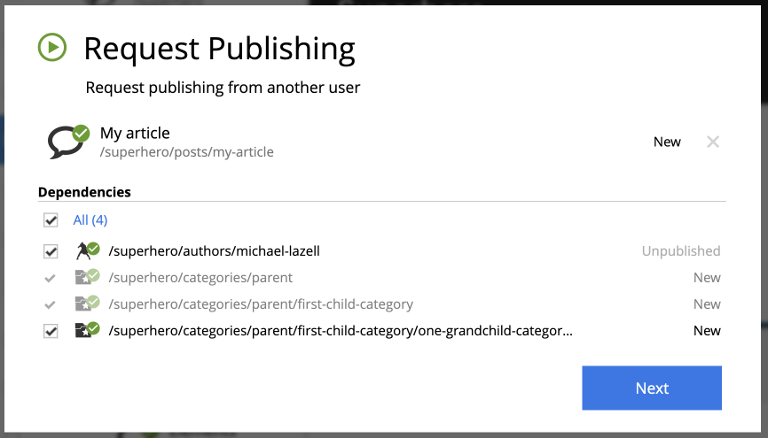
Step 2. Describe the changes (required) and pick one or more assignees who will receive the request.
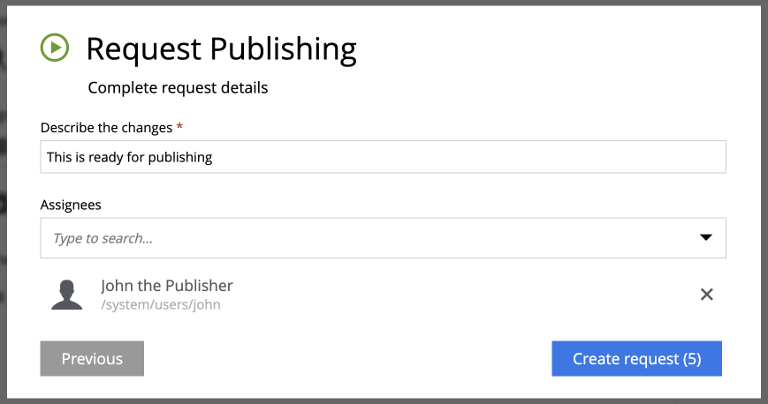
Clicking Create request creates the publish request and opens its detail dialog.
The publish request dialog
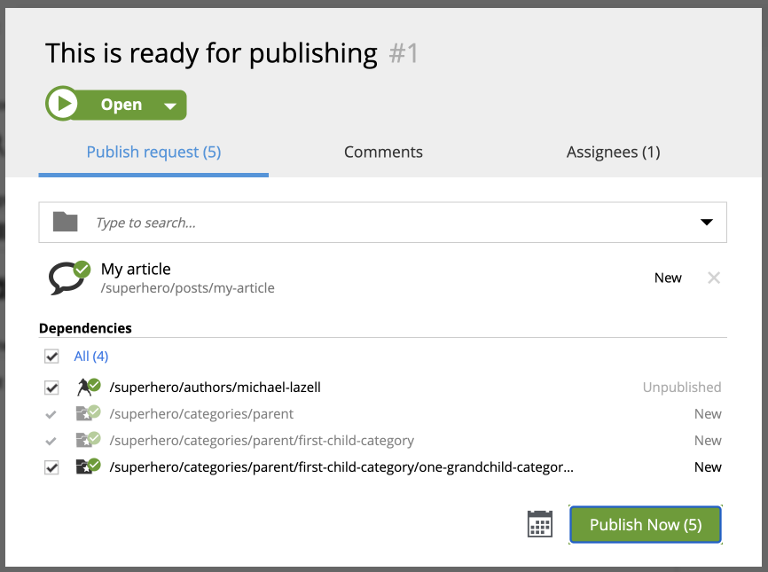
The publish request dialog looks much like an Issue dialog, with one important difference: the Items tab includes a Publish now button so a reviewer can publish directly from the dialog. The calendar icon at the bottom toggles a scheduling form to set online-from/online-to dates.
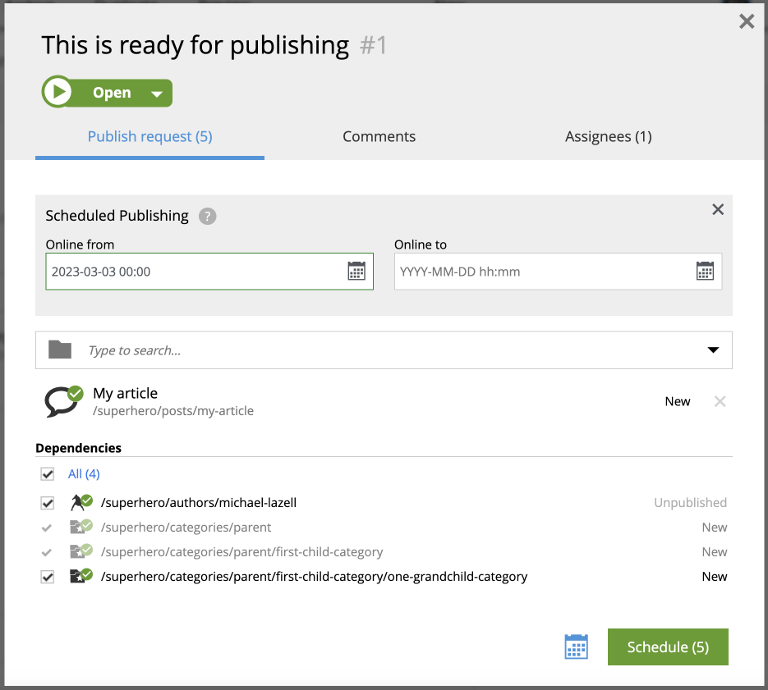
Finding a publish request
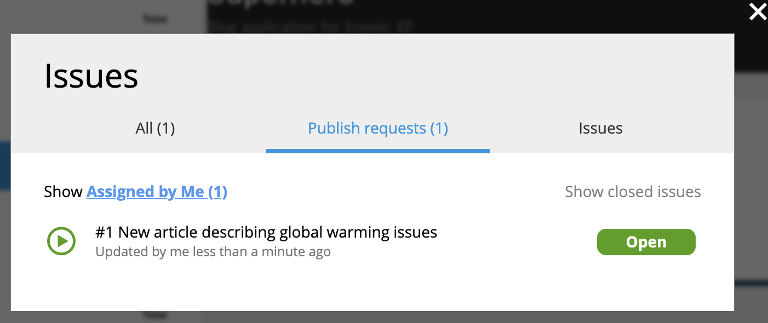
Publish requests appear in the same Open Issues dialog as tasks, on a dedicated Publish requests tab.
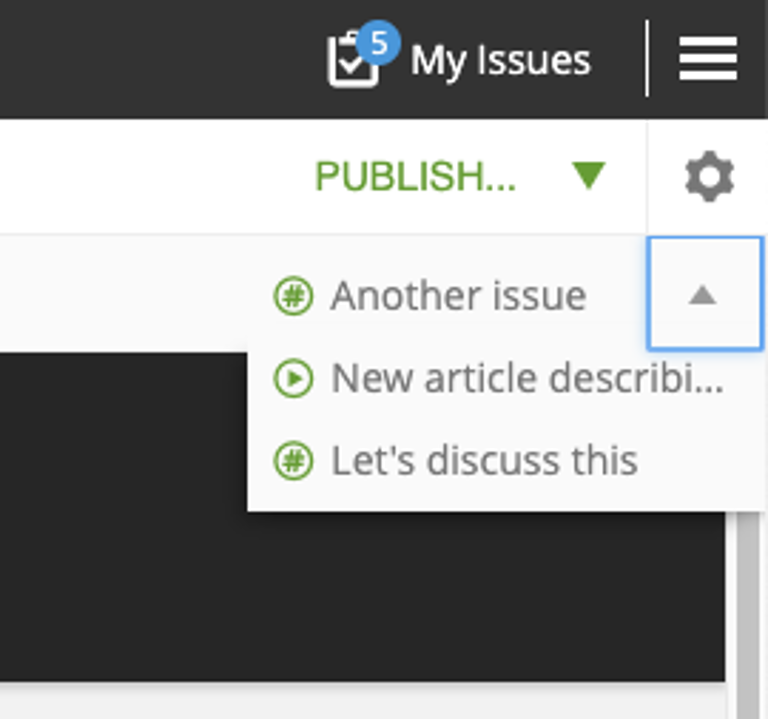
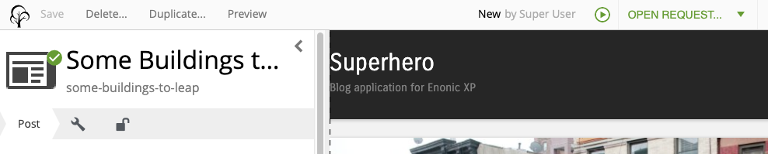
When the currently-edited content is part of an open publish request, the default toolbar action in the Content Editor becomes Open request — clicking it jumps to the most recent open request containing the item.
The full list of open issues and publish requests containing this item is available from the dropdown next to the main button.
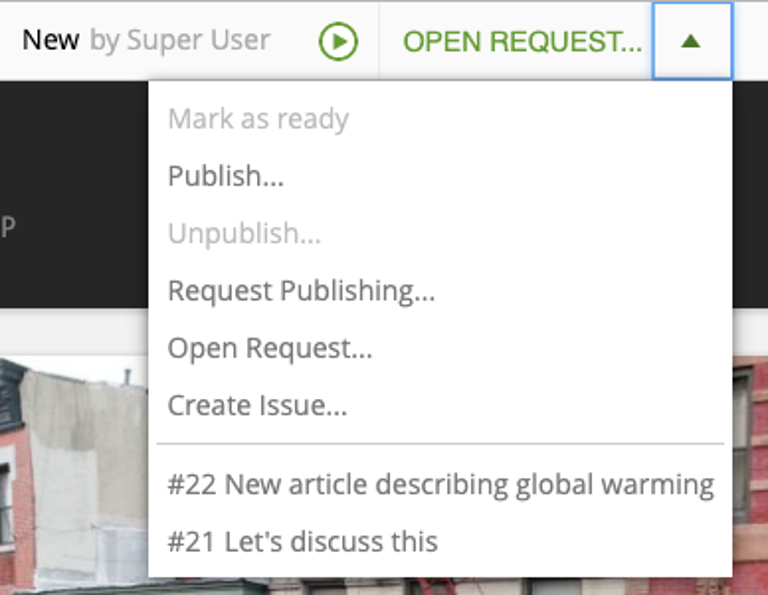
The same list is also shown in the Preview-panel toolbar in the Navigator.