Publish
Contents
Publishing makes content available online. It is the primary deploy mechanism for content in Enonic XP: nothing is visible to end users until it is published.
Before a content item can be published it has to be marked as ready (unless the publisher also has the editing permission and invokes publish from the editor — see Publishing from the Content Editor).
There are three ways to invoke the Publish action:
-
Keyboard shortcut —
⌘ + alt + pon macOS,ctrl + alt + pon Windows/Linux. -
The Publish button in the toolbar.
-
The Publish entry in the context menu (right-click an item in the Content Navigator).
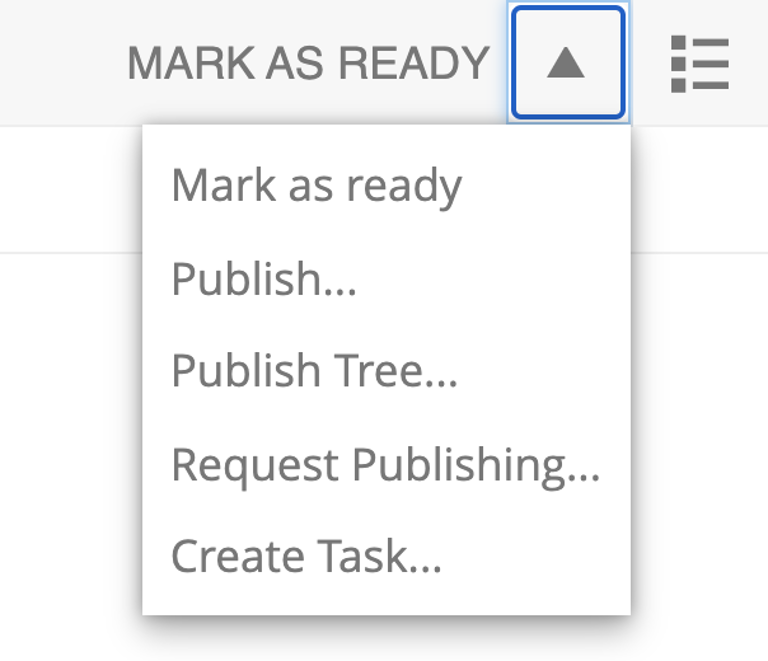
The Publish button’s dropdown in the toolbar carries several related actions:
-
Mark as ready — for in-progress content. After marking, automatically opens the Publishing wizard.
-
Publish — opens the Publishing wizard for the selected items.
-
Publish tree — same wizard, including all descendants and dependencies.
-
Unpublish — available only for published items.
-
Request publishing — available only for unpublished items.
-
Create task — opens the New Task dialog.
| The default action shown on the toolbar button is the first available action for the current selection. |
Draft and Master branches
Content created in Content Studio lands in the draft branch with status New and workflow state In progress. Saves in the draft branch create new versions; the draft can be edited and previewed until it is ready to publish.
When published, the active draft version is copied into the master branch. Only content in the master branch is visible outside Content Studio (subject to the content’s security settings).
Content status
-
New— never published. -
Modified— previously published, then changed in the draft branch. The master version is still live. -
Published— the active draft version matches what is in master. -
Unpublished— was published, then taken offline.
When a published content is edited and saved, the new version becomes active in draft, but master is unchanged. Status flips to Modified, and the content must be re-published for changes to go live.
Content can either be archived or instantly deleted via the Archive dialog. Both take the content offline (remove it from master) if it was published. Instant deletion removes it from both branches; archived items move under the /archive node and can be restored.
Publishing wizard
The Publishing wizard opens when Publish is invoked. The selected content’s ascendants and dependencies are automatically included so the published page will not have missing references.
In the example below, the post "March madness" was selected for publishing. It has two related Category items (/parent and /parent/first-child-category) and one related Author item (/authors/michael-lazell) — those are automatically added to the batch, together with all their ascendants. The total count of items to be published appears on the Publish Now button.
| The calendar icon next to Publish Now enables scheduled publishing. |
| If the current user lacks publish permission for any of the batched items, Publish All is replaced by Request Publishing. |
Dependencies
Child items of the selection can be added to the batch by clicking the tree icon next to the content. Optional dependencies can be excluded using the checkboxes in the dependency list — confirm with Apply.
Some checkboxes are disabled: either the item is a required inbound dependency, or it has children in the list (children cannot be published without all their ascendants). In the latter case, exclude the children first, apply, and then the parent becomes excludable.
| To restore items excluded by mistake, click Show excluded above the list and re-select them. |
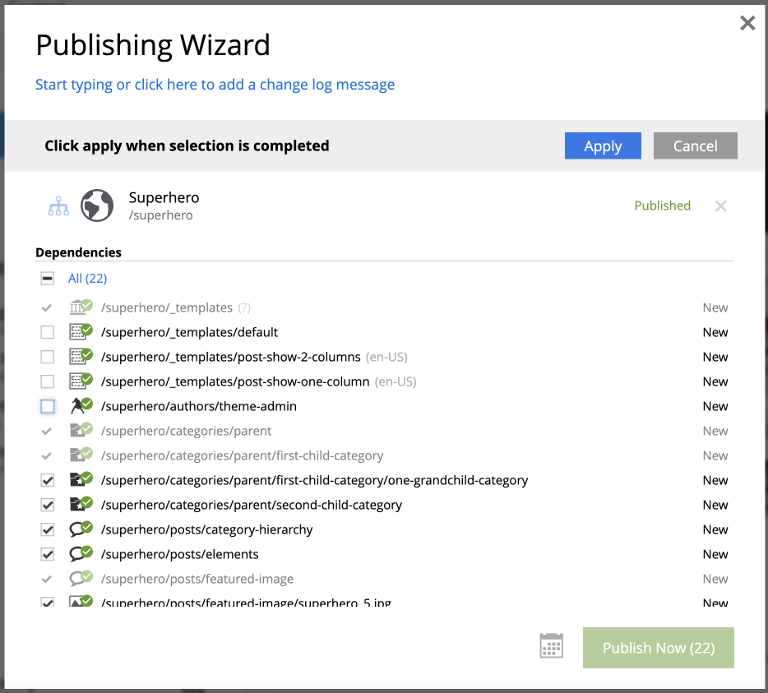
| The default inclusion behaviour can be inverted via the Content Studio config file — in that mode, only mandatory dependencies are auto-included and the optional ones must be manually added. |
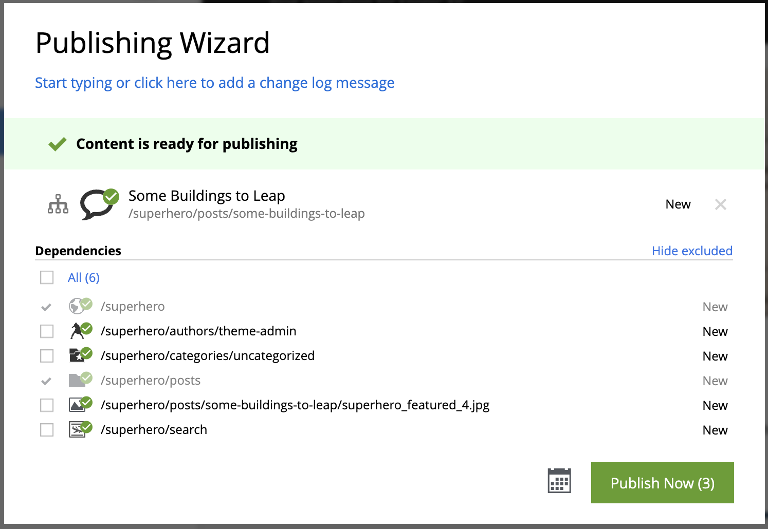
Validation
The wizard validates the batch before allowing publishing. If any items are invalid, still in progress, or not publishable by the current user, a warning appears and Publish is disabled. The problematic items are pinned to the top of the list.
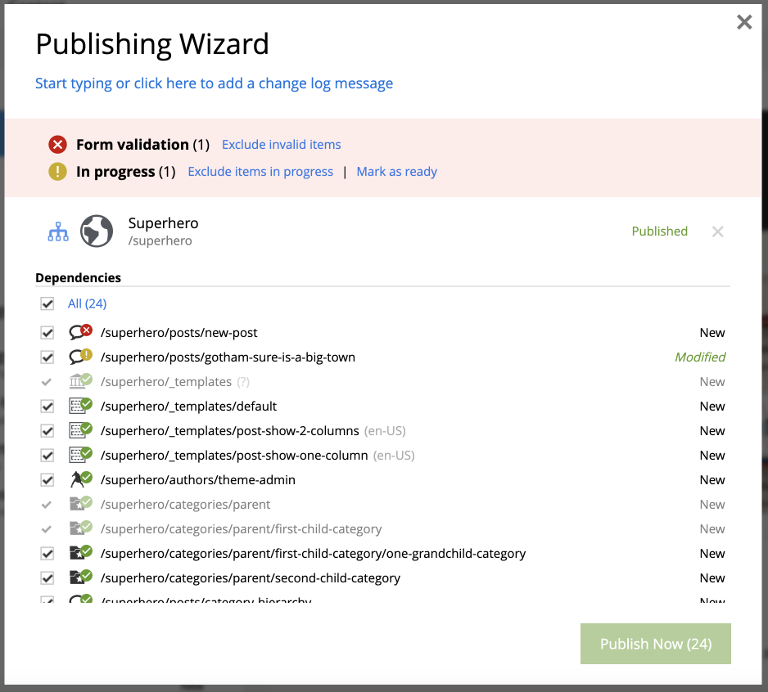
Each validation check has a link that excludes the offending items from the batch. Validation re-runs on every change. Once all checks pass, the warning becomes a green "ready to publish" message and the button enables.
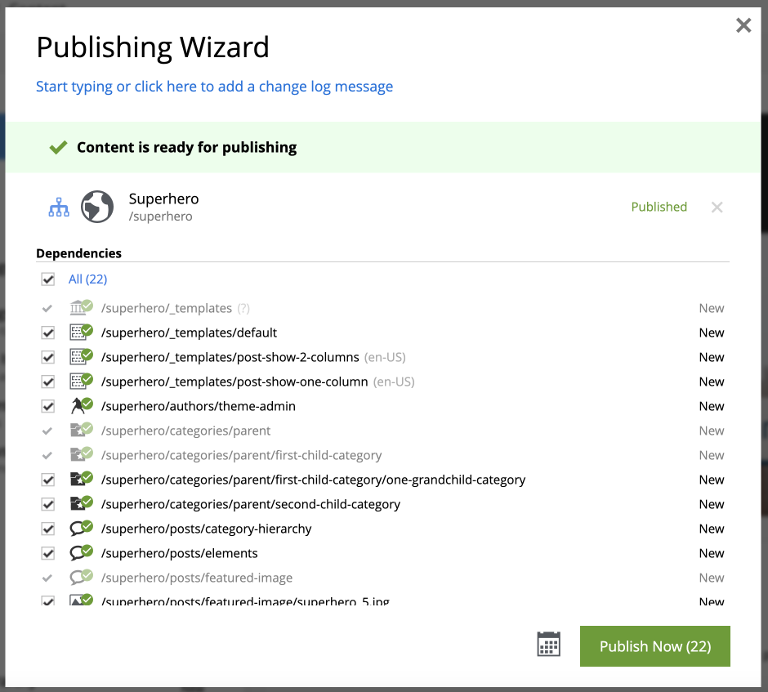
| Use the Mark as ready link in the status bar to bulk-mark all in-progress items as ready. |
| Some items are required for the batch and cannot be excluded — typically parents and mandatory inbound dependencies. |
Publish tree
Publish tree runs the same wizard as Publish, but pre-includes the selection together with all its descendants and their dependencies. Use this when bringing a whole subtree online at once (for example, publishing a freshly-imported section of a site).
Scheduled publishing
The calendar icon in the Publishing wizard opens a scheduling panel at the top of the dialog where you can set the online-from and online-to dates. The Publish Now button relabels to Schedule.
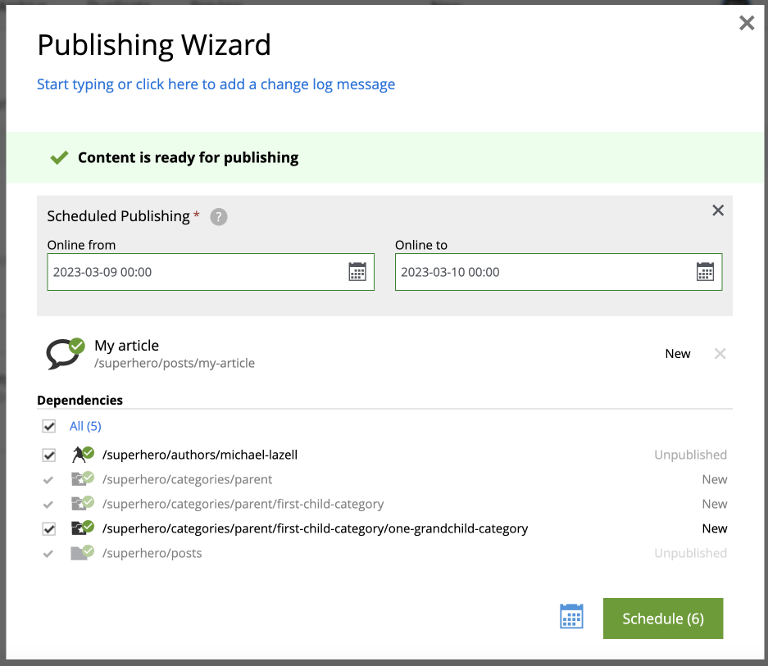
| Only currently-offline items are scheduled. All other changes in the batch are published immediately. |
Publishing from the Content Editor
When Publish is invoked from inside the Content Editor (toolbar button or menu), only the currently-open item is pre-selected in the wizard.
| Users with publish permission can use Publish… on content that is still In progress — doing so automatically marks it as ready, on the assumption that requesting publish signals the work is done. |