Preview
Contents
The Preview panel shows how the selected content will appear to an end user. It sits in two places:
-
In the Navigator, to the right of the content tree.
-
In the Editor, in the middle, when the content is not renderable. For renderable content (sites, pages, page templates, and any content type with a supporting template) the middle panel is replaced with the Page editor — a drag-and-drop page-building surface rather than a read-only preview.
Preview is pluggable: the actual view that appears depends on the content item, the applications installed on its site, and any preview contributions from those applications.
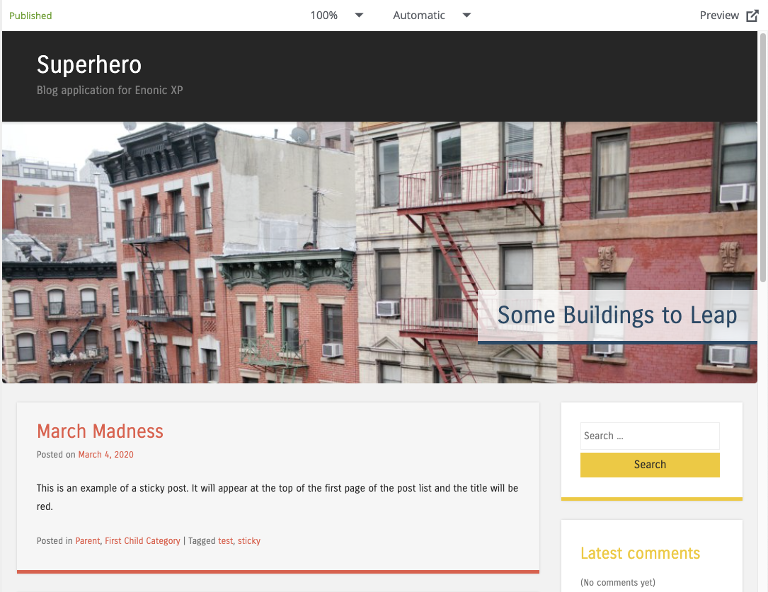
In the Navigator the preview is dynamic — clicking a link will navigate you to the target page, both inside the preview panel and the content tree. Only the Draft version of content is visible.
Toolbar
The preview-panel toolbar contains:
-
Current status of the selected content item (e.g.
New,Published,Unpublished,Modified). For items that have been published and then modified, an icon ( ) lets you compare current with published.
 -
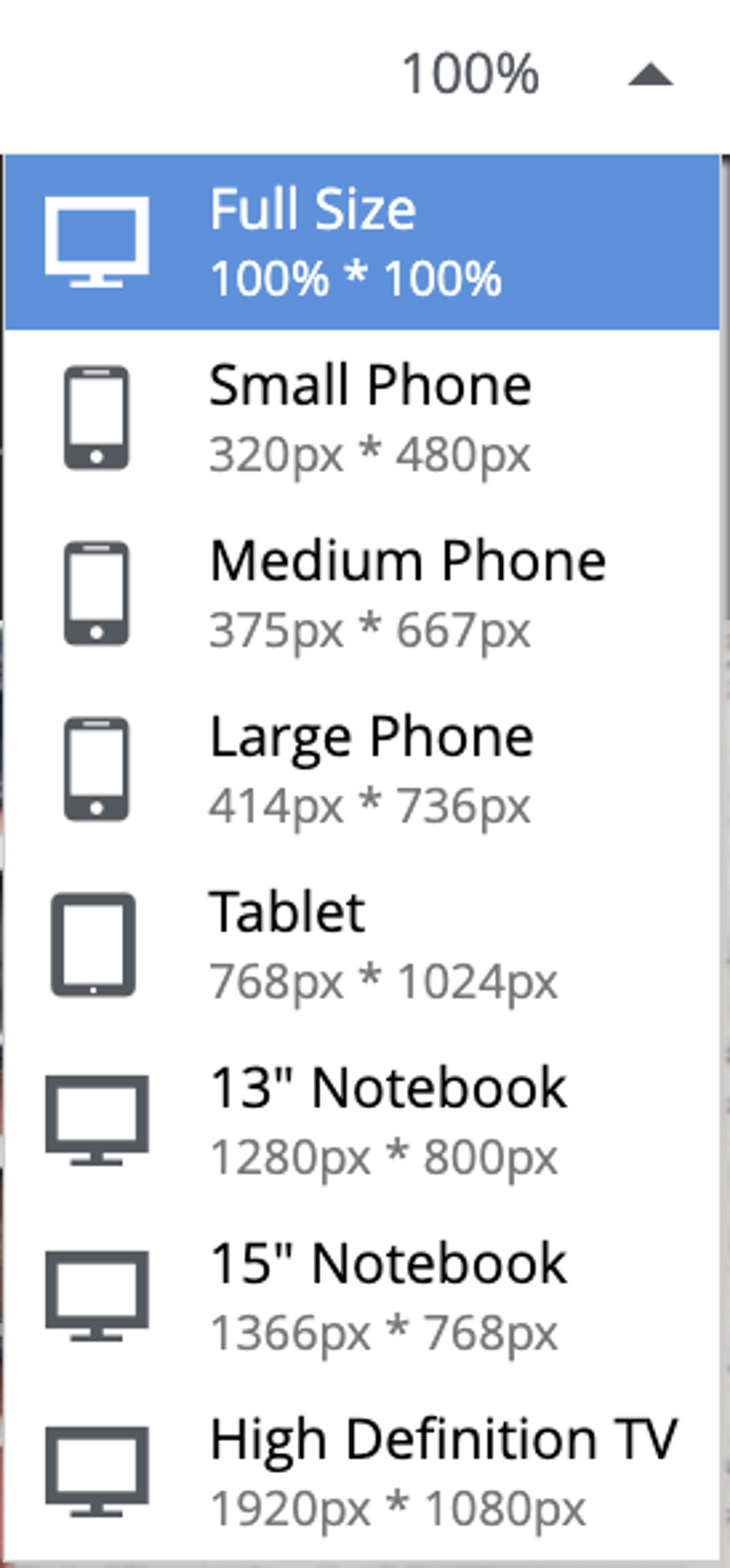
Emulator dropdown to emulate screen resolutions of various device types (monitor, tablet, mobile).
-
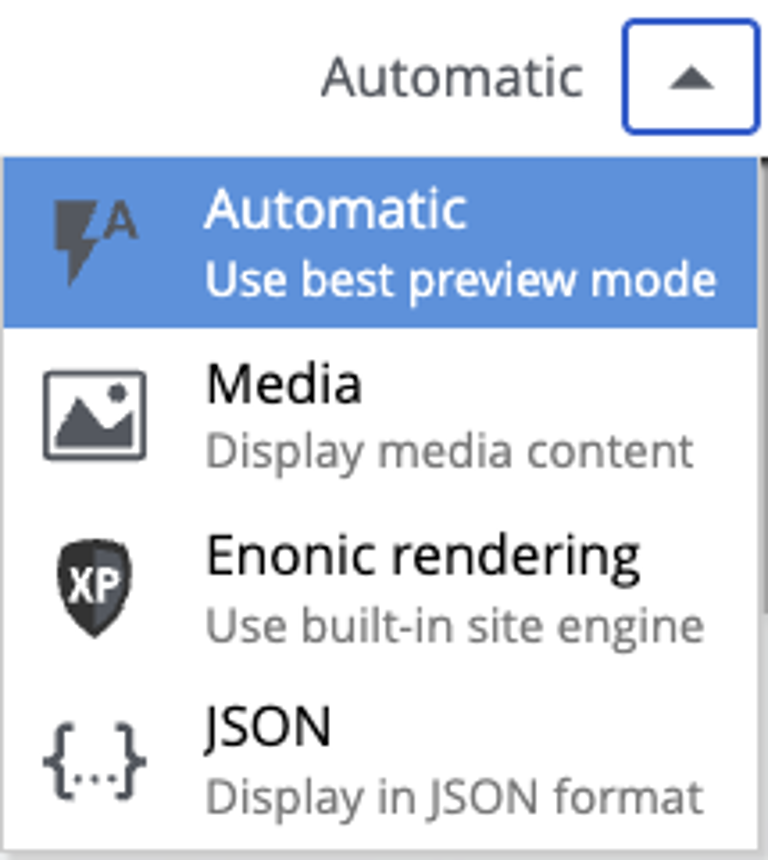
Preview mode dropdown. The default is Automatic, which finds and uses the first mode that supports preview of the current content. You can explicitly pick a mode from the list.
-
 button — opens the preview in a new browser tab. The currently selected preview mode is used in the new tab.
If currently selected content cannot be rendered by any of the available preview modes, the preview panel displays an error message.
Preview modes
Content Studio ships with a handful of built-in preview modes. Automatic is the default; the others can be selected explicitly from the preview-mode dropdown.
- Automatic
-
Picks the first mode that supports the current content. This is the default.
- Media
-
For image, video and other media content types. Shows the media itself at its original resolution, with basic metadata.
- Enonic rendering
-
Uses Enonic’s Site Engine to render the content, typically the same renderer used in production.
- Plain preview
-
For content that has a page controller but no editable regions — shows the rendered output without the page-editor chrome.
- JSON
-
Displays the current content in JSON format. Available for any content, but not used as a fallback by Automatic.
- Unavailable
-
For content that cannot be rendered (folders, shortcuts, unstructured content without a supporting template), the Preview panel is hidden or shows a placeholder. The Context panel remains available for these items.
Contributing a preview mode
Applications can contribute their own preview modes. Custom modes appear in the preview-mode dropdown alongside the built-ins.
See the Live view extension reference for the descriptor format, lifecycle, and implementation details.