Image
Contents
Uploading an image file creates an Image content item. Storing images as content means they are indexed for search, inherit the site’s language and permissions, and can be referenced by ID from other content.
Image content items have fields for Caption, Artist, Copyright, Tags, and Text, and automatically pick up any Exif metadata from the source file. The underlying file can be swapped via the upload button or by dragging a new file onto the preview.
The Content Editor provides two specialised image-editing tools — Cropping and Focal point — that operate on the uploaded file and affect how the image is delivered when it is referenced from other content.
Cropping
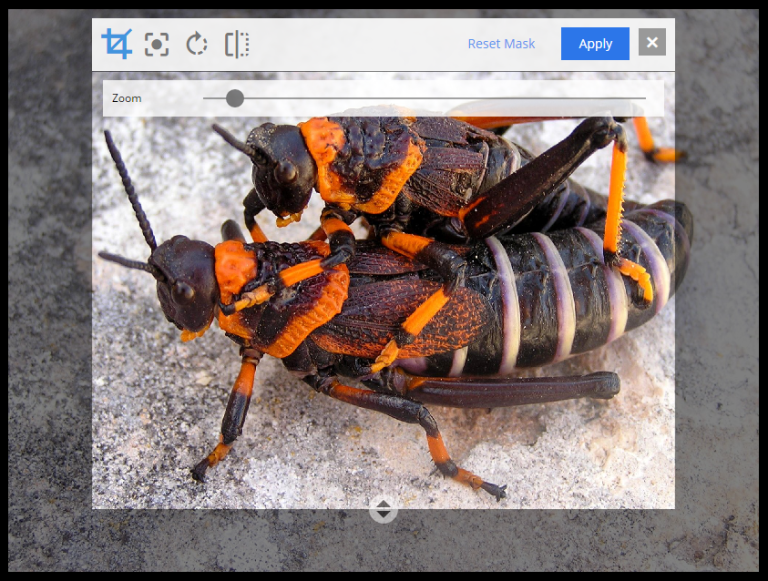
The crop icon above the image dims the surrounding area and reveals the crop-editing tools. The zoom slider enlarges the preview; the image can be dragged to reposition. The aspect-ratio handle (circle with arrows at the bottom) changes the crop ratio. Apply returns the editor to normal mode.
Focal point
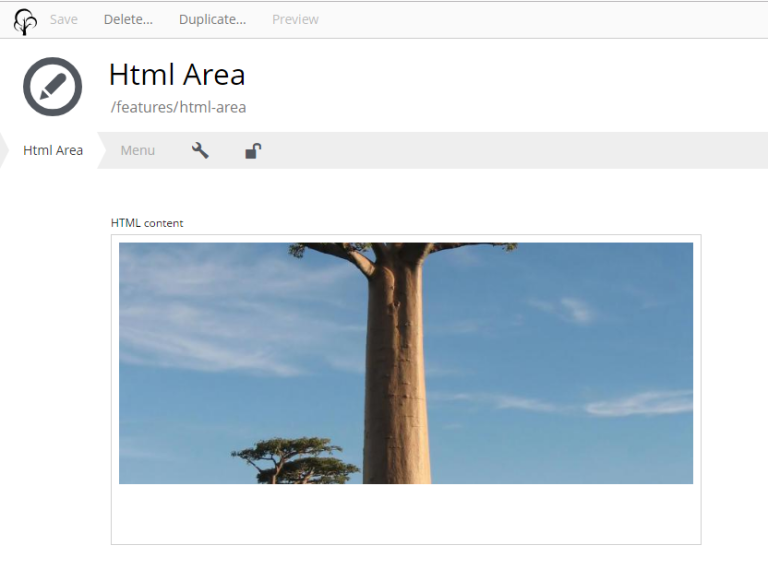
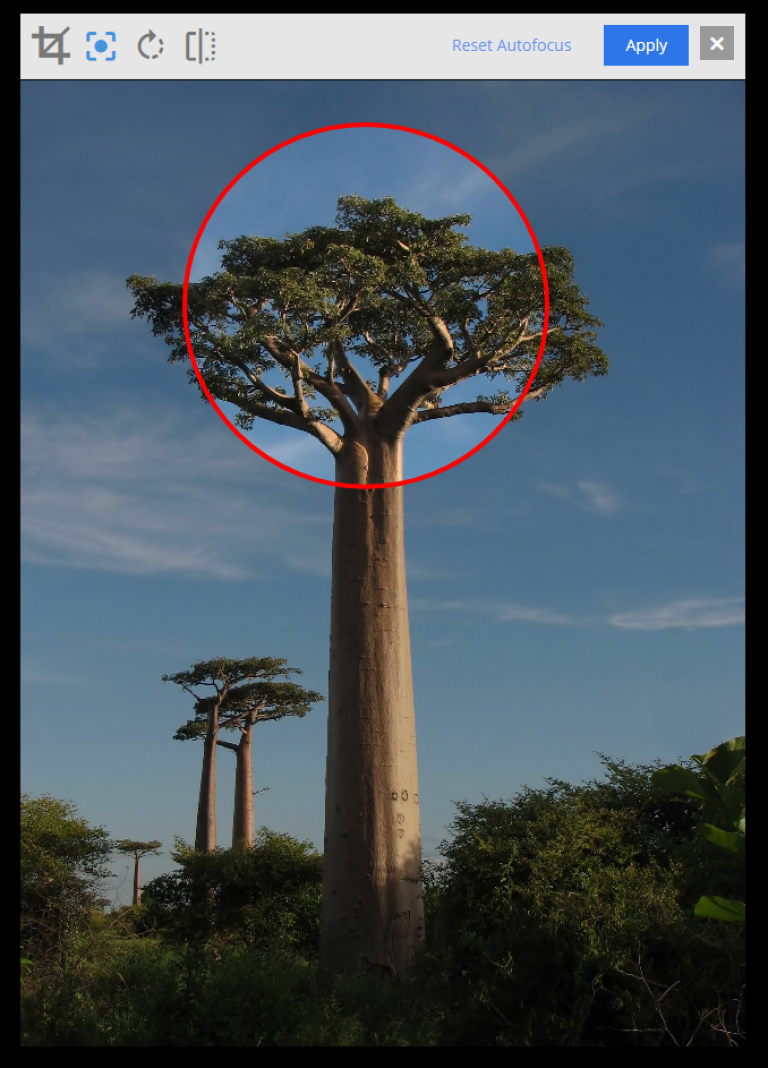
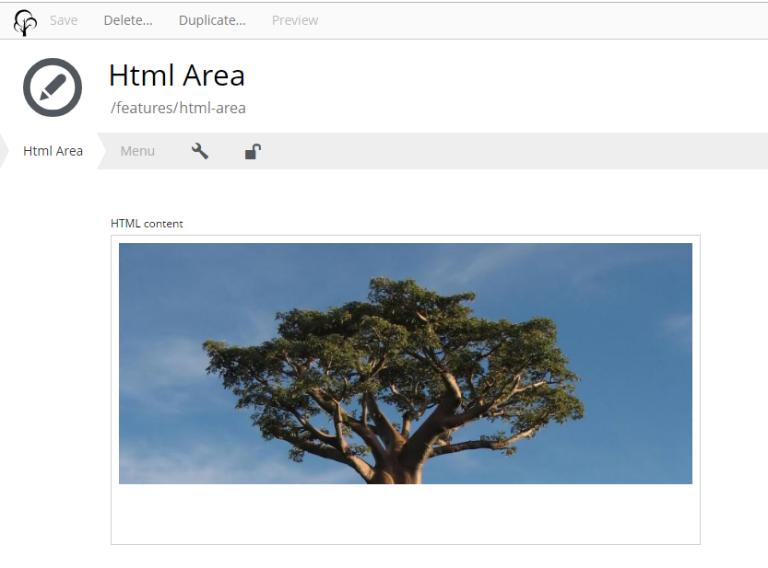
Rendered images often need to be cropped to match a different aspect ratio than the original, which can cut off the subject. Setting a focal point tells the renderer which part of the image to always keep in frame.
Click the focal point icon, then click the part of the image that should stay centred, and Apply. The focal point is marked with a red circle in the editor.